How to build a YouTube thumbnail downloader app with Softr and Apify

.webp)
Every company has the big-ticket tools: a CRM, a project manager, a communication platform. But every team also ends up with a handful of very specific, recurring needs that don't fit neatly into any of those. Extracting YouTube thumbnails is one of them.
It might sound niche, but it comes up more than you'd think. If you work on content or marketing, you might be collecting competitor thumbnails for inspiration, analyzing what drives click-through rates, or building a moodboard for your own video strategy. If you're in brand or PR, you might want to display a gallery of press coverage videos on your website using their actual thumbnail images. And if you're a creator who's lost access to original files, downloading your past thumbnails is the fastest way to get them back.

The usual workaround is a screenshot, but that always captures interface noise: the progress bar, the channel avatar, the suggested videos. You never get the clean, full-resolution image. There are one-off web tools for this, but they're disconnected from your team, don't store anything, and give you no way to organize what you've collected.
In this tutorial, we'll build a proper team tool for this: a simple Softr app where anyone on the team can paste a YouTube URL, extract the thumbnail at full quality, and have it automatically saved to a shared database. No code written.
You can watch the full tutorial here:
What is Softr, and why use it for this?
Softr is an AI-native platform for building business apps without code. You describe what you need, and Softr's AI Co-Builder creates the database, interface, and business logic, already connected and ready for real users. For anything that needs a more hands-on approach, every part of the app is also fully configurable through visual controls. No code, no fragile AI-generated architecture to debug.
For a YouTube thumbnail extractor, this is exactly the right stack. You need a place to store extracted thumbnails (Softr Databases), a simple interface for your team to use (interface builder), and a way to call an external API that does the extraction (Softr Workflows). Softr handles all three without requiring you to stitch together separate tools or write any backend code. The app ships production-ready from day one, with authentication and permissions built in, so you can share it with your team immediately.
The thumbnail extraction itself is powered by Apify, a platform that provides ready-to-use web scrapers and data extraction actors. There's a free-to-use actor specifically for downloading YouTube thumbnails at the highest available resolution.
What you'll learn
In this guide, you will:
- Create a Softr Database to store your extracted thumbnails.
- Use the Vibe Coding block to build a URL input interface with a single AI prompt.
- Set up a Softr Workflow that calls the Apify API to extract the thumbnail and save it automatically.
- Add a List block below the input so your team can browse saved thumbnails.
- Publish the app and share it with your team.
Who is this YouTube thumbnail extractor for?
This tool is useful for any team that regularly works with YouTube content:
- Content and marketing teams building a moodboard or competitive analysis of thumbnail strategies, where quality and scale matter.
- Brand and PR teams who want to pull thumbnails for press coverage videos to display on a website or in a report.
- Video creators who've lost access to original thumbnail files and need to retrieve them from published videos.
- Operations teams managing any recurring process where YouTube video metadata needs to be captured and stored alongside other records.
The app blueprint
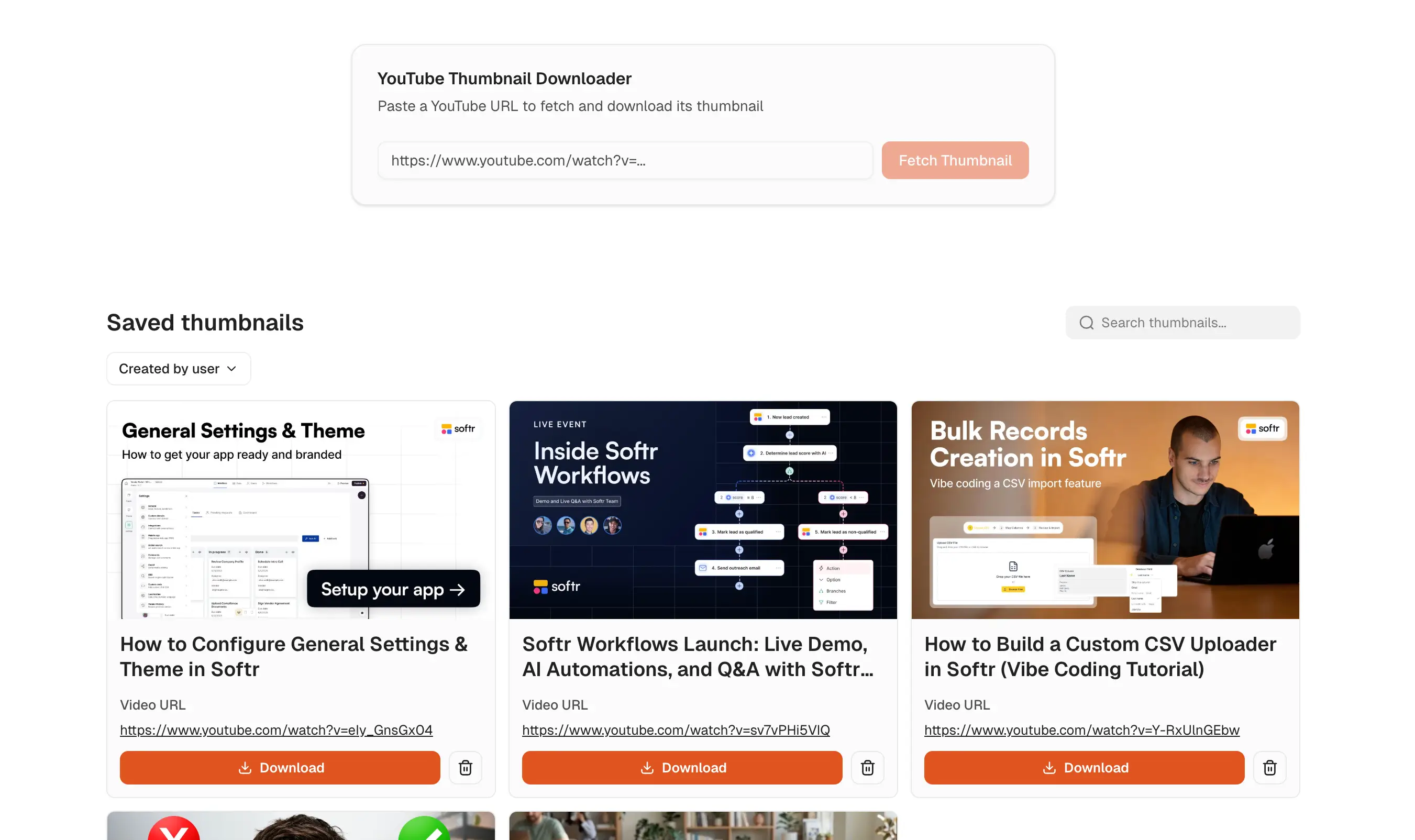
Our finished app will have two sections on a single page:
- URL Input (top): A Vibe Coding block with a text input and a submit button. Paste a YouTube URL and trigger the extraction.
- Saved Thumbnails (bottom): A List block showing all previously extracted thumbnails with their title, URL, and image.
Part 1: Setting up the database
Core principle: Success in Softr is 80% data structure. Always start with the database before touching the interface.
1.1 Create a new app with a Softr Database
From your Softr dashboard, click Create New App and choose Softr Databases as your data source. Name your app something like Thumbnail Extractor.
1.2 Create the Thumbnails table
In the Softr Database studio, you can use the AI Co-Builder to scaffold your table quickly. Type something like:
I need a table to store YouTube thumbnails. Fields: video URL, video title, thumbnail URL (a URL field), thumbnail image (an image field), and extracted at (a date/time field).
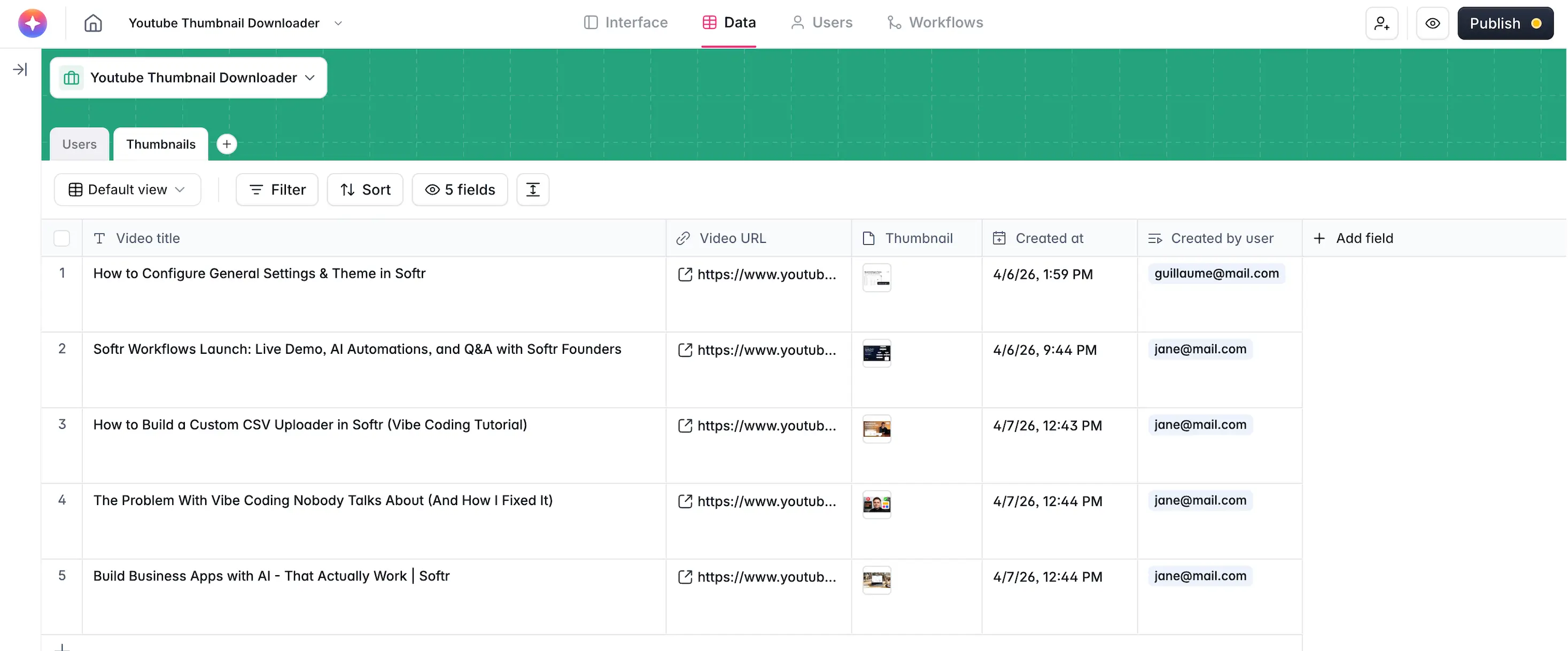
The AI will generate the table with the right field types. Confirm the structure looks like this:
- Video URL → URL
- Video Title → Short Text
- Thumbnail URL → URL
- Thumbnail Image → Image
- Extracted At → Date & Time
Part 2: Building the input interface with the Vibe Coding block
2.1 Add a Vibe Coding block to your page
In the Softr Studio, go to your app's main page and add a new block. Select Vibe Coding under the AI blocks section.

When configuring it, connect it to your Thumbnails table. This lets the AI-generated block write new records directly to your database once the extraction is complete.

2.2 Write your prompt
This is the core of the build. Be specific about what the block should look like and what it should do when submitted. Here's the an example prompt:
Build a simple interface to download YouTube thumbnails from a video URL. User pastes a YouTube video URL and clicks “Fetch thumbnail”. This sends a POST request to {{WEBHOOK_URL}} (replace with your own endpoint) with the video URL. The webhook returns two fields: “thumbnail URL” (image URL) and “video title”. Display both in the interface. Provide three actions: “Save in database”: create a Softr database record with title, video URL, thumbnail URL, and the user who created it“Download”: download the thumbnail to the user’s device“Reset”: clear the interface to try a new URL If the request fails or returns invalid data, show a clear error message.
Hit send and let the AI generate. The result is a minimal, clean input block with a text field, a button, and built-in loading and success states.

2.3 Customize the block settings
Once generated, you can adjust a few settings directly in the Softr block panel without touching the code: the label text, the placeholder copy inside the input, and the button label. These are exposed as editable settings in the block's configuration sidebar.

Part 3: Setting up the workflow to extract thumbnails
The Vibe Coding block collects the URL and sends it to a webhook. Now we need to build the workflow that receives that webhook, calls Apify to extract the thumbnail, and returns the result back to the block.
3.1 Create a new Softr Workflow
Go to Softr Workflows in the Studio and create a new workflow. Set the trigger to Webhook (POST).
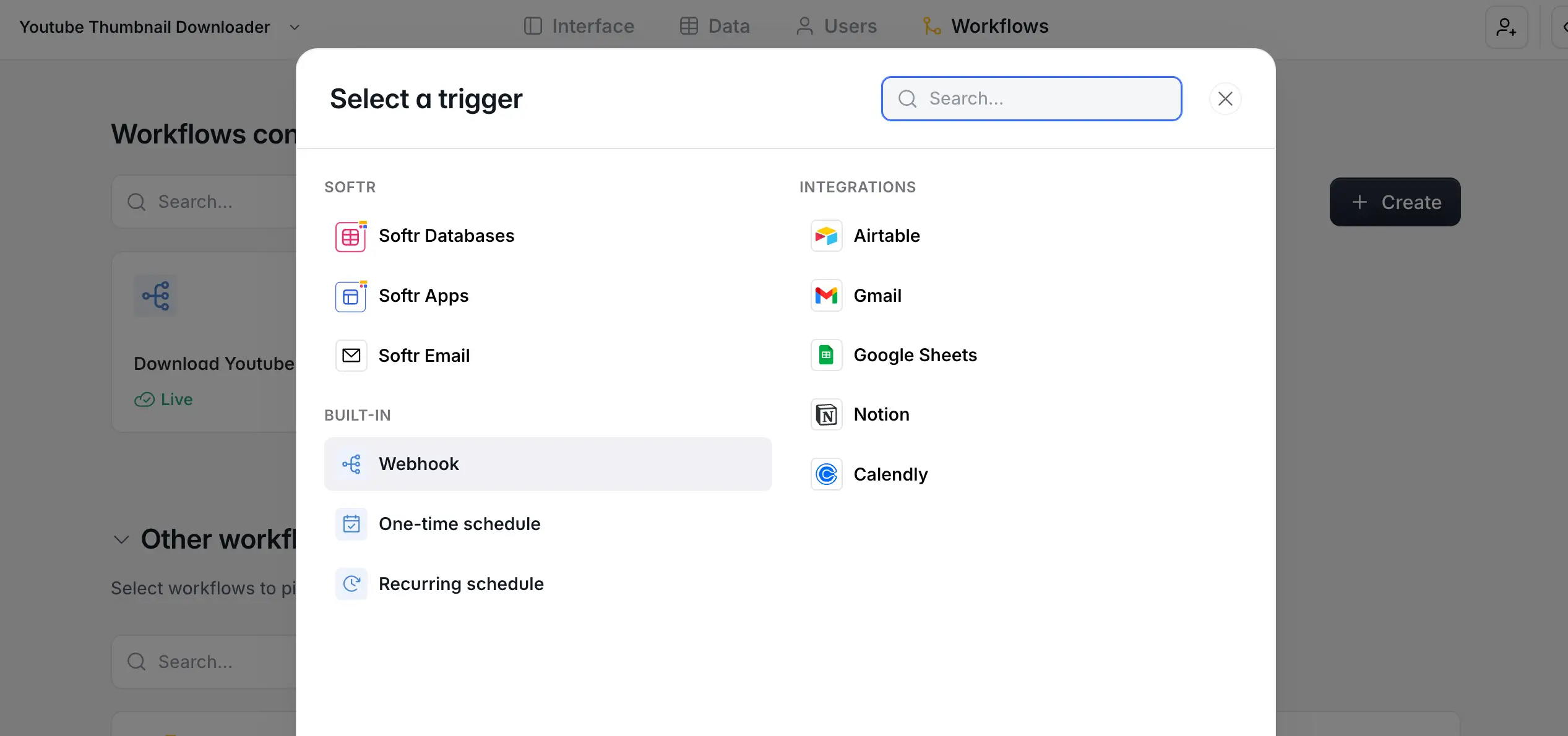
Softr will generate a unique webhook URL. Copy this URL and paste it into the Vibe Coding block's webhook field in the code (or as a configurable variable if you set it up that way in your prompt).

3.2 Add an HTTP Request step to call Apify
Add an HTTP Request step to your workflow. You'll call the Apify YouTube thumbnail actor. The endpoint looks like this:
In the request body, pass the YouTube URL received from the webhook payload:
{ "startUrls": [{ "url": "@video_url" }] }

Use your Apify API token in the Authorization header. You can find this in your Apify account settings.

3.3 Process Apify's output with a code step
Apify's response is more than you need. The thumbnails come back as an array of objects, and the title is nested inside it too. Before you can return clean values to the Vibe Coding block, you need to extract exactly what matters.

Add a Code step between the HTTP Request and the final Respond to Webhook. (Alternatively, the Transform Data action from Softr's Utility actions can handle this without code.) Define two input variables for the step:
- Title → the title field from the Apify response body
- Thumbnails → the thumbnails array from the Apify response body
The code does two things: it scans the thumbnails array for the entry whose URL contains maxresdefault — that's the pattern Apify uses for the highest-resolution version — and it converts the title from its raw format into a plain string.
You don't need to write this from scratch. The code step has a "Help me write code" button built in. Once you've defined your input variables, click it and describe what you want: something like "find the URL in the Thumbnails array that contains 'maxresdefault', and return the title as a plain string". The AI generates the code for you. In the video, this worked on the first try without any edits.
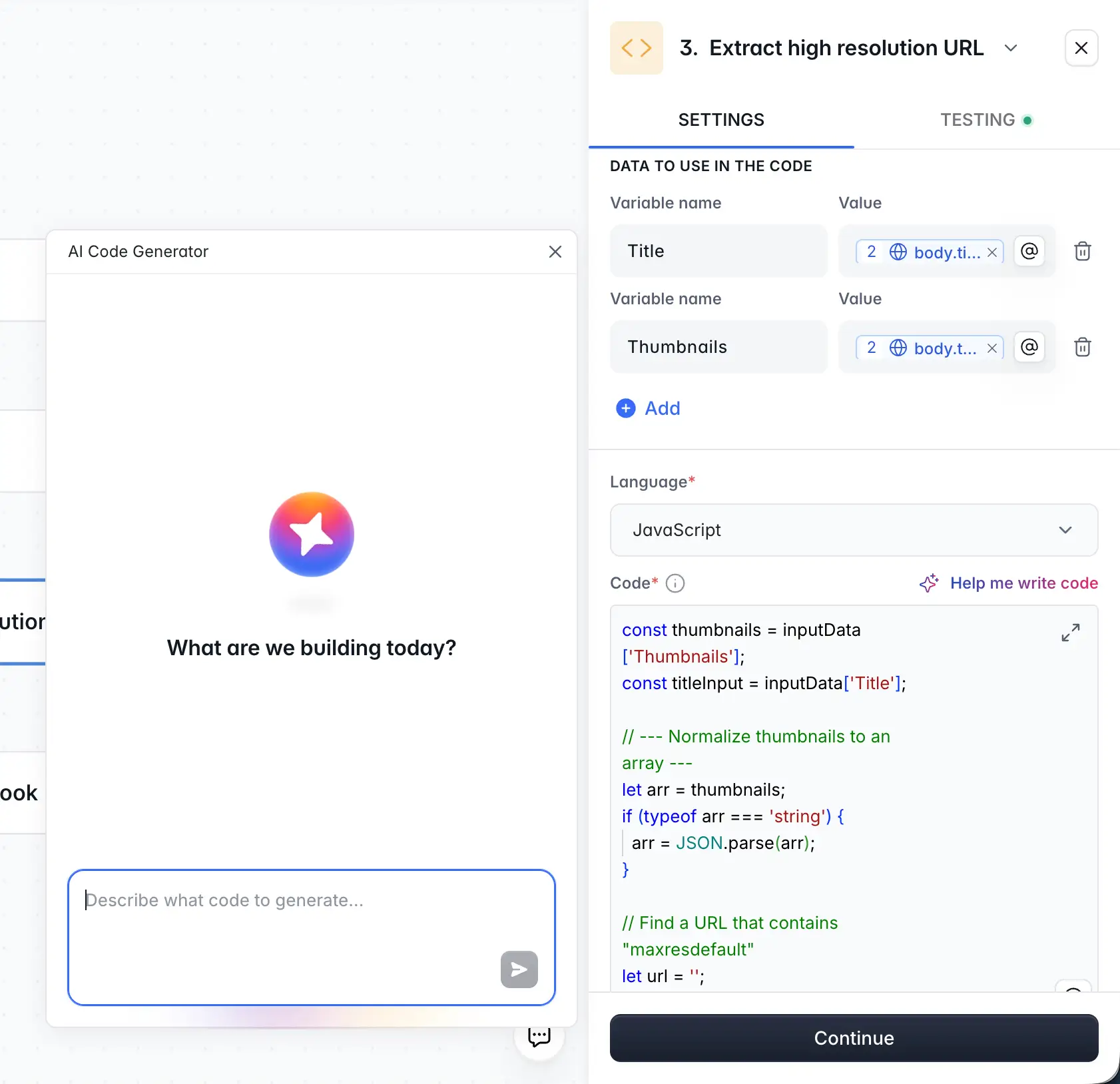
This is a pattern worth remembering more broadly: API responses often return more data than you need, or in a shape that's inconvenient to pass downstream. A code step or a Transform action is the right place to clean that up before sending it back to the interface.
3.4 Return the result to the Vibe Coding block
Add a Respond to Webhook step as the final step in your workflow. Map the two cleaned values output by the code step:
- title → the plain-text title from the code step
- thumbnailUrl → the maxresdefault URL from the code step

The complete workflow is four steps: Webhook → Call Apify → Extract high-resolution URL (code) → Respond to Webhook. No database write happens here.
Once the block receives the response, it displays the video title and the full-resolution thumbnail directly in the interface.
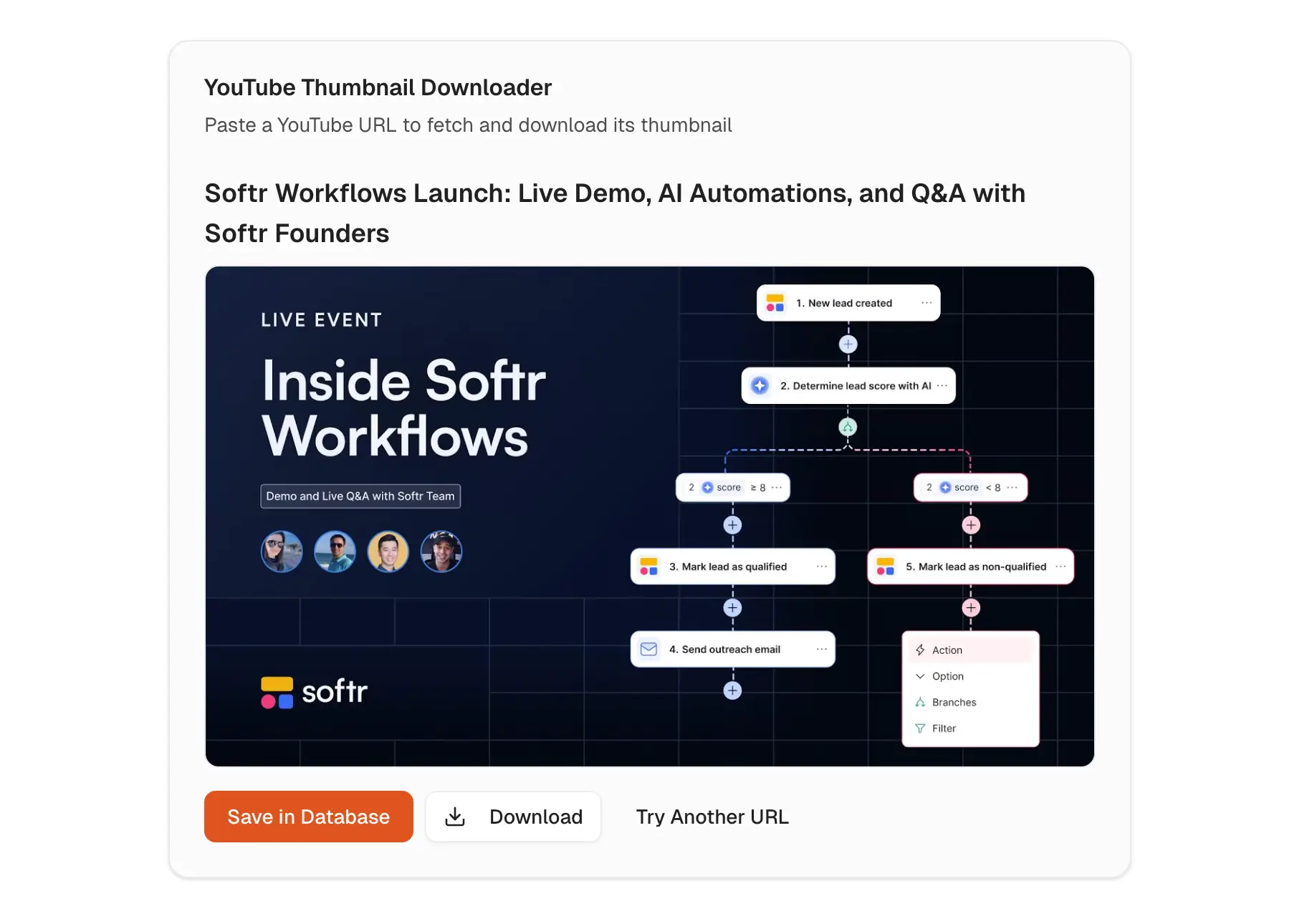
From there, the user has three options:
- Save to database: writes the record to the
Thumbnailstable (title, video URL, thumbnail URL, and the current user). - Download: downloads the thumbnail image directly to the user's device.
- Reset: clears the interface to extract another URL.
This keeps the decision in the user's hands. If they just want to preview the thumbnail without storing it, they can. If they want to save it to the shared library, one click does it and the record immediately appears in the List block below.
Part 4: Displaying saved thumbnails
Now that the extraction and storage logic is in place, let's add a way for the team to browse what's been collected.
4.1 Add a List block below the input
On the same page as your Vibe Coding block (or another page if you prefer), add a native List block and connect it to the Thumbnails table. Configure it to display:
- Thumbnail Image as the block's primary image
- Video Title as the headline
- Video URL as a clickable link
- Extracted At as a secondary detail
The easiest way to do so is to open the AI co-builder and ask for such a block.

From there you can click on that block and also do some manual edits for example sorting the list by Extracted At in descending order or adding item buttons to enable to download or delete those saved thumbnails.

Part 5: Publishing your app
5.1 Set your app theme
Before publishing, take a moment to set your app's theme in the Theme settings panel. Choose your brand colors, font, and border radius. Because the Vibe Coding block inherits these settings automatically, both the custom input block and the native List block will look consistent without any extra CSS work.

5.2 Publish and share
Click Publish in the top right. Softr will give your app a live URL you can share with your team immediately.
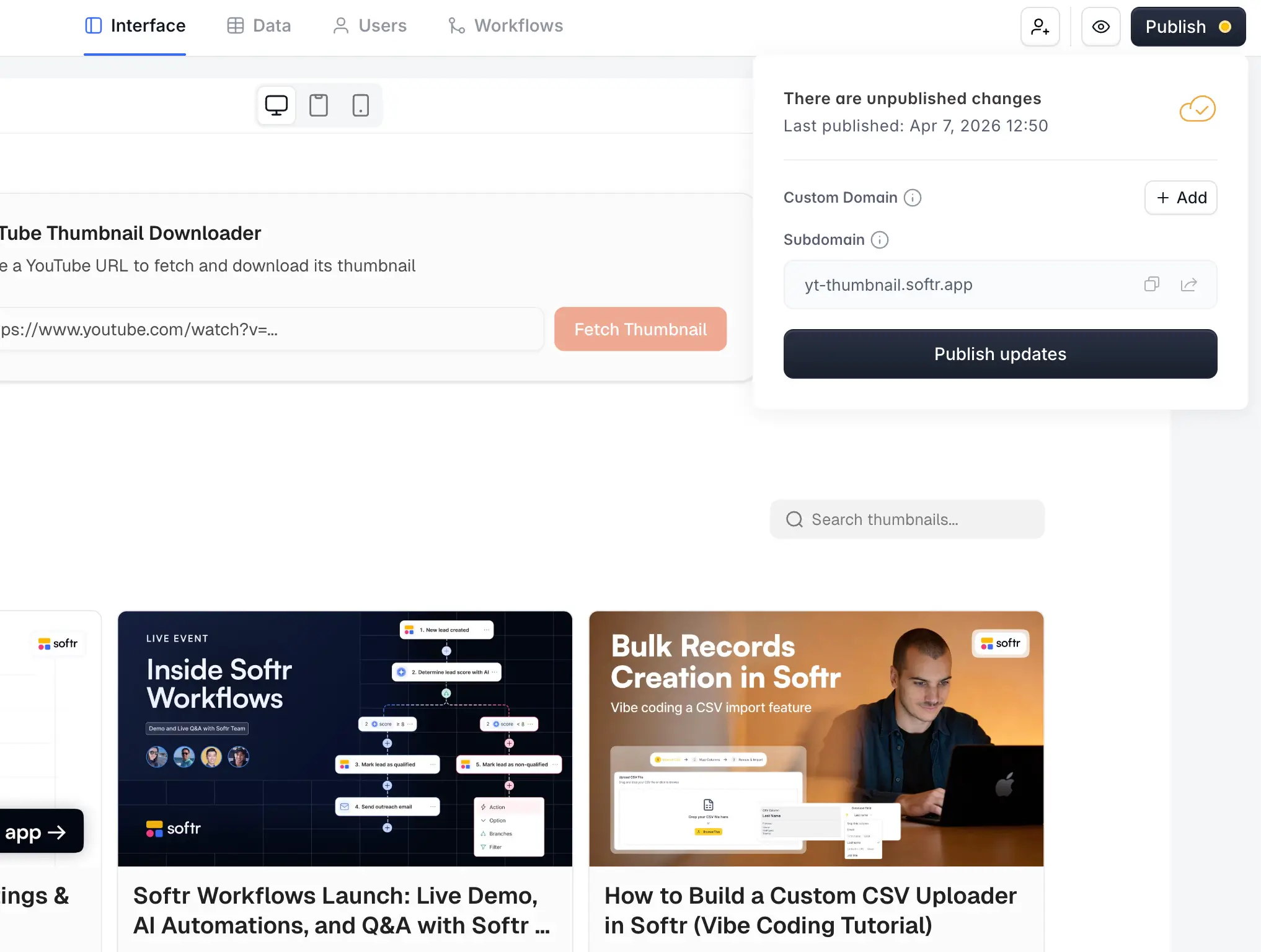
If you want to restrict access to specific team members, set up users and permissions by adding a login page and assigning a user group. For most internal tools like this one, a simple password-protected page is enough.
Going further: what else you can build on top of this
This app is intentionally minimal, but the same pattern extends naturally in a few directions:
- Add a tagging system. Add a
TagsorCategoryfield to your Thumbnails table and let team members label extractions (e.g., "Competitor", "Inspiration", "Brand mention"). Then add a filter to the List block so they can browse by category. - Connect to an existing video tracker. If your team already has a Softr database tracking YouTube videos or press mentions, you can link the Thumbnails table to it and trigger extractions directly from that existing workflow.
- Automate from a spreadsheet. If you have a Google Sheet or Airtable base listing a batch of YouTube URLs, you can trigger the Softr Workflow in bulk using a workflow loop, populating your thumbnail library automatically.
A thumbnail extractor your whole team can use
Fifteen minutes, one AI prompt, and a three-step workflow. That's what it takes to turn a recurring manual task into a proper team tool: one that stores everything, is accessible to everyone, and runs on demand without any technical setup.
This is where Softr's approach makes the difference. You're not just extracting thumbnails, you're building a production-ready internal tool with a database, a shared interface, and automated logic. The kind of thing that would normally require a developer and a few days of work.
Ready to build?
Frequently asked questions
Do I need an Apify account to build this?
What resolution are the thumbnails extracted at?
Can multiple people on my team use this at the same time?
Can I use a different data source instead of Softr Databases?
What if I want to store the image file itself, not just the URL?