Google Sheets is the second most popular spreadsheet software, with over 900 million monthly users globally. However, despite its popularity, the Google Sheet interface is quite limiting, especially for advanced data analysis and database management. Softr is the ultimate platform for business apps, letting you turn your spreadsheet data into secure, functional tools in minutes.
For example, Google Sheets doesn’t offer interactive charts, which can be frustrating when trying to filter data points and drill down into details to interpret complex datasets.
While it supports integrations, setting them up can be tiring and less intuitive compared to using a dedicated interface builder. Plus, if you have no coding experience, you’ll find Google’s Apps Script difficult to use, particularly when trying to create custom functions.
The best way to overcome this limitation is to build a custom interface using Google Sheets as a data source using a free no-code interface builder. This way, you can create custom views and add interactive charts to make your data accessible and easier to manage and interpret.
Below, we explain how to build an interface for Google Sheets using a free no-code builder like Softr, including how to choose the right platform for your needs.
Why build a user interface for Google Sheets?
A custom user interface makes it easier and more intuitive for users to work with data in Google Sheets, especially when dealing with large datasets or multiple spreadsheets.
Instead of scrolling through rows and columns of data in Google Sheets, you can design your interface to present data in a way that is easy to understand and navigate.
Say you want to view and manage all your sales deals, sales activities, and contact details.
Without a custom UI, you would need to scroll through the sheet to find specific information or navigate and move back and forth between tabs.
Plus, a custom interface can be designed to share different information with users based on their role, and even let users edit directly from the interface. This is useful for sharing data and information with clients or other teams from your spreadsheets, but only the data they need to see.
An interface builder allows you to add additional functionality and tailor it to your specific needs at no additional cost. For example, you can include a search bar so users can quickly find what they need by typing account names or other defined parameters.

You can also include interactive forms for users to input data and implement validation rules to ensure data is entered correctly.
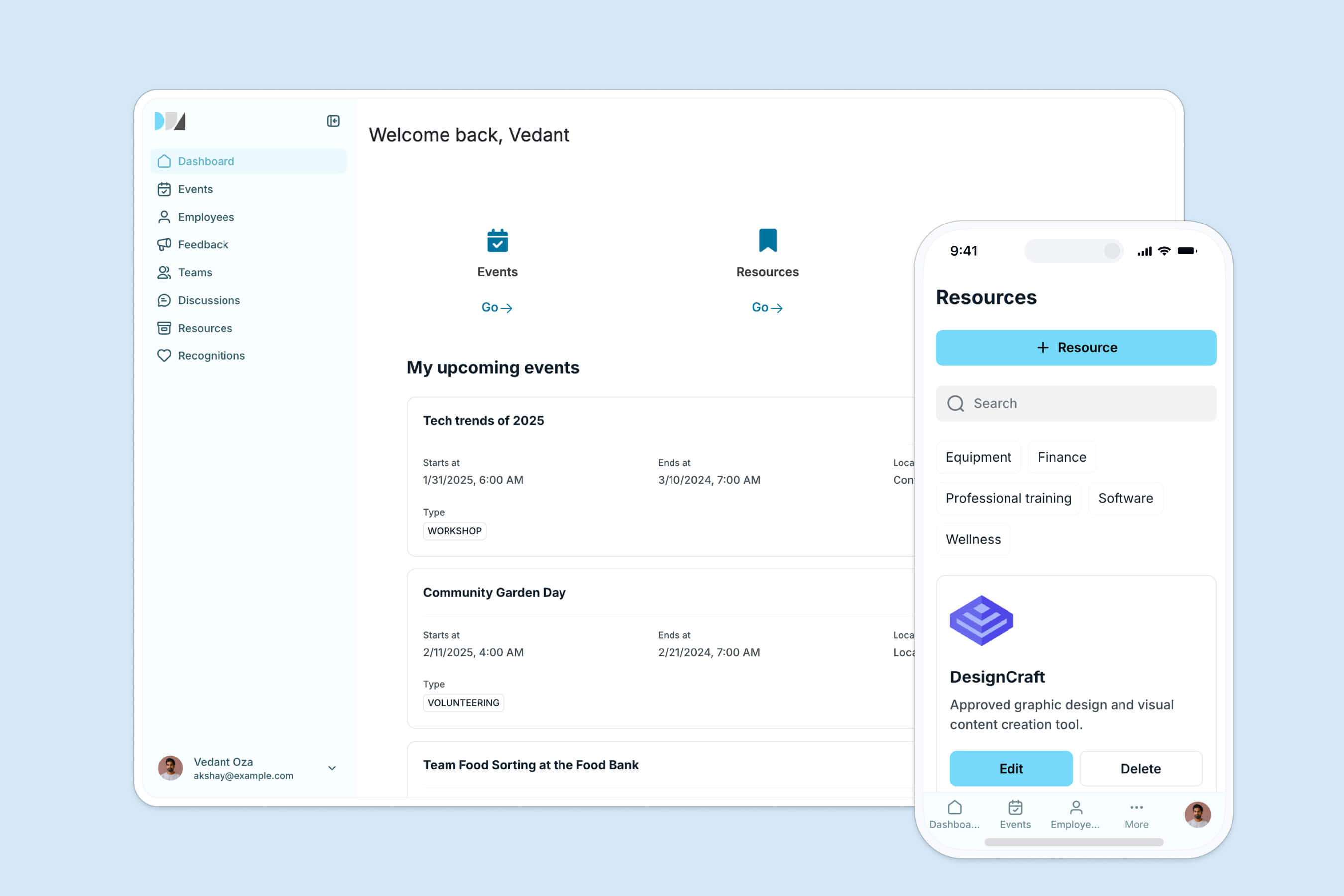
Including these elements in your interface ensures that users can find and use the data they need despite not being Google Sheets experts; the interface guides them through the process.
How to build an interface for Google Sheets using Softr
Softr is an AI-powered no-code app builder that lets you build user-friendly portals and internal tools on top of your spreadsheet data.
To build your application, you have three options. You can build from scratch using drag-and-drop blocks, start from a pre-built template, or use our AI Co-Builder to generate pages, layouts, and data mappings in minutes from a simple text prompt. Once created, you can customize fonts, colors, and permissions visually inside the editor.
While connecting your app to Google Sheets is a great start, you can also utilize native Softr Databases to keep your database, interface, and workflows in one unified platform. Transitioning is simple: you can easily migrate your Google Sheets data by exporting it as a CSV and importing it directly into a Softr Database, giving you a faster, more secure, and better-structured database to power your applications.
Plus, Softr’s built-in user authentication lets you create sections of your interface that are only accessible to logged-in members. This is useful for content you want to keep restricted to a specific group.
You can also customize what different users see based on their login credentials. For example, if you’re building an employee directory, you can make individual contributors see their own performance metrics while a manager sees an overview of the entire team's performance.
How to Build an Interface in Google Sheets
Learn how to build an interface in 10 minutes or less by connecting Google Sheets to Softr.
Step 1: Log in to Softr or create an account
If you don’t have an account, sign up for free. Or log in if you already have one.

Step 2: Choose a template
Softr offers a wide variety of professionally designed templates so you don’t have to start building your Google Sheets user interface from scratch.
After logging in or completing the sign-up process, click on the “View More” button to access Softr templates.

Step 2.1 Search for the right template
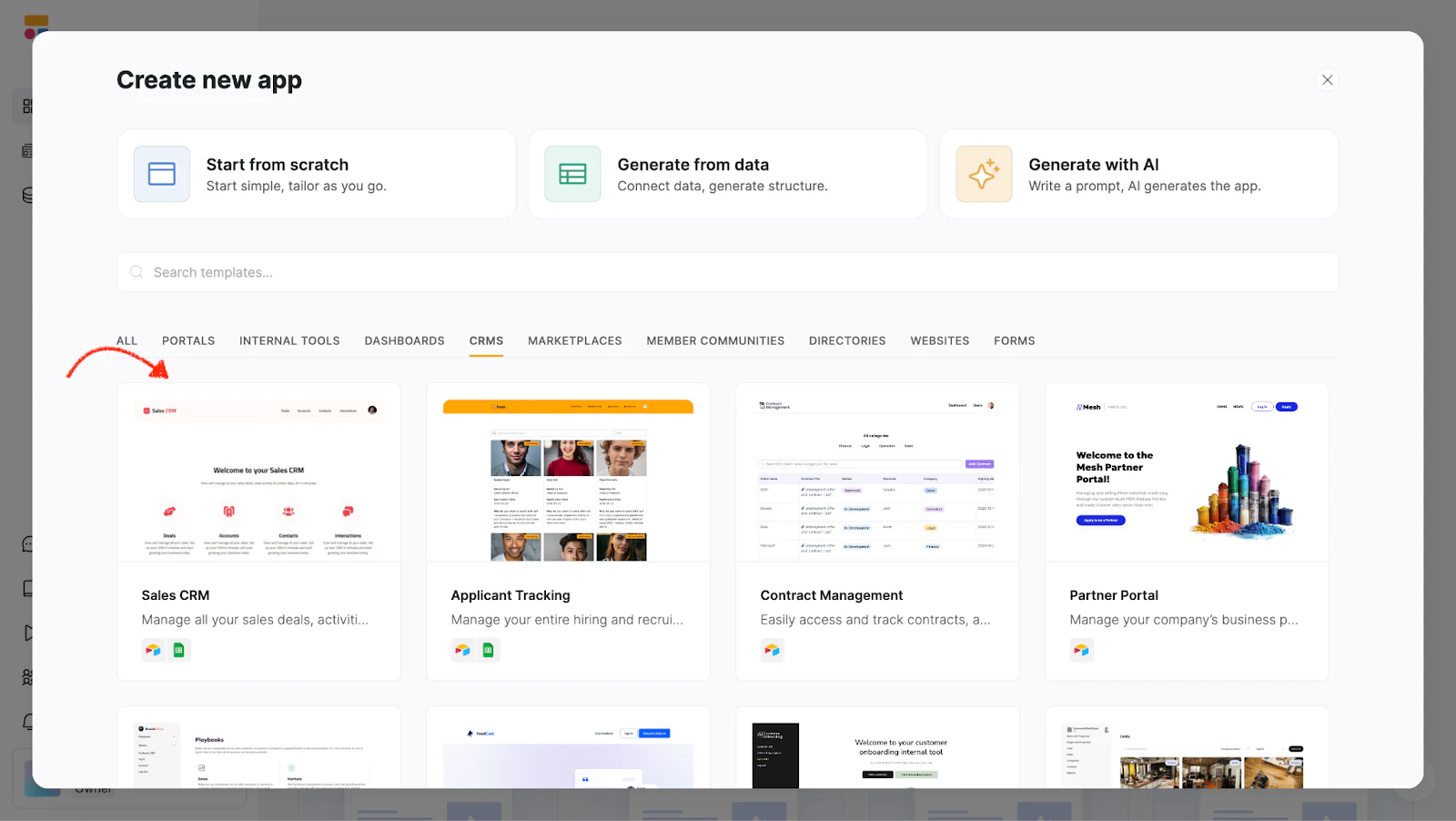
Use the search tab to find the template you want to use, or click on any of the categories and scroll until you find one that matches the user interface you want to build. For this example, we will use the sales CRM template.
You can also watch below as a client portal is built via Google Sheets in similar steps.
Step 2.2: Proceed with the template
Click on the template to see an overview. Once you’re sure it fits the kind of tool you want to build or the data you want to present, click on the Use Template button.

Step 3: Connect Softr and Google Sheets
To proceed to the next step, you need to connect both platforms.
Step 3.1 Choose Google Sheets as the data source
Click the “select data source” dropdown and select Google Sheets from the options.

Once done, click “Continue.”

Step 3.2: Log in to your Google account
You’ll be redirected to the Google account login screen; click on the account where the Google Sheets file is saved to log in.

Step 3.3: Authorize Softr
To allow Softr to see and make changes to your Google Sheets file, check the two boxes or the “select all” checkbox highlighted in the image below. Then click on “Continue.”

Ensure your data is organized so that Softr can easily read it.
The platform can match and align data fields between different systems. For example, if you have a "Customer Name" field on Google Sheets and the template you choose has a "Client Name" field instead, Softr can map these fields so they correspond correctly.
Step 4: Click on “Go to application.”
Once you've completed it, you’ll be redirected back to the onboarding page. There, click on “Go to application” to continue the process.

Step 5: Select the page you want to edit to start customizing your user interface
Each Softr template comprises various pages that form the user interface, and you can modify each one. Click “Pages” on the left side of your screen, then select a page to edit.

Step 6: Click on the block you want to build your interface
The template comes with pre-built blocks you can arrange in multiple ways to customize your app’s layout to fit your needs and preferences. For our example, we chose the “deals” page of the Sales CRM template. You can click on a block to edit its settings manually, or simply ask the AI Co-Builder to adjust layout blocks, sorting, or filtering by typing a prompt.
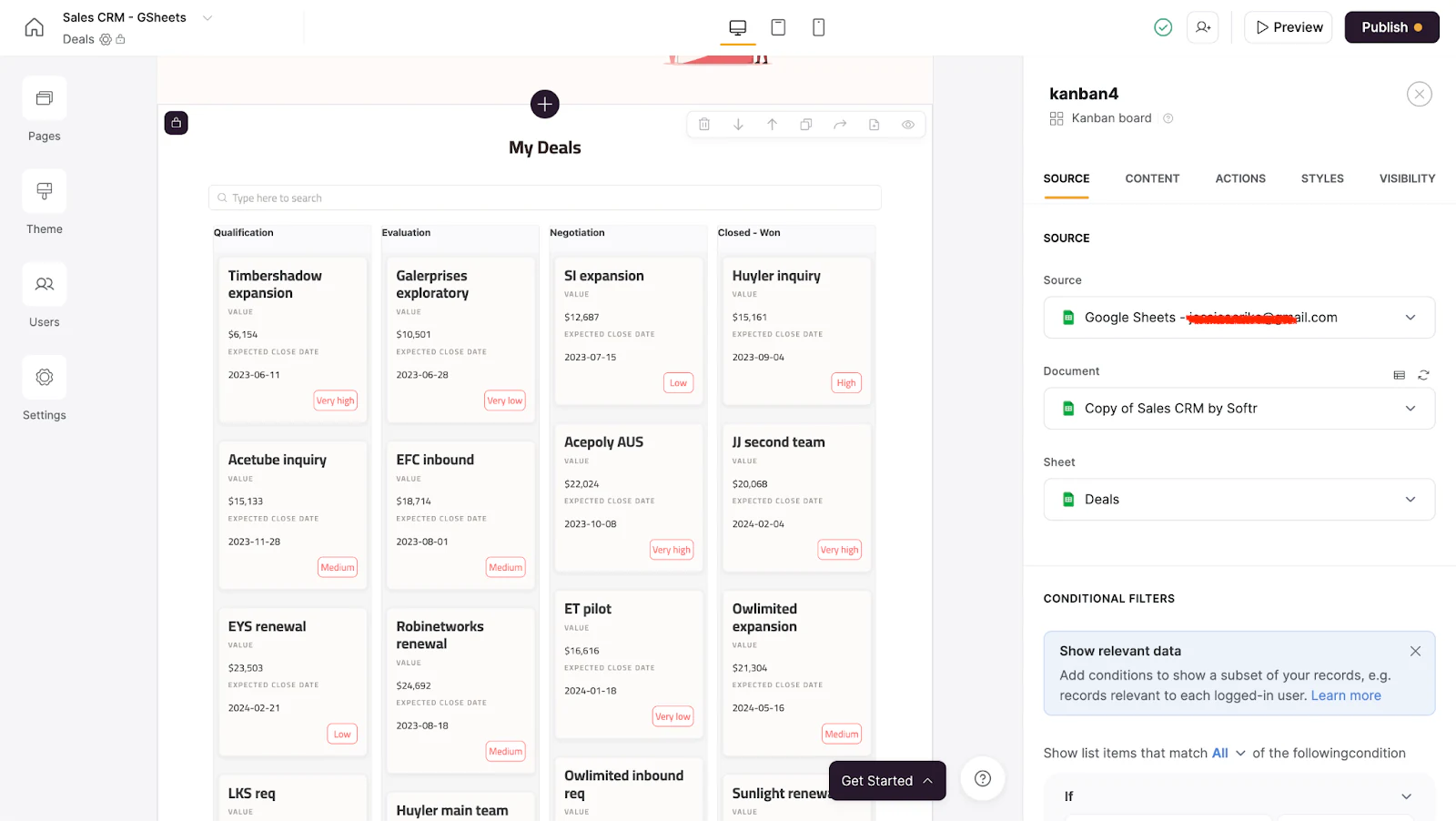
From the source tab in the editor panel, you can modify existing conditional filters or add new ones. This allows users to quickly and easily locate the information that is most relevant to their current task.

Softr also has a list setting feature that lets you organize your list in a way that is easier to read and interpret. To choose your preferred format, scroll to list settings and click on the “sort by” dropdown menu.

You can also customize the message that pops up when a user types in an incorrect search parameter (name, date, etc.)

Step 7: Customize your blog title and what data is displayed
Click on the “content” tab to edit the block’s title and subtitle, as well as their positions.

Step 8: Choose how you want the page’s data to appear
Softr has a feature called “items fields” which represent individual data entries or records from your data source, such as Google Sheets; each item corresponds to a row in your Google Sheet. These fields are used to display data within various blocks of your application, such as lists, grids, tables, or cards.
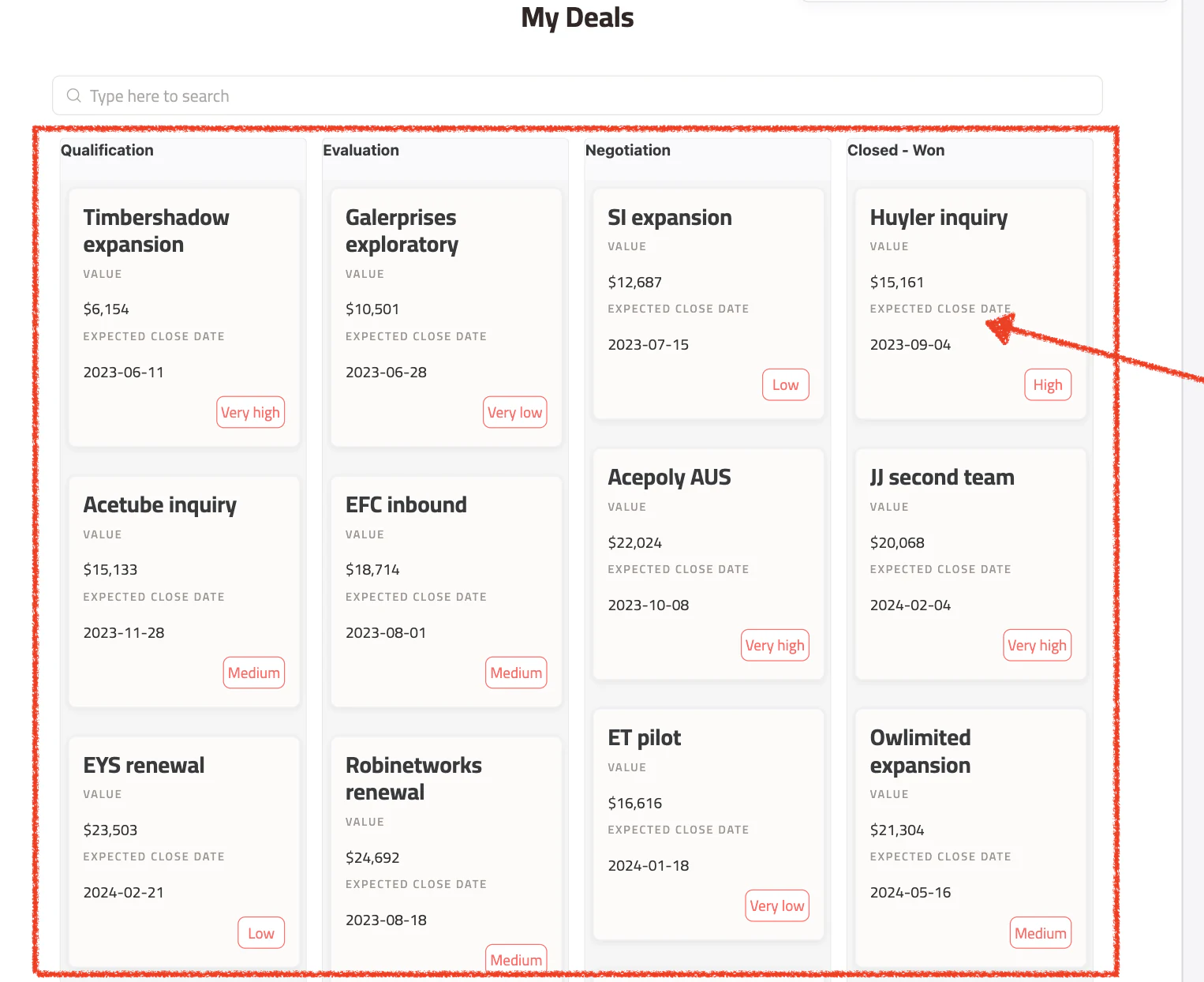
If you don’t want certain details displayed on each item, scroll down to the “items field” and hover over each option to hide or reveal blocks of information you don’t want to be a part of your app. Click on the eye symbol to close the eye. If the eye is closed, it means the detail is hidden. But if open, users can see the info on the card before clicking it.

Also, you can delete blocks that don’t have the option to hide them, meaning the ones that don’t have the eye symbol beside their name. Doing so will result in users only seeing the information when they click on the card.
To delete, click on the three dots (...) and then click on “Delete.”

To change the color, font, and overall style of your grid list, click on the paint brush icon just beside “items setting.”

From the options, you can change each tile’s color by clicking on the “background color” dropdown:
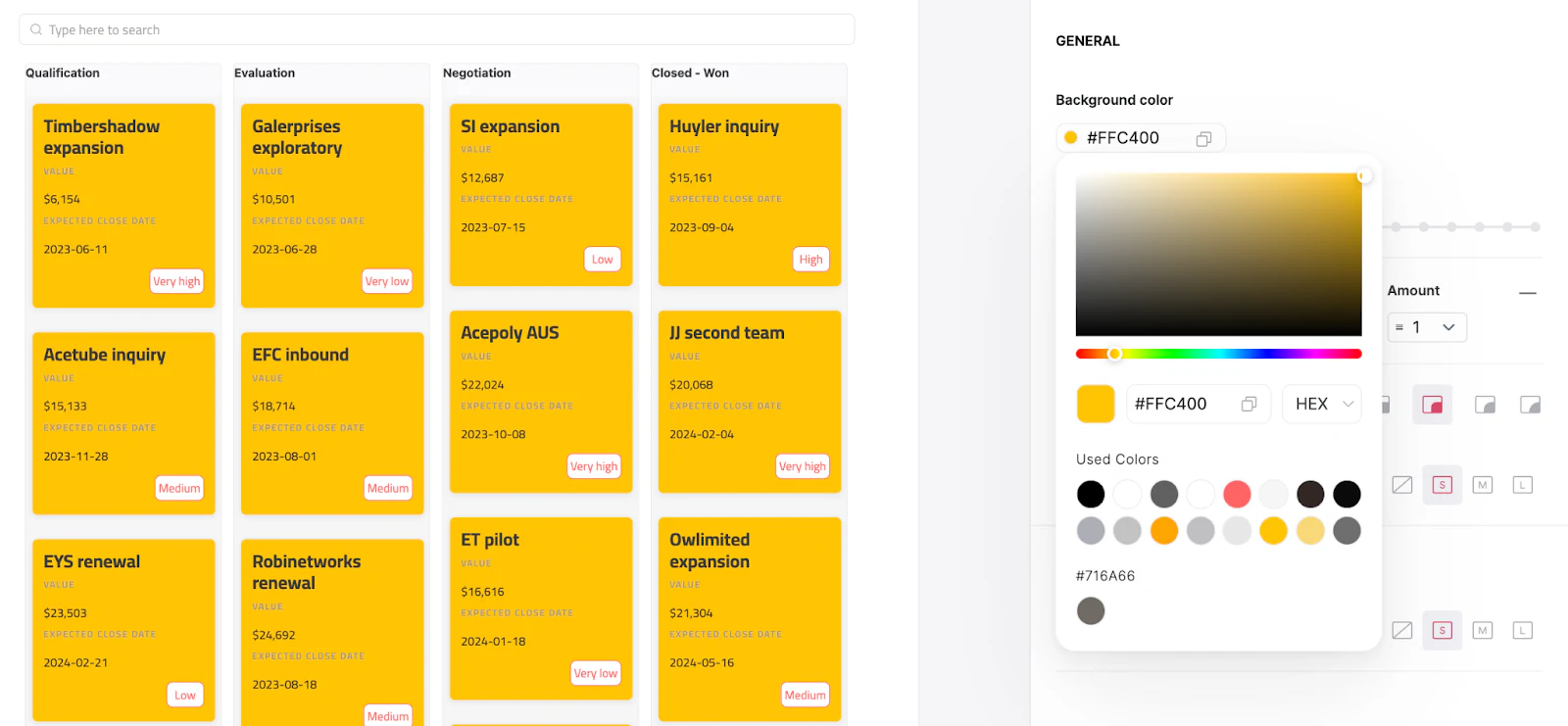
You can also change:
- Border color
- How round each tile appears
- How each tile appears when you hover over it, etc.

You can also enable and disable the search bar using the toggle button beside “Search bar” and customize the placeholder search text as you prefer.

Softr also allows you to select specific parameters for users to search with. In our example, we chose several modifiers to help users search for specific details. To do the same, simply click on each option you want users to use to filter their search.

Step 9: Set up user groups
Softr lets you set role-based permissions to control what users can see and do. These permissions are called “user groups.” You can set up user groups manually in the studio settings, or use the AI Co-Builder to generate dynamic groups by typing a prompt like: "Create an Employee user group where Role is Employee."
For each user group, you define what actions the users in that group can perform. These actions include viewing, editing, creating, or deleting data. You can also specify which parts of your application or data each group can access.
For example:
- Admin: Full access to all data and functionalities, including the ability to manage other users.
- Manager: Access to most data, with capabilities to create and update records but limited ability to delete.
- Employee: Access to view and update their own data and certain shared resources.
- Guest: Limited access, mainly to view certain public data.
Here’s how to set up user groups:
Step 9.1: Create a user group (optional)
To create a user group, click on “users” on the left side of your screen and select the User Groups tab to view the existing user groups that come with the template. To add a new one, click on “Add user group” at the right side of your screen.

Step 9.2: Name your user group
After clicking on “Add user group,” a text box will pop up asking you to name your user group. Type the name you use to identify a group of people, such as “New Clients,” then click “Next.”

Step 9.3: Add users to your new group
Once you have a user group, you have to add users to it, either manually or by adding users based on their attributes with conditions.

Step 9.4 Delete user groups you don’t need (optional)
Hover over the user group you want to delete and click the delete icon.

Step 10: Create action buttons
With action buttons, you can perform CRUD (create, read, update, delete) operations with the underlying data, plus navigation actions like opening a URL. You can configure these buttons manually in the Actions panel, or ask the AI Co-Builder to add specific actions for you via a prompt (e.g. "Add a top bar button to add new deals").
For example, say you want users to be able to add a new record from the top bar; click on the “Actions” tab and scroll to the “top bar” buttons. Click on “+” and select “add record.”

You can edit the label, add field, and choose what happens when a user creates a record.

Also, with the action buttons, you can also perform navigation actions like opening a URL.
Click on the “Actions” tab and scroll to the “Items on click” section. Then click on the dropdown and select what a user should see when they click on a card.

In our example, we selected the option “open details page” so that users can see everything they need to know.
Step 11: Set up visibility
Navigate to the Visibility tab to choose who you want to see your user interface. There are three options to choose from:
- All users: includes those who are logged in and those who aren’t;
- Logged-in users: only those who have a password needed to access the data;
- Non-logged-in users: only those who don’t have a password to access the data.
Choose who you’d like to see your specific blocks on your client portal and on what device. If you want to limit access, select “only logged-in users.” But if you want everyone to access the data, choose “All users.”

Softr's user groups feature lets you assign and choose the specific group of people you want to view details about your clients. If you want only a certain category of your logged-in users to access the specific block, click the “which user group” dropdown and select your choice group.

Step 12: Preview your Google Sheets user interface
After customizing and setting permissions, you can see how it looks before publishing and sharing it with your team. Click on the play icon in the top right corner of your screen to preview.

Once the preview page opens, test your visibility settings by clicking the dropdown in the top left corner of your screen to see what your page looks like for a non-logged-in user, a logged-in user, and users in different user groups.
For account executives, one of the user groups, the sales CRM looks like this:

And for managers (another user group), the platform looks like this:

Notice how each user group has different levels of access to information.
Step 13: Publish and share your Google Sheets user interface
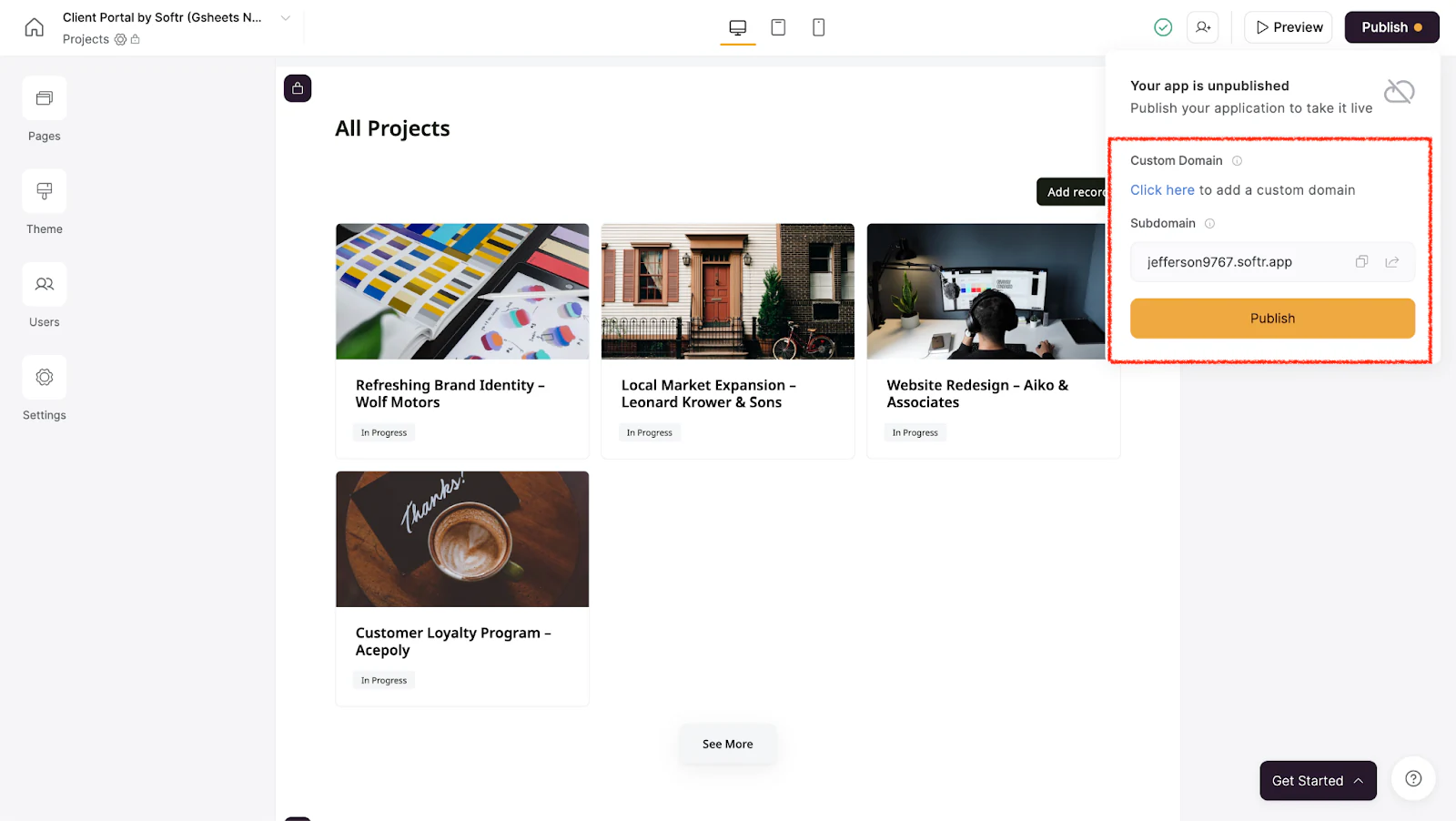
Once you’re satisfied with your app, click “Publish” in the top right corner of your screen.

You can publish on a custom domain by clicking on the hyperlinked “Click here” text or publish with Softr’s subdomain, then click publish.
How to choose a user interface builder
The best user interface builders have built-in features for creating responsive designs that work seamlessly across different devices and screen sizes.
But that’s not all to look out for when choosing an interface builder. Here are 10 tips to help speed up your research:
- Decide the kind of web app you need to build for your Google Sheets data
- Determine how complex the user interface needs to be. Does your UI require basic, straightforward designs without much interaction or data? Or will it need to handle and display large amounts of data?
- Research user interface builders to understand their strengths and weaknesses; consider reading reviews on platforms like G2, Capterra, and Trust Radius to see what users have to say about these products.
- Check if the no-code builder has comprehensive, up-to-date documentation.
- Prioritize platforms with an active community, tutorials, responsive customer support, and other resources that can help you troubleshoot and resolve issues.
- Evaluate how quickly the UI renders and updates with each no-code builder you are considering.
- Check the availability of pre-built templates and how easy it is to customize them to fit your needs and match your branding.
- Ensure the tool integrates with Google Sheets and other data sources and third-party applications you already use.
- Test the interface builder software using its demo, free trial, and free version to see how the software works for you and if it’s easy to use.
- Make sure the software you choose keeps your data safe, checking if it has features like user authentication and data encryption.
What are the most important features of a user interface builder?
The best interface builder have these features:
- User-friendly and intuitive interface that makes it easy to design and build UIs.
- Drag-and-drop functionality for non-technical users to create layouts and add elements without coding skills.
- A comprehensive library of pre-built templates and UI components like buttons, forms, and tables that can be easily customized and reused.
- Extensive styling options, including support for custom CSS and themes, to ensure the UI matches your brand and design requirements.
- Compatibility with your primary data sources and tech stack.
- Tools to create responsive layouts that work seamlessly on different devices and screen sizes.
- Security measures, including data encryption and user authentication, to protect sensitive information and prevent unauthorized access
- Scalable and reliable infrastructure that can grow with your business needs without experiencing any performance issues or downtime
- Features that allow multiple team members to work on the same project simultaneously, with version control and change tracking.
- Ability to handle high user traffic and large amounts of data without performance degradation.
Use a free no-code tool to build a custom user interface for your Google Sheets data
A no-code user interface builder requires significantly less time to learn and start building your UI than a low-code tool; you can quickly build and deploy custom UIs, which saves time.
Plus, the best ones directly integrate with Google Sheets to pull in and display data in real time, so your data is always accurate and up-to-date. And they come with pre-built templates that make it easy to create interactive dashboards to deeply analyze your data.
Softr checks all of these boxes, helping anyone in your organization, regardless of their technical skills, create intuitive, easy-to-navigate interfaces. You can:
- Customize the UI to match your brand's look and feel to ensure consistency.
- Set granular permissions and user-level access to ensure the right people have access to the information they need to do their jobs.
- Allow multiple users to work on the same data at the same time
Plus, it is free! So, you should test it to see if it meets your business needs before deciding to commit to a paid plan.
Ready to transform your spreadsheets into interactive applications? Sign up for Softr for free today and start building custom interfaces in minutes.