SQL serves as the foundation for accessing and manipulating data within certain databases. However, executing SQL queries or directly working with SQL databases can be challenging, especially for those with little to no technical knowledge.
This is where a Graphical User Interface (GUI) enters the mix: providing a simple, intuitive, and user-friendly method for interacting with and managing your SQL databases.
The good news is that you no longer need a developer to build one. With Softr, the first AI-native no-code platform, you can describe the data interface you need in plain language and have a secure, shareable GUI generated on top of your data in minutes.
This article explains what a SQL GUI is and includes a step-by-step guide on how to build one for free with Softr.
What is SQL?
Structured Query Language (SQL) is a robust language for managing and manipulating relational databases. It allows you to perform various tasks, from querying data to updating records, deleting redundant data, and adding new entries.
SQL is applicable across different industries for tasks from basic data entry to data manipulation, data retrieval, database schema management, data aggregation and analysis, data security and access control, and database transactions. It's a leading choice among developers, data engineers, and database administrators.
SQL’s role in database management can be linked with its ability to:
- Query data: Fetch certain or categorical information from large datasets using SELECT statements and various filtering options.
- Update data: Alter or modify current data to keep the database up-to-date.
- Automate assignments: Write stored procedures and triggers to automate routine, repetitive tasks and enforce business rules.
- Maintain data integrity: Use constraints and transactions to maintain data accuracy and transparency.
- Simplify data analysis: Perform calculations, aggregate data, and generate reports to inform business decisions.
What are the common features of a SQL GUI?
Some common features designed to improve user interaction and simplify database management include:
- A visual query builder for creating SQL queries with a drag-and-drop interface.
- A database browser that provides an organized view of all database objects like indexes, views, tables, and stored procedures, making it easy to move through and manage the database structure.
- A data editor that allows users to directly view, edit, and delete data within tables.
- An SQL text editor for writing and executing SQL queries.
- A query results viewer that presents the results of executed queries in a tabular form.
- Schema visualization provides graphical representations of the database schema, including table relationships and dependencies, which aids in understanding the database structure.
- User management tools for managing database user accounts, roles, and permissions to keep the database secure.
- Data filtering and string options to filter and sort data within the data editor or even query results viewer for enhanced data organization and analysis.
- Customizable dashboards with different widgets to track database performance, query statistics, and other key metrics.
- Data import/export tools into and from the database.
- Reporting tools to generate and customize reports from database queries.
What is the best GUI for SQL?
The best GUI for SQL depends on your needs and preferences. However, whether you plan to buy a GUI or build one, the following factors should be considered:
- Supported databases: Ensure the GUI selected supports the specific database you are using (PostgreSQL, MySQL, SQL Server, or any other type).
- Usability and user interface: Consider a GUI that allows you to easily navigate through your database and perform tasks efficiently, especially if you have limited technical knowledge or other stakeholders on your team do.
- Performance and scalability: If there’s a free trial available, sign up for it to assess the performance of the GUI, especially if you handle large datasets. You wouldn't want to work with a GUI that can't work with large volumes of data or handle complex queries, without crashing or experiencing lags.
- Feature set: Check out for a GUI that offers a variety of features such as data editors, visual query builders, import/export tools, schema visualization, and reporting capabilities, amongst others. In other words, the more comprehensive the feature set, the more versatile the GUI will be.
- Customization and extensibility: Knowing if the GUI supports plugins or extensions and enables customizations before purchasing is crucial. You need these flexibilities for adapting the GUI to your specific requirements and workflows.
- Security: Ensure the GUI offers comprehensive security features that protect sensitive data like user authentication, data encryption, and secure connection options from SQL injections or other security threats.
- Integration: Select a GUI that integrates well with other tools, platforms, and apps you use, such as version control systems, cloud service tools, data analysis tools, etc.
- Community and support: A reliable customer support and a strong user community is crucial. Watch out for a GUI with good documentation, active user forums, and responsive and efficient customer support channels.
Why build a SQL GUI instead of buying one?
Whether you're an organization, an Operations/LOB team lead, an analyst, or even a developer who wants to quickly create internal tools on top of SQL databases without writing extensive code, building a SQL GUI instead of buying one can be beneficial. Here are reasons why you might choose to build your own SQL GUI:
- Building your GUI allows you to add only the features needed, creating a tool that perfectly aligns with your requirements. Plus, you have full control over the interface design, ensuring that it meets your user preferences and workflows.
- Building a GUI helps you avoid ongoing subscription fees, synonymous with many commercial providers. Additionally, you have access to an array of tools and frameworks for building a free SQL GUI, which saves you from incurring the costs of commercial software licenses.
- Building your own solution provides a deeper understanding of how SQL GUIs work; hence, making it easier for you to troubleshoot and improve as needed.
- You can also ensure that your GUI integrates seamlessly with your current tools and workflows.
- A custom-built GUI can also be easily scaled and updated to adapt to future changes as your database or business grows.
With this in mind, the next question you should be asking is…
Can I build a free SQL GUI?
Yes, you can. Softr is the first AI-native no-code platform, which means you can describe the interface you need and have a working app generated for you, without writing any code. It is a full-stack ecosystem: the visual interface, native Softr Databases, and built-in Softr Workflows all live in one place, so your SQL GUI is not a fragile front-end bolted onto a back-end, but a complete, production-ready application.
A data interface is only as useful as its connection to real data. As Guillaume Duvernay, a builder at Softr who has shipped over 50 business apps, puts it:
"Spreadsheets are pure data, and what you actually have to track and work on is this data. You need more than just an interface. You have to bridge the two together: your UI on top of the data that you actually work with." — Guillaume Duvernay, Growth Marketer at Softr
That is exactly what Softr does for your SQL data. You get three ways to build, listed here in order of speed:
- Generate with the AI Co-Builder: Describe the data interface you need in plain language and the AI Co-Builder creates the pages, blocks, and permissions for you. This is AI-first, not AI-only, so you stay in full control and refine anything by hand.
- Start from a template: Pick from a library of professionally designed apps and adapt one to your SQL data.
- Build from scratch: Start with a blank canvas for complete control over design and functionality.
On the data side, you can use Softr Databases as your native source, or connect to 21+ external sources including SQL databases (PostgreSQL, MySQL, SQL Server), Airtable, Google Sheets, and HubSpot. Softr Databases are AI-ready too: through the Softr MCP, external AI assistants like Claude or ChatGPT can securely query and manage your databases, build pages, and update workflows directly.
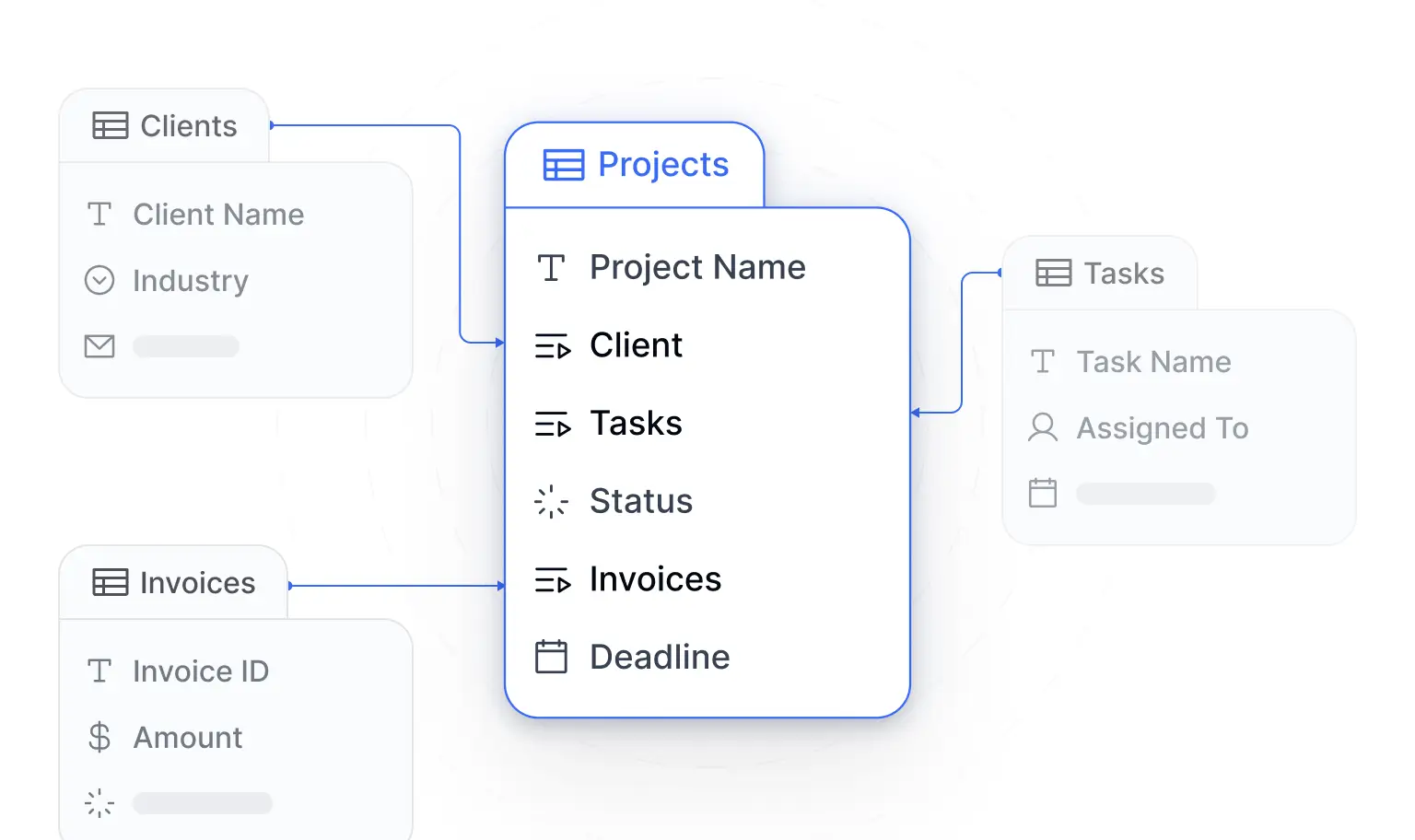
Crucially, unlike fragile vibe-coded apps, Softr applications are secure and production-ready from day one, thanks to granular permissions and data restrictions (more on that below).
How to build a free SQL GUI with Softr
Here’s a step-by-step guide to get you started:
Step 1: Get your database ready
In this tutorial, I’ll be using PostgreSQL for my database. However, note that it’s impossible to connect your PostgreSQL database in pgAdmin to Softr because it is a “local app hosted on a local device or machine.” This means that your database in pgAdmin is local and therefore only exists on your computer(local device).
To connect your PostgreSQL database to Softr, you’ll have to provide a host and port that is live and online via a PostgreSQL database provider. For this tutorial, I hosted mine on Supabase. As seen in the image below, my sample database is for an e-commerce store with four tables (customers, products, orders, and order details), providing a variety of data points to demonstrate the different features of my free SQL GUI.
Step 2: Sign up on Softr
You need to create an account on Softr. Visit Softr.io and sign up for a free account. However, if you already have an account, simply log in.
Step 3: Create a new application
Once logged in, click on the “Apps” tab by the top left corner. The fastest path is to describe the SQL GUI you want and let the AI Co-Builder generate it for you, but Softr also offers ready-made templates and a blank canvas. For this guide, I’ll be starting from scratch to have full control over the design and functionality.
I. Click on “Start from scratch” and a pop-up window will appear, allowing you to select the number of pages you want to build your app with. You can delete any irrelevant page later in your Softr Studio or add more pages as you go on.
II. Select the “Create application” button at the bottom and you’ll be redirected to your Studio where the real design and magic happens!
Step 4: Connect your SQL database with Softr
To connect your SQL database, follow these steps:
I. Click on the home button at the top of your application to return to your dashboard.
II. Navigate to the data sources tab and select “Connect data source.”
III. Select “SQL” from the list of options and choose from any data sources there. As I mentioned in step one, I’m using a PostgreSQL database. Therefore, I picked PostgreSQL from the options.
IV. Enter your database credentials:
You will need to provide the following details to connect your SQL database:
- Name: The name of your database or project.
- Host: The IP address or domain name of your database server.
- Port: The port number your database uses.
- Database name: The name of the data source you are using. In my case, it’s “Postgres.”
- Username and password: Your database credentials.
Pro tip: Have all of these details ready after step one. Typically, I save my database credentials on one of the Notes apps on my device. This helps me enter the information quickly, without toggling back and forth between my Softr Studio tab and my Supabase tab.
V. After entering your database credentials, click on ‘Connect” and your data source is synced with Softr. If the syncing is successful, you should find your SQL database under the data sources tab.
Step 5: Design your SQL GUI interface
With your database connected, you can now design your GUI by:
- Creating different pages for various functionalities, such as a dashboard, data entry forms, and reports.
- Adding blocks like tables, charts, forms, and buttons to display and interact with your SQL data. You can add and configure these manually, or simply describe what you need to the AI Co-Builder and let it place and wire the blocks for you.
- Configure each data block by connecting it to the appropriate data from your SQL database. For example, you can set up a table block to display data from a specific table or a form block to insert new records into a table.
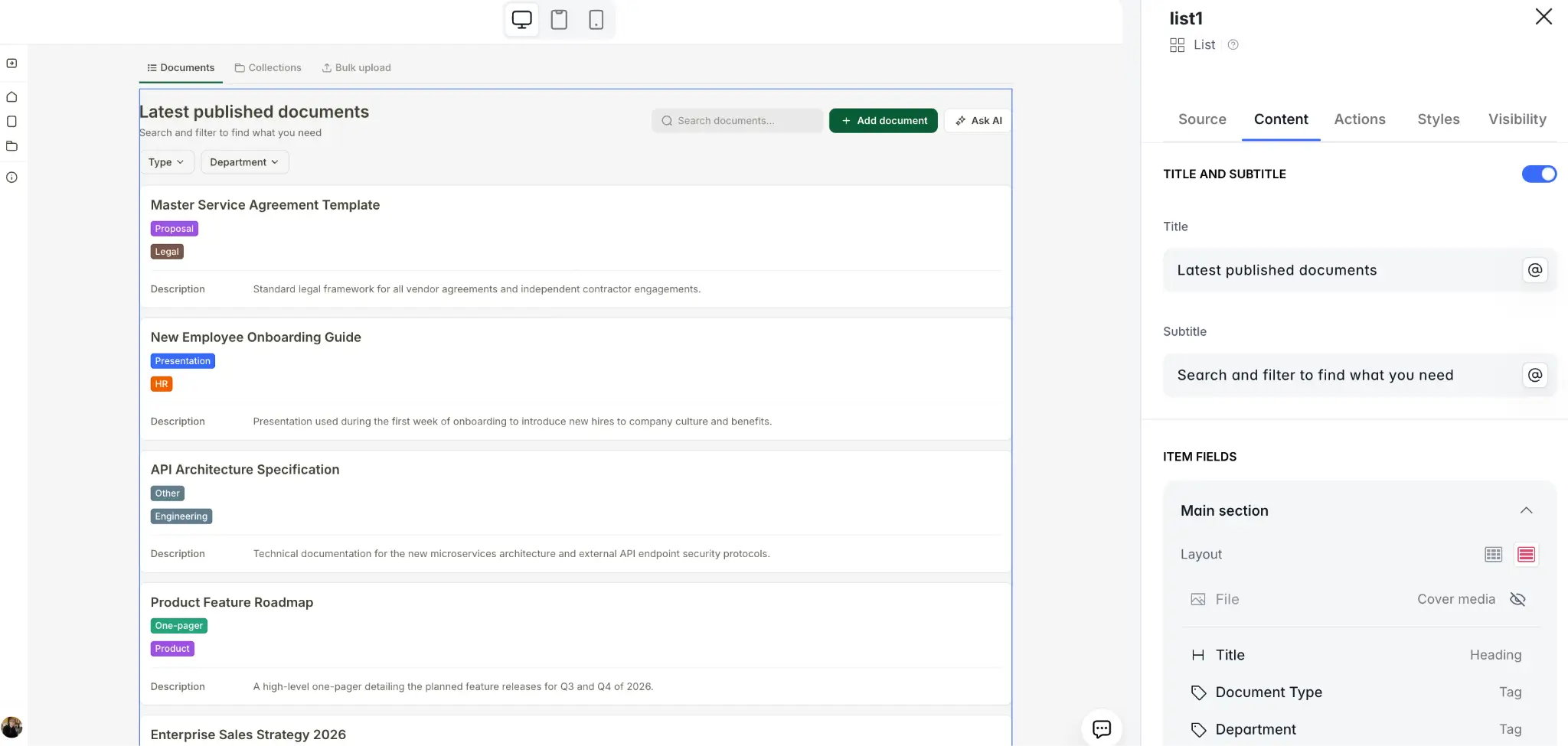
For the rare cases where a pre-built block does not cover a unique need, the Vibe Coding block lets you generate fully custom, AI-built UI components that still connect natively to your data.
Step 6: Customize user permissions
To control who can view or edit data, set up user roles and permissions:
Select the “Users” tab as illustrated in the screenshot below. Add your app users by syncing with a data source and create user groups (e.g., admin, user, viewer) to assign permissions to each role. You can also place data restrictions to limit how each group can view or interact with records in your data sources. This is what makes a Softr GUI secure and production-ready from day one: people only ever see the data they are allowed to see.

Step 7: Publish your application and share!
Once you are satisfied with the design and functionality, hit the “Publish” button In the top right corner of your SoftrStudio, and share the link with your team or clients so they can start using your SQL GUI.
Pro tip: Click on the “Preview” button to see how your application looks and fix any errors before going live.
Additional tips:
- Softr offers various professionally designed templates that are easy to use, can save you time, and inspire your GUI design. So, utilize them.
- Use native Softr Workflows to automate actions triggered directly from your app's interface (for example, updating a record or sending a notification when a user clicks a button), or connect to Zapier, Make, and n8n via native integrations.
Build a data interface today with Softr
If you want the short version, here's the quick path from raw SQL data to a live, shareable interface:
- Connect or structure your data: use Softr Databases or connect your SQL database (PostgreSQL, MySQL, SQL Server) and other sources.
- Generate the app with the AI Co-Builder from a plain-language prompt, or start from a template or blank canvas.
- Set up user groups and data restrictions so each person only sees and edits the records they should.
- Build your views: add table, list, chart, and form blocks, with filters and detail pages on top of your data.
- Automate with Softr Workflows, triggered directly from buttons and actions in your interface.
- Publish and share the link with your team or clients.
Builders who take this path are shipping in days, not weeks:
"Softr allows me to deliver business apps in a few days where a custom stack would take weeks. The integration side is solid: Airtable, Google Sheets, Stripe, Make, n8n, and more recently the native Softr Databases, which really simplify the architecture. Softr solves the dispersion of data across tools, the prohibitive cost of custom development for internal tools, and the dependency on a developer for every change." — Verified User, Computer Software, G2 review
With Softr and these steps I’ve shared, you can build a functional and interactive SQL GUI that manages and interacts seamlessly with your SQL data. Get started for free here.