The best knowledge management software in 2026

When onboarding takes weeks because new hires can’t find basic information, or your support team wastes hours re-finding the same answer, you have a resource problem. Knowledge management software gives teams one place to capture, organize, and share what they know. Here are 11 that work for small and growing teams.
The best knowledge management software at a glance
| Best for | Standout features | Pricing | |
|---|---|---|---|
| Softr | Building production-ready knowledge systems with AI | • Native Softr Databases, or connect to 21+ external sources, including Airtable, Notion, Google Sheets, and HubSpot • Role-based access & permissions for internal/external users • Ask AI conversational search & AI Co-Builder • Build client portals, CRMs, and dashboards | Starting at $19/month for 5 team users and 5 client users, billed annually Free plan available (up to 5 app users) |
| Stonly | High-volume customer service teams | • Standard articles and step-by-step guides that adapt to each person's situation • Ticketing integrations with Zendesk, Salesforce, and Freshdesk that surface the right knowledge per ticket • No-code triggers for proactive customer help at the point of need • Knowledge Agents that monitor knowledge and keep content current | Custom pricing available on request at stonly.com |
| Notion | Flexible wikis with lightweight databases | • Block-based editor • Multiple database views • AI features (Business plan) | Starting at $10 per seat/month on the Plus plan, billed annually Free plan available |
| Confluence | Enterprise teams with Jira workflows | • Jira Service Management integration • Templates • Enterprise security | Starting at $5.42 per user/month on the Standard plan Free plan available (up to 10 users) |
| Guru | AI-powered knowledge delivered where you work | • Knowledge cards • AI-powered search • Verification workflows • Browser extension | Custom pricing (contact sales) |
| Slite | Remote teams building collaborative knowledge bases | • Clean editor • AI search and answers • Document verification • Slack integration | Starting at $10 per user/month on the Basic plan, billed annually |
| Document360 | Structured documentation with version control | • Markdown & WYSIWYG editors • Version control • Multi-language support • Detailed analytics | Custom pricing (contact sales), free trial available |
| Tettra | Slack-integrated internal knowledge | • Kai AI assistant • Slack Q&A • Verification workflows | Starting at $8 per user/month, 10-user minimum |
| ClickUp | Teams wanting knowledge management within project management | • Docs and verified wikis • ClickUp Brain AI-powered search • Multiple views and task integration | Starting at $7 per user/month on the Unlimited plan, billed annually Free plan available |
| Zendesk Guide | Support teams using Zendesk | • AI-powered search & chatbots • Content management tools • Integration with Zendesk & third-party apps | Starting at $55 per agent/month on Suite Team, billed annually |
| Help Scout | Simple, email-style customer support | • Intuitive interface for quick setup • Beacon widget for instant access • Shared inbox for team collaboration | Starting at $25 per user/month, billed annually Free plan available (up to 5 users) |
What is knowledge management software?
Knowledge management software is a system that helps organizations capture, organize, and share organizational knowledge across teams. At its core, it’s a searchable repository where companies store everything from SOPs and process documentation to HR policies and technical guides.
In practice, this means customer support teams get client-facing help articles, new hires find onboarding materials through your internal knowledge base, and department heads control who sees sensitive information.
These systems typically include:
- Internal knowledge bases where teams document processes, policies, and best practices in searchable formats.
- External knowledge bases where clients and other external users can self-serve and find answers about a company and their accounts or orders on their own.
- Team wikis that connect related information and let multiple team members contribute and update content through team collaboration features.
- Process documentation with version control so teams always reference the current workflow, capturing both explicit knowledge (documented procedures) and tacit knowledge (experience-based insights).
- Role-based access that shows each person only the relevant information for their role and department.
1. Softr — best for building production-ready knowledge systems with AI
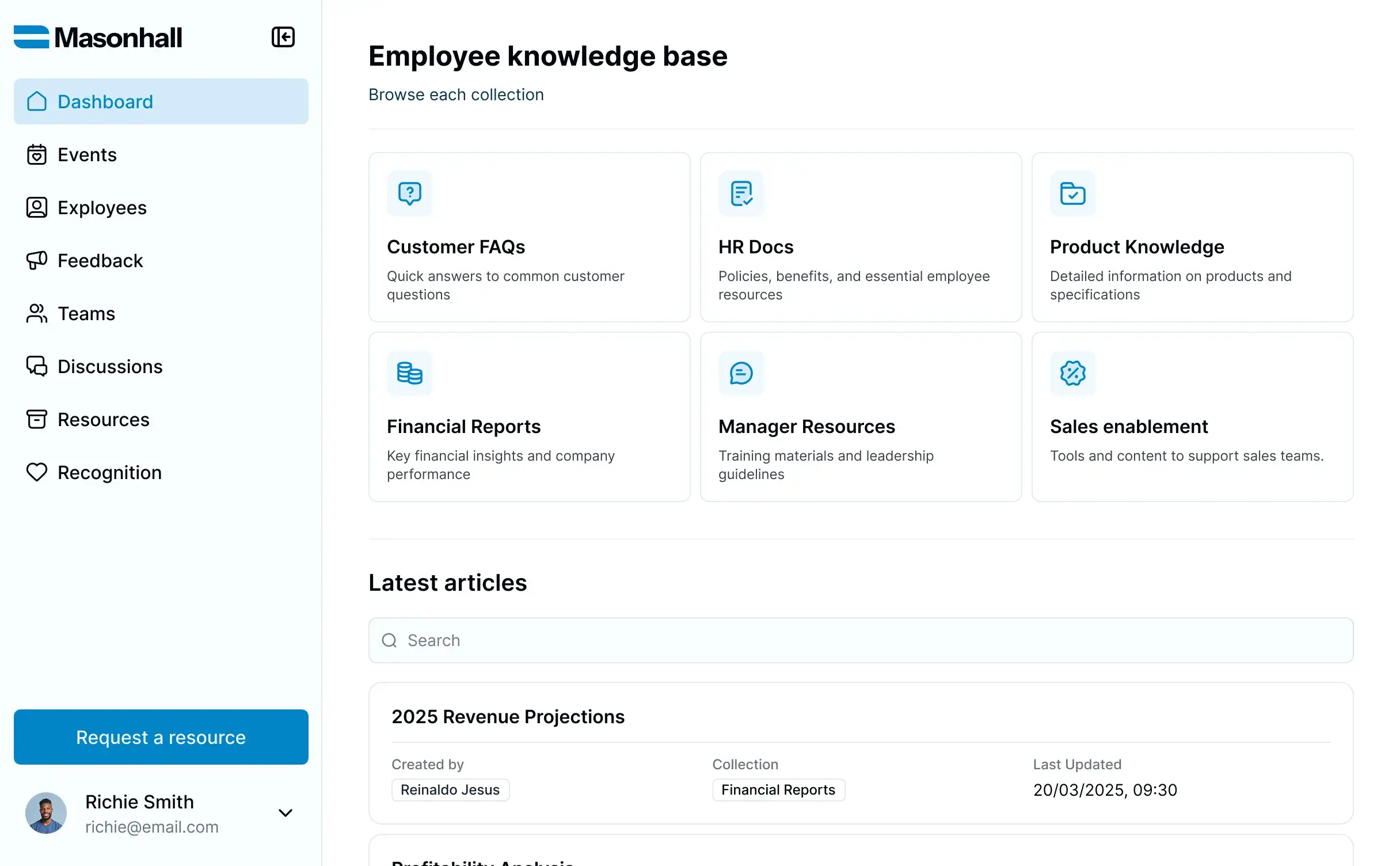
Softr is a no-code, AI-powered platform for building production-ready business apps with native relational databases and workflow automation. Instead of just organizing documents, you can build a complete knowledge management system that’s completely full-stack, generated in minutes with the AI Co-Builder.
You start by describing what you need in plain language. Softr’s AI creates a working database to store your knowledge resources and data, with portals and interfaces on top of that data. From there, you can use the drag-and-drop builder to customize layouts and tweak elements, or connect to 21+ external data sources like Google Sheets, Airtable, HubSpot, or Monday.com, all without writing code.
The platform stands out for teams that need more than a basic wiki. If you’re managing knowledge with complex relationships (such as linking SOPs to departments, connecting policies to approval workflows, or building client-facing knowledge hubs for customer support), Softr gives you the database power to model them properly while supporting effective knowledge management practices.
You can also use AI to help users ask natural-language questions about your data through Ask AI, while Database AI Agents assist behind the scenes with tasks like summarizing records, tagging content, or updating fields automatically. This makes structured knowledge easier to maintain and easier to access—without sacrificing control over permissions or data architecture.
Who is Softr best for?
Softr works for businesses of all sizes building department-specific knowledge hubs, agencies creating client resource portals, and companies consolidating organizational knowledge from multiple systems.
If your knowledge management needs include connecting data from different sources, presenting different views to different people, or automating workflows based on knowledge base activity, Softr provides those capabilities without requiring developers.
Pros:
- Works with your own data: Use Softr Databases natively, or connect to 21+ data sources including Airtable, Google Sheets, Notion, monday.com, and HubSpot.
- Database AI Agents: These agents automatically enrich, categorize, and summarize knowledge content as it’s added or updated.
- Serve multiple audiences from one system: You can build internal wikis, client-facing portals, and partner resources into a single knowledge base with different access levels.
- Custom branding and white-labeling: Get full control over logos, colors, domains, and design to match your brand.
- Version tracking through the database structure: Track changes and updates at the record level with timestamps and ownership.
- Good performance at scale: Softr handles large datasets without slowing down.
Cons:
- Learning curve for advanced features: While the AI gets you started fast, building complex knowledge management systems with multiple data sources and custom workflows takes time to master.
- Focused on structured data: Softr works best when knowledge fits into defined fields and relationships.
Softr best features
- AI Co-Builder: Describe your knowledge management needs in plain language. Softr automatically generates the database structure, interfaces, and permissions. You get a working system in minutes, not weeks.
- Database AI Agents: Automate backend tasks like summarizing records, tagging entries, generating content, or updating fields — helping maintain structured knowledge at scale.
- Native relational databases: Create fast, scalable databases with linked records, lookup fields, formulas, and file attachments. Organize knowledge into tables that connect, just like proper database software, enabling effective knowledge management.
- Role-based access control: Define user groups (employees, managers, contractors, clients) and set exactly what each group can view, edit, or delete. Permissions work at the record level, not just the page level, following best practices for secure internal knowledge access.
- Ask AI: Lets users ask natural-language questions about your data directly inside the portal, with answers based on what they have permission to access.
- Native data flexibility: Use Softr Databases to manage everything directly inside your app, or connect to 21+ external data sources like Airtable, Google Sheets, Notion, HubSpot, monday.com, BigQuery, SQL databases, Supabase, and Xano. Data stays automatically up-to-date with 2-way real-time sync.
- Custom views and dashboards: Build interfaces tailored to different audiences. Create employee dashboards, client portals, department-specific views, and executive reports from a single underlying knowledge base.
- Conditional logic and workflows: Show or hide content based on user roles, form submissions, or data changes. Trigger automations when knowledge gets updated, send Slack notifications, or update external systems, supporting best practices for knowledge sharing.
- Templates and blocks: Get started with pre-built knowledge base templates. Customize with drag-and-drop blocks for lists, forms, charts, calendars, and more.
- Search and filtering: Users find what they need fast with full-text search, category filters, and saved views. Performance stays quick even with large knowledge bases, delivering relevant information efficiently.
- Vibe Coding block: For layouts the pre-built blocks don't cover, describe the custom component you need and get an AI-generated block that still connects to your data and inherits your app's theme.
- Support on every plan: Live chat and email support, including on the Free plan, plus a community of builders.
Softr pricing
Softr offers flat, predictable pricing with a free plan:
- Free: Up to 5 app users and 3 builders
- Basic: $19/month for 5 team users and 5 client users (billed annually)
- Pro: $99/month for 10 team users and 50 client users (billed annually)
- Business: $329/month for 30 team users and 100 client users (billed annually)
- Enterprise: Custom pricing
Real-world example: Learn how Frontier used Softr’s knowledge management features to address carbon removal knowledge gaps.
2. Stonly — for high-volume customer service teams
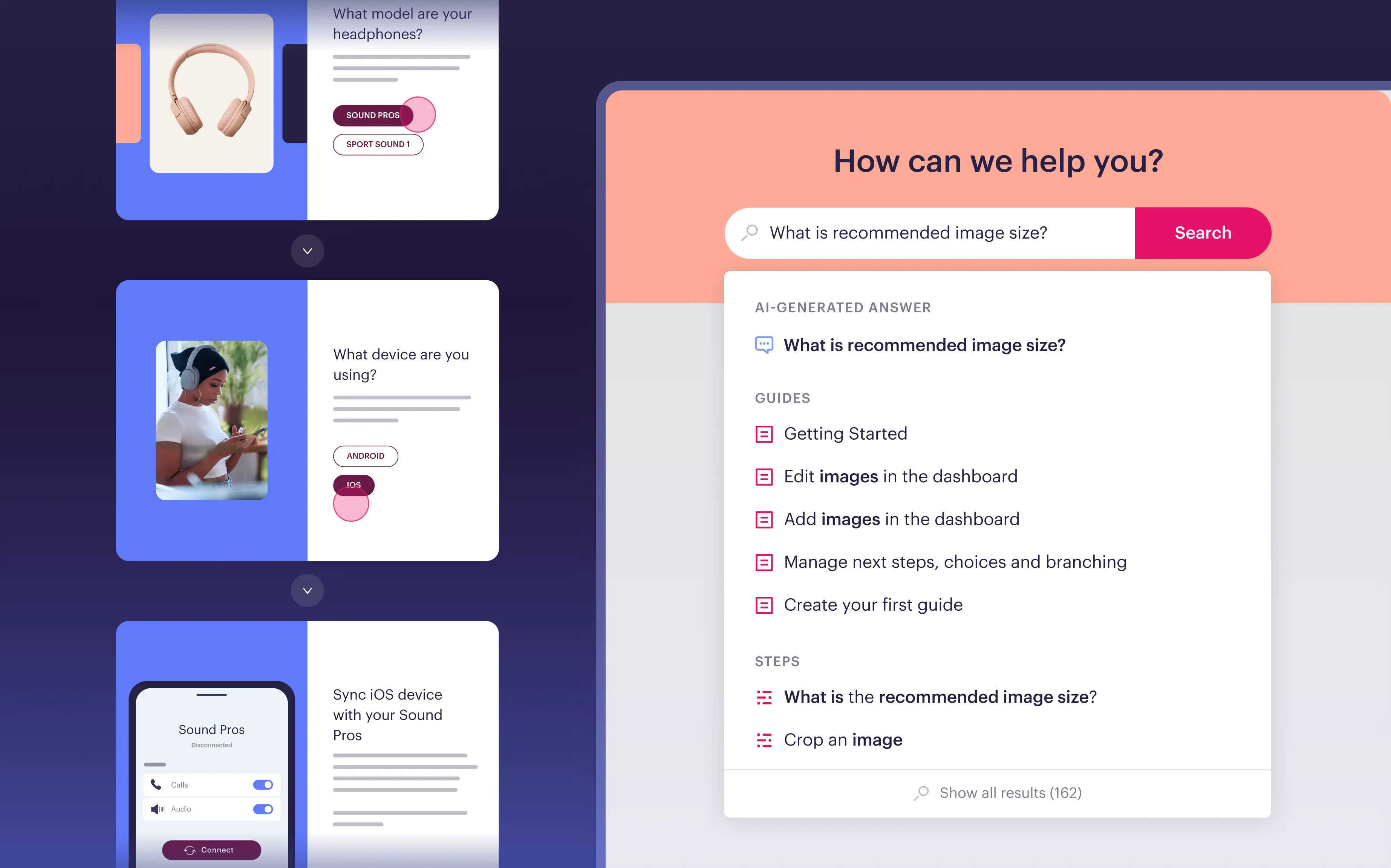
Stonly is built for high-volume customer service teams that need knowledge and AI to do more than store and retrieve information. Stonly lets teams build both standard articles and step-by-step guides that adapt to each person's situation based on context, inputs, and choices. That means complex support processes are easy to follow consistently, whether a customer is troubleshooting on their own or an agent is working through a ticket.
For agents, direct integrations inside the ticketing system surface the right knowledge for each ticket automatically. For customers, no-code triggers and integrated AI answers deliver help at the point of need. Keeping knowledge current is where Knowledge Agents come in, monitoring your knowledge sources around the clock, spotting gaps and opportunities for improvement, and helping teams continuously create and update content.
Who is Stonly best for?
Mid-market and enterprise customer service teams that need a knowledge platform that works equally well for agents and customers, and pairs with AI to execute real processes and resolve complex support scenarios reliably.
Pros:
- Works for both audiences: One platform covers agent-facing and customer-facing knowledge without separate systems.
- Knowledge stays current: Knowledge Agents spot gaps and keep content accurate without the manual effort.
Cons:
- Laser-focused on customer service: Teams needing a general-purpose internal wiki will need a separate tool.
- Geared to larger teams: Designed for mid-market and enterprise, so it may be more than smaller teams require.
- No public pricing: A demo is required to get a quote.
Stonly features
- Standard articles and step-by-step guides: Both formats in one platform, adapting based on customer or agent context.
- Ticketing system integrations: Zendesk, Salesforce, and Freshdesk surface the right knowledge for each ticket automatically.
- No-code triggers: Push proactive help to customers at the point of need.
- Integrated AI answers and step-level search: Faster, more accurate self-service.
- Knowledge Agents: Monitor knowledge sources around the clock, spot gaps, and keep content current.
Stonly pricing
- Custom pricing available on request at stonly.com
3. Notion — for flexible wikis with lightweight databases
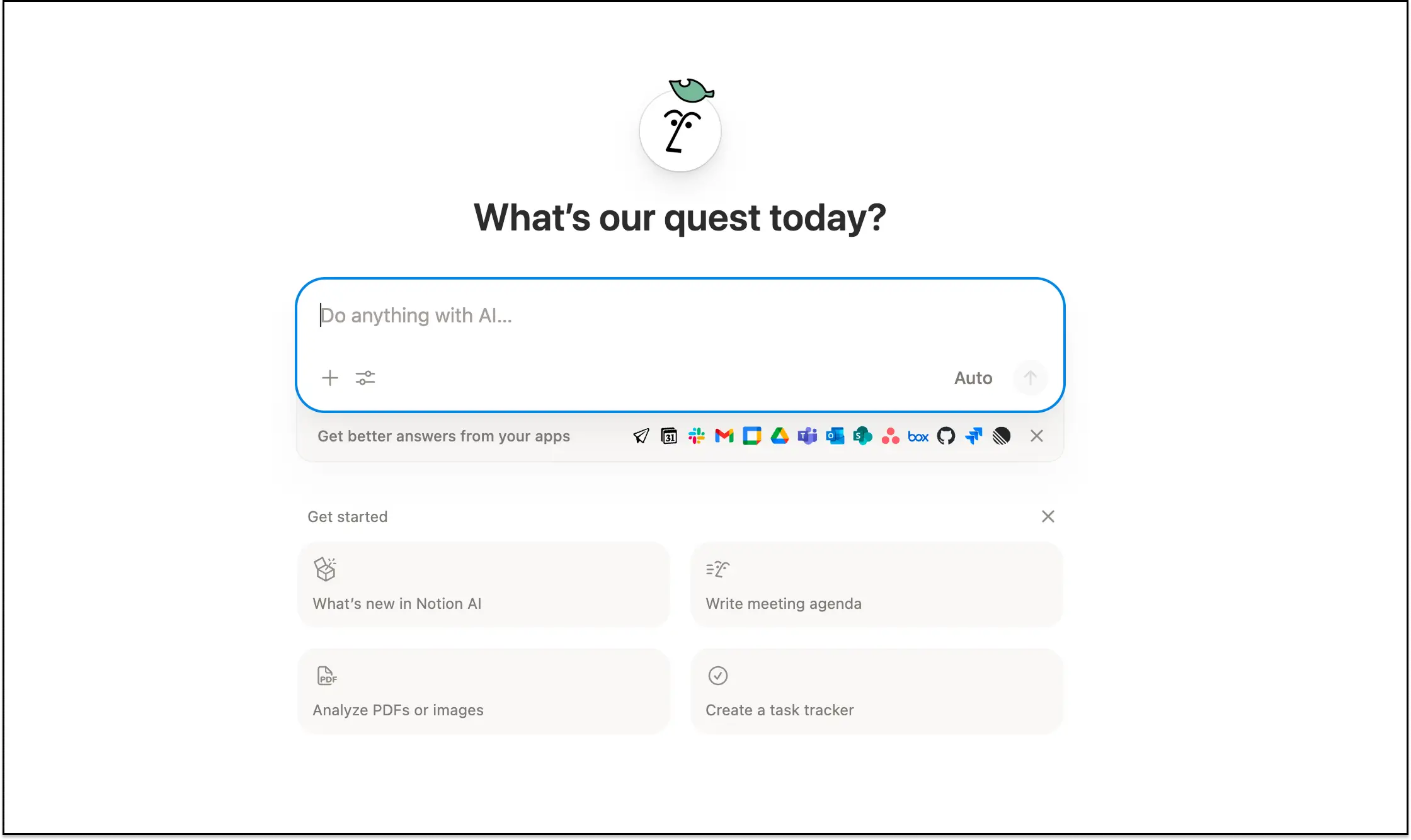
Notion combines docs, wikis, and lightweight databases into one flexible workspace. Teams use it to build internal knowledge bases that blend unstructured content with organized data, supporting both project management and knowledge sharing.
The platform’s block-based editor lets you mix text, tables, images, embeds, and database views on the same page. You can start with simple pages and add structure as your needs evolve.
The knowledge base features integrate with the rest of the workspace, so you can link wikis to tasks, reference pages from databases, and keep everything connected through team collaboration.
Who is Notion best for?
Notion works well for teams already using it for project management or note-taking.
Pros:
- Flexible page structure: Mix different content types on the same page. Add text, tables, databases, embeds, and media without rigid templates constraining your format, supporting natural knowledge sharing.
- Multiple database views: Display the same knowledge base as a table, board, calendar, list, or gallery, depending on what makes sense for team members.
- AI features included: Notion AI is a suite of built-in AI tools (included in the Business plan) integrated directly into the Notion workspace. It includes a conversational assistant for answering questions about your content and generative capabilities that can draft, refine, summarize, and translate text across pages and databases.
- Templates and community: Thousands of free templates for wikis, onboarding docs, and knowledge bases. Large community shares best practices and setups, making it a popular KM tool.
Cons:
- Performance slows with scale: Large databases and nested pages can become sluggish. Teams report lag when working with thousands of pages or complex linked databases, which impacts effective knowledge management.
- Limited relational database logic: Notion’s database features are more rigid than true relational management systems. Complex lookups and relationships get clunky.
- Basic permissions: Page-level permissions work for most teams, but you can’t control access at the field or record level, unlike platforms built for granular security of organizational knowledge.
- AI locked to Business plan: AI-powered search and other AI features require the Business plan at $20/user/month. Free and Plus users don’t have access to AI capabilities.
[.blog-callout]Tip: Use Softr with Notion to create a knowledge base with role-based access control and different views for internal vs. external users.[.blog-callout]
Notion features
- Connected databases: Link databases together and create filtered views to surface relevant information. Build reference libraries that connect content to projects, departments, or workflows.
- Real-time collaboration: Multiple teammates can edit the same doc at once, leave comments, tag each other, and track every change.
- Nested pages: Create hierarchical knowledge structures with unlimited subpages. Organize by department, function, or however makes sense for your team’s internal knowledge.
- Mobile access: Full-featured mobile apps let people access knowledge on the go. Editing works smoothly on phones and tablets.
Notion pricing
- Free: $0, with limited blocks once you add a second member
- Plus: $10 per seat/month (billed annually)
- Business: $20 per seat/month (billed annually)
- Enterprise: Custom pricing
4. Confluence — for enterprise teams with Jira workflows
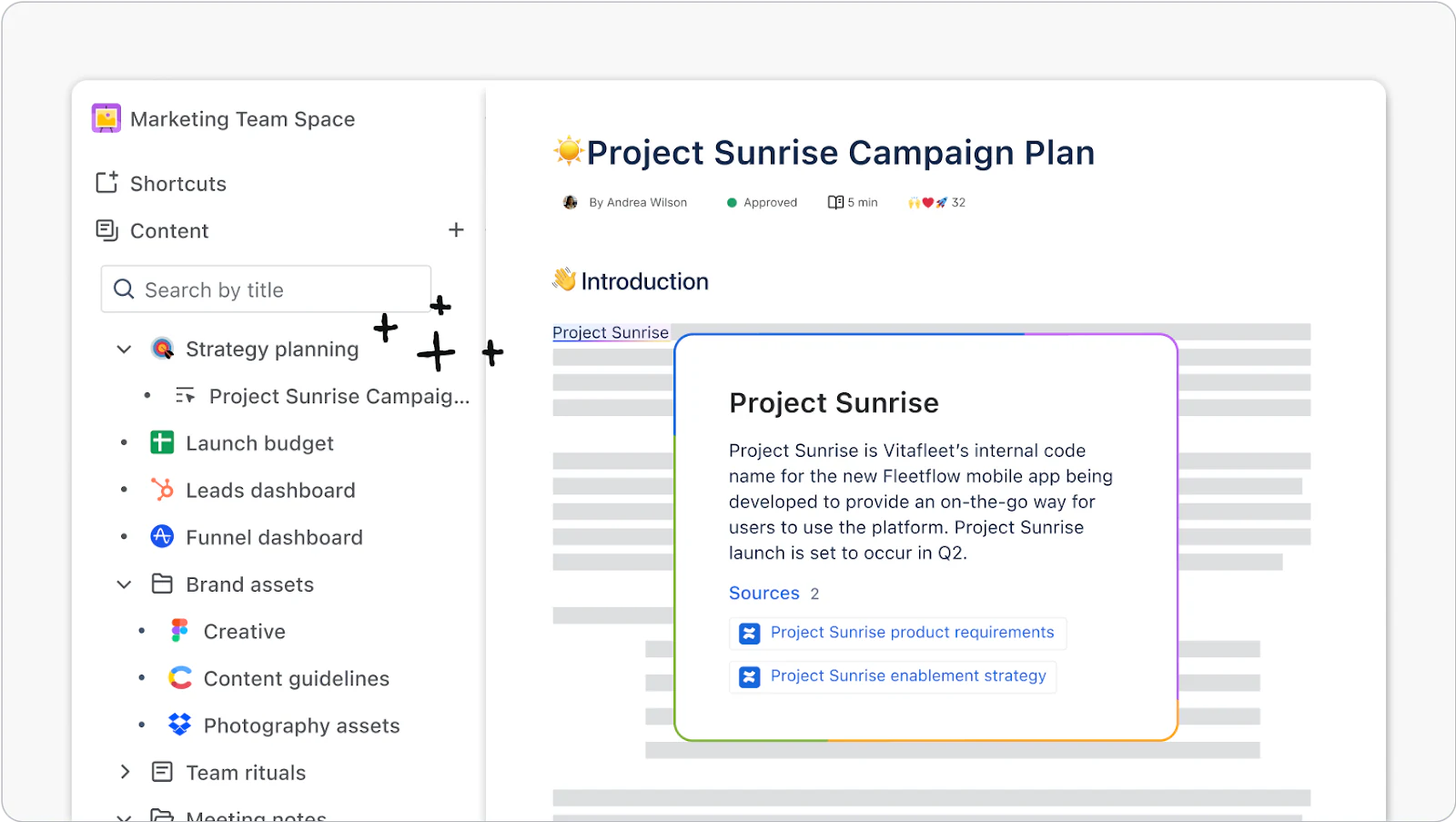
Confluence is Atlassian’s enterprise wiki platform. It’s built for large organizations that need structured documentation with deep integration into development and project management workflows, making it a popular knowledge base software for technical teams.
The killer feature is native Jira Service Management integration. Development teams can link documentation directly to issues, embed live issue lists in pages, and create tickets from meeting notes. This tight coupling makes Confluence the default choice for companies already invested in the Atlassian ecosystem.
Who is Confluence best for?
Development and technical teams already invested in the Atlassian ecosystem, especially those that link documentation to Jira issues.
Pros:
- Seamless Jira integration: Link documentation directly to Jira Service Management issues, embed live issue lists, and create tickets from pages. Development teams get a unified documentation and issue tracking workflow.
- Enterprise security: Robust permissions, audit logs, IP allowlisting, and SAML SSO. Meets security requirements for regulated industries needing secure organizational knowledge management.
- Spaces and organization: Create separate spaces for each team or project. Each space has its own permissions, page tree, and navigation for organized internal knowledge.
- Templates and structure: Pre-built templates for common documentation types following best practices. Consistent formatting across teams.
Cons:
- Search needs improvement: Users consistently report frustration with search quality. Finding specific, relevant information in large Confluence instances can be difficult.
- Becomes cluttered over time: Pages accumulate and get outdated. Content governance requires ongoing effort to keep the wiki clean and useful for effective knowledge management.
- Steep learning curve: The interface feels dated and takes time to master. New team members often struggle with navigation and organization.
Confluence features
- Page hierarchies: Organizes documentation in nested page trees. Creates a clear information architecture for different departments or functions to support knowledge sharing.
- Version history: Tracks every change with automatic version control. Rolls back to previous versions when needed for your document management system.
- Collaborative editing: Different stakeholders can edit the same page at the same time through team collaboration with comment threads and change tracking.
- Marketplace add-ons: Thousands of apps extend functionality for diagrams, forms, workflows, and integrations with other collaboration tools.
Confluence pricing
- Free: Up to 10 users
- Standard: From $5.42 per user/month, with the per-user price falling as your team grows
- Premium: From $10.44 per user/month
- Enterprise: Custom pricing, for 801+ users
5. Guru — for AI-powered knowledge delivered where you work
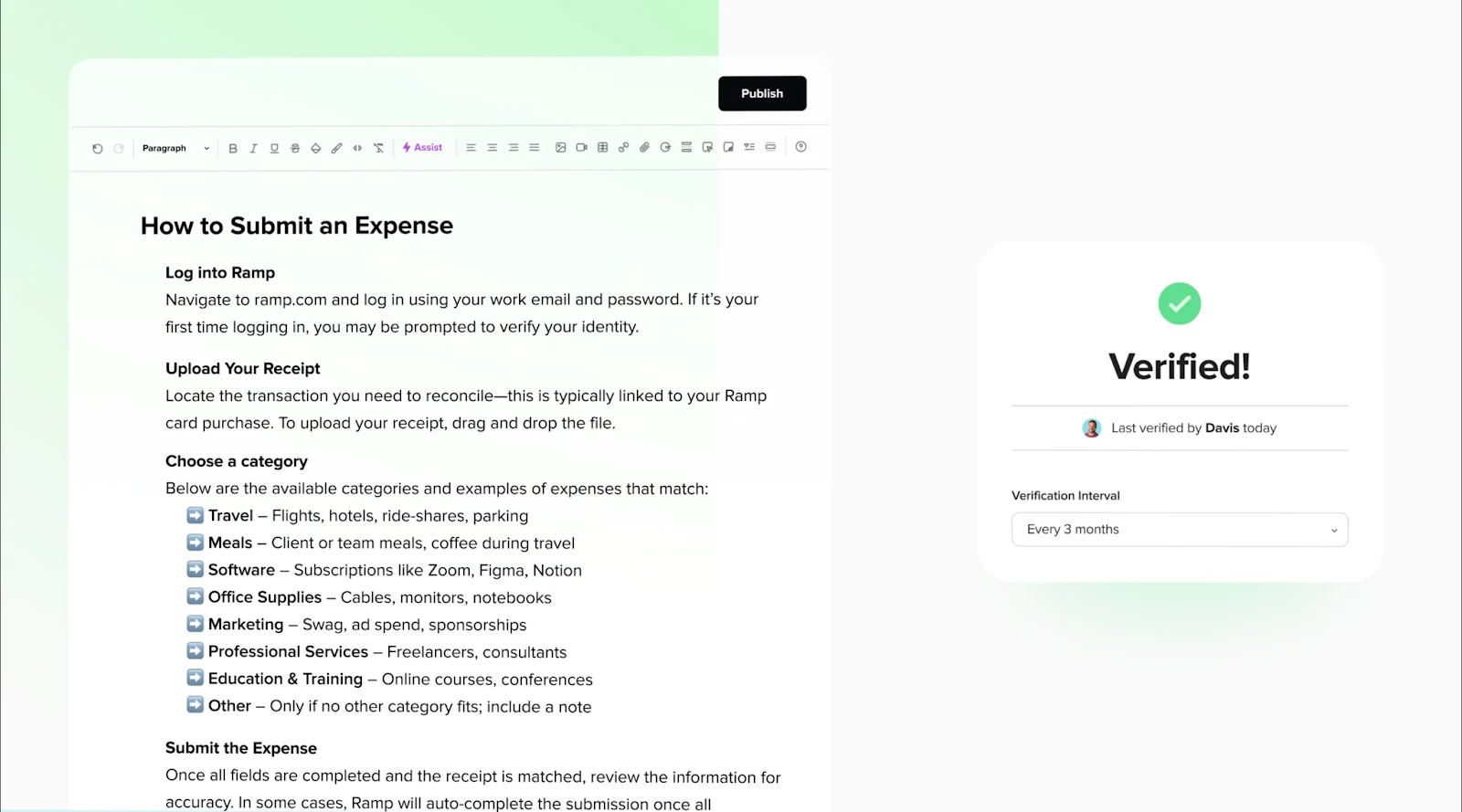
Guru brings knowledge to you rather than having you search for it. The platform uses AI-powered search to surface relevant information directly in the collaboration tools you already use, like Slack, Salesforce Knowledge, or your browser.
The verification system keeps knowledge up to date in line with best practices. Subject matter experts get assigned to verify content on schedules. This ensures information stays current without manual content audits, maintaining organizational knowledge quality.
Who is Guru best for?
Teams that want answers inside Slack, Microsoft Teams, Salesforce, or the browser instead of a separate portal, with subject matter experts keeping content verified.
Pros:
- AI-powered retrieval: Ask questions in natural language and get instant answers pulled from your knowledge base using AI-powered search. AI understands context and delivers relevant information.
- Browser extension: Capture and access knowledge without leaving your current workspace. Works across web apps and internal tools for seamless knowledge sharing.
- Content verification: Schedule reviews for specific content with designated experts following best practices. The system prompts owners when information needs updating.
- Deep integrations: Native connections to Slack, Salesforce Knowledge, Microsoft Teams, Google Workspace, and more. Knowledge appears where you actually work as a true collaboration tool.
Cons:
- No public pricing: Guru only shares pricing through sales, so costs are hard to compare up front.
- Card-based structure: The knowledge card format works well for certain types of information, but can feel limiting for long-form documentation or complex explicit knowledge.
- Setup requires investment: Getting value from Guru requires migrating content, setting up verification workflows, and training the AI on your company’s terminology and tacit knowledge.
Guru features
- Knowledge cards: Package information into digestible cards that can be surfaced contextually across tools. Each card has an owner, verification schedule, and usage tracking for effective knowledge management.
- AI search: Semantic AI-powered search understands meaning beyond keywords. Finds relevant information even when you don’t know the exact terms or titles.
- Slack integration: Answer questions in Slack threads without leaving the conversation. Knowledge is inline with proper citations, supporting team collaboration.
- Analytics dashboard: Track which content gets used, what searches come up empty, and where knowledge gaps exist in your organizational knowledge.
Guru pricing
- Custom pricing only. Guru no longer publishes plans or per-user prices, so you'll need to contact sales for a quote.
6. Slite — for remote teams building collaborative knowledge bases
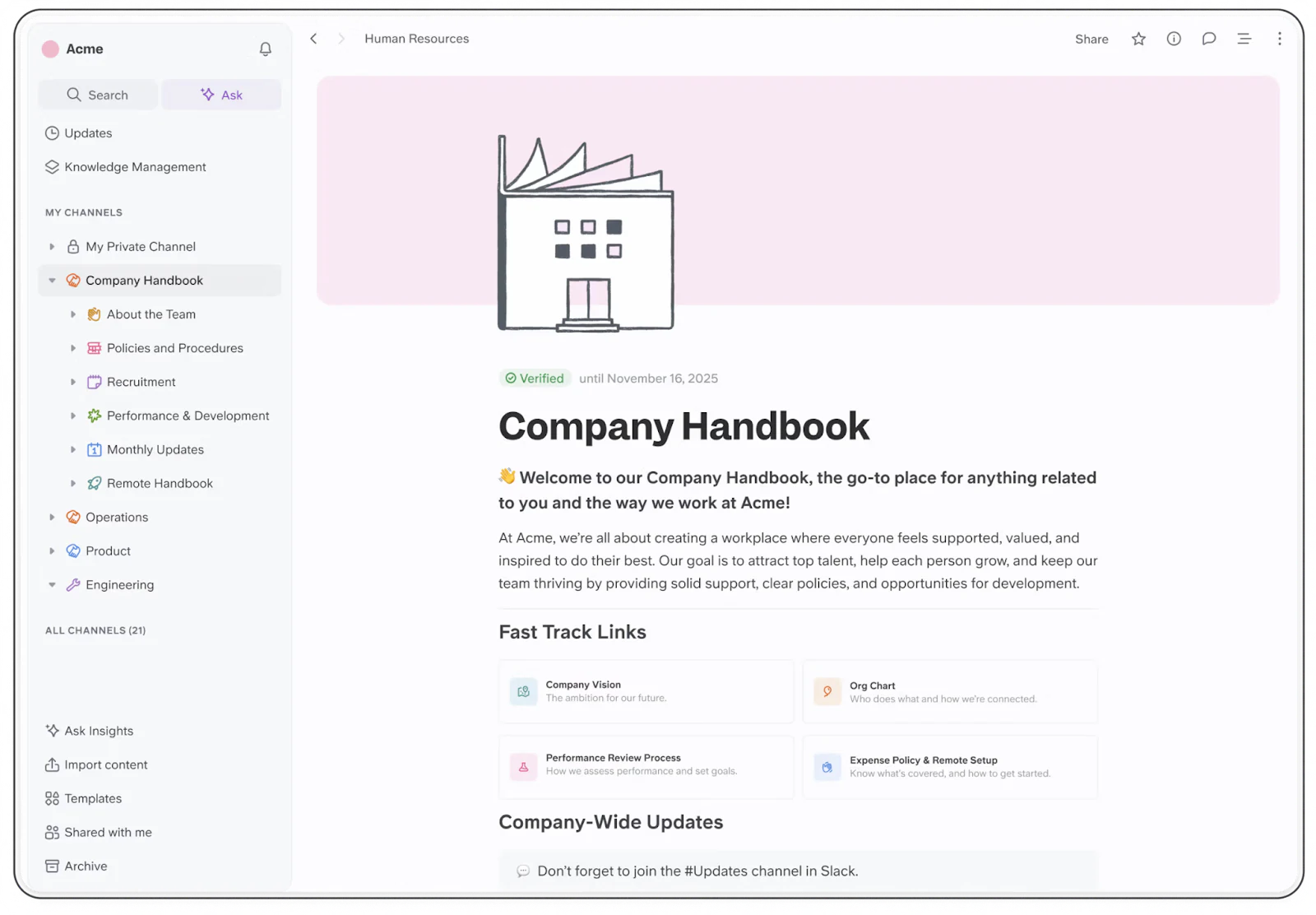
Slite focuses on clean, collaborative documentation for remote and distributed teams. The platform strips away complexity to make creating and finding knowledge as simple as possible through natural team collaboration.
The editor is intentionally minimal. You write in a distraction-free interface with just enough formatting options to make content readable. Generative AI features suggest related content, identify outdated information, and help improve documentation quality following best practices for content creation.
Document verification ensures knowledge stays current. Slite prompts owners when content needs review and highlights pages that haven’t been updated recently, maintaining organizational knowledge quality.
Who is Slite best for?
Remote and distributed teams that want clean, collaborative internal documentation without a complex setup.
Pros:
- Clean, simple interface: No clutter or overwhelming options. Teams can start creating content immediately without extensive training, supporting quick knowledge sharing.
- AI content suggestions: Generative AI identifies knowledge gaps, suggests related articles, and helps improve existing documentation using best practices.
- Document verification: The system tracks when content was last reviewed and prompts owners to verify the accuracy of schedules for effective knowledge management.
- Good Slack integration: Search and share knowledge directly in Slack. Get notifications when relevant information updates.
Cons:
- Limited advanced features: Deliberately simple means fewer options for complex workflows, granular permissions, or database functionality in your knowledge management system.
- Not ideal for external-facing content: Built primarily for internal knowledge. Limited customization for client-facing documentation or customer support portals.
- Basic analytics: Usage tracking exists but lacks the depth of platforms focused on content optimization and customer satisfaction metrics.
Slite features
- Real-time collaboration: Your whole team works in the same doc simultaneously. Comments, @mentions, and change tracking keep everyone on the same page without the back-and-forth emails.
- Templates and checklists: Pre-built templates for common documentation types like meeting notes, onboarding guides, and process docs following best practices.
- Collections and channels: Organize knowledge into collections for different teams or topics. Control access at the collection level for internal knowledge security.
- Search and discoverability: Full-text search with AI-powered suggestions for related content. Quickly surface relevant information.
Slite pricing
- Basic: $10/user/month (annual billing), includes AI search and answers, doc verification, and the Knowledge Management Panel.
- Pro: $20/user/month (annual billing), adds the Slite Agent, search across connected tools, and a custom domain for public docs.
- Enterprise: Custom pricing for larger teams with advanced admin controls and priority support.
7. Document360 — for structured documentation with version control
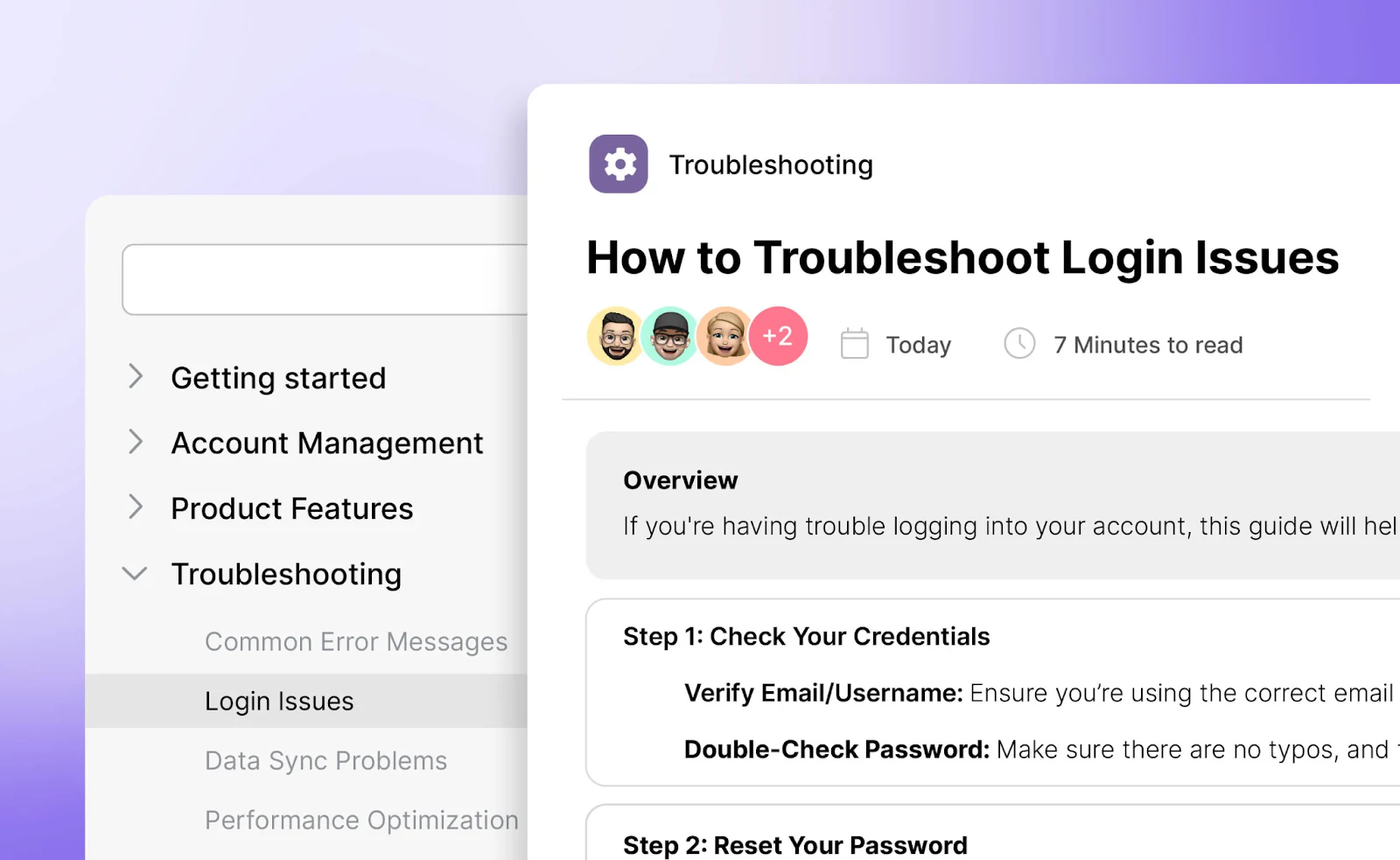
Document360 specializes in creating and maintaining both internal knowledge and customer-facing documentation. The platform provides professional document management features like version control, multi-language support, and detailed analytics.
You can use either a markdown editor or a WYSIWYG (What You See Is What You Get) editor, depending on your team’s technical comfort. The platform supports both public customer knowledge bases and private internal knowledge documentation in a single workspace, enabling comprehensive knowledge management.
Who is Document360 best for?
Document360 shines for teams that need audit trails, formal review processes, and the ability to see exactly how documentation changes over time, following best practices for document management systems.
Pros:
- Flexible content editors: Choose between markdown for technical writers or WYSIWYG for non-technical contributors. Both editors support rich formatting, code blocks, and media for content creation.
- Built-in version control: Track every change with detailed version history. Compare versions side-by-side and roll back when needed in your document management system.
- Multi-language support: Create and manage documentation in multiple languages. Essential for global teams or products needing effective knowledge management across regions.
- Advanced analytics: See what content gets used, track search queries that return no results, and identify documentation gaps to improve customer satisfaction.
Cons:
- Pricing is unclear: There’s no pricing information on their website, so you have no idea what it would cost.
- More suited for customer-facing docs: While it handles internal knowledge, the feature set is optimized for external documentation and customer support help centers.
- Learning curve for advanced features: Full platform capabilities require time to learn and configure properly for effective knowledge management.
Document360 features
- Category manager: Organize content into hierarchical categories up to six levels deep. Drag and drop to reorganize the structure for better knowledge sharing.
- AI-powered Ask Eddy: Generative AI assistant answers questions based on your documentation. Works for both internal users and customers, providing relevant information.
- Portal customization: White-label your knowledge base with custom domains, branding, and themes. Create separate portals for different audiences.
- SEO optimization: Built-in tools for meta descriptions, title generation, and related article suggestions help content rank well, driving organic traffic to your knowledge base.
Document360 pricing
Document360 offers three plans—Professional, Business, and Enterprise—but there’s no clear pricing on their website. You’d have to contact their sales team to get the pricing.
8. Tettra — for Slack-integrated internal knowledge
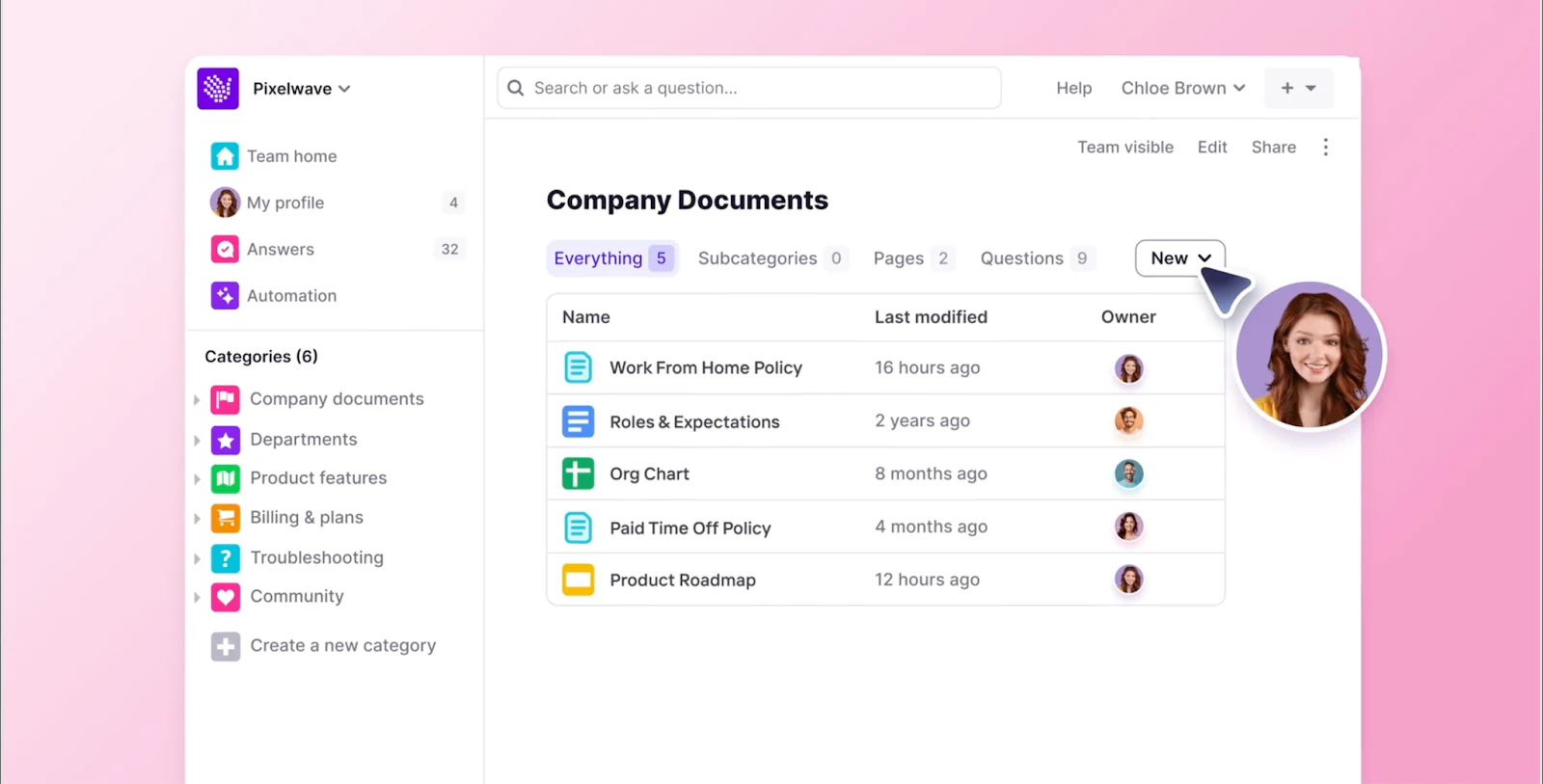
Tettra builds internal knowledge management around Slack. The platform integrates directly into team communication, letting people ask questions and get answers without leaving their conversations, enabling seamless knowledge sharing.
Kai, Tettra’s AI assistant, searches your knowledge base to answer questions asked in Slack or Microsoft Teams using AI-powered search. When someone asks something that isn’t documented, you can create a knowledge base article directly from the conversation, capturing tacit knowledge.
The verification system ensures knowledge stays up to date in line with best practices. Content owners get reminders to review their sections on schedules you define, maintaining organizational knowledge quality.
Who is Tettra best for?
Small to medium teams that use Slack as their main communication tool and want answers without leaving their conversations.
Pros:
- Deep Slack integration: Answer questions in Slack threads with knowledge base content. Create new articles from conversations. Get notified when relevant information updates.
- Kai AI assistant: AI-powered search searches your knowledge base to provide instant answers. Learns from your company’s terminology and content over time.
- Content verification: Assign subject matter experts to review content on schedules following best practices. The system reminds owners when pages need updates to support effective knowledge management.
- Affordable pricing: Starting at $8/user/month makes it accessible for small teams and growing companies as cost-effective knowledge management software.
Cons:
- Heavily Slack-dependent: Core functionality works best when Slack is your primary communication tool. Limited value for teams using other platforms.
- Basic content formatting: Limited formatting options compared to platforms focused on rich documentation. Works for straightforward text content in your internal knowledge base.
- Limited scalability: Best suited for small to medium teams. Large organizations may outgrow the feature set of this knowledge management tool.
Tettra features
- Q&A within Slack: Users ask questions, and they are answered with knowledge base content for instant knowledge sharing. Questions without answers trigger article creation.
- Categories and folders: Organize knowledge base articles into logical groups. Tag content for better discoverability of relevant information.
- Simple migration: Import existing documentation from Google Drive, Confluence, or other platforms while maintaining formatting for your internal knowledge.
- Usage analytics: Track pages created, active users, and content views to measure knowledge base adoption and customer satisfaction.
Tettra pricing
- Scaling: $8/user/month (annual billing), includes AI bot in Slack, API access, etc.
- Enterprise: Custom pricing, hands-on training, custom reporting.
9. ClickUp — for teams wanting knowledge management within project management
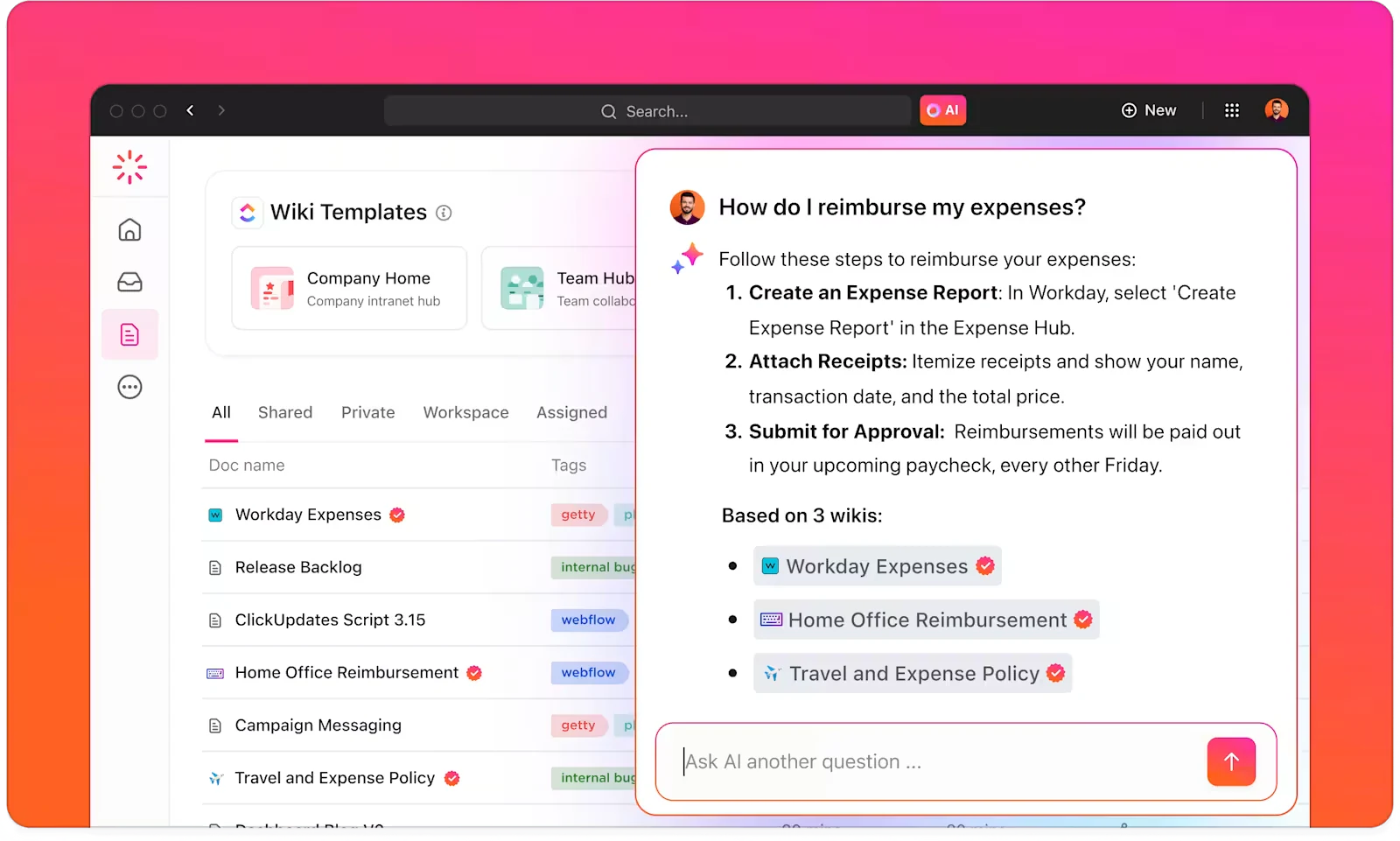
ClickUp combines project management with documentation and wiki features. Teams can create docs, turn them into verified wikis, and link everything to tasks and projects for comprehensive knowledge sharing.
ClickUp Brain, the platform’s AI assistant, searches your entire workspace to answer questions using AI. It looks through docs, tasks, comments, and wikis to provide context-aware responses with relevant information, supporting effective knowledge management.
Who is ClickUp best for?
The platform works best for teams that want a single tool for both project and knowledge management, rather than maintaining separate systems.
Pros:
- All-in-one platform: Manage projects, tasks, docs, and wikis in one place. Reduces context switching between different tools, consolidating organizational knowledge.
- ClickUp Brain AI: AI-powered search across your entire workspace to answer questions, pulling from docs, tasks, and comments to deliver relevant information.
- Verified wikis: Turn any doc into an official wiki with version control and permissions. Highlight verified content for teams following best practices.
- Free plan available: Generous free plan (Free Forever) includes unlimited users and many features. Good for testing and small teams.
Cons:
- Complexity and learning curve: Feature-richness can be overwhelming for new users. Takes time to set up and learn properly for effective knowledge management.
- Performance issues: Users report lag and slowness, especially in large workspaces or with many integrations, which impacts productivity.
- Knowledge features are secondary: Built primarily for project management. Documentation and wiki capabilities are lighter than dedicated knowledge management software.
- AI requires a paid add-on: ClickUp Brain costs an additional $9/user/month on top of your base plan for AI-powered search features.
ClickUp features
- Docs with task integration: Create documentation and link it directly to tasks and projects for team collaboration. Embed task lists, workflows, and project statuses in docs.
- Docs Hub: Central location to search, sort, and filter all documentation. Find knowledge across your workspace from one place.
- Real-time collaboration: Multiple people edit simultaneously with comments, mentions, and change tracking for team collaboration.
- Templates: Pre-built templates for common documentation types following best practices. Save frequently used docs as custom templates.
ClickUp pricing
- Free Forever plan: Unlimited members, 60MB storage, basic features.
- Unlimited: $7/user/month (annual billing), adds unlimited storage, integrations, and dashboards.
- Business: $12/user/month (annual billing), includes advanced features and automations.
- Enterprise: Custom pricing for large organizations.
Note: ClickUp Brain (AI-powered search features) costs an additional $9 per user per month on all paid plans.
10. Zendesk Guide — for support teams using Zendesk

Zendesk Guide is made for customer service teams that want to cut down on support tickets by helping customers find answers on their own.
If your team already uses Zendesk, Guide fits right in. Agents can turn solved tickets into help articles and automatically suggest relevant content to customers.
It’s built for public knowledge bases and includes AI-powered search, automation, and strong integration with Zendesk’s ticketing system. That means customers can solve problems faster, without waiting for a support agent.
Who is Zendesk Guide best for?
Zendesk Guide is best for companies already using Zendesk who want to offer a self-service help center. It’s also a great choice for teams that need a knowledge base connected to their help desk system.
Pros:
- AI-powered search: Uses machine learning to recommend answers before customers even submit a ticket.
- Seamless Zendesk integration: Works natively with Zendesk Support, Chat, and Talk.
- Multilingual support: Automatically translates articles into multiple languages.
- Content workflow tools: Version control, approvals, and article lifecycle management.
Cons:
- Not ideal for internal documentation: Primarily designed for customer-facing knowledge bases.
- Higher cost per user: Pricing can add up for larger support teams.
- Requires Zendesk ecosystem: Best for teams already using Zendesk products.
Zendesk Guide features
- AI-powered chatbots: Automatically suggest knowledge base articles to customers.
- Help center branding: Customize design, domain, and layout to match your brand.
- Content moderation & workflows: Manage drafts, approvals, and version history.
- Multilingual knowledge base: Translate content for a global audience.
Zendesk Guide pricing
- Suite Team: Starts at $55 per agent/month (billed annually).
- Suite Professional: Starts at $115 per agent/month (billed annually).
11. Help Scout — for simple, email-style customer support
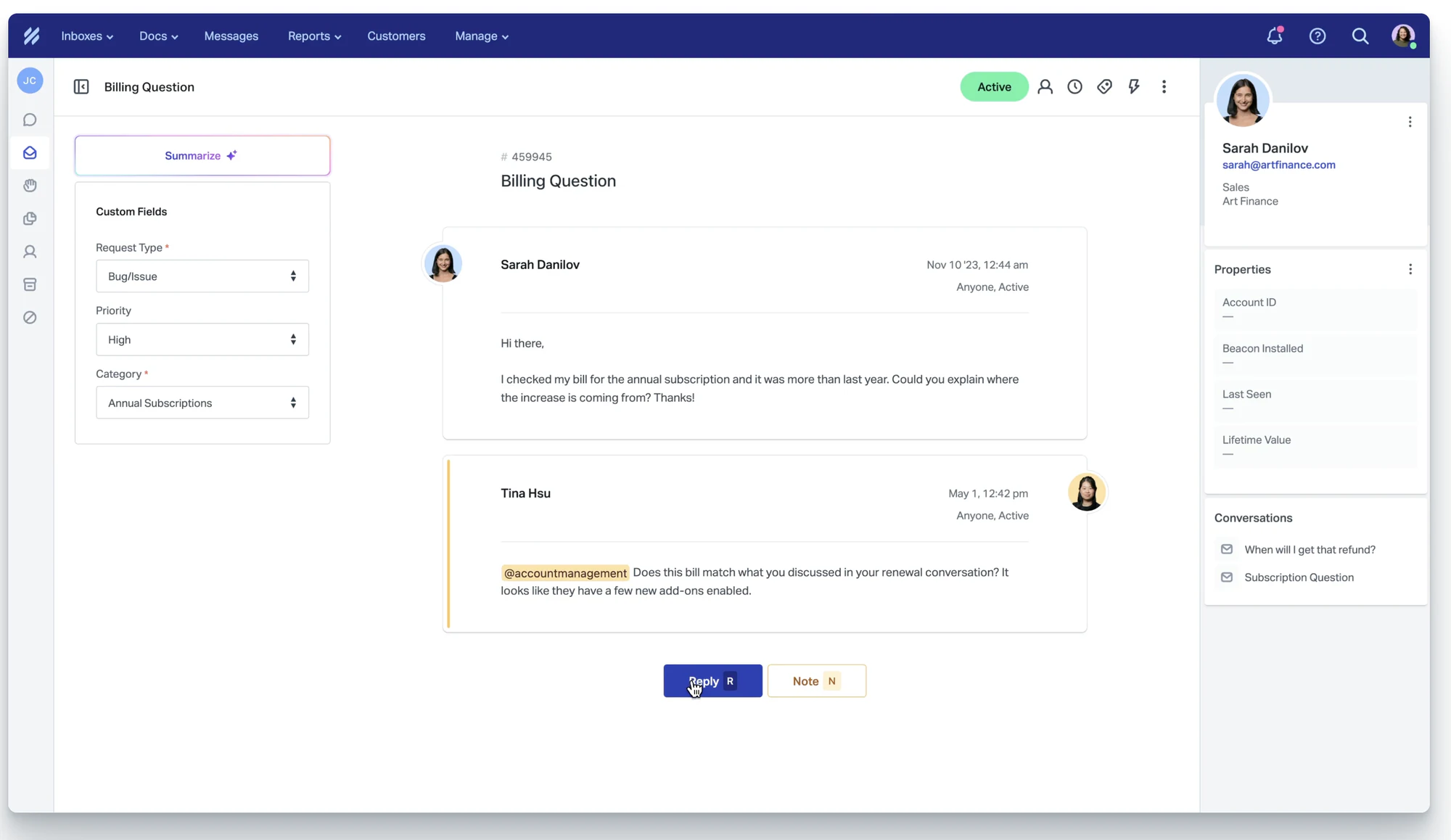
Help Scout is a help desk and knowledge base in one. It's built for teams who want a simple, easy-to-use support system. Instead of a complex ticketing tool, Help Scout works more like an email inbox, making it feel more personal and friendly for customers.
Its Beacon widget lets customers search for answers on any page, and the shared inbox helps support teams stay organized. If you're looking for a self-service tool that's simple and doesn't need heavy automation, Help Scout is a great option.
Who is Help Scout best for?
Help Scout is for small support teams that want a friendly, email-like help desk paired with a simple knowledge base. It's a good fit for businesses that don't need heavy automation and just want customers to find answers without submitting a ticket.
Pros:
- Easy to set up and use: Great for small teams that don’t want a steep learning curve.
- Beacon widget: Lets customers search the knowledge base without leaving the page.
- Shared inbox: Keeps support emails organized for better team collaboration.
Cons:
- Advanced workflows start on Plus: The Standard plan includes basic workflows only.
- AI answers cost extra: The AI Answers chatbot, which answers from your Docs content, is billed at $0.75 per resolution.
- Basic customization: Fewer design and branding options.
Help Scout features
- Instant access widget (Beacon): Embeds a self-service search bar anywhere.
- Customer profiles: Tracks customer conversations across multiple channels.
- Collision detection: Prevents agents from responding to the same inquiry.
Help Scout pricing
- Free: Up to 5 users, 100 contacts/month, and 1 Docs site with up to 10 articles.
- Standard: $25 per user/month (billed annually).
- Plus: $45 per user/month (billed annually).
- Pro: $75 per user/month (billed annually), 10-user minimum.
Types of knowledge management software
Different tools approach knowledge management from different angles. Understanding these categories helps you match the right solution to how your team actually works.
No-code app builders with relational databases
Platforms like Softr combine structured databases with custom interfaces. You get relational data modeling plus the ability to build portals, dashboards, and internal tools on top of that data.
Beyond just storing information, they support knowledge management features like granular permissions, approval workflows, and integrations with other systems. Teams use them to build custom knowledge hubs where information is easy to access, organize, and act upon. Plus, they combine the best of the features mentioned below: AI-powered knowledge retrieval, collaborative article editing, documentation with review processes, project management boards, and more.
Collaborative document platforms
Tools like Notion and Slite focus on collaborative content creation and editing. They excel at wikis, meeting notes, and living documents that multiple people update over time.
The knowledge lives in pages and databases that teams organize however makes sense for their workflow, supporting knowledge sharing across departments.
AI-powered knowledge retrieval
Guru and similar platforms emphasize finding answers fast using generative AI and AI-powered search. They surface relevant information based on context, often delivering knowledge directly in the tools people already use, like Slack, Salesforce Knowledge, or Microsoft Teams.
Knowledge gets packaged into cards or snippets that appear right when needed.
Documentation-focused platforms
Document360, Zendesk Guide, and Tettra specialize in structured documentation, with features such as version control, content creation workflows, and formal review processes. They’re built for teams that need audit trails, scheduled content reviews, and clear ownership of information.
Project management with knowledge features
ClickUp and Monday started as project management tools but added wiki and documentation capabilities. They work when you want task management and knowledge management in the same place, though the knowledge features tend to be lighter than dedicated platforms.
What to look for in knowledge management software
Choosing the right knowledge management tool depends on matching features to your team’s specific needs. Here are the key features that matter most:
- Database structure and organization: Look for tools that support relational data, linked records, and hierarchical organization. Simple folder structures work for basic docs, but growing knowledge bases need real structure for effective knowledge management.
- Search and discoverability: How quickly can someone who’s never seen your system find what they need? Test the search functionality with real questions your team asks. AI-powered search helps, but so do good tagging, clear categories, and a well-organized information architecture.
- Permission and access controls: Your tool should let you control what different people see and edit. Small teams might get by with simple page permissions, but growing organizations need role-based access, field-level security, and the ability to share specific views without exposing everything in your internal knowledge systems.
- Content creation and editing: How easy is it to create and update content? Look for rich text editors, templates, and the ability to embed various media types. Real-time team collaboration is essential when multiple people work on content together.
- Integration capabilities: Check for native integrations with popular tools such as Slack, Microsoft Teams, Google Workspace, Zoho Desk, or your CRM. API access lets you build custom connections when needed, and platforms that work with Stack Overflow for developer documentation can be valuable for technical teams.
- Workflow and approval features: Some teams need content verification, scheduled reviews, or formal approval processes. Others just need version history for their document management. So check if you route content through reviews before publication.
- AI capabilities: Can the platform help automate content creation, suggest related articles, or answer questions? AI-powered search and generative AI features vary widely. Some platforms offer basic search improvements while others provide full conversational interfaces.
- Scalability and performance: Will it handle your content volume as you grow? Test with realistic data sizes. Some tools slow down with thousands of pages or large file attachments, which matters for customer service and contact center operations.
- Customization and branding: If you’re building external-facing knowledge base portals, white-labeling and custom domains matter. Internal tools need less customization.
- Analytics and insights: Usage analytics help you identify gaps, improve popular articles, and retire outdated content for better customer satisfaction. Look for search query tracking and page view metrics.
Choose the right knowledge management software for your team
Most knowledge management tools give you wikis or document storage. That’s fine if you just need a place to dump files. But if you’re building knowledge systems that multiple audiences actually use—with proper structure, permissions, and workflows—you need something more powerful.
Softr combines AI-powered building, structured databases, and granular access control in one platform. You can launch a working knowledge base in minutes, connect data from anywhere, and serve different content to different users without managing multiple tools.
Try building your knowledge base with Softr for free. Describe your knowledge management needs in plain language. You’ll get a working portal with databases, permissions, and interfaces set up. From there, you can customize views, connect data sources, or add workflow automation based on what your team actually needs.
Frequently asked questions
What is knowledge management software?
How do I control who can see certain articles in my knowledge base?
What's the difference between a knowledge base and a wiki?
Can a knowledge base tool also work as a client portal?
Can I build a knowledge base for free?