Transcript
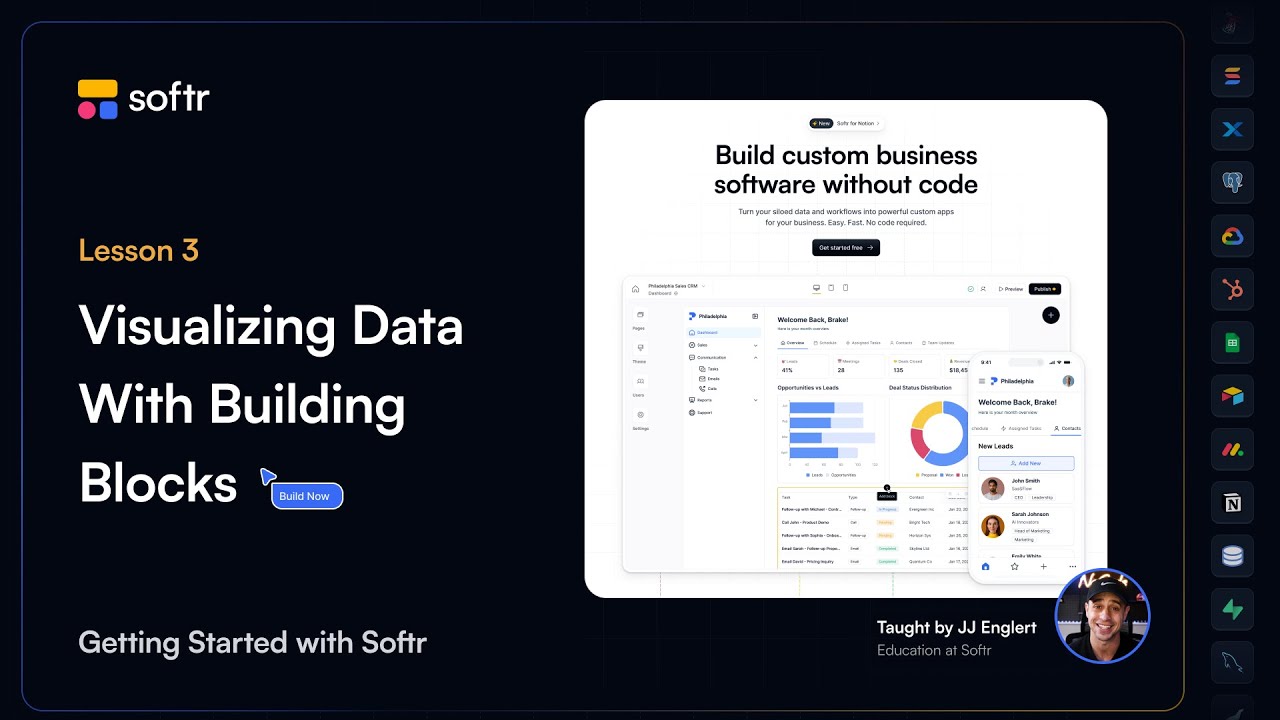
In this lesson, we are diving deeper into how Softr helps you visualize data with blocks. You have already connected to your data source and mapped data fields, so now let us expand upon those skills by exploring various block types.
We will cover why different blocks are essential for structuring your app and how to enhance your app with search, filtering, and sorting capabilities. We will also review the actions and visibility tabs to give you more control and create a dynamic detail page for record-specific content.
There are three main types of blocks: dynamic blocks, static blocks, and container blocks. Dynamic blocks allow you to display and interact with real-time data from sources such as Airtable, HubSpot, or SQL.
[.blog-callout]
While Softr integrates with 17+ external data sources, Softr Databases is the powerful, native way to manage data directly within Softr for maximum performance.
[.blog-callout]
These dynamic blocks are the foundation of most business applications because they let you manage, update, and showcase your data dynamically. For each one, you can customize the data source to define where the block retrieves its information.
You can also configure the content to determine how your data appears, such as displaying names, dates, or images. The actions section determines what users can do, such as clicking to see more details or starting automated workflows.
[.blog-callout]
Note from Softr: You can also use Softr Workflows to keep your logic close to your design, helping to consolidate tools and reduce reliance on third-party automation platforms.
[.blog-callout]
The style settings allow you to adjust appearance, including fonts, colors, and spacing to match your brand. Finally, visibility settings control who can see the block and whether it appears on desktop, tablet, or mobile devices.
Static blocks provide content that remains the same for all users until manually updated. Examples include hero blocks for headlines, FAQ blocks for common questions, and CTA blocks to encourage actions like signing up.
For each static block, you can edit components like layouts and headings. Since these do not change based on user data, they are perfect for content that remains consistent for everyone visiting your application.
Container blocks allow you to group and organize other blocks into structured layouts. These are particularly useful for creating dashboards, detail pages, or multi-section layouts using tabs or columns.
Tabs divide content into different sections that users can easily switch between, which is great for organizing product details. Columns display content side-by-side, such as placing charts next to key metrics.
[.blog-callout]
If a native block does not quite fit your advanced layout needs, you can use the Vibe-Coding block to prompt for the exact custom component you want, and it will generate it and connect to your database.
[.blog-callout]
By leveraging dynamic, static, and container blocks, you can create a well-structured and interactive app. However, a great app also helps users find exactly what they need through search, filtering, and sorting.
To add search, open your block settings, navigate to the content tab, and enable the search bar. You can then select the fields users can search, such as names or categories, to find data regardless of database size.
Inline filters allow users to refine what they see, such as filtering members by team. You can also define sorting rules to organize data by date or numerical value through the source tab.
Conditional filters, also known as record filtering, allow you to filter data for each logged-in user. For example, users can be restricted to seeing only records tied to their own email address or tasks marked as done.
In the actions tab, you can set up capabilities like creating, editing, or deleting data. The visibility tab ensures you can control who sees each block based on user roles or specific attributes.
[.blog-callout]
Another great option for setting up your app structure is to open the AI co-builder and prompt for what you want. It builds complete apps, pages, or database schemas instantly.
[.blog-callout]
Item details blocks are used when users want to see more details about a specific record. In the pages area of the Softr Studio, you can create a new page and add an item details block to it.
After choosing your table and mapping fields like employee name and details, return to your dashboard and select your list block. In the actions tab, enable the item on click option to open the new details page.
Now when users click on a specific record, they will be redirected to the relevant information page. These tools make your application more functional, engaging, and user-friendly for your team or clients.
[.blog-callout]
Whether you are building an AI CRM template or a team intranet, mastering these block settings is key to a professional user experience.
[.blog-callout]
You have now learned how to use blocks to visualize data, enhance interactivity, and create dynamic detail pages. In the next lesson, we will dive deeper into action buttons and how they let users manage data directly.