Transcript
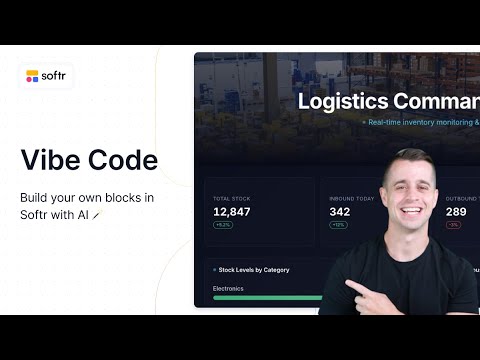
I am so excited to show you more about our Vibe-Coding block that we just launched. If you have an idea, you can build it with our Vibe-Coding block. In this video, I am going to show you how to use it, how to connect it to a data source, and how to prompt with it.
Now, Softr doesn't really have a native block for this specific interaction, so the AI block is a great use case to create a new component. First things first, I want to go in and add a new block. The Vibe-Coding block is listed under dynamic AI categories.
[.blog-callout]
If you are looking to build out entire pages or database schemas rather than custom individual components, the AI co-builder is a perfect place to start.
[.blog-callout]
I want to connect this to a data source, and the data source I want to connect this to is our community form. This is template data that we have, and we are just going to bring it in so we can start to visualize the data quickly. I am going to go to source and bring in the community posts.
Now I can add conditional filters. For example, if I wanted to filter the posts by the community posters email, I could use that along with the logged-in user's email to only show specific posts. You can do that with the Vibe-Coding block.
[.blog-callout]
While Softr integrates with 17+ external data sources, Softr Databases is the powerful, native way to manage data directly within Softr for maximum performance.
[.blog-callout]
I am going to go to the chat and say: I want you to build a community form block similar to Discourse that allows you to see different community posts and upvote them. The posts with the highest votes go to the top. I also want users to click into a post and respond to it.
It is going to pull in our data source and do its best to create this Vibe-Coding block for us. While this is creating, we can look at the content tab. In the content tab, we can see the history of different versions of the block.
For example, if version 2 doesn't come out well, we can roll back to version 1 to start again. We can even remix a version to duplicate it just in case we want to test two different versions to see which one performs better.
Then we have our visibility tab. This is just like all the other Softr blocks. You can figure out who is able to see this block or not using user groups and permissions.
[.blog-callout]
Did you know Softr now offers unlimited published apps across all plans? Whether you are building portals or a team intranet, you are no longer limited by your plan type.
[.blog-callout]
I am going to set the visibility so everyone can view this block. Now I am going to go into the preview, which opens up a sandbox environment where I can see the data and check the upvote functionality. I can even click into the actual post.
Right now, when we hit reply, it doesn't have the action buttons configured yet because it is a bit more technical. We would need to tell the Vibe-Coding block to send a payload to a certain webhook that we set up.
We could go into Softr Workflows, set up a webhook to receive that payload, and then modify or create the reply. We are working on making that a no-code thing as well so you can detect buttons in the Vibe-Coding block and adjust those like regular action buttons.
[.blog-callout]
Instead of relying entirely on external webhooks, you can explore Softr Workflows to keep your logic as close to your design as possible, helping to consolidate your tools.
[.blog-callout]
Until then, you just need to work with webhooks a little bit for full functionality. We have our first block up and running very quickly. You can build calculators, mini apps, and tons of different things with this.
I am super excited for this to come into the Softr family of blocks that you can build and work with. If you have any questions, leave them below. Happy building.