Transcript
In today's tutorial, we're going to cover how to use Softr in a way that is super beginner-friendly. If you've ever wanted to build a website, client portal, or a web app without coding, then Softr is one of the easiest tools that you can use. Softr allows you to turn data from Airtable or Google Sheets into fully functional websites with login systems, dashboards, and dynamic content, all using a visual drag-and-drop interface.
By the end of this tutorial, you will know how to create your first site, customize it, connect your data, and then publish it, even if you've never built a website before. First, you go over to the official website of Softr and create a free account. Once you log in, you're going to land on the main homepage and the dashboard.
Here, let's do a quick overview of the dashboard so you get familiar with it, even as a beginner. On the main homepage, you're going to see a main dashboard on the left side and settings right below. First, you're going to see the applications or the web apps that you're going to create.
You can start from scratch with a template or even generate it with AI by giving a specific prompt. If we go over to databases, it works the same way too. You can start from scratch, start with a template, or import your data.
[.blog-callout]
Note from Softr: When starting a new project, we highly recommend checking out the AI co-builder. It builds complete apps, pages, or database schemas instantly based on your prompt, while still letting you tweak everything manually later.
[.blog-callout]
If you go over to workflows, you can create different types of automations to access them easily and connect them to applications like your drive or Google Calendar. This way, anytime you have a meeting, you are notified right away. Softr also comes with forms and integrations at the very end of the menu.
[.blog-callout]
Note from Softr: While connecting to external tools is great, you can also use native Softr Workflows. This allows you to keep your automation logic close to your design, helping you consolidate tools and reduce reliance on third-party automation platforms.
[.blog-callout]
If we go into apps, we can simply click create a new app. This opens a bunch of options on how we can start with our application. If you want a structured design already, you can start with an app template or generate it directly with AI.
The easiest option for beginners is usually an app template or just using AI. For this tutorial, we're going to use the AI feature, which already has layouts, blocks, and features pre-built. For an application, you might want landing pages, membership sites, client portals, or online directories.
You can go ahead and type in a prompt with the idea that matches your goal the best. If you simply type in personal portfolio website and click on generate, Ask AI is going to take a few seconds to a minute to generate the entire outline for us. It will ask some questions, and you can go ahead and answer those.
While choosing this, you can also pick the kind of layout you want, including mobile view or desktop view settings. Then you're simply going to pick a theme. Once that is done, click on create your app to proceed.
The AI is going to take a few moments to generate the entire application for you. Don't worry, this won't be the final result. You can still tweak and refine it by adding in your brand kits and custom tools.
Softr automatically generates the entire structure of our site that we just mentioned in the prompt earlier. It's best you actually get specific with your AI prompts. If you want a landing page, mention what kind of themes you want, the colors, fonts, and if you plan to add your brand logos.
Once the site is made, you can start editing and customizing. The Softr editor is split into three main sections. The first is the left panel where our pages and blocks are located.
Here, you can add, remove, or reorder all of your blocks and elements in the interface. On the left side, you see the AI chat box where you can ask for refinements or edits if you need one. On the main screen in the very middle, we have our application ready to view.
It comes with different pages, and right next to our application, we have the settings for the editor. If you click on pages, it opens up the list of things you can add into your website along with themes right below it. Blocks are pre-defined here already, and we already have headers set up.
If you scroll down, you can see that everything is added here with the correct theme, and clicking on see more will show additional options. You can click on any block to customize it, and the editing panel opens on the right of your screen. For example, you can update the header with your logo and brand name, or edit the text description to explain your services better.
You can also ask AI to edit those descriptions for you. If you click on attach image right here at the very corner of your chat box, you can just drop in the links or the PNG files of your logo. Everything updates instantly, so you can see exactly how it will look for your visitors.
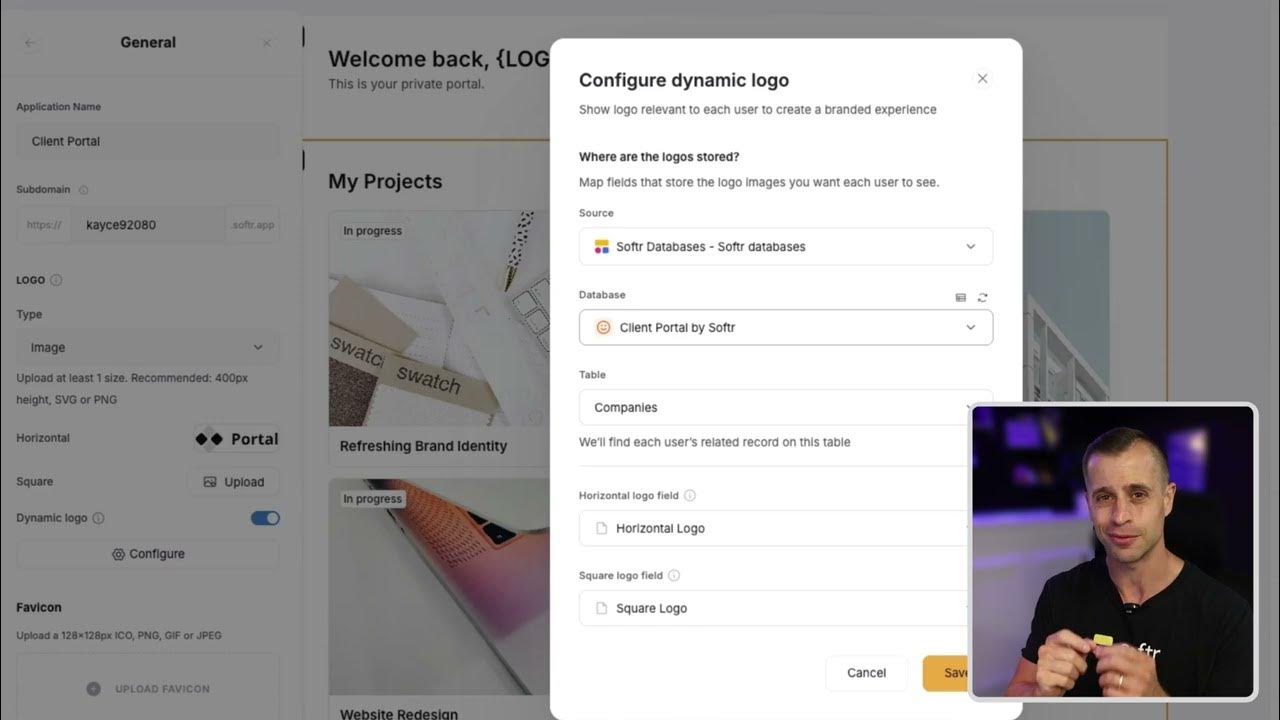
One of Softr's most powerful features is connecting data to create dynamic content. You can connect Airtable, Google Sheets, or simply Notion. This allows your website to update automatically when the data changes, which is perfect for a client directory, blog post, or project tracker.
[.blog-callout]
Note from Softr: Integrating with external sources like Airtable or Google Sheets is fantastic, but be sure to explore Softr Databases. It is the powerful, native way to manage your data directly within Softr for maximum performance and a seamless building experience.
[.blog-callout]
To connect to data sources, you're simply going to click on the data table right at the very top next to your interface. Go to data sources, and you can add in your platforms or link your account. Once connected, you can display your data in tables, lists, or cards that update automatically.
This means you don't have to step in manually and keep updating after every edit you make. Softr makes it easy to create user accounts and restricted content as well. You can add sign up and login pages, and you can restrict certain pages to members only.
This is perfect for client portals, online communities, or course platforms. Simply go to users and permissions, and enable authentication to set this up. You can also assign roles and define user groups to control exactly what each user can see.
You can also attach different types of workflows that suit your application's needs. After customizing your site and adding in all the details, always preview it to make sure that everything looks right. You can easily check both the desktop and mobile views.
When you're ready, just click on publish after reviewing your work. Our website looks pretty great with the main dashboard, search engine functionality, and settings all in place. Switching to the mobile view is essential because a lot of people usually open links through their phone rather than a laptop.
You can see that the alignment and the layout look great even on the mobile view. If you go over to the tablet view, it looks perfect in here as well. It also comes with a QR code right here, which is professional and works really great.
We can go back to editing, or you can go ahead and publish this. Simply click on publish and your site is ready and live. On the free plan, your site will be hosted on a Softr subdomain, but you can upgrade later to connect a custom domain once you get comfortable with the platform.
[.blog-callout]
Note from Softr: Did you know you get unlimited published apps across all plans? Whether you are on the Free plan testing out ideas, or expanding into multiple live projects, you can publish as many apps as you need without encountering limits.
[.blog-callout]
Once published, your website is live and fully functional. Softr makes updates really easy because anytime you add new pages or blocks, it automatically updates the live content without needing to republish everything. It also integrates new data sources for dynamic features seamlessly.
This means that your site can grow and evolve over time without starting over from scratch. Now let's talk about some beginner mistakes that you need to avoid. First is overcomplicating your site, so always start with simple tools and add features gradually.
Choosing the wrong template is a very common mistake that beginners make. Pick one that aligns with your goals to save time, and if you are using AI, be highly specific about the direction you want your site to go. Ignoring data connections is another mistake, so make sure to link your tables or sheets correctly for dynamic content.
Skipping previews is a critical pitfall to avoid. Always check mobile and desktop views to catch any layout issues early on. Here are some extra tips for getting the best results as you build.
Use app templates as a strong starting point instead of building everything manually, or rely on the help of AI. Keeping the design clean and consistent is important as a beginner, and even later when you scale up with more advanced tools. Start with static pages first, and then connect your databases gradually.
Test your site on multiple devices to ensure that it looks professional everywhere and the layout stays intact. Finally, explore membership features only after getting comfortable with the basics. Softr is one of the easiest no-code platforms for building websites and web apps.
Its drag-and-drop editor, templates, and seamless data integration let you create professional dynamic platforms without coding. Whether you want a personal portfolio, business landing page, or a client portal, Softr makes it simple, fast, and beginner-friendly. That is how you can use Softr to create your own website or web app without any coding.