Transcript
Let's see how quickly we can stand up a previously existing Airtable database inside Softr's new databases so that we can build our new app inside Softr entirely. I'm here on my Softr Studio, and I've already pulled data from my previous Airtable database by downloading it via CSV.
There's going to be additional ways to import data from Airtable, Google Sheets, and other sources in a little bit after beta is complete. Right now our options are to do a CSV download. Where you used to put all data sources, now you have an additional option to include your databases here inside Softr.
[.blog-callout]
Note from Softr: While this video shows CSV uploads, Softr Databases is now the native way to manage data directly within Softr for maximum performance and a seamless building process.
[.blog-callout]
If we click inside here, we can see our existing databases as well as import data from other sources. We can create the new database here or we can do import data and start from there as well. Let's do a CSV file.
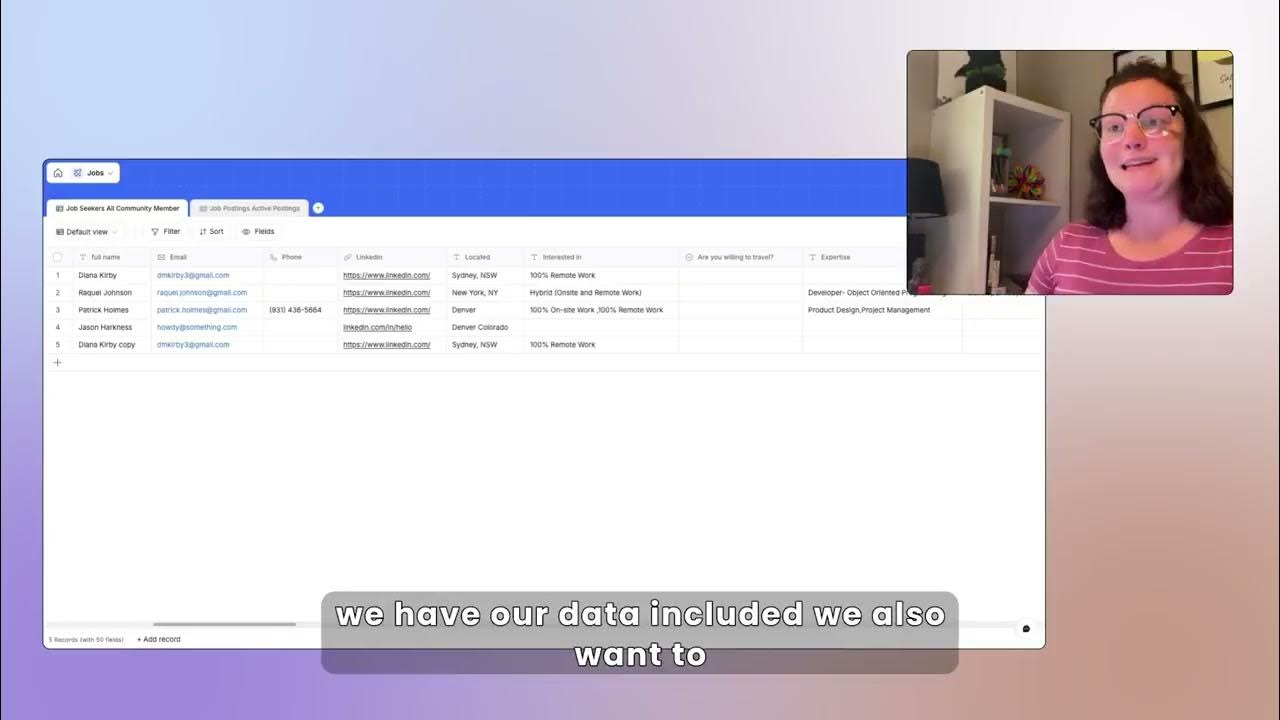
I am going to pull two different ones, starting with our job seekers. We can see that we have all of the same fields that we had in our Airtable database here in our job seekers, and they're already mapped here for us. Let's import that data as a database.
The color and background imaging changes with each one, so you have plenty of colors and options to choose from. You can also change the color manually. I think what's fun about this is I can grab the hex code from my brand and make this database align with my branding colors.
I'm not limited to only a preset number of colors. I can change the icons here as well and change the name. We see here I have my data that has been pulled in.
Let's add an additional table here from our other side of this database, our job postings, so that we can match those items together. We're going to import our data again into the second table. If we go back through our fields, let's take a look.
It is correctly mapped. This is a text for our full name. We have our email and phone number. Let's change this to a phone number field, which is very nice. Let's change this LinkedIn field to a URL field.
There are plenty of things we could do here. Let's change this travel question to a selection, which can be single or multi-select. We are going to save that.
We have our data included and we want to link this table to the other. Let's find our field that was going to be that and change that to a linked relationship. We have our list of folks that are seeking a job and our list of folks that are hiring for jobs.
We now want to make a third table that is going to connect those two pieces together. For this, we could do our CSV, but let's create it ourselves. This we're going to do as a related record here.
This is going to be our job seekers or candidates. Then we'll do an additional one for job postings and hiring managers. You can change the option to do multiple or individuals as well.
Now we will be able to connect our individuals here or use automations to make those connections. One thing I just saw is being able to add this record ID number. That is so important in so many things that you do.
We can have this record ID built innately. In Airtable, you have to pull in a formula. It is really nice when Softr Databases add that as a field itself so you can pull in that record ID.
[.blog-callout]
Note from Softr: If you are building a system like this to manage talent, check out our AI CRM template to see how your relevant text can be automated natively.
[.blog-callout]
This was a super quick transfer from Airtable into Softr Databases. If you're familiar with Airtable, it's going to feel very similar, but it also has its own Softr flair and they're only going to keep innovating.
Now that we have our database, we can go back to our dashboard. We see all of our databases here. We'll go into our apps and from there we could start from a scratch or a template.
[.blog-callout]
Note from Softr: Rather than starting from scratch, you can use the AI co-builder to prompt for the exact app you need. It builds screens and Softr Databases for you automatically.
[.blog-callout]
Let's just start from scratch for now and use our Softr Database inside the app itself. Just as you would have done in any other Softr app, you will set your data from the database you're using.
We will select our list block here. It's auto-adding in our Softr Database because we chose that as our primary data source. We have our three tables there that we established before.
Just like you would have in Softr before, you can now map that data based on the database that you have inside Softr. If you're new to Softr, this is a fantastic way to get started because you don't have to learn a whole new platform.
You can learn them both in the same place. If you are not new to Softr and you've been using a lot of external platforms, you can now very quickly integrate your previous databases into Softr itself and remap those data fields.