Transcript
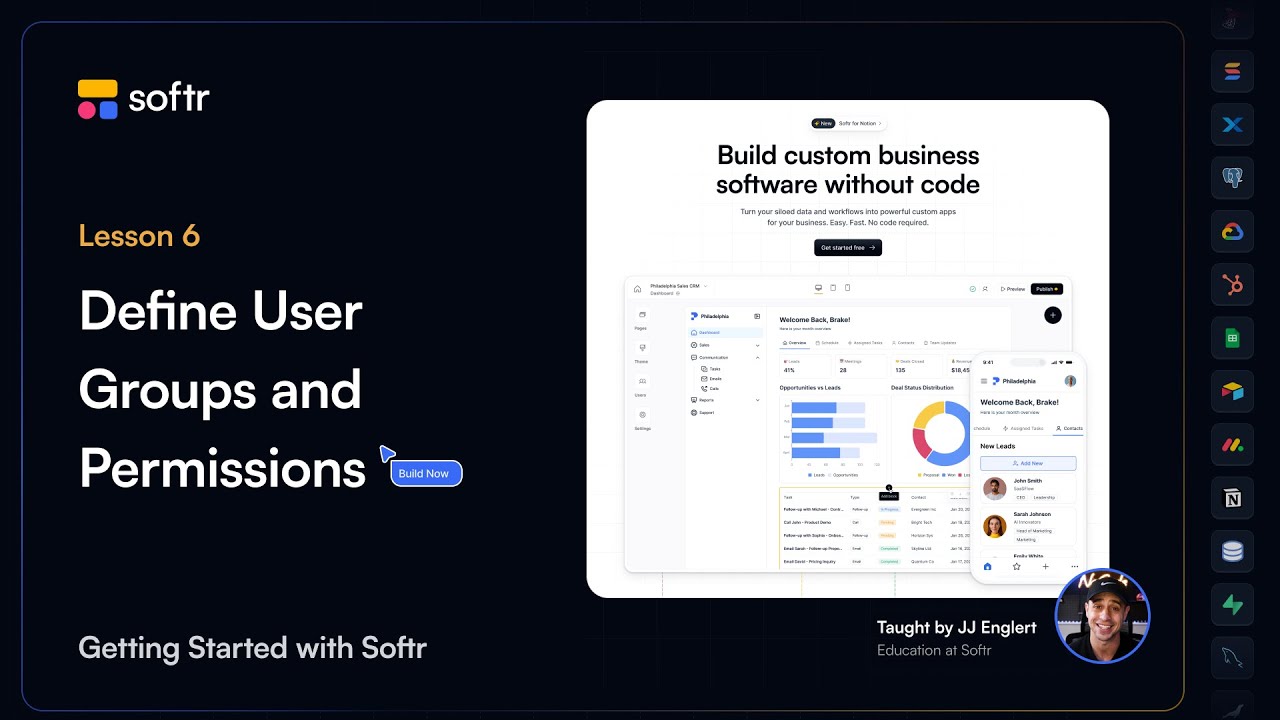
Setting up user groups and permissions in your Softr app helps you control who can access what information. Whether you're building a client portal, an internal tool, or any other business application, you can group users by shared needs.
You can set permissions to define exactly what they see and how they interact with your data. By the end of this lesson, you'll understand how to set up user groups to restrict access to certain pages or blocks.
You will also learn how to control which records users can read, edit, create, or delete. We will cover how to use conditional filters to filter data dynamically and configure data restrictions at an application level.
[.blog-callout]
Note from Softr: If you are just starting your project, the AI co-builder can automatically generate a secure membership structure for your client portals or internal tools based on your initial prompt.
[.blog-callout]
User groups are at the core of Softr's permission system. They let you organize users based on their access needs and are the foundation for applying visibility and access rules throughout your application.
Softr provides several types of user groups. Default user groups are for non-logged-in users who access the app without logging in, which is ideal for public-facing content like landing pages.
Logged-in users include any user who logs into your app. You can use this group to gate content and actions exclusively for authenticated users.
Custom user groups let you set detailed access rules for a specific subset of logged-in users, like clients or employees. You can make these groups either dynamic or static.
Dynamic user groups are defined by rules based on your user's attributes or subscription tiers. When logging in, users who meet those criteria are automatically added to that group.
Static user groups are defined by manually adding users to that group with no dynamic rules involved. Now let's discuss the different types of permissions you can configure.
In Softr, you can set up permissions at two levels: the UI elements level and the data level. UI element visibility controls which pages, blocks, and actions each user group can see.
Data permissions define which records or data subsets users can access within a block. To configure page visibility, navigate to the pages area, select a page, and go to visibility settings.
To configure block visibility, select a block, such as your grid block, and open the visibility tab. By setting these rules, you ensure that only users with access can see relevant data.
[.blog-callout]
Note from Softr: If you find yourself needing a custom layout or functionality not found in standard blocks, the Vibe-Coding block allows you to prompt for a custom component that connects directly to your data.
[.blog-callout]
Beyond visibility rules, data permissions let you control which records users can see or interact with. You can apply these permissions at the block, action, or app level.
Action visibility allows you to use user groups to control who can interact with buttons like add record or update record. You can also use conditional rules to show or hide actions based on custom criteria.
Conditional filters let you filter data for each logged-in user by applying user-based conditions. For example, users can see only records tied to their email, such as projects assigned specifically to them.
To use conditional filters, select a block, click on the source tab, and scroll to conditional filters. You might set a filter where the assignee equals the logged-in user's email.
[.blog-callout]
Note from Softr: While you can filter data from external sources, using Softr Databases provides a seamless, native experience for managing your user records and permissions directly within the platform.
[.blog-callout]
For deeper security, global data restrictions let you define rules for who can view, create, edit, or delete data at an application level. These automatically apply to all blocks.
There are two types of global data restrictions. Record level manages visibility or editing rights for entire records, while field level will soon restrict access to specific fields within a record.
To add data restrictions, go to the users area and click on the data restrictions tab. Here you can define rules for specific user groups, such as ensuring clients only see their own project data.
By matching records to the logged-in user's email, you ensure a private and secure experience. Once your settings are in place, you need to test them using the preview mode.
Click preview in the top right corner and use the dropdown menu to select a user to preview the app as. Test users in different groups, like an employee and an admin.
Navigate through your app and confirm that pages, blocks, and actions are correctly restricted. You have now set up user groups and data permissions to make your app secure.
[.blog-callout]
Note from Softr: Gone are the days of strict plan limits. Softr now offers Unlimited Published Apps across all plans, including the Free plan, so you can build and test as many permission structures as you need.
[.blog-callout]
In the next lesson, we will focus on publishing your application and connecting a custom domain. Until then, test your permissions and refine your app.