10 best Microsoft Excel alternatives in 2026 (free & paid)


Microsoft Excel works well for simple tables and individual work. But once teams grow and data becomes shared, Excel starts to show its limits. Files become hard to manage, changes are easy to overwrite, and manual updates take up more time than they should. Here are the best Excel alternatives available today, and which types of teams they’re best suited for.
Best alternatives to Excel at a glance
| Tool | Best for | Key features | Pricing |
|---|---|---|---|
| Softr Databases | Managing connected data and powering business apps | • Relational tables with spreadsheet-style UI • No-lag performance for growing data • Granular permissions for teams & external users • Built-in automation and AI on live data • Connects to Softr’s app builder for internal tools, portals, dashboards, CRMs, and more | Free plan available; paid starts at $19/month (paid yearly) |
| Coda | Doc-driven workflows & internal tools | • Tables embedded in docs • Formulas, buttons, and automations • Packs for integrations | Free plan available; paid starts at $10/month per Doc Maker |
| SmartSuite | Structured work & process management | • Prebuilt workflow templates • Multiple views (grid, Kanban, timeline) • Dashboards and permissions | Free plan available; paid starts at $12/user/month |
| Zoho Sheet | Collaborative spreadsheets in a business suite | • 350+ spreadsheet functions • Real-time co-editing • Zoho ecosystem integration | Free plan available; paid starts at ~$3/user/month |
| Coda | Doc-centric workflows | • Tables, formulas & buttons in docs • Packs integrations • Collaboration + logic in one place | Free plan available; starts $10/mo per Doc Maker |
| SmartSuite | Structured work & workflow tracking | • Prebuilt workflow templates • Multiple views & dashboards • Permissions & governance | Free plan available; starts $12/user/mo |
| Baserow | Open-source spreadsheet-style databases | • Spreadsheet UI with relational data • API-first access • Cloud or self-hosted | Free plan available; paid plans available |
| NocoDB | Spreadsheet UI on SQL databases | • Works on Postgres/MySQL • Auto-generated REST APIs • Role-based access control | Free plan available; paid plans available |
| Supabase | Developer-led, scalable backends | • Managed PostgreSQL • Auth & row-level security • Realtime data updates | Free plan available; paid starts at ~$25/month |
| LibreOffice Calc | Offline & privacy-first spreadsheets | • Free and open source • Advanced formulas & pivots • Desktop, offline use | Free |
Why look for Excel alternatives
Excel is still useful for many tasks. But it was not designed for shared, scalable, or process-driven work. As teams grow and data becomes more connected, its limits become harder to ignore. You may want to look for an Excel alternative if:
| Limitation | Why it becomes a problem |
|---|---|
| 1. Files are hard to manage across a team | When several people edit the same data, teams often end up with duplicate files, overwritten changes, or confusion about which version is correct. |
| 2. Data gets larger or more complex | As rows, formulas, and linked sheets grow, large files are harder to open and maintain. |
| 3. Heavy reliance on manual updates | Many Excel workflows require manually copying data, updating formulas, or running scripts by hand. Over time, this increases the chances of errors. |
| 4. No built-in support for connected data | Excel stores data in flat tables. Managing relationships, such as customers linked to orders, depends on easy-to-break formulas. |
| 5. Limited access control and visibility | Excel offers basic permissions only. It’s hard to control access at the row, field, or view level, which makes shared or sensitive data difficult to manage safely. |
| 6. Automation requires technical setup | Advanced logic often depends on macros or Python scripts. This creates reliance on a few power users and makes workflows harder to maintain as teams grow. |
What to look for in Excel alternatives
Excel alternatives come in different forms. These are the most important things to look for when moving beyond Excel.
- Support for connected data: If your data spans customers, projects, orders, or assets, look for a tool that can connect that data across tables. This reduces duplication and keeps data consistent as it grows.
- Scalability without performance issues: An Excel alternative should handle larger datasets without slowing down, breaking formulas, or becoming hard to maintain.
- Collaboration built for teams: Real-time editing, clear ownership, and reliable syncing are essential when multiple people work on the same data.
- Ease of use for non-technical users: The tool should be usable without advanced formulas, macros, or scripts. Clear interfaces and guided workflows help teams adopt it quickly.
- Permissions and access control: You should be able to control who can see or edit specific data. Granular permissions matter when data is shared across roles, teams, or external users.
- AI features that reduce manual work: AI should help with real tasks, such as cleaning data, summarizing records, generating insights, or answering questions from your data. Avoid tools where AI is limited to writing text or sits outside your actual workflows.
- Pricing that aligns with growth: Pay attention to how pricing scales with users, data volume, or features. Many teams leave Excel to avoid hidden limits, not to trade them for new ones.
1. Softr Databases — best AI-powered Excel alternative for managing data at scale

Softr Databases is a relational database designed for teams that have outgrown spreadsheets and need more structure, scale, and control. It offers a familiar spreadsheet-style interface, with the power of linked records, filtered views, and formulas—without the complexity of traditional database tools.
Instead of managing flat sheets and fragile formulas, teams can connect related data (like clients, projects, orders, or vendors) and work from a single source of truth.
Beyond storing data, Softr Databases are built to power real operational workflows. Teams can clean, enrich, and manage data internally, or connect databases to apps, automations, and other tools to support day-to-day work.
Pros and cons of using Softr Databases
Pros:
- Performance at scale: Designed to handle thousands of records without lag, making it a reliable alternative to spreadsheets that slow down as data grows.
- Tables with linked records: Easily connect related data across tables (e.g. customers, projects, orders) without fragile formulas or manual lookups.
- Database AI Co-builder: Describe what you want to store in plain English and Softr generates tables, linked records, fields, and sample data for you.
- Built-in AI for data operations: Database AI agents can clean, enrich, summarize, and research records directly inside your database—no need to manually copy-paste data or maintain formulas.
- All-in-one platform: Databases, automation, AI, and app interfaces work together without separate backends, APIs, or sync tools.
- SOC-2 and GDPR compliant: Softr is fully compliant with SOC2 and GDPR regulations, ensuring secure access to confidential documents.
- Works with apps for external access: Share database data securely through Softr apps like portals, dashboards, or internal tools—without paying per-seat fees for external users.
Cons:
- Not built for advanced developer logic or custom server-side scripting.
- Less flexible for quick, one-off analysis: For fast personal calculations or ad hoc analysis, Excel can still be quicker without setting up database structure.
Softr Databases key features
- Flexible field types: From short text, duration, and currency to linked records, rollups, formulas, and lookups, Softr Databases is designed for managing structured data at scale.
- Custom views: Create custom views using built-in filters, sorting, and field visibility customized for different teams and workflows.
- Database AI Agents: Automate repetitive data work like cleaning fields, enriching records, generating summaries, extracting data from files, or researching vendors directly inside your database.
- Public API: Push data from any tool with a REST API into Softr Databases. Migrate from legacy systems, sync live CRM data, and centralize messy information.
- Airtable import: Easily migrate data from Airtable into Softr Databases in a few clicks (linked records included).
- Database AI Co-builder: Describe the database you want in plain English, and Softr generates the tables, fields, and linked records for you that you can then customize.
- Workflow automation: Connect Softr Databases to Softr Workflows to automate approvals, notifications, record updates, and handoffs.
- Connects to full-stack app builder: Power internal tools, dashboards, portals, CRMs, and inventory systems directly on top of your database.
Softr Databases pricing
Softr offers flexible pricing, including a generous free plan. Softr Databases are available on all Softr plans with some record limits.
- Free: Unlimited apps, with access to Softr Workflows and Softr Databases, 5 app users and 1000 records per database (5000 records per workspace)
- Basic: $19/month for unlimited apps with 42+ integrations, Team: 5 + Client: 5 app users and 50K records per workspace (when billed annually)
- Pro: Starts at $99/month for unlimited apps with 45+ integrations and custom code, Team: 10 + Client: 50 app users and 500K records per workspace (when billed annually)
- Business: Starting at $329/month for unlimited apps with 52+ integrations, Team: 30 + Client: 100 app users and 1M records per workspace (when billed annually)
- Enterprise (custom pricing, contact sales) plans for enterprise customers
Why it’s better than Excel pricing
Excel is inexpensive as a standalone tool. But once teams use it as a shared system of record, costs show up elsewhere—time spent maintaining files, fixing broken logic, managing access, and adding extra tools for automation or sharing.
Softr Databases are included on all Softr plans, with record and usage limits based on plan. For teams running ongoing workflows, this often reduces the total cost of operating and maintaining spreadsheet-based systems as companies scale.
Who Softr is best for
Softr Databases are best for teams that have outgrown Excel as a system of record. They’re ideal for operations teams, agencies, professional services, and field service businesses that need connected data, automation, and secure access—without code, engineering work, or complex infrastructure.
Verdict: Softr Databases vs Excel
Softr Databases is a strong Excel alternative for teams that rely on spreadsheets to run ongoing business operations, not just store data. Excel works well for individual analysis and quick calculations, but once data needs to be shared, connected, and operational, Softr Databases provide a more reliable foundation. For teams ready to move beyond spreadsheets without taking on full database complexity, Softr is the best next step.
2. Google Sheets — best cloud spreadsheet for real-time team collaboration
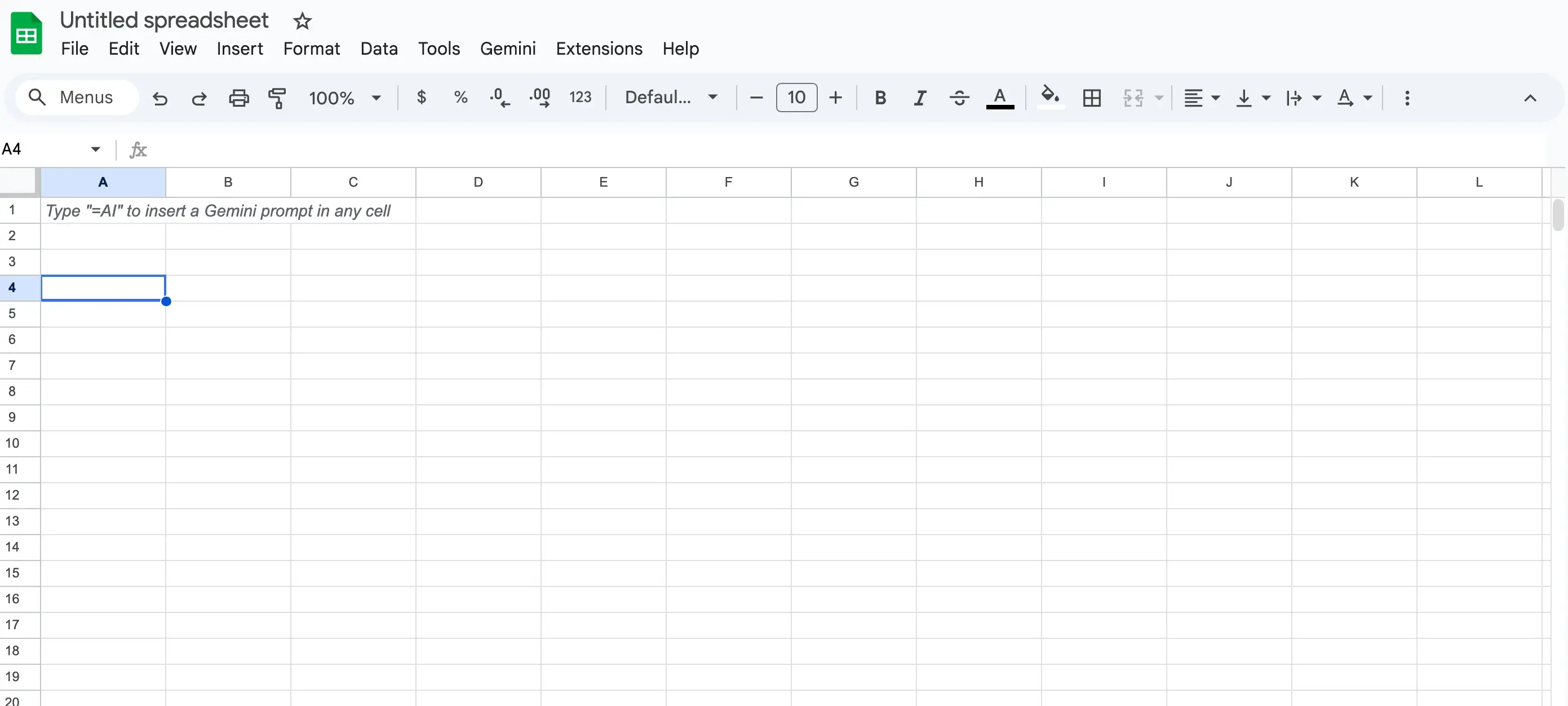
Google Sheets is a cloud-native spreadsheet tool that lets multiple users create, edit, and share spreadsheets from anywhere. It’s part of Google Workspace, giving teams easy access from any device and strong integration with Gmail, Drive, Docs, and other productivity apps.
Especially for small to medium teams and remote work, Sheets simplifies real-time collaboration and reduces version conflicts that often bog down traditional desktop spreadsheets.
Pros and cons of using Google Sheets
Pros:
- Strong real-time collaboration: Multiple people can edit and comment simultaneously with automatic saving and version history.
- Accessible anywhere: Works entirely in the browser or mobile, with offline support when needed.
- Free for personal use: Google Sheets is free on individual accounts and included in Google Workspace business plans.
- Good AI assistance: Recent updates from Google’s Gemini AI can help explain and even fix formula errors within Sheets.
Cons:
- Limited with large datasets: Performance can degrade or slow down on big tables or complex spreadsheets.
- Automation usually requires scripts: Powerful automation often depends on Google Apps Script, which can be tough for non-technical users.
- Fewer advanced analytics than Excel: For complex statistical analysis or macros, Sheets is generally weaker than standalone spreadsheet tools.
[.blog-callout]
Already using Google Sheets? Turn your data into secure, synced apps, dashboards, and portals — with 2-way live updates and control over who sees or edits what.
[.blog-callout]
Google Sheets key features
- Real-time collaboration and sharing: Edit with your team in real time from any device, with auto-save and revision history to track changes.
- Cloud-based access: Work from the web or mobile with integration across Google Workspace (Drive, Docs, Slides).
- Formula and function library: Supports a robust set of formulas familiar to spreadsheet users.
- AI enhancements with Gemini: AI tools can help generate content, summarize data, or fix and explain formulas in plain language.
- Office file interoperability: Open and edit password-protected Excel files directly in Sheets.
- Add-ons and script automation: Extend workflows with Apps Script or add-ons for data sync, reporting, and custom logic.
Google Sheets pricing
- Free: Available for individual users with a Google account
- Google Workspace Starter: ~$7/month per user (includes Sheets + full Workspace)
- Business/Enterprise plans: Higher tiers include more storage, security controls, and advanced admin tools
Who Google Sheets is best for
Google Sheets is ideal for smaller teams, remote collaborators, and anyone who needs easy real-time editing and sharing without installing software. It works well for general data tracking, lightweight reporting, and teams that already use Google Workspace.
Verdict: Google Sheets vs Excel
Google Sheets often beats Excel for team collaboration and accessibility, especially when work happens across locations or time zones. However, it still feels like a traditional spreadsheet at its core, with limits on data scale, structured relationships, and advanced automation.
3. Airtable — best hybrid spreadsheet-database for flexible workflows
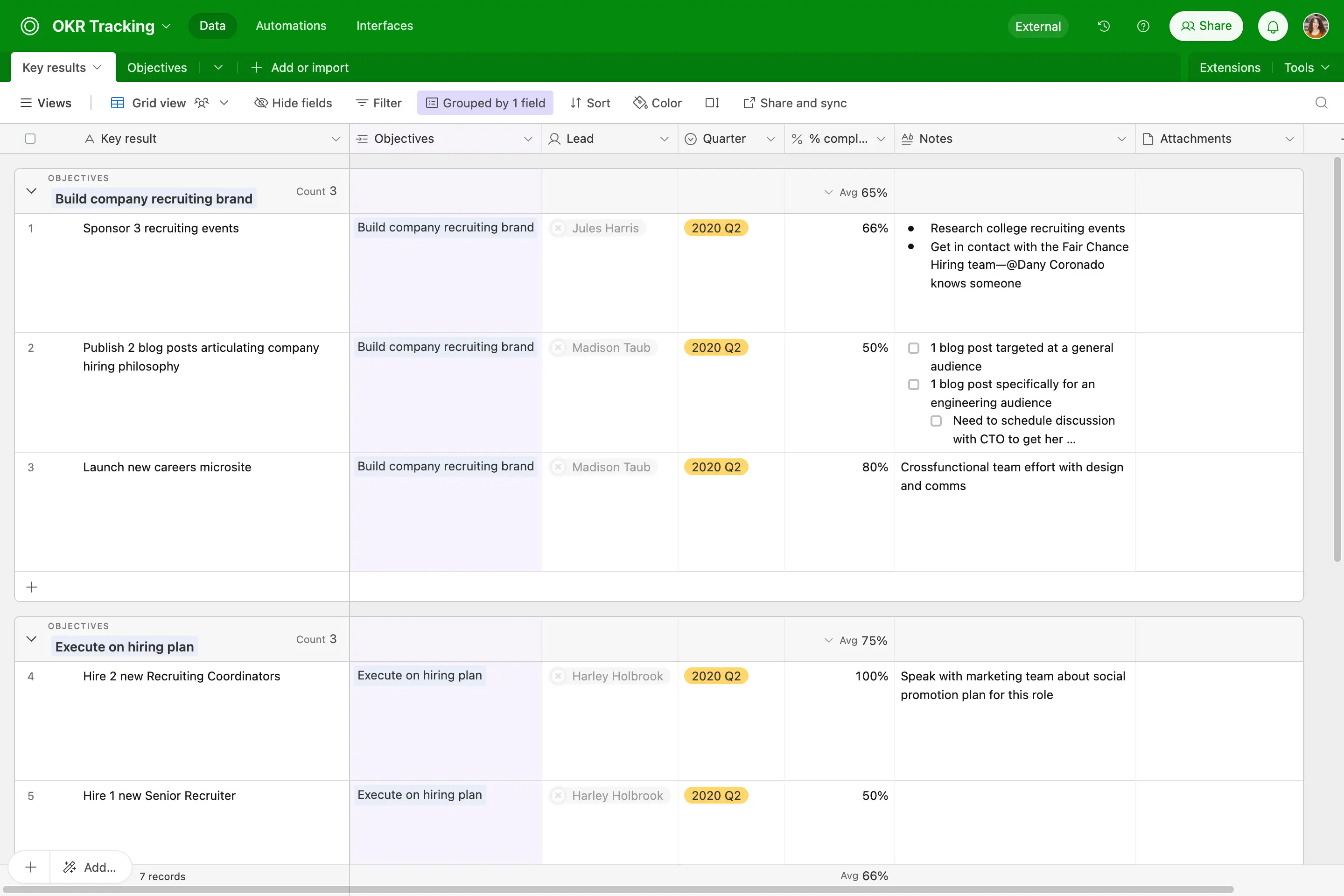
Airtable is a cloud-based platform that blends spreadsheet simplicity with relational database. It feels familiar to spreadsheet users but adds relational fields, customizable views, automations, and integrations that help teams organize and manage complex workflows beyond flat tables. It scales from lightweight project tracking to multi-table relational systems without requiring code.
Pros and cons of using Airtable
Pros:
- Spreadsheet-like relational dataset: Combines the familiar grid interface with linked records, custom field types, and multiple views such as Kanban, calendar, timeline, and gallery, making it more versatile than a typical spreadsheet.
- Strong collaboration and multiple views: Easy sharing, comments, and filtered/grouped views help teams collaborate without version chaos.
- Rich automation and integration options: Built-in automations can trigger actions, and integrations connect Airtable to other productivity and workflow tools.
- AI capabilities and no-code builder tools: Airtable includes automated assistants and interface customization, reducing manual workload without coding.
Cons:
- Pricing scales with users and records: Costs can rise quickly as teams grow; heavier users or automation requirements often push teams into higher, more expensive plans.
- Record limits and caps: Even paid plans have limits on records per base and storage, which can constrain large datasets or complex relational systems.
[.blog-callout]
💡 Softr lets you build client portals, CRMs, and dashboards on top of your Airtable data with real-time sync, granular permissions, and branded, full-stack experiences.
[.blog-callout]
Airtable key features
- Relational linked records: Connect tables with linked fields and lookups to represent relationships like customers → orders → tasks.
- Multiple customizable views: Switch easily between grid, Kanban, calendar, gallery, timeline, and more for different workflows.
- Automations and integrations: Automate repetitive tasks (e.g., send alerts, update records) and integrate with apps such as Slack, Zapier, and external APIs.
- Interface Designer: Build custom internal interfaces and dashboards without code to match team needs.
- Collaboration tools: Real-time editing, comments, revision history, and shared views make teamwork smoother than traditional spreadsheets.
- AI assistance: Use AI features to summarize data, suggest actions, or help with text generation (credits and availability depend on plan).
Airtable pricing
Airtable’s pricing is tiered and charged per seat, with increasing features and limits at higher tiers:
- Free: $0 — Up to 1,000 records per base, 1 GB attachments, 100 automation runs, up to 5 editors, and basic views.
- Team: ~$20 per user/month (billed annually) — ~50,000 records per base, 20 GB attachments, thousands of automation runs, Gantt & timeline views.
- Business: ~$45 per user/month (billed annually) — ~125,000 records, 100 GB storage, advanced permissions, and extended revision history.
- Enterprise: Custom pricing — Higher limits, audit logs, security controls, and org-wide governance.
Who Airtable is best for
Airtable fits teams that want more structure than flat spreadsheets but are not ready for traditional database systems. It’s ideal for marketing operations, project and product tracking, lightweight CRMs, and teams that need to visualize data in different formats without building apps from scratch.
Verdict: Airtable vs Excel
Airtable goes beyond Excel by blending spreadsheet familiarity with relational capabilities and visual workflows. It is a clear step up for teams that need connected data, collaboration, and views tailored to real use cases. But as usage grows, pricing and record limits can become barriers, and highly complex logic may still require additional tools beyond Airtable’s core capabilities.
4. Zoho Sheet — best cloud spreadsheet for collaborative data work
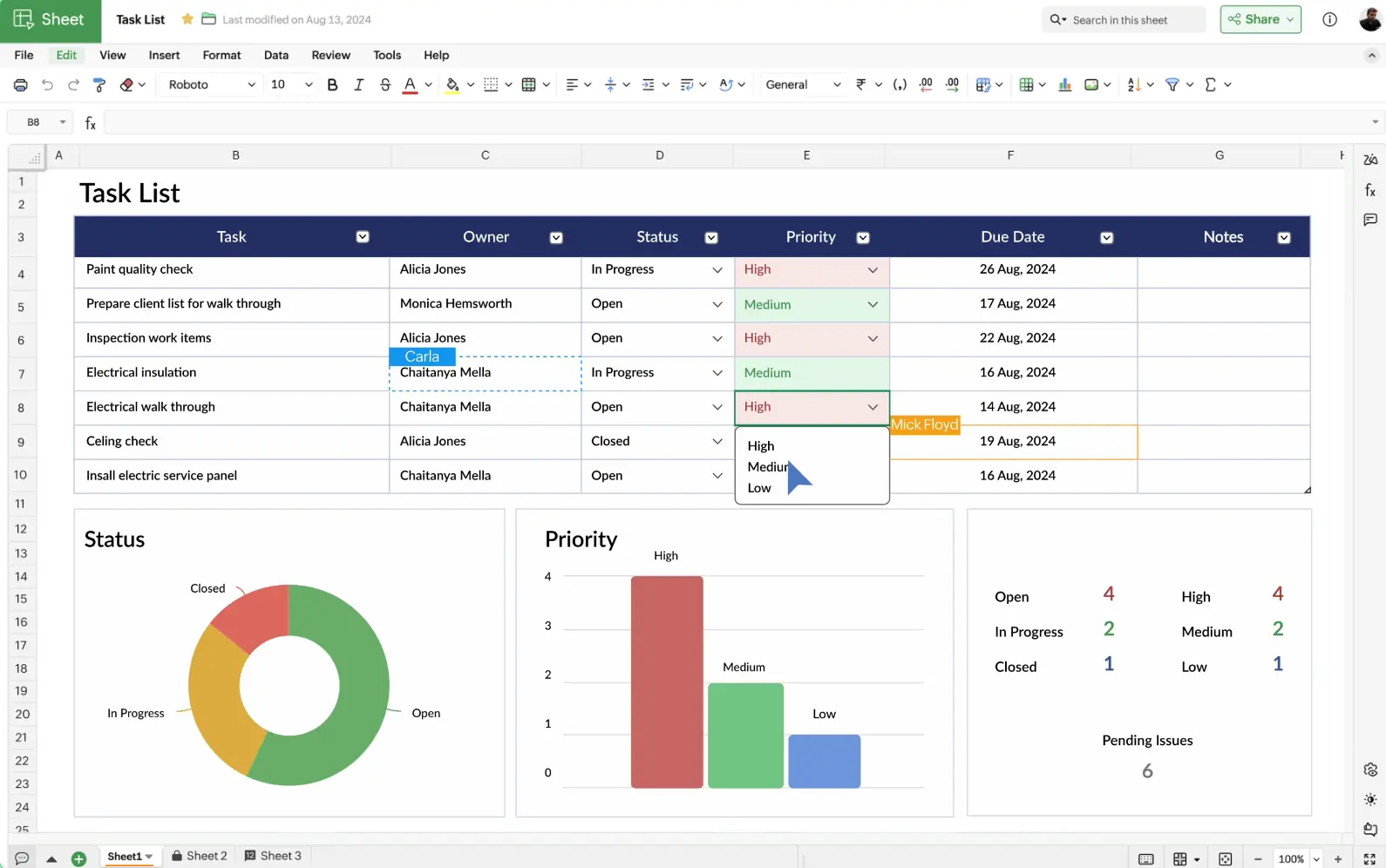
Zoho Sheet is a cloud-based spreadsheet application that brings traditional spreadsheet power online with strong collaboration, automation, and data analysis features. It’s part of the Zoho Office Suite and is designed to let teams create, edit, and share spreadsheets in real time across devices and browsers. Users appreciate its integration with other Zoho apps and its ability to handle typical spreadsheet tasks with team workflows in mind.
Pros and cons of using Zoho Sheet
Pros:
- Real-time collaboration: Multiple team members can view and edit the same spreadsheet simultaneously, with changes synced instantly and edit history tracked for accountability.
- Rich spreadsheet toolkit: Supports formulas (350+ functions), charts, pivot tables, conditional formats, widgets like picklists and in-cell controls, and built-in data cleaning tools to reduce errors.
- Seamless Zoho ecosystem integrations: Works well with Zoho Forms, Zoho Flow, and the broader Zoho suite, enabling data collection, automation, and workflow connectivity.
- Excel compatibility: You can import and export .xlsx/.xls files and other formats, letting teams transition existing work into Zoho Sheet.
Cons:
- Performance with very large datasets: Web-based spreadsheet limits and browser memory can make large or complex files slower to load or update.
- Mobile UX gaps: Some users report that editing and navigation on mobile devices can feel less streamlined than desktop views.
- Learning curve for advanced features: Users transitioning from simpler spreadsheets may need time to master automation, workflow rules, and some collaboration settings.
Zoho Sheet key features
- Real-time co-editing: Collaborate live with teammates from anywhere, with changes reflected instantly.
- 350+ built-in functions: Perform a range of calculations from basic to complex with a large formula library.
- Pivot tables and charts: Analyze and visualize data to extract insights and present findings.
- Data cleaning and automation tools: Identify duplicates and inconsistencies, run macros, and automate repetitive tasks.
- Sharing and permission controls: Set viewer/commenter/editor roles and lock cells/ranges for controlled collaboration.
- Multi-format import/export: Handle Excel, CSV, TSV, ODS, and export to HTML and PDF.
Zoho Sheet pricing
Zoho Sheet is available as part of the Zoho Workplace or broader Zoho Office Suite, often with free and paid tiers.
- Free tier: Basic access with collaborative editing and core features (availability depends on Zoho plan).
- Paid plans: Included in Zoho Workplace/Zoho Office Suite business subscriptions, with additional storage, admin controls, and integrations — pricing based on user licenses and plan level.
- Standard plan: ~$3/users/month — email, cloud files, office suite (Sheets included), and team tools.
(Exact pricing varies by country/plan; typical team plans bundle Zoho Sheet with email, Drive, and other Zoho apps.)
Who Zoho Sheet is best for
Zoho Sheet is ideal for teams and businesses that want collaborative, cloud-first spreadsheet work with strong integration into a larger business suite. It works well for small to midsize teams that already use Zoho apps or that need robust sharing, automation, and data analysis without the complexity of standalone database tools.
Verdict: Zoho Sheet vs Excel
Zoho Sheet offers most spreadsheet essentials, such as formulas, pivot tables, charts, sharing, and real-time collaboration: all with strong cloud-native teamwork features. It’s a worthy alternative to Excel and Google Sheets for everyday spreadsheet work, especially when multiple people need to work together online. But because it can be slower with very large datasets, it isn’t the best choice for heavy, complex modeling compared to Excel.
5. Coda — best for flexible doc-powered workflows and lightweight internal tools
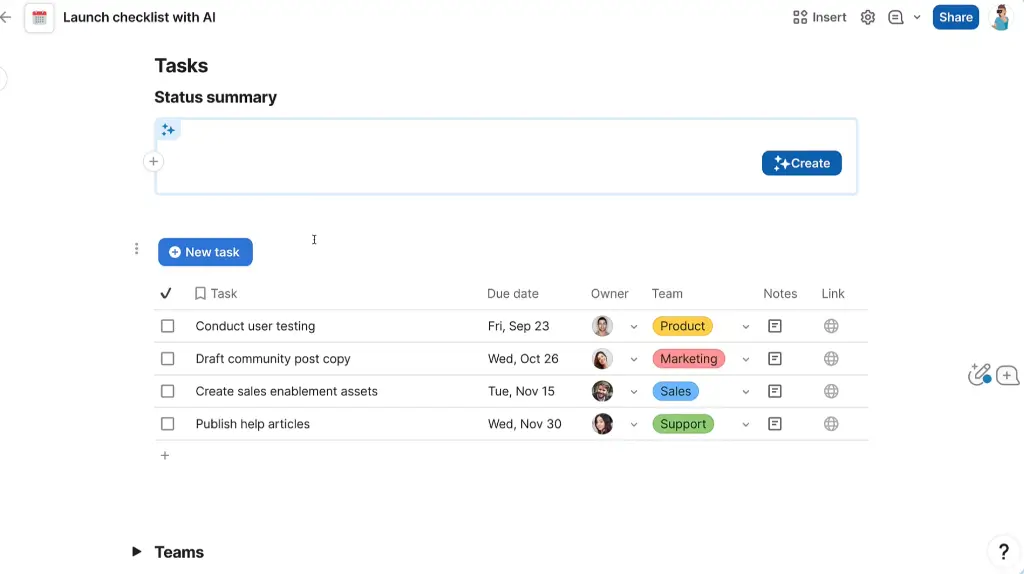
Coda is a cloud-based workspace that brings together documents, tables, and logic to help teams design flexible tools without writing code. It starts as a doc editor and can evolve into linked tables, automations, and interactive pages that behave like lightweight apps. This makes Coda a strong choice for teams that need to mix narrative content with structured data and workflows.
Pros and cons of using Coda
Pros:
- Doc-centric flexibility: Coda lets you combine rich text, tables, formulas, and interactive buttons in one place, making it versatile for project plans, team docs, and structured workflows.
- Innovative pricing model: Only users who create docs (“Doc Makers”) are charged, while editors and viewers collaborate for free, helping control costs for large teams.
- Strong automation and logic: Tables can include formulas, packs, buttons, and rules to automate tasks and update data without separate tools.
- Collaborative with Packs and integrations: Built-in integrations (Packs) link to other apps and services, expanding functionality without custom code.
- AI assistance included: Many plans include Coda AI credits for generating content, summarizing docs, and aiding data tasks.
Cons:
- Steeper learning curve: Coda’s flexibility comes with complexity — building advanced workflows usually requires spending focused time learning formulas, tables, and logic.
- Performance can lag in large docs: Very large documents with many tables can feel slower compared with simpler spreadsheet tools.
- Not a full database system: Coda’s tables and relational features are powerful but not as scalable or “true database” as dedicated database platforms.
- Dependent on internet connectivity: Offline functionality is limited — a reliable connection is needed for most work.
[.blog-callout]
Bring your Coda tables into Softr to centralize data and build dynamic portals, dashboards, and internal tools with role-based access.
[.blog-callout]
Coda key features
- Doc-to-app building blocks: Create documents that act like apps with sections, tables, buttons, and logic.
- Connected tables with formulas: Use formulas and cross-table logic to automate updates and link information.
- Real-time collaboration: Multiple people can edit and review docs at the same time.
- Automations and Packs: Set up automated workflows and connect to tools like Slack, Google Workspace, and others via Packs.
- Coda AI assistance: AI features help with content generation, summarization, and intelligent suggestions (credits vary by plan).
- Version history and doc controls: Track changes over time and manage access with roles and permissions.
- Templates library: Use pre-built templates for project plans, trackers, and dashboards as starting points.
- API and integrations: Extend Coda’s functionality with REST APIs and external integrations via Packs.
Coda pricing
Coda uses a Doc Maker-based pricing model, where only users who create and manage docs incur costs. Editors and viewers collaborate for free.
- Free: $0 — unlimited editors/viewers, core features, size limits on docs
- Pro: $10 per Doc Maker/month — unlimited doc size, 30-day version history, branding options
- Team: $30 per Doc Maker/month — unlimited automations, unlimited version history, advanced collaboration features
- Enterprise: Custom — enhanced security, SAML SSO, audit controls, dedicated support
Note: The actual cost per Doc Maker can vary depending on billing frequency, promotions, and regional pricing. Based on typical plans, Pro and Team tiers are around $10–$30 per Doc Maker per month.
Who Coda is best for
Coda is ideal for teams that want a flexible workspace where documents and structured data live together, such as product managers, operations teams, consultants, or internal strategy teams. It’s especially useful when a project requires narrative context plus logic and automations all in one place.
Verdict: Coda vs Excel
Coda outperforms Excel for interactive workflows that combine rich content with structured tables and automation. It doesn’t replace a full relational database, but it empowers teams to build custom internal tools and trackers faster than traditional spreadsheets. For teams prioritizing collaboration, mixed content, and evolving workflows, Coda offers more adaptability than Excel alone.
6. SmartSuite — best for structured work and workflow management beyond spreadsheets
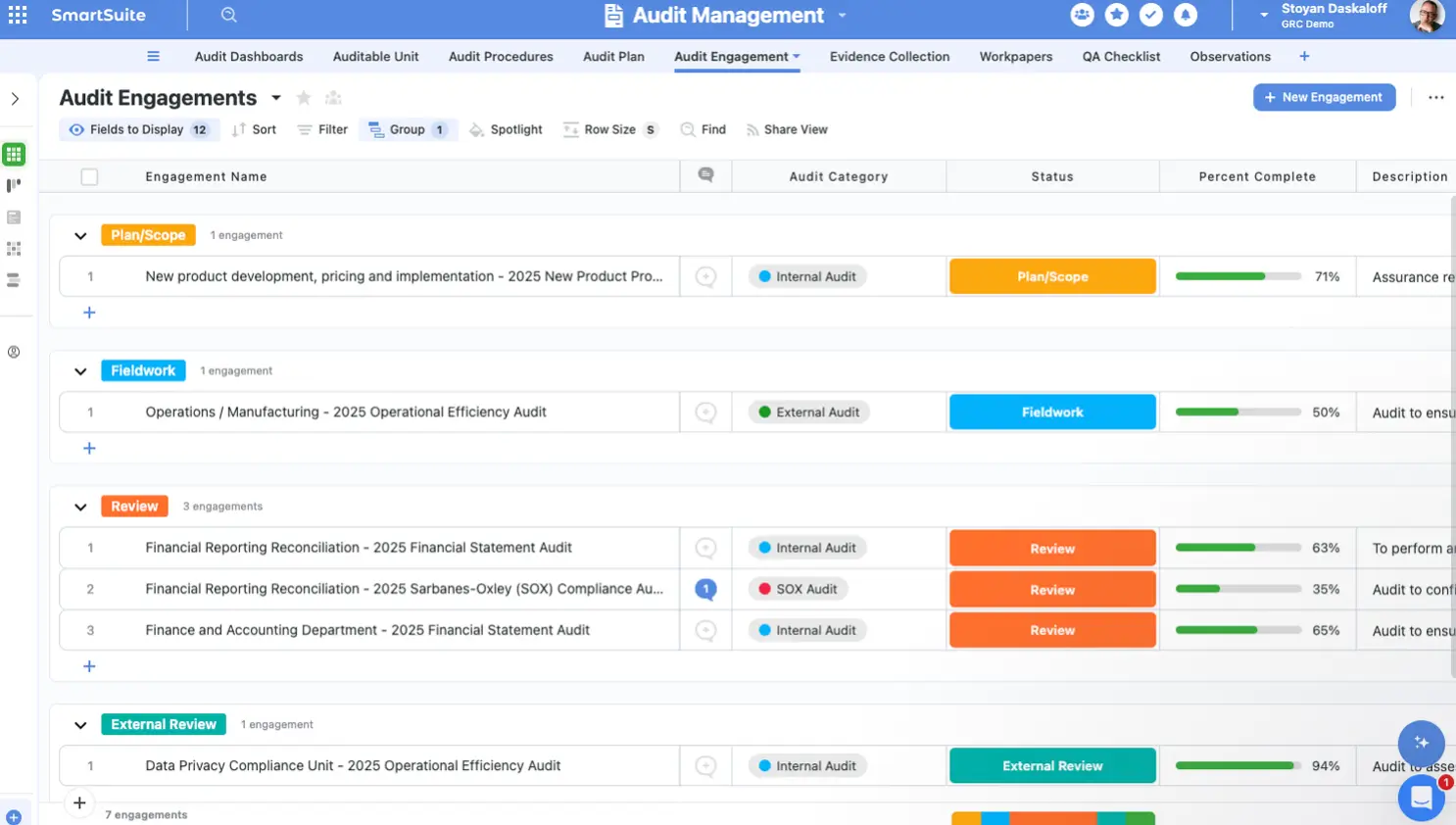
SmartSuite is an all-in-one work management platform that blends database-style workspaces, templates, automations, dashboards, and task tracking into a cohesive system. It’s designed to help teams plan, track, and manage workflows — from simple task lists to complex operational processes — without stitching together point solutions.
Pros and cons of using SmartSuite
Pros:
- All-in-one work platform: Combines structured tables, workflows, dashboards, and collaboration in one place .
- Flexible templates: More than 200 “Solutions” (templates) help teams build project plans, CRM systems, process trackers, and more quickly.
- Visual workflow and data views: Dashboards, Kanban, grid, timeline, and list views help teams see work from multiple perspectives.
- Strong permissions and governance: Role-level security, audit logs, and enterprise compliance support regulated environments.
Cons:
- Per-seat pricing can be a barrier: Costs rise as teams grow, compared with tools that offer unlimited editor seats.
- Not database-only focused: While it stores data in structured tables, SmartSuite’s core strength is work management, not deep relational database use.
- Mobile experience still maturing: Some users report the mobile app needs improvement for full functionality.
[.blog-callout]
Connect your SmartSuite tables to Softr to display and manage records in apps, workflows, and portals without coding.
[.blog-callout]
SmartSuite key features
- Comprehensive workflow templates: 200+ pre-built solutions across functions like project management, CRM, and operations.
- Interactive dashboards and real-time visibility: Custom widgets and reports help teams track progress at a glance.
- Rich field and data types: 40+ field types including status, date, user, select, and calculated fields for structured data capture.
- Views for varied workflows: Grid, calendar, Kanban, charts, and timeline views adapt to how teams work.
- Collaboration tools: Shared workspaces, inline comments, and real-time updates for team alignment.
SmartSuite pricing
SmartSuite offers a free plan and multiple paid tiers that scale with users and capabilities:
- Free plan with core features and automation triggers
- Team: $12 per user/month (billed annually) with core collaboration and views
- Professional: $30 per user/month with expanded limits and security controls
- Enterprise: ~$35–$50+ per user/month with compliance, larger automations, and advanced features
- Signature plans with custom pricing for large organizations are available.
Who SmartSuite is best for
SmartSuite fits teams that need structured work and process orchestration, especially operations, HR, IT, professional services, and cross-functional departments that have outgrown spreadsheets and need repeatable workflows with visibility and automation.
Verdict: SmartSuite vs Excel
SmartSuite isn’t a spreadsheet replacement per se, but it is a powerful upgrade for team workflows and structured work that used to live in disconnected sheets or multiple tools. It gives teams governance, automation, and visibility that Excel lacks.
7. Baserow — best open-source spreadsheet-style database with collaboration
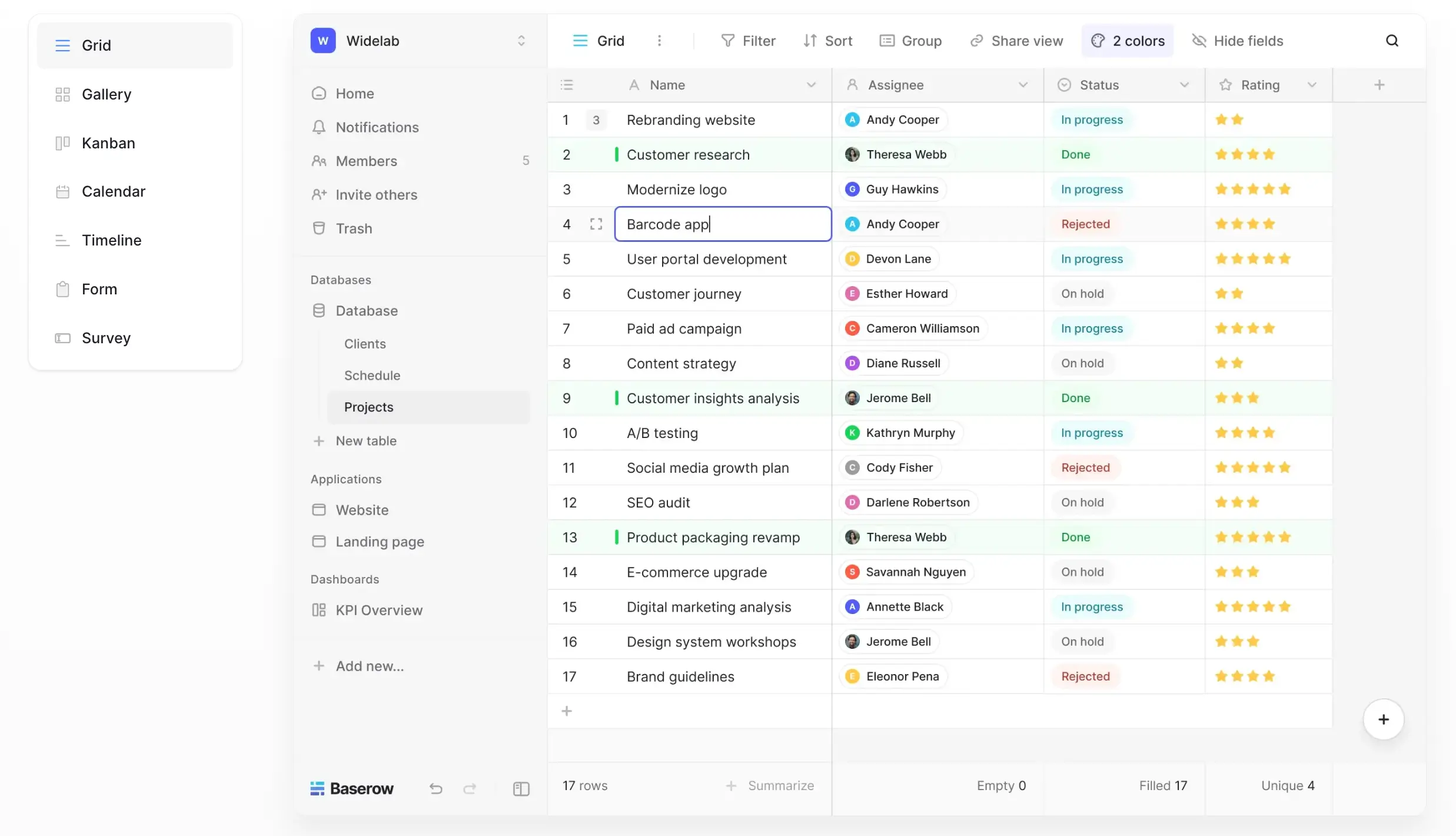
Baserow is a no-code, open-source database platform that gives teams a spreadsheet-like experience with real structured data and collaboration. It lets users build relational data systems with a familiar grid interface and extend with APIs, plugins, and integrations.
Pros and cons of using Baserow
Pros:
- Open-source and self-hostable: You can deploy it on your own servers to retain full data control.
- Collaborative by design: Teams can edit and update data in real time in hosted mode.
- API-first platform: Every table and object is accessible via API for automation.
- Strong value and ease of customization: Users report good customization options and field variety for tailored use cases.
Cons:
- Feature parity gaps: Some advanced features (like deep automation or full app building) are still maturing compared with hosted database platforms.
- Smaller ecosystem: Fewer plugins and integrations than larger proprietary platforms.
Baserow key features
- Spreadsheet-style grids with relational data: Familiar interface that scales into real tables and linked records.
- Open-source, cloud or self-hosted options: Pick hosted service or run on your infrastructure.
- APIs for every table: Automate workflows and integrate with external tools.
- Multi-view support: Grid, form, gallery, Kanban, and calendar views.
- Security and compliance: GDPR, SOC2, and HIPAA compliant on cloud plans.
Baserow pricing
- Free core tier with unlimited databases and foundational views (cloud)
- Premium paid tiers add row limits, advanced permissions, and support.
Who Baserow is best for
Baserow suits teams and developers who want an open-source collaborative database with real structured data, especially when avoiding vendor lock-in is a priority.
Verdict: Baserow vs Excel
Baserow replaces flat, disconnected spreadsheets with structured tables that collaborate and integrate better, though it’s not as full-featured as some proprietary hosted platforms.
8. NocoDB — best for teams who want a spreadsheet UI on top of SQL databases
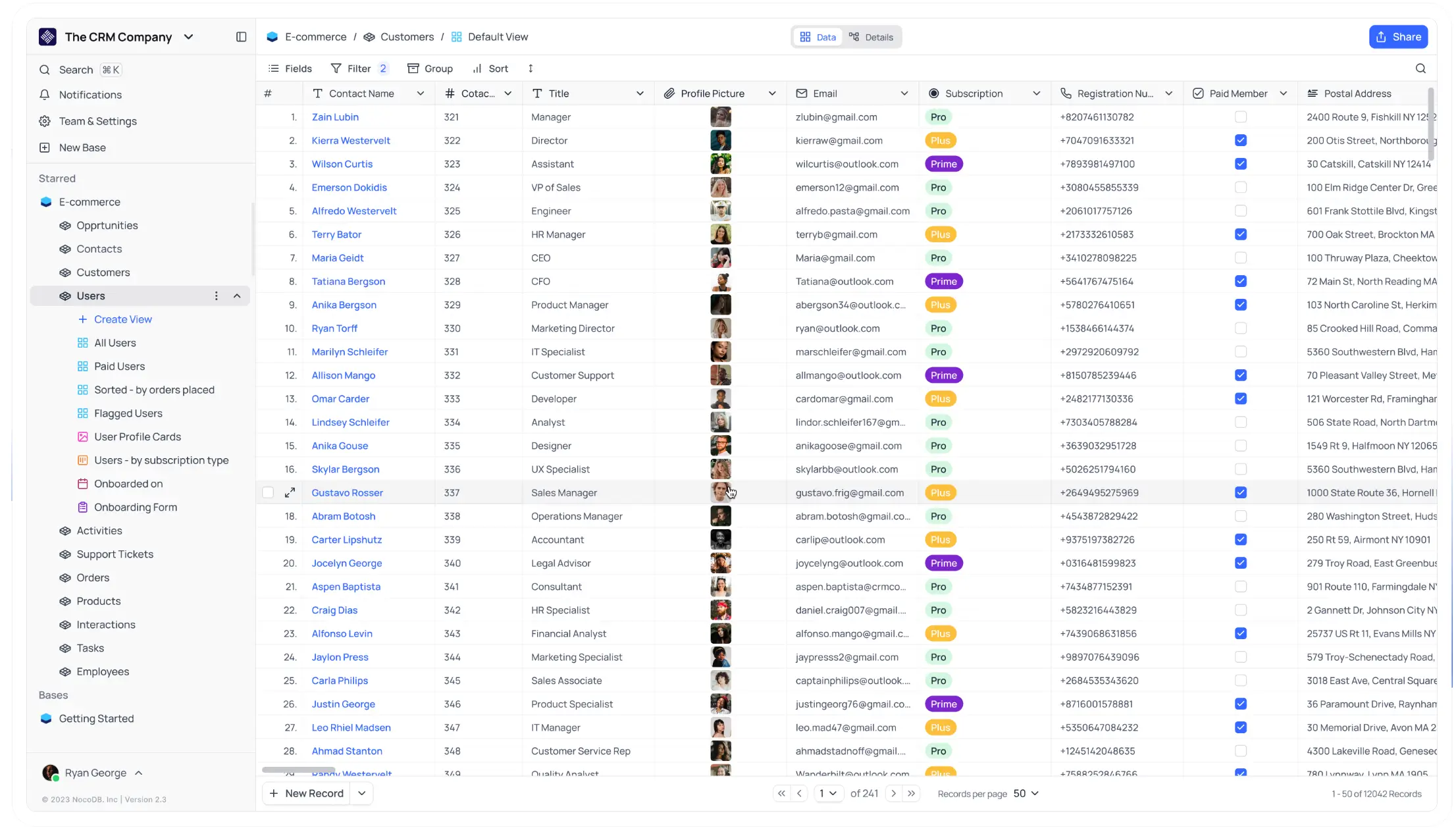
NocoDB is an open-source tool that puts a spreadsheet-style interface on top of any SQL database, including Postgres, MySQL, and SQL Server. This makes it easy for non-technical users to interact with relational data while keeping SQL in the background for those who need it. It’s a strong fit for teams who already rely on SQL databases but want to extend access to broader business users without giving them direct SQL access.
Pros and cons of using NocoDB
Pros:
- Open-source and flexible: You control your data and can self-host or use cloud deployments.
- Spreadsheet-style collaborative UI: Teams can edit tables, filter, group, and sort visually like a spreadsheet.
- Works with existing SQL databases: Connect to your Postgres, MySQL, or other databases without migrating data.
- Automatic REST APIs: Instantly generate APIs for all your tables.
Cons:
- Limited built-in automations: Native workflow automations are still limited compared with hosted database tools.
- Lacks advanced app builder UI: Not designed for full internal apps or dashboards out of the box.
- Some advanced features behind paywalls: Paid tiers add row limits, API enhancements, and RBAC.
NocoDB key features
- Spreadsheet interface on SQL: Visual grid view with filters, grouping, and field types.
- Multiple data views: Grid, gallery, calendar, Kanban, forms.
- Connect existing databases: Use your own database as a backend.
- REST API generation: Auto-generated APIs for integration and automation.
- Role-based access control: Define user permissions at granular levels.
NocoDB pricing
- Free plan: Core features for individuals and small teams.
- Plus and Business plans: Add branding, SSO, increased records, and API calls.
- Enterprise: Unlimited API and advanced security.
Who NocoDB is best for
NocoDB is ideal for teams that want open-source control with a spreadsheet UI on top of real databases, and don’t need a full proprietary backend vendor.
Verdict: NocoDB vs Excel
NocoDB modernizes spreadsheet workflows with real databases and API access, but its automation and app-building features are still evolving compared with hosted platforms.
9. Supabase — best for developer-centric SQL backends and scalable app data
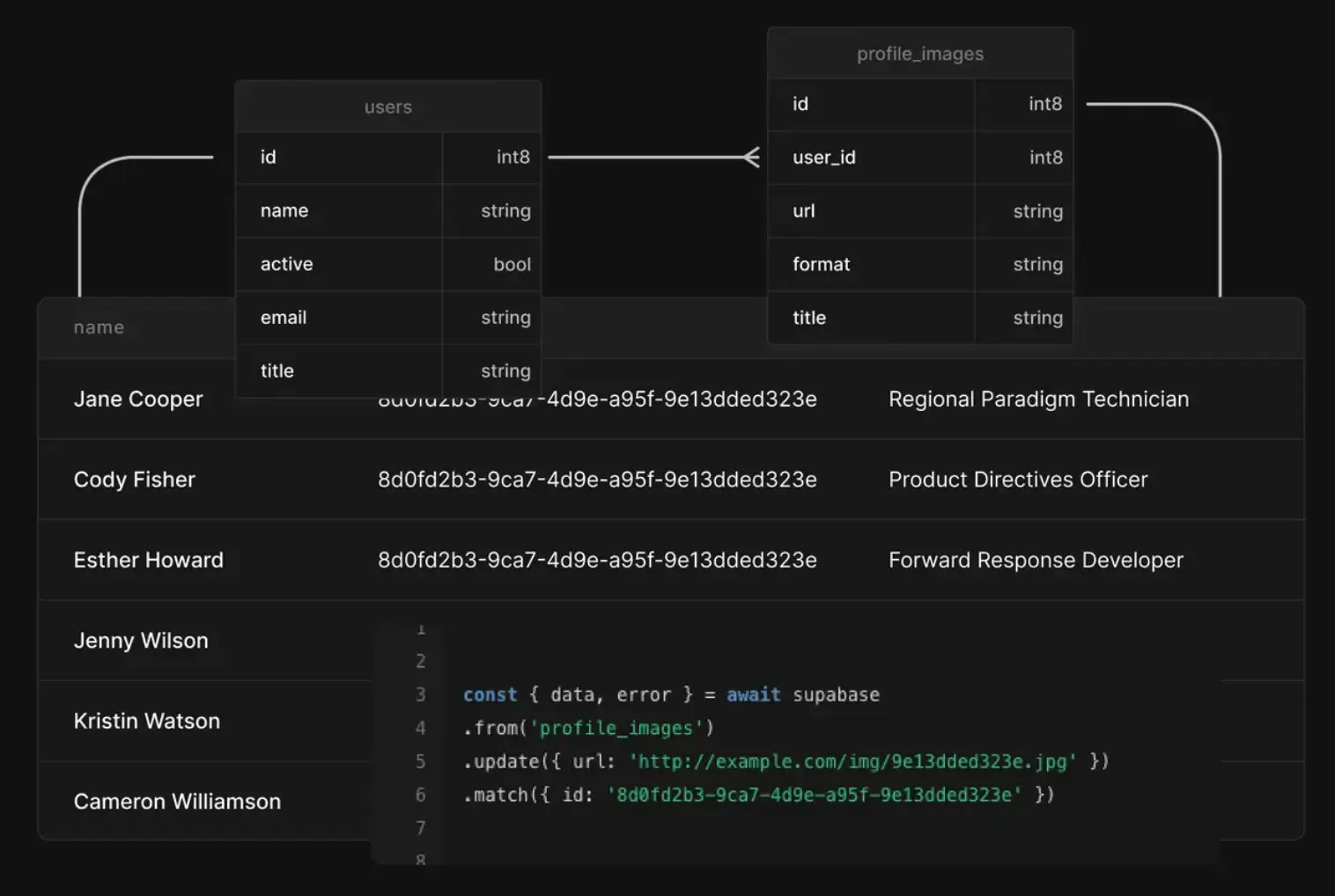
Supabase is an open-source backend-as-a-service platform built on PostgreSQL that gives developers a production-ready relational database, real-time data updates, authentication, storage, and serverless functions—all without managing infrastructure manually. It’s designed for teams building apps where spreadsheet tools no longer suffice and where custom backend logic, data integrity, and scalability matter.
Pros and cons of using Supabase
Pros:
- Full PostgreSQL backend with SQL power: Every Supabase project includes a real Postgres database, letting teams run complex queries, enforce relationships, and use advanced SQL features that spreadsheet tools can’t match.
- Auto-generated APIs: REST and GraphQL APIs are created automatically from your schema, speeding up development and integration with front ends or automation tools.
- Built-in authentication and security: Supabase includes user auth (email, OAuth, JWT) and Row-Level Security (RLS) policies scoped in SQL for fine-grained access control.
- Realtime subscriptions: Changes in the database can be broadcast to clients instantly, enabling live interfaces and collaborative experiences.
- Edge functions and storage: Serverless functions and file storage are part of the platform, reducing the need for separate backend services.
Cons:
- Developer-oriented tool: Supabase assumes SQL and backend knowledge; it’s not a no-code spreadsheet replacement and often feels overwhelming for non-technical users.
- No native spreadsheet UI: Supabase lacks a built-in grid or sheet interface — you need another tool or frontend to view/edit data.
- Setup and maintenance complexity: Configuring permissions, functions, and real-time logic typically requires technical skills and dev workflow overhead.
- Cost can grow with scale: Usage-based pricing (compute, storage, bandwidth) can become complex for larger apps, compared with simple per-seat spreadsheets.
Supabase key features
- Managed Postgres database: Full SQL support with schemas, joins, transactions, and relational integrity out of the box — a major leap beyond flat sheets.
- Authentication & RLS security: Built-in user management with row-level access policies for secure, multi-user systems.
- Realtime data: Live updates via WebSockets let apps react to data changes instantly — ideal for dashboards and collaborative experiences.
- Storage and file handling: Built-in object storage with access controls for files, media, and assets.
- Export/import and migrations: Import CSV/Excel and manipulate Postgres data directly — helpful for teams moving away from spreadsheets.
- Open-source ecosystem: Community contributions and open-source tooling allow self-hosting, customization, and transparency.
Supabase pricing
Supabase pricing is usage-based and tied to resource consumption:
- Free tier: Starter tier with basic compute, storage, and API limits.
- Pro plan: ~ $25/month plus usage credits — larger DB, more storage, and higher limits.
- Team & Enterprise: From ~$599/month with compliance features and priority support.
Note: Costs can include compute, storage, and bandwidth components that grow with scale.
Who Supabase is best for
Supabase is ideal for developers, technical teams, and engineering-led projects that need a genuinely scalable backend with strong relational structure, real-time features, secure auth, and backend services, especially when traditional spreadsheets or low-code systems no longer deliver performance or reliability.
Verdict: Supabase vs Excel
Supabase isn’t a spreadsheet tool. It’s a full backend platform that replaces the limitations of flat data by offering a real, relational database with authentication, APIs, real-time data, and serverless logic. For teams building apps, dashboards, or internal services where data integrity, security, and scale matter, Supabase far surpasses what Excel can accomplish — though it requires technical expertise and a development workflow to use effectively.
[.blog-callout]
💡 If you want to build AI-powered business software on top of your existing data, Softr integrates natively with Supabase and 21+ other data sources.
[.blog-callout]
10. LibreOffice Calc — best free, open-source spreadsheet for offline and privacy-focused work
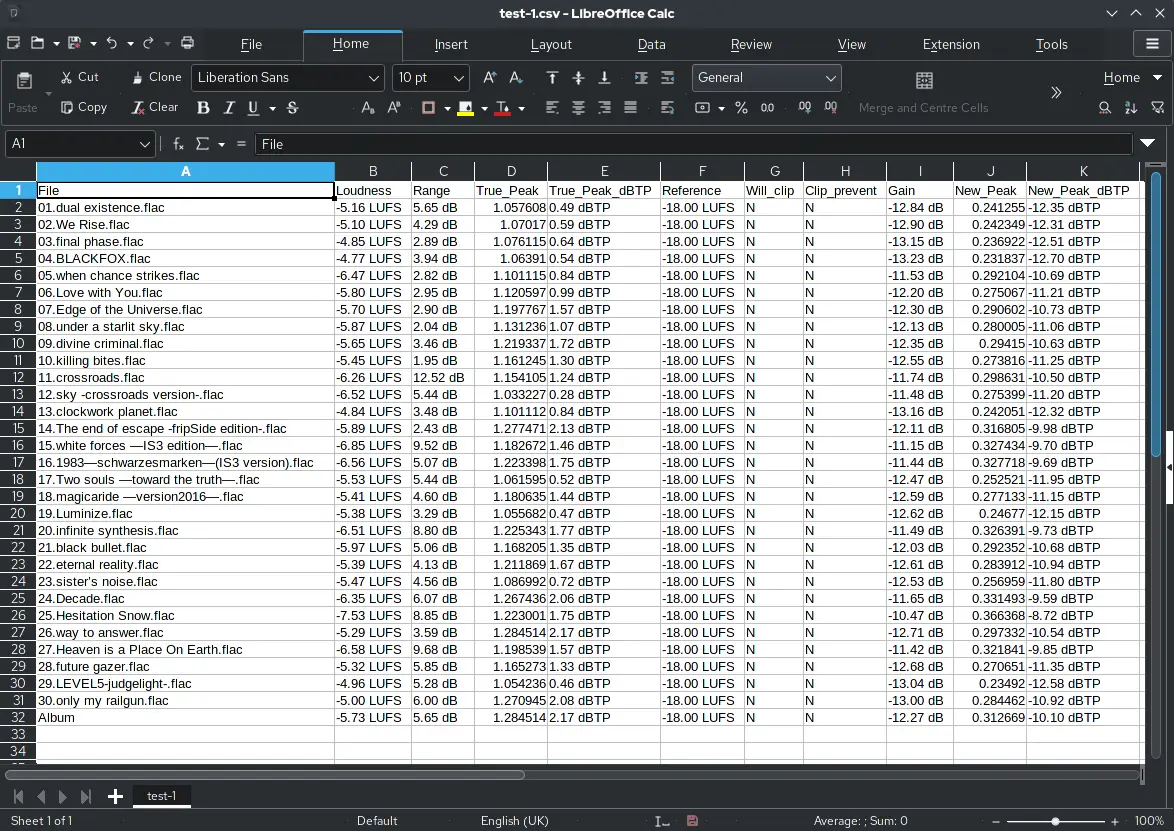
LibreOffice Calc is the spreadsheet component of the LibreOffice suite — a free and open-source office productivity package developed by The Document Foundation. It offers robust spreadsheet capabilities without any licensing cost, making it a strong choice for individuals and teams that need traditional spreadsheet power, broad file compatibility, and offline access without subscriptions.
Pros and cons of using LibreOffice Calc
Pros:
- Free and open source: Calc has no subscription or licensing fees, and its source code is publicly available, appealing to budget-conscious users and organizations that prioritize software freedom and transparency.
- Powerful core spreadsheet tools: It supports a wide range of functions (statistical, financial, logical), pivot table-style “DataPilot,” advanced charting, and scenario analysis for thorough data work.
- Broad format compatibility: Calc opens and saves Microsoft Excel (.xls/.xlsx), OpenDocument (.ods), CSV, and other formats, making it versatile for sharing files across platforms.
- Offline-first and private: Because it runs as a desktop app, Calc doesn’t require internet access, and local files stay private by default.
- Cross-platform support: Available on Windows, macOS, and Linux with consistent functionality.
Cons:
- Limited real-time collaboration: Native real-time co-editing isn’t built into the core desktop app; cloud or external tools are needed for collaborative editing.
- Less polished cloud integration: Unlike Google Sheets or Excel Online, Calc lacks a built-in cloud workspace and seamless sync features.
- UI and support limitations: The interface and help ecosystem are less modern and extensive than proprietary competitors, and users rely on community support rather than dedicated vendor support.
- Performance differences on extremely large sheets: While capable, performance may lag on very large or highly complex spreadsheets compared with optimized commercial tools.
LibreOffice Calc key features
- Advanced formula and function support: Includes hundreds of functions for data analysis, financial modeling, and logical computation.
- Pivot-style DataPilot and charts: Summarize and visualize data effectively with built-in analytical tools.
- Multi-format import/export: Works with Excel formats (.xls, .xlsx), OpenDocument, CSV, and others for broad compatibility.
- Scenario manager and “what-if” analysis: Tools to evaluate different data outcomes without changing original data.
- Macro and scripting support: Automate tasks using LibreOffice Basic, and in some setups Python or other languages.
- Customizable UI and toolbars: Users can tailor the interface for comfort and efficiency.
- Large sheet support: Calc can handle up to ~1 million rows and wide column ranges, useful for large datasets.
- Secure local storage: All files are stored locally unless the user opts to sync them externally.
LibreOffice Calc pricing
- Free: LibreOffice Calc is completely free and open source with no paid plans, subscriptions, or licensing costs — one of the most cost-effective spreadsheet tools available anywhere.
Who LibreOffice Calc is best for
LibreOffice Calc is ideal for individuals, students, educators, and small teams who need a full-featured offline spreadsheet with strong calculation capabilities and broad format compatibility but don’t require cloud collaboration or advanced cloud-native workflows.
Verdict: LibreOffice Calc vs Excel
LibreOffice Calc delivers powerful core spreadsheet capabilities, like formulas, pivot-style analysis, charting, and file compatibility entirely for free. However, it doesn’t match Excel’s deep cloud collaboration, tailored automation tools, and enterprise ecosystem. Calc is good where cost, privacy, and offline use are the priority, but it is not the best choice for teams that rely on real-time collaboration or integrated cloud features.
Choose the right Excel alternative for your team
There’s no single “best” Excel alternative: only the best fit for how your team actually works.
If you mainly need lightweight collaboration on spreadsheets, tools like Google Sheets or Zoho Sheet may be enough. If you want more structure and flexible views without leaving a spreadsheet mindset, Softr, Airtable, or SmartSuite are good picks.
Developer-first platforms like Supabase or open-source layers like NocoDB make sense when you’re building software and have engineering support.
But many teams fall into a different category. They’re not trying to analyze data in isolation or build a custom backend. They’re using Excel to run operations: tracking clients, vendors, projects, assets, approvals, and handoffs across teams and external users. That’s where spreadsheets start to break down.
In those cases, the real requirement isn’t “a better spreadsheet.” It’s a shared system of record that connects data, automates work, and scales without constant maintenance. That’s exactly where Softr Databases stands out.
Softr Databases gives teams the familiarity of spreadsheets with the structure of a relational database, plus built-in AI agents that work directly on live data. You don’t need to add more tools, write scripts, or rebuild workflows later.
👉 Explore Softr Databases and move beyond spreadsheets with a connected system designed for running operations and powering apps.
Frequently asked questions
What are good alternatives for excel for payroll?
What are the alternatives to VLOOKUP in Excel?
Is LibreOffice Calc the same as Excel?