AI tools are supposed to make you more productive. But for a lot of teams, they do the opposite. Work ends up spread across chatbots, docs, automations, and inboxes. You spend time setting things up, switching between tools, and fixing AI output that’s not quite right. Instead of moving faster, work gets messier.
The best AI tools for productivity take real work off your plate. They help you write and respond faster, automate repetitive steps, summarize information, and keep things moving without constant tweaking or developer help. When they work well, you barely notice the AI—it just saves you time.
In this guide, we break down the best AI tools for productivity and how to choose tools that fit real, day-to-day workflows.
Best AI tools for productivity at a glance
| Tool | Best for | Standout features | Pricing |
|---|---|---|---|
| Softr | Building AI-powered business apps on top of existing data | • AI Co-Builder and Vibe Coding block • Visual builder with templates • Built-in AI assistants • Flat pricing with no per-seat fees • Native workflows | Free plan available; Paid from $19/month |
| n8n | Flexible, multi-step automations across tools and APIs | • Unlimited workflows & steps • Open-source (self-hosted) • 400+ integrations • Custom code support | Free (self-hosted); Cloud from $20/month |
| Zapier | Quick, no-code automations between everyday apps | • 8,000+ integrations • Visual trigger-action builder • AI helpers & templates | Free (100 tasks); Paid from $15.23/month |
| Fathom | Automatic meeting notes, summaries, and action items | • AI meeting summaries • Action-item detection • Searchable transcripts • CRM & Slack integrations | Free available; Paid from $20/user/month |
| Figma Make | Prompt-to-prototype UI and layout creation | • Text-to-prototype generation • Uses real design context • Interactive previews | Included in Figma plans; Paid from ~$15/editor/month |
| NanoBanana | AI-generated visuals and graphics | • Prompt-based visuals • Style & character consistency • Fast visual iteration | Free, From $19.99/month or credit-based |
| Canva AI Presentations | Generating complete slide decks from prompts | • AI deck generation • Large template & asset library • Real-time collaboration | Free; Pro €110/user/year |
| QuillBot | Rewriting, paraphrasing, and simplifying text | • Paraphrasing modes • Grammar & summarization • Browser extensions | Free; Paid from ~$8.33/month |
| Obsidian | Building a linked personal or team knowledge system | • Local-first Markdown notes • Graph-based linking • Plugin ecosystem | Free; Optional add-ons from $4/month |
| ChatGPT | General-purpose writing, research, summarization, and reasoning | • Conversational drafting & editing • Document and thread summarization • Brainstorming and planning • File & image uploads (paid plans) | Free; Go: $7/month, extended access to GPT-5, more messages & uploads |
| Goblin | Drafting and replying to emails faster | • Tone adjustment • Task breakdown • Writing clarity tools | Free; Optional Pro |
| Superhuman | High-volume inbox management with AI prioritization | • AI email drafting & summaries • Inbox triage & shortcuts • Context-aware AI across apps | Free; Paid from $12/user/month |
What are AI productivity tools?
AI productivity tools are software tools that use artificial intelligence to help teams work faster by reducing manual tasks like writing, research, data enrichment, scheduling, follow-ups, and basic decision-making.
Instead of replacing your existing tools, the best ones sit alongside them, helping you automate repeat work, summarize information, and move tasks forward with less effort.
Types of AI productivity tools
AI productivity tools aren’t all built for the same job. Some help individuals move faster on small tasks, while others support entire teams by automating workflows, managing data, or reducing coordination overhead.
| Type | What it does | Best for | Tools in this category |
|---|---|---|---|
| AI automation & business operations | Automates recurring processes across tools (approvals, data updates, handoffs, workflows) using logic, automation, and integrations. | Ops teams, internal tool builders, SMBs optimizing repeatable processes. | Softr, n8n, Zapier |
| AI meeting & communication assistants | Records meetings, transcribes conversations, and generates summaries and action items automatically. | Remote teams, sales teams, managers, and anyone spending heavy time in meetings. | Fathom |
| AI visuals & presentation tools | Turns prompts or outlines into slides, diagrams, and visual assets quickly. | Marketers, founders, consultants, and teams creating decks under time pressure. | Figma Make, NanoBanana, Canva AI Presentations |
| AI writing, research & knowledge tools | Rewrites, summarizes, and organizes text or long-term knowledge into searchable systems. | Writers, researchers, content teams, and individuals managing large volumes of information. | QuillBot, Obsidian, ChatGPT |
| AI email productivity tools | Helps draft replies, summarize threads, prioritize messages, and reduce inbox overload. | Executives, managers, and teams handling high email volume daily. | Goblin, Superhuman |
What to look for in AI productivity tools
When you strip away the hype, the best AI tools for business productivity should save time without creating new work. Below are the criteria that matter most in daily use.
- Easy setup and everyday usability: If a tool takes days to configure to be useful, it’s not a productivity win. You should be able to get value quickly.
- Works with your existing tools: The best tools integrate with the apps you already rely on. Forcing teams to manually move data or rebuild workflows usually creates more friction than value.
- Automation that actually moves work forward: AI should do more than generate suggestions. Look for tools that can trigger actions, update records, or reduce manual steps in repeat workflows.
- Reliable output quality: AI output still needs review, but it shouldn’t require heavy rewriting or constant fact-checking for common tasks.
- Low learning curve for non-technical teams: Productivity tools need to work for the whole team. Clear interfaces and simple logic matter more than advanced features most people won’t use.
- Clear pricing and usage limits: Many tools gate core features behind higher tiers or usage caps. Make sure the cost makes sense as usage grows.
- Performance as data grows: Tools should stay responsive as notes, automations, or records increase. Slow or unstable tools quickly erase productivity gains.
If a tool checks these boxes, it’s far more likely to help teams work faster instead of adding another layer of complexity.
AI automation & business operations
1. Softr — best for building secure, no-code business software with AI
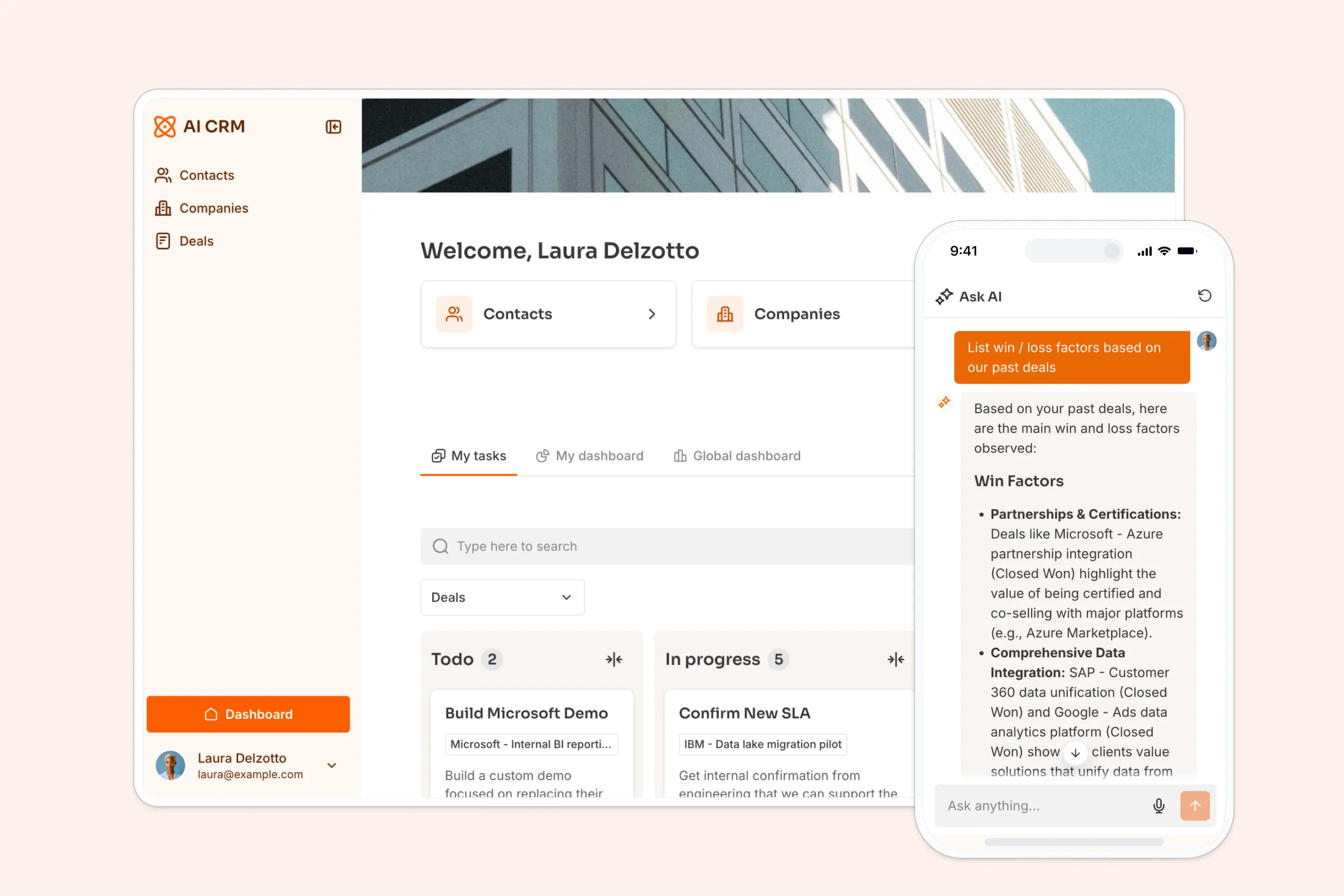
Most AI productivity tools focus on speeding up individual tasks like writing, summarizing, or organizing personal work. Softr takes a more holistic approach. It’s an AI app builder designed for business and team productivity, helping companies replace spreadsheets and disconnected tools with shared, operational apps like internal dashboards, project trackers, CRMs, or customer portals. And you don't have to write any code to use it.
Instead of applying AI in isolation, Softr embeds AI directly into business systems so work moves forward inside real workflows used by both internal teams and external users like clients or partners. The AI Co-Builder generates complete, fully-featured apps that are secure by default, and the Softr MCP lets you build them from your own AI assistant instead. AI agents automatically enrich data, validate inputs, and handle routine operational work. And Ask AI lets teams and app users get instant answers from live app data without searching through tables or dashboards.
Softr pros and cons
Pros
- Fast to build and easy to maintain: Build quickly with AI, then switch to visual editing at any time. You can add or remove features and scale your apps as your business grows, without technical overhead.
- AI built in where work happens: AI agents and Ask AI run directly inside your databases, apps, and workflows, not in a separate system or chat interface.
- Production-ready out of the box: Hosting, user access, and security are included, so your apps work reliably from day one with no extra setup or infrastructure to manage.
- 21+ data source integrations: Build on existing data sources or use Softr Databases to replace spreadsheets, with no forced migration. You can also connect to any data source using the REST API.
- Visual, drag-and-drop builder: The visual builder and pre-built templates with sample data make app setup accessible for non-technical teams.
- Role-based permissions and SSO: Create secure user groups with granular access for admins, teammates, clients, and partners, with optional single sign-on.
Cons
- Can be more than you need if you’re only looking for a single-purpose productivity tool.
Softr best features
- AI Co-Builder: Generate apps with AI that your business can actually run on: secure, connected, and ready for real users from day one.
- Database AI agents: Use AI agents in Softr Databases to automatically categorize feedback, enrich records, validate inputs, summarize submissions, and keep operational data clean and consistent. These agents run directly on your data, reducing manual work across day-to-day workflows.
- Ask AI: Add a built-in chat assistant to your apps so teams and app users can get instant answers from live data. Ask AI helps users search CRM, portal, or tracker data without digging through tables or dashboards.
- Workflow automation: Automate approvals, notifications, record updates, and handoffs using Softr’s native workflows. Because workflows run directly inside your apps and databases, there is no need to coordinate external automation tools like Zapier or n8n for core processes.
- Flexible data integrations: Build apps on top of existing data sources (like Airtable, Notion, or HubSpot) or use Softr Databases to replace spreadsheets and manage data and apps in one platform.
- Vibe Coding Block: Generate app layouts, dashboards, pipelines, and custom tools using AI prompts. Vibe coding helps teams go from idea to working system faster, so they can start benefiting from automation and AI sooner.
- AI Co-builder: Describe the database or workflow you want in plain English, and Softr generates the structure for you. Use the co-builder to create systems quickly, then customize them to match your process.
- Works on any device: Apps are fully responsive by default, and can be turned into downloadable mobile apps using Softr’s PWA feature.
- Live chat support + active community: Access live chat support and an active builder community for help, best practices, and inspiration.
Softr pricing
Softr offers flat, transparent pricing with a generous free plan.
- Free: Unlimited apps, with access to Softr Workflows and Softr Databases, 5 app users, 5 AI credits, 5,000 database records, and 500 workflow actions
- Basic: $19/month for unlimited apps with 42+ integrations, Team: 5 + Client: 5 app users, 10 AI credits, 50K records, 2.5K workflow actions
- Pro: $99/month for unlimited apps with 45+ integrations and custom code, Team: 10 + Client: 50 app users, 50 AI credits, 500K records, and 10K workflow actions
- Business: $329/month for unlimited apps with 52+ integrations, Team: 30 + Client: 100 app users, 100 AI credits, 1M records, and 25K workflow actions
- Enterprise: Custom pricing
2. n8n — best for flexible, multi-step automations across tools and APIs

n8n is a workflow automation platform that lets teams connect apps, APIs, and processes into custom automated workflows using a visual builder. Unlike simpler automation tools that bill by action or user, n8n lets you design complex sequences without step limits and connect across hundreds of systems. Its strength is flexibility: you can use built-in nodes, custom code, and advanced logic to automate cross-tool work that would otherwise take hours to manage manually. It’s ideal for teams with integration needs that go beyond basic trigger-and-action automations.
n8n pros and cons
Pros
- Native Softr integration: A verified Softr node in n8n lets you connect Softr Databases directly in workflows to create, update, get, or delete records and manage users without manual API wiring.
- Unlimited workflows & users: Every paid tier includes unlimited workflows, unlimited steps, and unlimited users so teams can scale freely.
- Open-source option: The Community Edition is free to use if self-hosted, giving teams full control over automation without licensing fees.
- 400+ integrations: Connect a broad range of services (CRMs, databases, messaging, cloud apps) with no extra add-ons.
- Technical flexibility: Native JavaScript and Python support lets dev teams extend workflows with custom logic.
- Self-hosted or cloud: Choose between self-managed infrastructure or a hosted cloud instance based on your compliance and budget needs.
Cons
- Steep learning curve for non-technical teams: The visual builder is powerful, but mastering complex flows often requires technical fluency.
- Hosting and setup overhead: The free self-hosted version requires server provisioning, scaling, and maintenance, which adds operational work many teams don’t want.
- Execution-based pricing can add up: Cloud plans charge by workflow executions per month, meaning frequent automations can increase costs faster than flat-rate tools.
n8n best features
- Visual workflow builder: Drag-and-drop nodes let you stitch together multi-step, cross-app processes.
- Open-source Community Edition: Free forever if self-hosted—no license limits on workflows or users.
- Cloud plans with unlimited users & steps: Managed hosting starts with execution quotas, not user caps.
- Extensive integrations: Connect common business tools and custom APIs via HTTP Request nodes.
- Custom code support: Inject JavaScript or Python directly into workflows for tailored logic.
N8n pricing
All plans include unlimited users & workflows and every integration.
Pricing based on monthly workflow executions, regardless of complexity
- Free open-source community edition
- Starter: $20/month (billed annually) hosted by n8n, includes 2.5k workflow executions/month, unlimited steps, unlimited users, and up to 5 concurrent executions.
- Pro: $50/month (billed annually) hosted by n8n, includes 10k workflow executions/month, higher concurrency (20 concurrent executions), shared projects, admin roles, execution history, and workflow insights.
- Business: $800/month (billed annually) self-hosted, includes 40k workflow executions/month, SSO (SAML/LDAP), multiple environments, version control (Git), scaling options, and longer execution insights.
- Enterprise: custom pricing, self-hosted or hosted by n8n. Unlimited shared projects, 200+ concurrent executions, extended data retention, external secret stores, log streaming, and dedicated support with SLA.
[.blog-callout]
✨Comare n8n to Zapier in our detailed comparison guide.
[.blog-callout]
3. Zapier — best for quick automations that connect everyday tools
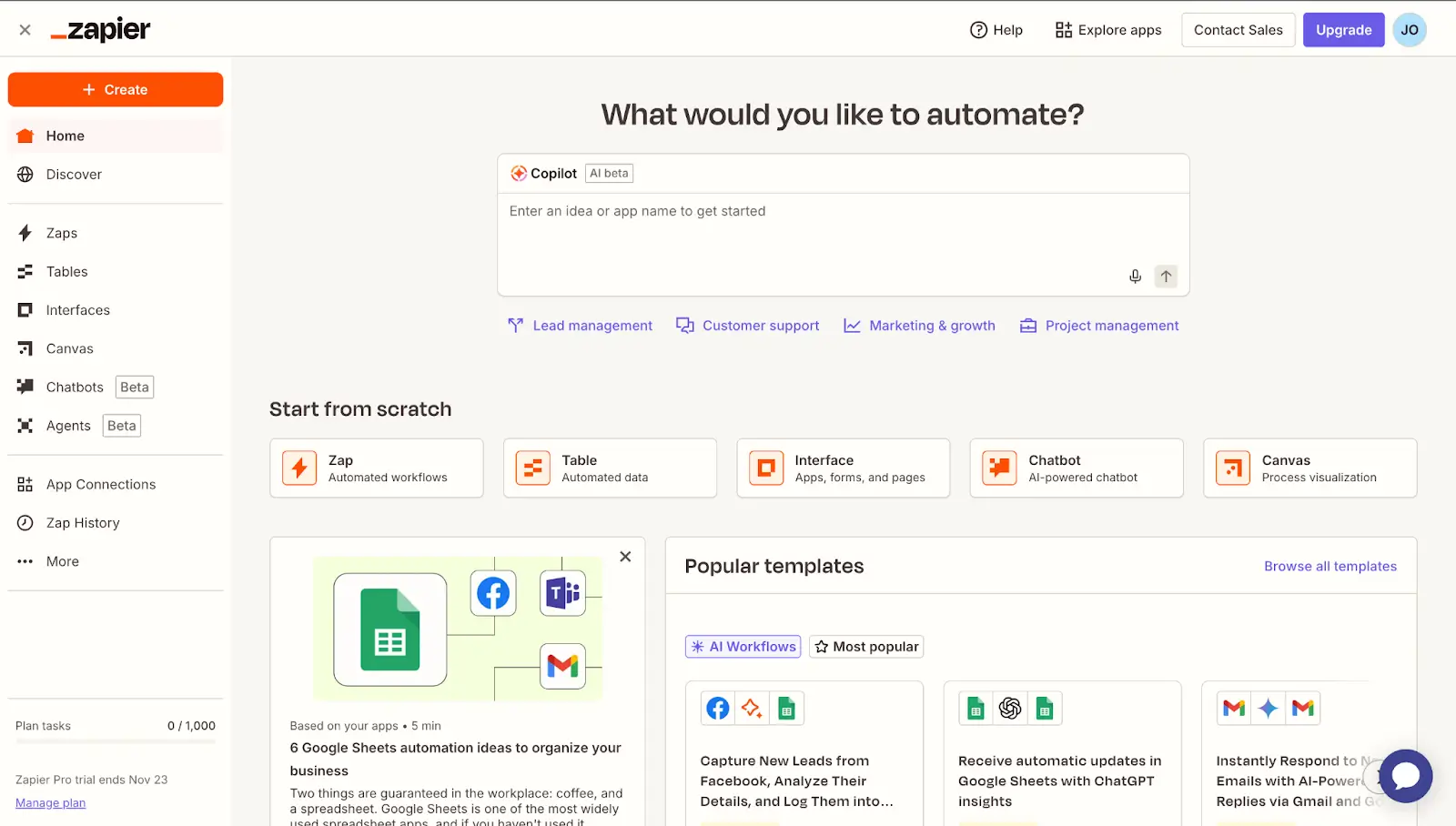
Zapier is one of the most widely used no-code automation platforms, letting teams link apps and automate repetitive tasks without writing a line of code. With a simple trigger-and-action model (“Zaps”), Zapier moves data and actions between tools like Gmail, Slack, CRM systems, and project apps in the background so you don’t have to handle repetitive steps yourself. Its strength is breadth of integrations and ease of use. You can build automations fast, but it’s less suited for deeper, AI-enabled workflows or custom business tools compared to platforms like Softr.
Zapier pros and cons
Pros
- Huge integration ecosystem: Connect over 8,000+ apps including communication, CRM, support, and productivity tools.
- No-code automation: Build automations visually with templates or step-by-step builders without Dev help.
- AI workflow helpers: Zapier Copilot and AI tools assist with building and optimizing automations.
- Unlimited automations: Even free plans let you create unlimited “Zaps” (workflows).
Cons
- Task-based pricing gets expensive: Plans limit monthly “tasks” (executed actions), and heavy automation can drive costs up quickly as teams scale.
- Basic business logic only: Zapier’s trigger–action model handles linear tasks well, but for complex logic, AI feedback loops, or cross-tool workflow enforcement, it’s less capable than tools built for those jobs.
- Free plan limits: Free accounts are capped at 100 tasks/month and two-step automations, restricting real use for teams.
Zapier best features
- Visual automation builder: Drag-and-click workflow creation with conditional logic and branching.
- Broad app support: One of the largest libraries of integrations across business apps and platforms.
- Automation templates: Prebuilt workflows help you get started fast.
- AI helpers & agents: Built-in AI features assist in drafting, troubleshooting, and iterating automations.
Zapier pricing
Zapier’s pricing is centered around monthly task limits and feature sets.
- Free: $0 — 100 tasks/month, unlimited Zaps, basic workflows, single user, 15-minute polling.
- Professional: $15.23/month (billed annually after free trial) — 750 tasks/month, multi-step workflows, premium apps, logic tools.
- Team: $52.58/month (billed annually) — Everything in Pro plus shared folders, collaboration tools, roles/permissions, SAML SSO.
- Enterprise: Custom pricing — Organization-level security, governance, analytics, and support.
Note: Overages or higher task tiers can drive up cost quickly as automation use grows, especially for mid-sized teams.
[.blog-callout]
✨ Looking for alternatives? Visit our in-depth Zapier alternatives guide.
[.blog-callout]
4. Fathom — best for automatically capturing meeting notes, summaries, and action items
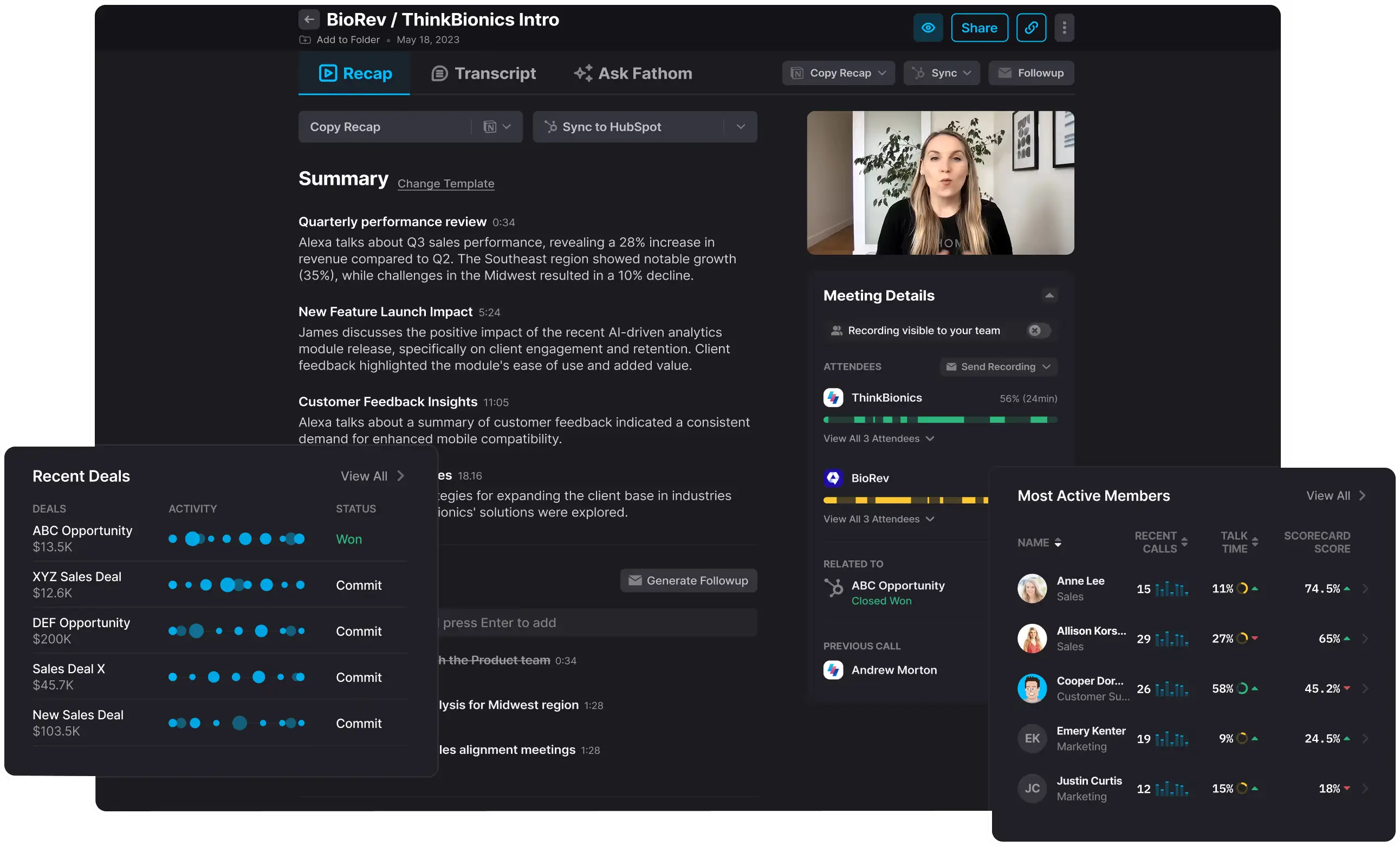
Fathom is an AI meeting assistant that records, transcribes, and summarizes your Zoom, Google Meet, or Microsoft Teams calls so you can stay focused on the conversation instead of jotting down minutes. Its core value is eliminating manual note-taking and turning meetings into clear, structured minutes and action plans you can search and share later. It works quietly in the background, captures meeting context, highlights key moments, and delivers summaries and action items automatically, making it a time-saver for teams that live in virtual meetings.
Fathom pros and cons
Pros
- Unlimited recordings & transcription: You can record and transcribe every virtual meeting you join without hitting minutes caps.
- Instant AI summaries: After a call ends, Fathom generates readable summaries and highlights without extra steps.
- Action items & integrations: AI-detected action items plus integration with Slack, CRM tools, and more help push work forward.
- Searchable meeting library: Search across transcripts and summaries to find what you need later.
Cons
- No mobile app: Recording and AI features are tied to desktop/web apps, which can be limiting for hybrid teams.
- AI summaries restricted on free plan: Free only gives a handful of advanced summaries per month; full AI insights require paid tiers.
Fathom best features
- Automated meeting recording & transcription: Fathom auto-records and transcribes meetings so you don’t miss context or key details.
- AI-generated summaries & highlights: AI breaks long meetings into short, usable summaries with action points and key moments highlighted.
- Action item detection: AI pulls out tasks and next steps from conversations automatically.
- Searchable call archive: Find insights from past calls by searching keywords across transcripts.
- Team collaboration tools (paid): Shared meeting libraries, folders, and comment threads help teams stay aligned.
Fathom pricing
Pricing varies based on individual or team use, with generous free options and progressively advanced paid tiers:
- Free: $0 — Unlimited recordings & transcription; limited AI summaries and action items per month.
- Premium: $20/month per user — Unlimited advanced AI summaries, action items, custom summary formats, and Ask Fathom.
- Team: $18/month per user — Adds shared meeting libraries, global search, team collaboration, playlists, and keyword alerts.
- Business: $28/month per user — CRM field sync, deal overview insights, coaching scorecards, and more enterprise-grade features.
Note: Pricing can vary slightly by billing cycle and discounts for annual plans.
Visuals & presenting
1. Figma Make — best for generating UI layouts and design starting points from prompts
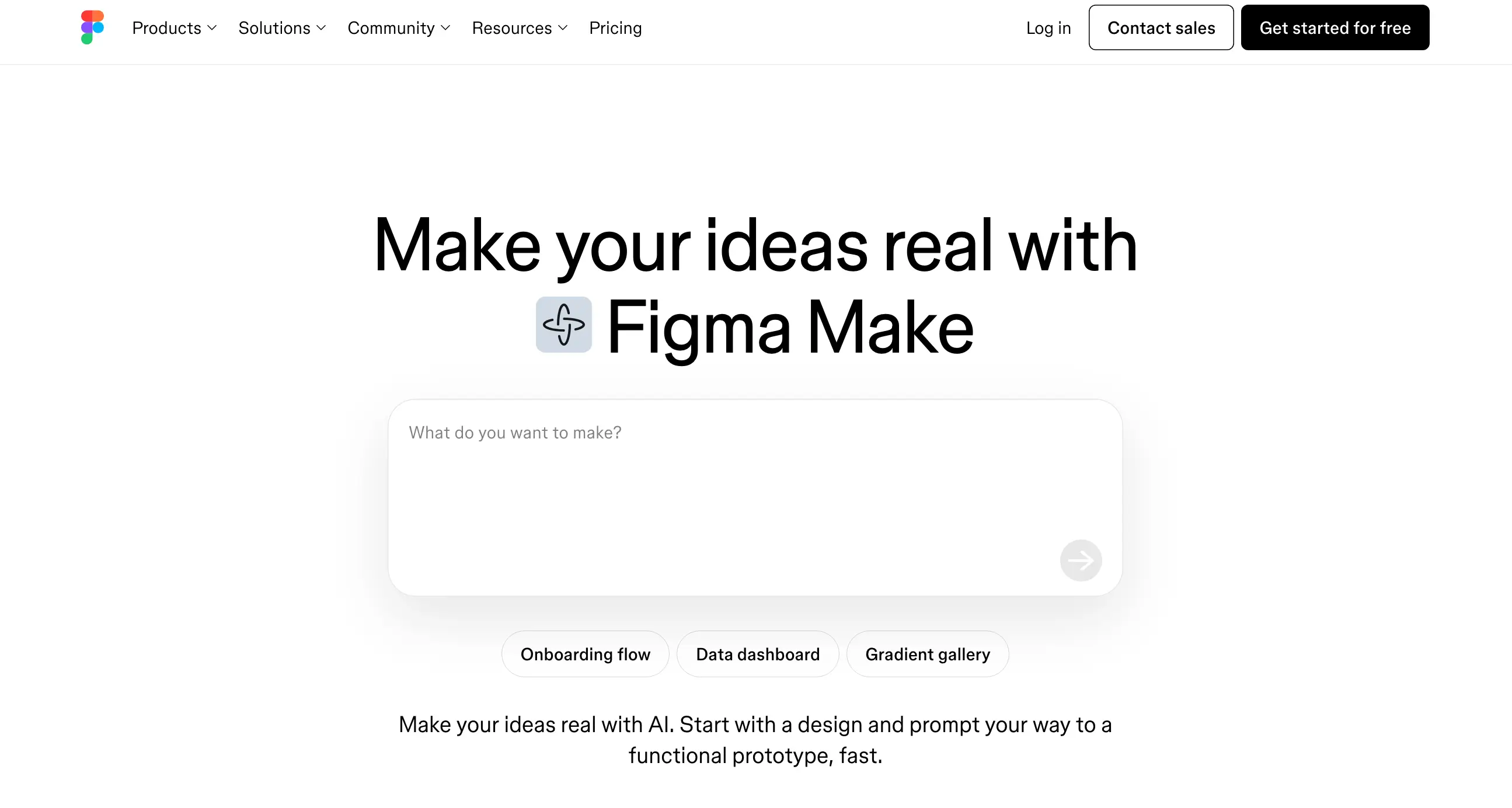
Figma Make is Figma’s AI-powered prompt-to-app tool that helps you turn ideas and existing design context into interactive prototypes, UI layouts, and even web app previews using natural language. Instead of building screens or interactions from scratch, you describe what you need, like a dashboard, form flow, or product layout, and Figma Make uses AI to generate a working foundation you can refine or hand off to engineers. It’s built right into the Figma environment so teams can go from idea to interactive design fast without switching tools.
Figma Make pros and cons
Pros
- Prompt-driven UI & prototype creation: Turn simple text prompts into structured layouts and interactive prototype previews without starting from blank canvas.
- Leverages real design context: You can attach frames, components, or design systems to guide the AI’s output, keeping generated screens on-brand and consistent.
- Integrated into Figma workflows: Works alongside standard Figma design, FigJam, and Slides tools, keeping everything in one workspace.
- Interactive outcomes: Outputs aren’t just static layouts: they can behave like live prototypes that you can test and refine.
Cons
- Not a full design suite on its own: You still rely on Figma’s design tools for detailed layout tweaks and visual polish.
- Feature access varies by plan: Full publishing and team collaboration depend on paid Figma plans with “Full seats.”
- AI credits may apply: Heavy use of Make and other Figma AI features can consume AI credits depending on task complexity and underlying model choices.
Figma Make best features
- Prompt-to-prototype build: Describe an interface or interaction in plain language and get a running example you can test and iterate.
- Design attachment support: Attach existing frames or components into the prompt to guide outputs and maintain style consistency.
- Interactive preview & iteration: You can preview clickable flows or prototypes and refine them via AI suggestions or manual edits.
- Team collaboration: Files created with Figma Make can be shared and reviewed like any other Figma file (permissions vary by plan).
Figma Make pricing
Figma Make is included as part of Figma’s broader product suite — it isn’t sold as a separate subscription. Access depends on your Figma plan and seat type:
- Free (Starter): Limited access; you can experiment with Figma Make drafts, but team publishing and advanced features require paid plans. Starter users can share up to three Figma Make files with collaborators.
- Professional (~$15/editor/month billed annually): Full access to Figma Make as part of the design workflow, including team libraries and full AI feature sets.
- Organization (~$45/editor/month billed annually): Adds advanced team governance, SSO, analytics, and higher AI usage quotas (including Figma Make).
Note: AI usage in Figma Make may draw on Figma’s AI credit system, where higher-end operations or heavy use can consume more credits.
2. Nano Banana — best for generating visual assets quickly

Nano Banana refers to Google’s official AI image generation and editing model, known technically as Gemini 2.5 Flash Image. It runs inside Google’s Gemini products (Gemini app, AI Studio, Vertex AI and related tools) and lets you create or revise images using natural language and image prompts. It’s good for creating visual content rapidly, though it’s not a full slide deck app on its own.
This model and its higher-end sibling Nano Banana Pro (built on Gemini 3 Pro Image) excels at generating clear, context-aware visuals you can then place into presentations, marketing assets, social visuals, etc.
Nano Banana pros and cons
Pros
- Fast visual generation: Turn text or reference images into usable visual assets in seconds.
- Natural-language editing: Adjust visuals by describing changes, making iterations easier without traditional design tools.
- Versatile for content creation: Great for generating graphics, concept imagery, and illustrations you can drop into slides or docs.
Cons
- Not a slide editor: What you get are images, not complete presentation files; you still assemble slides in Google Slides, PowerPoint or Visme.
- Official pricing depends on how you access it: Nano Banana usage through Google Gemini or API has its own pricing (often per image/token), and third-party credit-based packages vary widely.
- May need refinement: You’ll often tweak layouts, compositional balance and context manually after generation.
Nano Banana best features
- Prompt-based visual assets: Describe what you need and get graphics ready for presentations or social posts.
- Context-aware image editing: Keeps elements (like characters, objects, style) consistent across outputs.
- Iterative refinement: Change visuals with simple text edits without rebuilding from scratch.
- High-quality generation: Especially with Nano Banana Pro (Gemini 3 Pro Image), you get better resolution and more detailed imagery.
Nano Banana pricing
Nano Banana isn’t sold as a standalone product. Pricing depends on how you access Google’s Gemini image models.
Free (limited)
- Limited image generation via the Gemini app and Google AI Studio.
- Daily caps apply and can change.
Google AI Pro (subscription)
- $19.99/month
- Higher image-generation limits in Gemini.
- Access to advanced Gemini models, including higher-quality image generation.
Gemini API / Vertex AI (pay-as-you-go)
- Nano Banana (Gemini 2.5 Flash Image): ~$0.039 per image
- Nano Banana Pro (Gemini 3 Pro Image):
- ~$0.13 per image (standard resolution)
- Up to ~$0.24 per image (high-resolution outputs)
3. Canva AI Presentations — best for generating complete presentation drafts from prompts
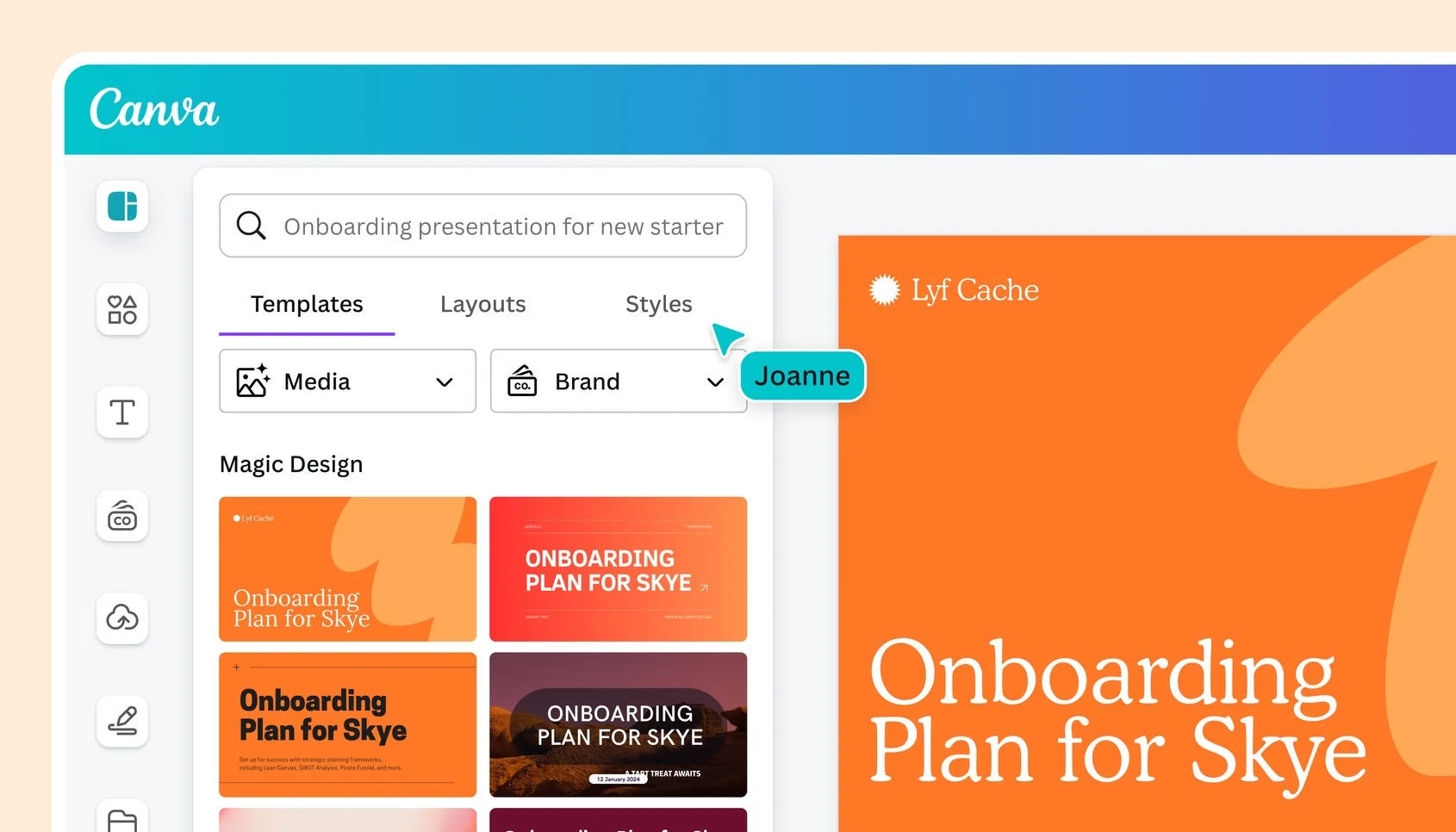
Canva’s AI presentation tools are part of its broader AI-powered design suite (“Magic Design”), letting you quickly turn ideas, outlines, or uploaded docs into presentations with structured slides, visuals, and copy using AI assistance. Instead of building slides by hand, you describe what you want, like a pitch deck or training deck, and Canva suggests layouts, styles, and content you can refine visually in its editor. AI’s suggestions are backed by Canva’s huge template library and design system, making it easier for non-designers to build polished decks fast.
Canva AI Presentations pros and cons
Pros
- Prompt-based slide creation: Use AI to generate a full deck from a text prompt, outline, or uploaded document.
- Design ecosystem: Pick from thousands of templates, illustrations, icons, and media assets to elevate slides instantly.
- Real-time collaboration: Teams can edit, comment, and present together in the cloud.
- Multi-format export: Download decks as PDF, PNG, JPEG or export to PowerPoint formats.
Cons
- AI output still needs polishing: Generated slides often need layout tweaks, visual adjustments, and copy refinement before they’re presentation-ready.
- AI feature limits on free plan: Free accounts have limited access to AI tools like Magic Design and may run out of free generations quickly.
Canva AI Presentations best features
- AI deck generation: Type a prompt or outline and get a structured slide deck with suggested layouts and content.
- Template + asset library: Millions of design templates, stock media, charts, and icons to speed creative quality.
- Realtime team editing: Built-in collaboration lets teams refine and finalize slides together.
- AI copy and visuals: Canva’s Magic Write and image tools generate text and visuals that match your theme.
Canva pricing
Canva offers per-person pricing with plans for individuals, teams, and enterprises. AI presentation features are included in paid plans, with usage limits that vary by tier.
- Free — €0/year (1 person):
- Basic editor, limited templates and assets, and restricted AI features.
- Pro — €110/year per person:
- Premium templates and assets, Brand Kits, higher AI usage, and advanced design tools. Free trial available.
- Business — €160/year per person:
- Built for teams. Adds collaboration tools, approvals, shared assets, higher AI limits, and admin controls. Free trial available.
- Enterprise — Custom pricing:
- Organization-wide controls, SSO/SCIM, advanced security, custom integrations, and dedicated support.
Notes:
- Pricing is per user, billed yearly (monthly toggle available).
- AI features (including AI presentations) are included, but usage limits scale by plan.
- Enterprise pricing depends on seat count and requirements.
Writing, research, notes
1. QuillBot(extension enabled) — best for rewriting, paraphrasing, or simplifying text
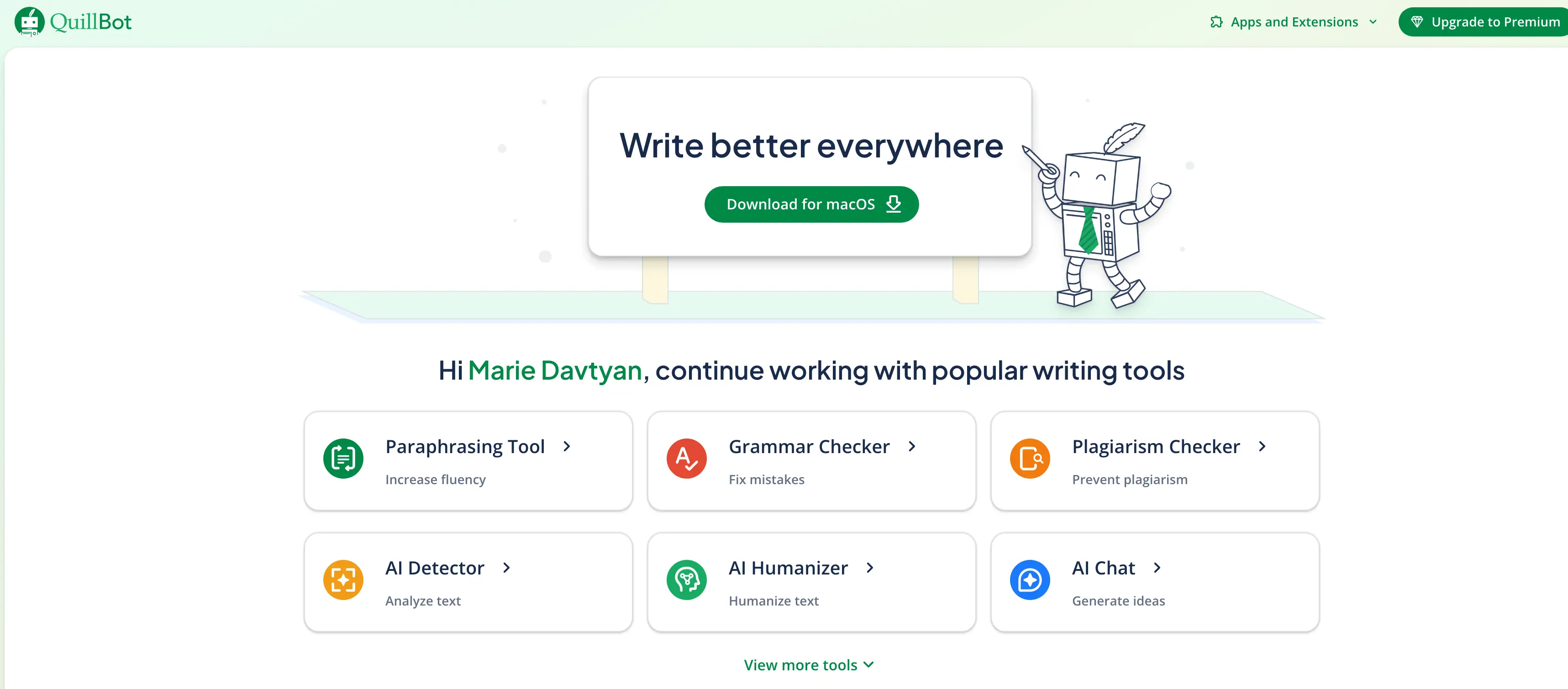
QuillBot is an AI writing assistant built to help teams rewrite, clarify, and polish text quickly without leaving your workflow. It’s used for editing drafts, simplifying language, checking grammar, and summarizing content — ideal when you want clearer, more concise writing without drafting from scratch. It integrates well with browsers and editors so you can improve writing directly in email, docs, or web editors.
QuillBot pros and cons
Pros
- Paraphrasing & refinement: Rewrite or rephrase text to improve clarity, tone, and flow.
- Multiple writing tools in one place: Grammar checker, summarizer, tone analysis, plagiarism checking, citation tools, and translation.
- Integrated in workflows: Works via web interface and browser extension so you can edit where you work.
- Helps with SEO and readability: Paraphrasing can improve keyword integration and readability without rewriting manually.
Cons
- Not a creator of original structured content: QuillBot refines text you provide: it doesn’t generate fully structured articles or workflows like tools built for product content or database logic.
- Free limits on rewrite modes and length: Free users see word caps and fewer paraphrasing modes; Premium unlocks full capabilities.
- Still requires review: AI suggestions often need human editing for tone precision, accuracy, and context.
QuillBot best features
- AI Paraphraser with multiple styles: Choose from modes like Standard, Fluency, Creative, or Formal to rephrase text your way.
- Grammar & tone tools: Check and adjust readability, correctness, and audience fit.
- Summarization & citation tools: Condense long text into key points and generate citations.
- Browser and editor integration: Enhance writing directly in Gmail, Docs, and other apps.
QuillBot pricing
QuillBot uses a freemium model with more features on paid plans:
- Free: $0 — Basic paraphrasing and core writing tools with caps on word count per feature.
- Premium: ~$19.95/month (or ~$8.33/month billed annually) — Unlimited words, all paraphrasing modes, plagiarism checker, higher summarizer limits.
- Team: Custom per-seat plans with centralized billing and team management features.
2. Obsidian — best for building a personal or team knowledge system with linked notes
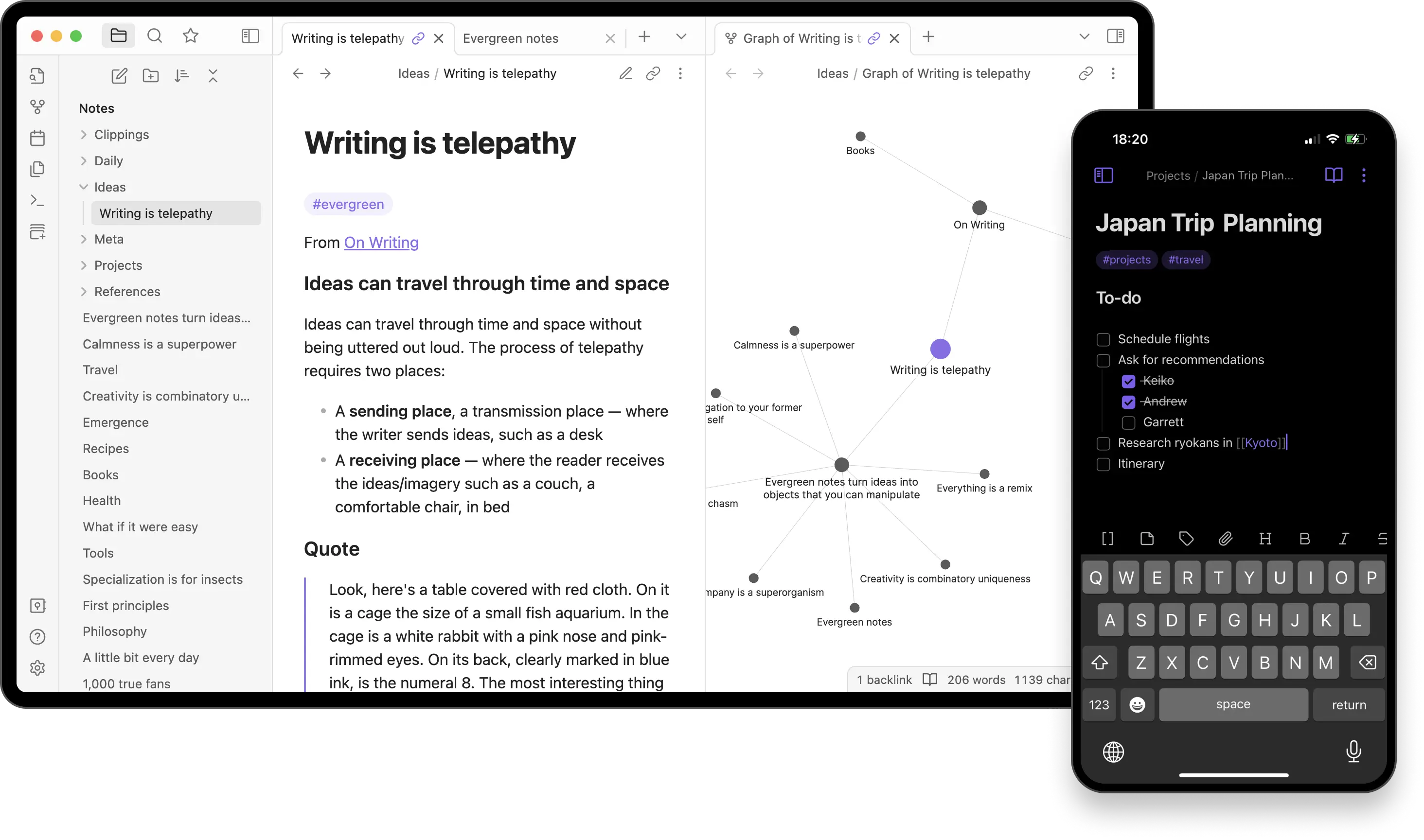
Obsidian is a Markdown-based knowledge management and note-taking app focused on helping you connect ideas over time. Instead of treating notes as isolated pages, Obsidian lets you link thoughts, documents, and concepts into a graph that reveals relationships across your knowledge. It’s popular with writers, researchers, and knowledge workers who want full control of their info and the ability to extend it with plugins and custom workflows.
Obsidian pros and cons
Pros
- Link-first knowledge graph: Obsidian visualizes connections between notes so you can see patterns and relationships (the “second brain” effect).
- Local-first Markdown files: Your notes are standard files you control and can sync or back up however you like.
- Extensible ecosystem: Plugins add calendars, tasks, graph filters, AI integrations, and more.
- Free core features: You don’t need to pay to use the core note-taking, linking, and graph tools.
Cons
- Steep learning curve: A powerful system means many settings and options, and mastery takes practice compared to simple note apps.
- Manual structure required: You build note networks yourself; there’s no automatic summarization or insight extraction like AI tools provide.
- No native AI summarization: Core Obsidian doesn’t automatically read and summarize files — you rely on plugins or external tools for that.
Obsidian best features
- Interactive graph view: Visualize how ideas and notes connect across your vault.
- Rich plugin marketplace: Add advanced features like task boards, spaced repetition, and AI query plugins.
- Cross-platform support: Works on macOS, Windows, Linux, iOS, and Android.
- Markdown at the core: Standard text files that stay yours and easy to export or migrate.
Obsidian pricing
Obsidian’s core note-taking and knowledge-linking app is free to use with no required subscription.
- Free: $0 — Full Obsidian app, unlimited local notes, graph links, plugins, community features.
- Obsidian Sync: $4/month per user (billed annually) or ~$5/month (monthly) — Secure cross-device sync.
- Obsidian Publish: $8/month per site (billed annually) or ~$10/month (monthly) — Host notes online.
- Catalyst: One-time $25 — Optional perks and early access builds.
The free plan includes all core functionality; paid add-ons are optional services rather than required tiers.
3. ChatGPT — best for general-purpose writing, research, and reasoning support
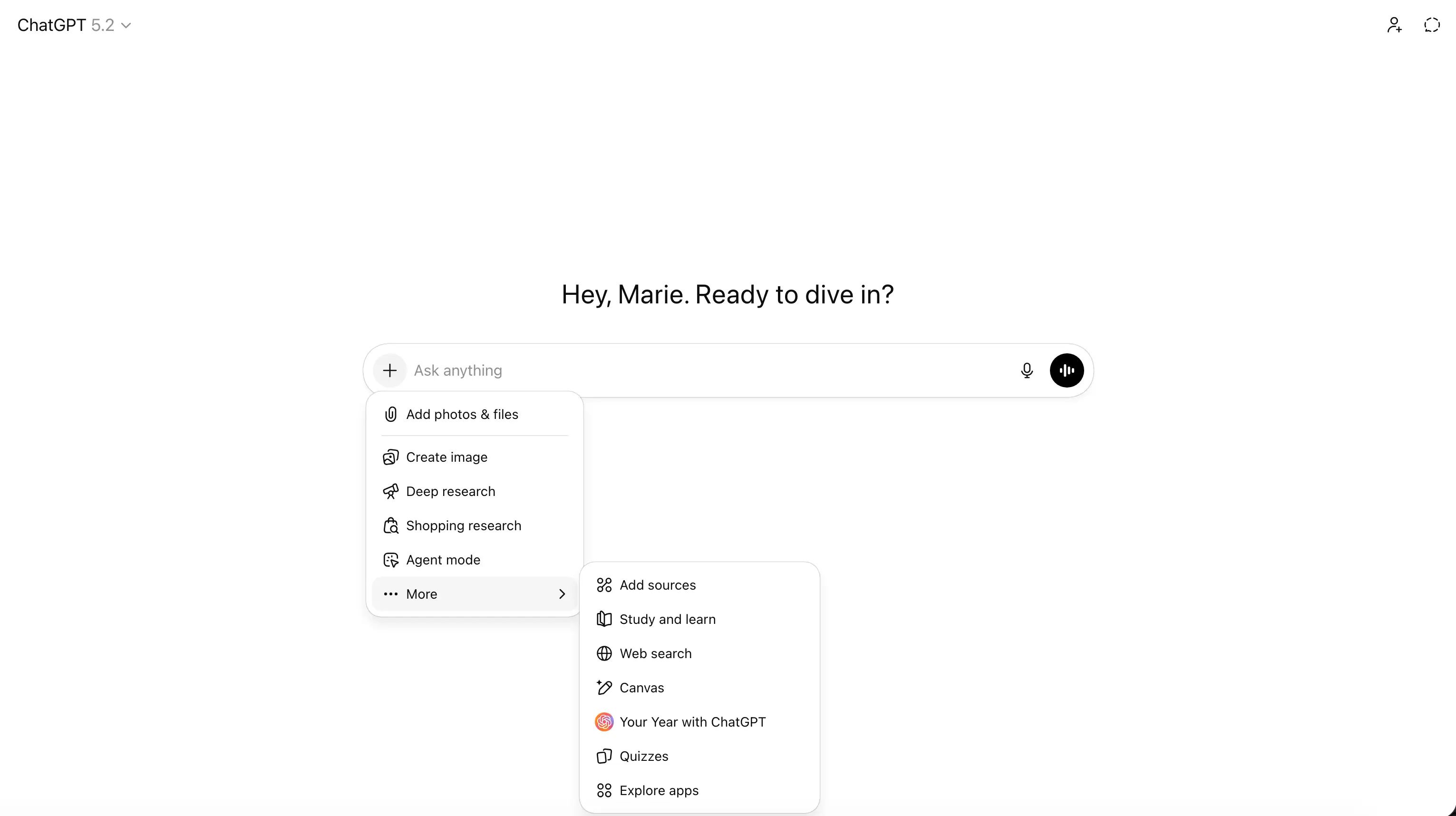
ChatGPT is a conversational AI assistant designed to help individuals and teams think, write, research, and problem-solve faster. It’s often the first AI tool teams adopt because it’s flexible: you can use it to draft emails, outline content, summarize documents, analyze ideas, explain concepts, or brainstorm solutions in plain language.
Built by OpenAI, ChatGPT works best as a thinking and drafting partner rather than an execution engine.
ChatGPT pros and cons
Pros
- Extremely versatile: Handles writing, editing, summarization, research, ideation, and reasoning in one interface.
- Low barrier to entry: No setup required: start typing and get responses immediately.
- Strong drafting support: Useful for emails, outlines, explanations, and first-pass content.
- Continuously improving models: Access to newer models improves reasoning, clarity, and context handling over time.
Cons
- Not connected to your workflows by default: Doesn’t update records, trigger actions, or enforce processes without custom integrations.
- Context lives in chat, not systems: Outputs must be copied into docs, tools, or workflows manually.
- Not a source of truth: Responses still need review for accuracy, especially for factual or sensitive work.
ChatGPT best features
- Conversational writing & editing: Draft, rewrite, and refine text with natural back-and-forth.
- Summarization & explanation: Break down long documents or complex topics quickly.
- Reasoning & problem-solving: Think through scenarios, plans, or decisions step by step.
- Multimodal inputs (paid plans): Work with text, images, files, and data in one interface.
- Custom GPTs (paid plans): Create task-specific assistants with instructions and knowledge.
ChatGPT pricing
ChatGPT uses a freemium model with optional upgrades for more advanced capabilities:
- Free: $0 — limited messages, reasoning, and uploads
- Go: $7/month — more access to GPT-5, higher limits
- Plus: $20/month — advanced reasoning, faster responses, expanded tools
- Pro: $200/month — full access, highest limits, priority features
- Business: $25/user/month (annual) — shared workspace, admin controls, no training on company data
- Enterprise: Custom — enterprise security, compliance, and support
Bottom line: Great value for individual knowledge work; costs scale quickly for teams and heavy usage.
1. Goblin — best for drafting and replying to emails faster with AI
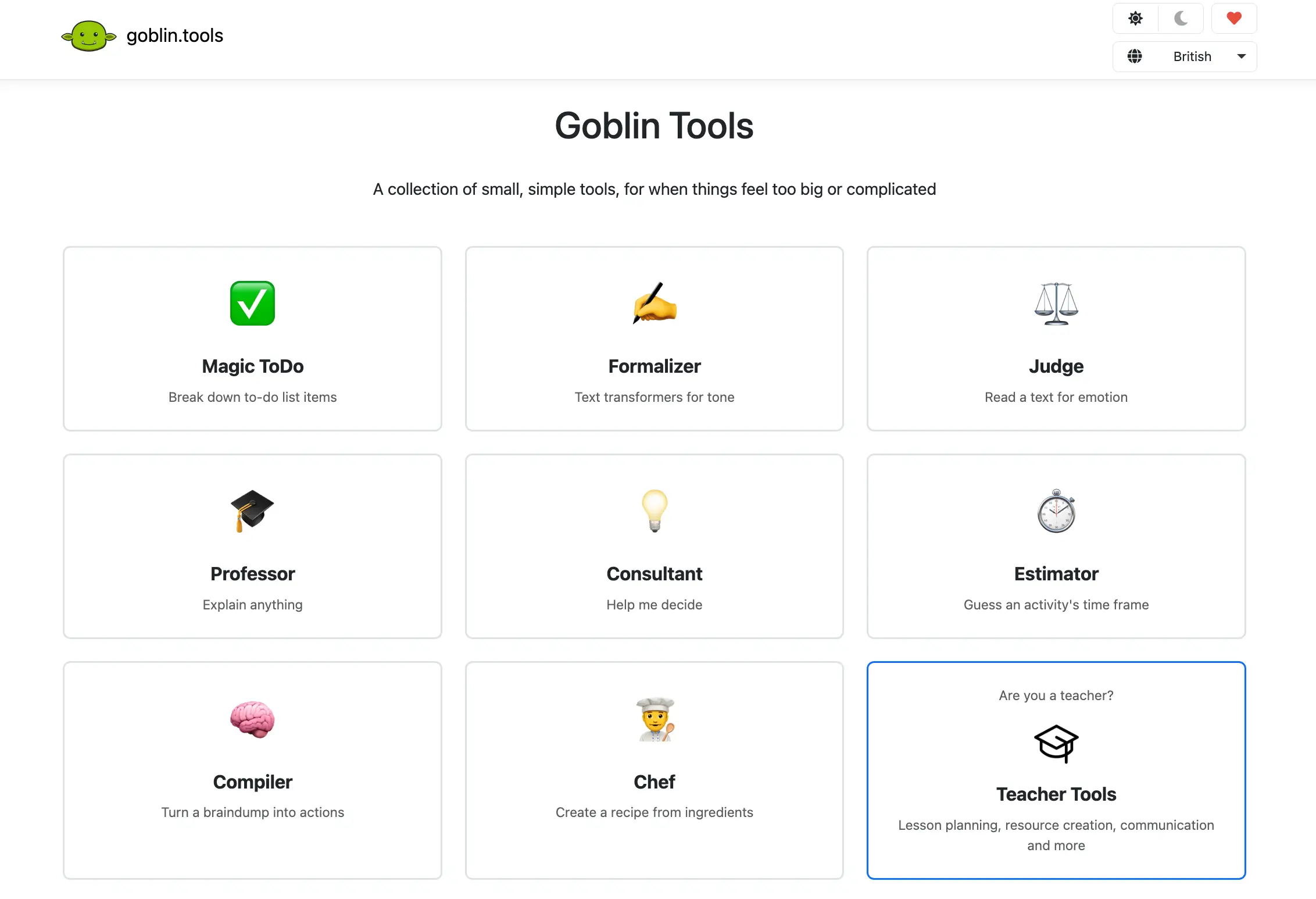
Goblin (often called Goblin Tools) is a lightweight, AI-powered set of tools that helps you break down tasks, simplify writing, adjust tone, and draft better emails without much setup. It’s not a full email client or workflow automation platform; it’s a work-assist suite you can use when you need quick clarity or structure for writing and thinking tasks. Goblin’s tools include functions like turning brain-dumps into structured actions, evaluating emotional tone, and rephrasing text to fit your intent: useful when crafting professional emails, summaries, or task lists.
Goblin pros and cons
Pros
- Free to use: The core Goblin Tools suite is free online, and keeps AI tools accessible without paywalls.
- Multiple writing helpers: Built-in tools like Formalizer (tone adjustment) and Compiler (structure builder) can help refine email drafts.
- Task breakdown and idea refinement: Tools like Magic To-Do turn rough thoughts into actionable steps.
- Mobile apps available: Optional apps on Android and iOS make it convenient on the go.
Cons
- Not a full email client: Goblin doesn’t send or manage email; it helps you write and structure email text only.
- No deep integrations: There’s no connection to inboxes, CRMs, or workflow tools: you manually copy output into your systems.
- Output quality varies: AI suggestions can be rough and still require review for professional tone and accuracy.
- Limited team features: It’s primarily a personal tool — there’s no native team collaboration or sharing for workflows.
Goblin best features
- Tone adjustment (Formalizer): Transform your draft to sound more professional, casual, assertive, or empathetic.
- Task breakdown (Magic To-Do): Turn a high-level goal into clear smaller steps.
- Compiler for clarity: Organize messy thoughts or paragraphs into a coherent summary.
- Judge (tone detector): Quickly check how an email’s emotional tone comes across.
Goblin pricing
- Free: The core web tool remains free with all main features accessible in-browser.
- Mobile & Pro options: In-app purchases and a Pro subscription (≈$11.99/month, or ~$22.99/year) unlock additional convenience and remove usage caps on mobile.
2. Superhuman — best for high-volume inbox management with AI-assisted replies, summaries, and prioritization
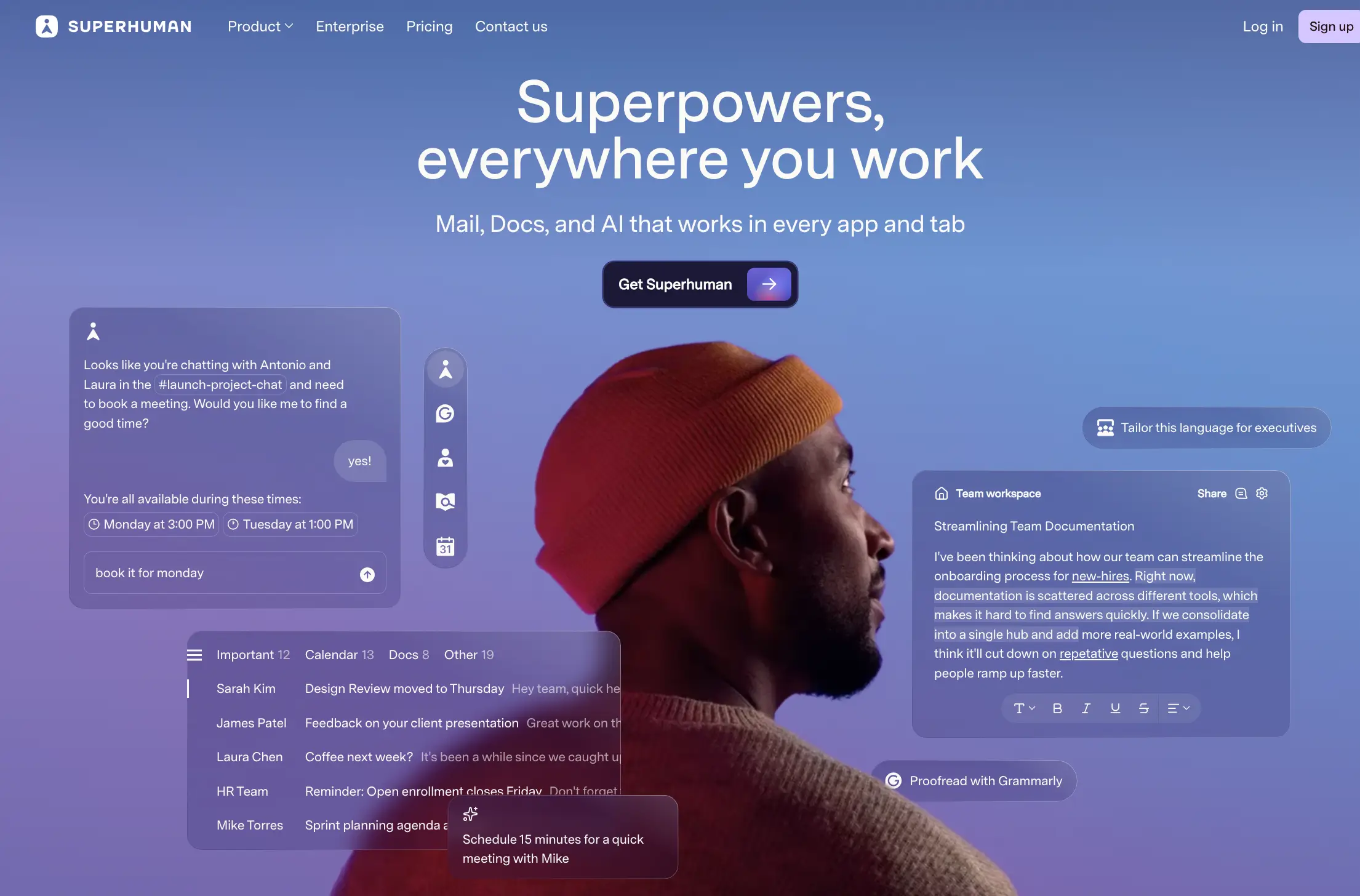
Superhuman is an AI productivity suite that helps professionals work faster and smarter across email, writing, docs, and context-aware tasks without constant context-switching. It brings together Superhuman Mail (a speed-focused email client with AI drafting, summaries, and automations), Grammarly-powered writing assistance, Coda’s collaborative workspace, and Superhuman Go, a proactive AI companion that offers help wherever you work: in your inbox, docs, or browser tabs. This suite is designed for teams and individuals who want to reduce busywork, respond faster, and focus on strategic work instead of repetitive tasks
Superhuman pros and cons
Pros
- AI across writing and communication: AI assists with email drafting, summaries, rewrites, tone, and more in context rather than in a separate interface.
- Multiple productivity tools in one suite: Includes AI writing (Grammarly), email speed tools (Mail), collaborative docs (Coda), and proactive AI help (Go).
- Faster email workflows: Smart inbox organization, AI-suggested replies, reminders, and templates help reduce time spent in the inbox.
- Context-aware assistance: Superhuman Go works across apps and tabs, offering suggestions without switching tools.
Cons
- Feature scope varies by plan: Some capabilities (like deep inbox AI and integrations) land only in higher tiers.
- Learning curve for power features: Keyboard shortcuts, proactive AI agents, and multi-app context helpers may take time to master.
Superhuman best features
- AI-assisted email drafting and summaries: Quickly generate replies, condense threads, and stay on top of conversations.
- Superhuman Go: A proactive AI assistant that understands your context and suggests next steps across apps.
- Integrated writing partner: Grammarly-powered writing help right where you compose.
- Collaborative docs & workspaces: Coda integration brings structured doc and project spaces into the suite.
Superhuman pricing
Superhuman offers per-user pricing with plans for individuals, teams, and organizations. AI assistance is included across plans, with deeper automation and controls on higher tiers.
- Free — $0: Basic AI assistance across apps (Mail, Grammarly, Coda, Go).
- Pro — $12/user/month (billed annually): Advanced AI writing, rewrites, tone control, plagiarism fixes, and branded publishing.
- (~$30/user/month when billed monthly)
- Business — $33/user/month (billed annually): AI-powered inbox triage, personalized AI responses, CRM context (HubSpot, Salesforce, Pipedrive), and team productivity features.
- (~$40/user/month when billed monthly)
- Enterprise — Custom pricing: SSO (SAML), advanced security and admin controls, analytics, data loss prevention, BYOK encryption, and dedicated support.
Find the AI tools for productivity that fit how your team works
The best AI productivity tools don’t try to do everything—they remove friction where work slows down most. Start by identifying your real bottleneck: scattered data, repetitive workflows, meeting overload, or inbox sprawl. Then choose tools that fit into your existing stack and move work forward, instead of adding another layer to manage.
If you need AI to work inside real business workflows, not just generate output, chooce a platform that connects data, automation, and access in one place. Try Softr for free and build the software you actually need to run your operations, without code or developers.
Frequently asked questions
How do I use AI to improve productivity?
Is there a better AI than ChatGPT?