Transcript
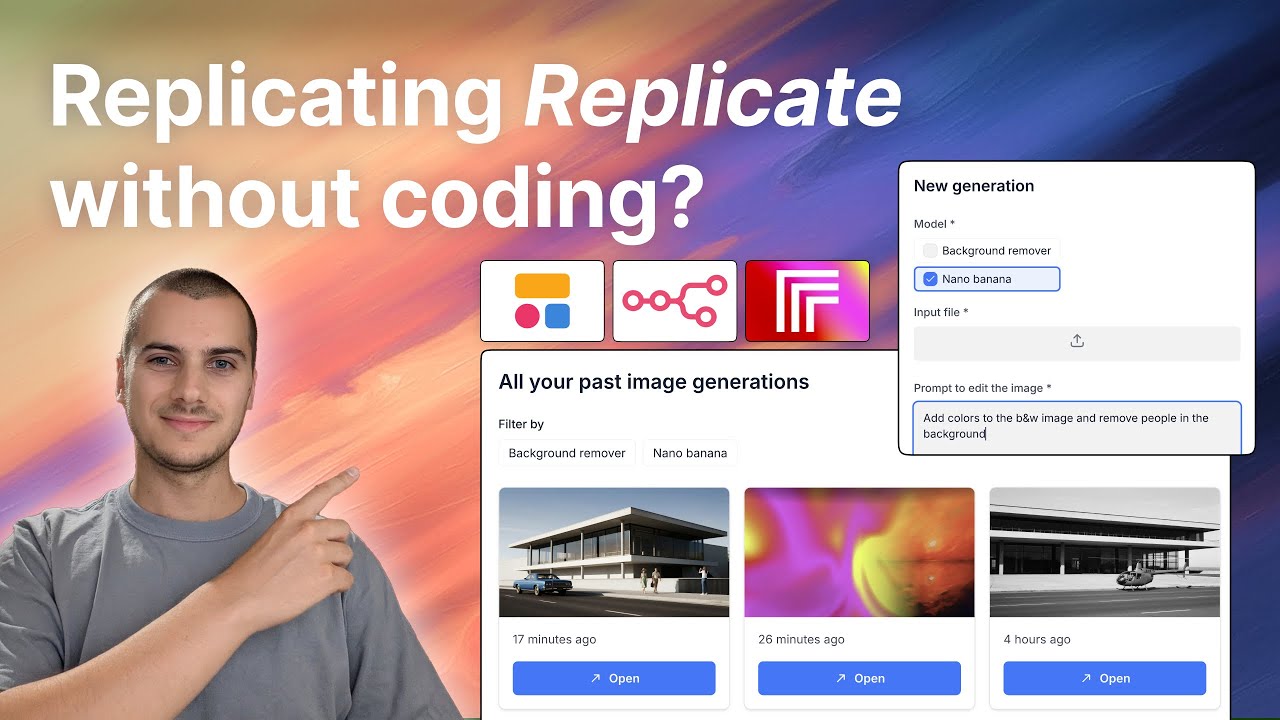
Replicate is a famous platform where you can use any model for image, video, or text generation and connect to all these tools with a single access point. Today, the challenge is to rebuild Replicate or your own interface to call these models without using any code, thanks to Softr and n8n.
We will do that in just a few minutes. I am going to head over to Softr and create a new app. I will delete all the blocks and all the pages that I will not be using to start with a clean slate.
Next, I will add a database. I will use Softr Databases and create one for this project. I need a users tab, so I will add an email and a name field for that.
[.blog-callout]
While Softr integrates with 17+ external data sources like Airtable or Google Sheets, Softr Databases is the powerful, native way to manage data directly within Softr for maximum performance.
[.blog-callout]
I will also store a magic link URL that we can use to log in as this user, which will make it very easy to test the app. Then we will have a table for the generations. This will store any query that the users perform.
We will have the record ID as the first column and then a file field. We will be building two models: NanoBanana for image editing and a ReCraft model which removes backgrounds. Our user will have the choice between these two models.
For the generations table, we will have an input file, a prompt, an output, and a link to the user record. This keeps everything organized and associated with the correct person.
Over in the users tab, I will sync that to the data source we just created. I will map the email, name, and that permanent magic logging link for our testing purposes.
[.blog-callout]
Note from Softr: Another great option for setting up your database and initial pages is to use the AI co-builder. It builds complete apps and database schemas instantly based on a simple prompt.
[.blog-callout]
Now, heading over to the interface, I will give the app a name and publish it. I will grab our test user and open the interface. We will start with a form.
This form will be the interface to create a new generation. We will add a select field for the models, including NanoBanana and background removal. This allows users to pick their specific task.
In our form, we will ask for an input file or the model first. We will use conditional visibility to show the right input fields. For NanoBanana, we need a file and a prompt, but for the background remover, we only need the file.
We will also add a hidden field to capture the logged-in user email. This ensures we can associate each generation to the specific user automatically.
Now we create a new page for the generation details. We will use an item details block to show the record ID and the results of the generation process.
[.blog-callout]
If you are building specialized internal tools like an AI CRM template or an ERP template, the item details block is essential for viewing specific record information.
[.blog-callout]
I will set up the detail page with two columns to have the input on the left and the results on the right. We will display the prompt and the input file as an image.
I will add an edit button to allow users to refine their inputs. This button will show different fields depending on whether they are using the background remover or NanoBanana.
For the actual generation, we need an action button that calls an API. This is where n8n intervenes. We will call the button Generate and set it to trigger a webhook.
We will send a JSON body containing the record ID from the selected record. This way, the automation knows exactly which generation to process when the webhook is triggered.
In n8n, we set up a Softr node to get the specific record from our generations table. We then use an HTTP request to handle the file and route it to Replicate's API.
[.blog-callout]
Note from Softr: You can also explore Softr Workflows for native logic within the platform. This keeps your automation or business logic as close to the app design as possible.
[.blog-callout]
We create a switch node to decide which model to run. Once the API call to Replicate is finished, we use another Softr node to update the record with the output file URL.
Back in the Softr interface, we can add a download button for the output file. We can even set it to only show once the output file field is not empty.
We can test this live by prompting NanoBanana to change a car into a truck. We wait a few seconds, it processes, and the image automatically updates in the Softr interface.
Finally, we add a list of all past generations. We will filter this list to include only the logged-in user email so users can only see their own work.
[.blog-callout]
To further secure your application, you can use user groups to define specific permissions and ensure data privacy across your client portals.
[.blog-callout]
We can add a sorting option based on the timestamp to keep things organized. This allows users to easily find their most recent generations and open them for detail.
We have built an app where you can perform new generations, edit prompts, and see a history of your AI outputs. This entire setup took about 20 minutes to complete.
You could make this even more advanced by managing models in their own table for better scalability. This workflow shows how flexible Softr is for building custom AI interfaces.