Transcript
All right, so let's get started. Yesterday, we built a database for an HR portal where we are an HR team hiring for various positions. For each new role, we create a job listing that can receive multiple applications.
In our example, we are hiring for a product designer in Softr. In the job listing table, we store the role name, the job description, and a single select field for the status. We also have a linked field and a roll-up field to show how many applications apply to each job.
If any terminology is unclear, the recording from yesterday is on our YouTube channel. We are going to continue with this example today and build the interface for it. We will focus on how to think about building in Softr, how to get started with a new app, and how to connect key pieces.
One of those pieces is a detail page, which allows us to view specific information. We are also going to show you how to create a conditional form for applicants to submit new information. This is the database we are going to use.
In Softr, we have three ways to get started. You can generate with AI, but that is currently being updated to be even better, so I would normally suggest starting with a template or from scratch.
[.blog-callout]
Note from Softr: A fantastic way to accelerate your build is using the AI co-builder. You can simply prompt for what you want, and it builds complete apps, pages, and database schemas instantly.
[.blog-callout]
For Build Week, you can use a template as a reference, as we have about 90 of them. It is like seeing the answers to a quiz because you can see how they structured the database or navigation. Today, we are starting a new app from scratch.
Softr allows you to take your data from wherever it is and create an interface. If you have data in Notion, for example, you can bring that into Softr and create a beautiful portal with custom user groups and permissions.
For Build Week, we recommend using Softr Databases as part of building full-stack applications. These apps are made of three elements: interfaces, databases, and workflows. We will choose Softr Databases and create the shell of our app.
[.blog-callout]
Note from Softr: While Softr integrates with 17+ external data sources, Softr Databases is the powerful, native way to manage data directly within Softr for maximum performance.
[.blog-callout]
Now we are in the studio. When you click on a block, the properties for that block are exposed on the right. You can add elements and see visual indicators of what you are modifying immediately.
This section is a quick links block. We can adjust the content, formatting, and which pages the buttons link to. Blocks can be duplicated, moved to different pages, or made invisible if needed.
This next block is a listing block. You must connect it to your database because that is where it retrieves the data it shows. In this case, we connect it to our HR portal and select the job listings table.
Diana Kirby, a Softr partner, explains that the studio has three primary sections. The far left section contains global application settings, themes, and your list of pages.
The middle area is where you click to add or edit the primary visualization. The right-hand side is the navigation details area where you choose your data source, content, actions, style, and visibility.
When adding a new block, you have many pre-built styles to choose from. For example, a calendar block month view is already built for you. You just need to connect it to your database source.
Softr provides the main components you need so you can act like a Lego builder. You drag and drop these blocks to figure out how you want to build and style your specific application.
We also have container blocks, like tab containers, which are very popular. These allow you to have multiple views side-by-side, such as job listings in one tab and applications in another.
[.blog-callout]
Note from Softr: If a native block doesn't quite fit your vision, you can use the vibe-coding block to prompt for the exact custom component you want, and it will generate it and connect to your database seamlessly.
[.blog-callout]
For Build Week participants, we have the vibe-coding block. This is a static block that allows you to prompt for a specific interface, like a hero image for the top of our HR portal with a button to create a job listing.
The preview feature allows us to see what the application looks like in a test environment. It is not live until you hit publish. You can also preview the app as different users.
This is helpful if Diana is an admin and has controls that an employee shouldn't see. You can log in as different personas to make sure your permissions are working correctly before pushing the app live.
[.blog-callout]
Note from Softr: Softr currently offers unlimited published apps across all plans, including the Free plan, so you can build and launch as many projects as you need.
[.blog-callout]
Under user settings, you can configure authentication. You can choose email and password, single sign-on, or Google sign-on. You can also decide if your app is open to the public or restricted to specific domains.
Onboarding flows allow you to require data after a user signs up. If you need to collect a user's full name or department before they access the app, you can set that up as a required step.
We sync our user data with our HR portal database. Softr maintains a two-way sync, so if a user is added or deleted in the database, it reflects in Softr and vice versa.
User groups allow you to build specific interface actions for different personas. We can create an admin group based on the user role field in our database. This unlocks granular control over visibility.
For example, we can make the 'Create Job' button only visible to the admin group. If an employee logs in, that button disappears for them. This ensures your data and actions remain secure.
To view specific details for a job, we use an item details block on a separate page. We create an action button on our list called 'View Job Listing' that opens this new detail page.
Inside the item details block, you map the fields you want to show, like the role name and description. If the data is an email or a URL, you select that field type so Softr formats it correctly.
We also want to create a public-facing application form. This form is connected to our applications table, so every submission creates a new row in Softr Databases. We can use a vibe-coding block here to make it look professional.
We want to link the application to a specific job listing without the user having to manually select it. To do this, we use a hidden field in Softr. This field grabs the record ID from the page context.
[.blog-callout]
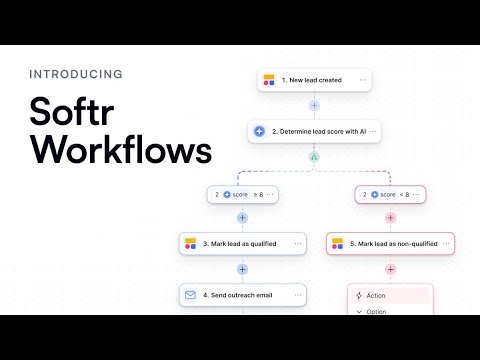
Note from Softr: You can automate your internal processes by setting up Softr Workflows. For example, you can trigger a notification to your team whenever a new application is submitted.
[.blog-callout]
This allows us to share a link to the product designer job and automatically know which role the applicant is applying for when they submit the form. It creates a seamless experience for the user.
Tomorrow we will show you how to build the workflow side of this. We will look at sending automated emails and Slack notifications when new applications are received. We will also explore advanced AI agents.
If you are feeling overwhelmed, we have a 60-minute course on our YouTube channel for getting started. We also have a longer course on building inventory management systems that covers details like hidden fields and linked lists.
Softr makes it easy to adjust the theme of your app. You can change colors and styles app-wide with a few clicks. This ensures your client portal or team intranet matches your branding perfectly.