9 best no-code & low-code internal tool builders in 2026

If your team is still spending valuable hours on spreadsheets, email chains, and patchwork tools just to manage internal workflows, you’re not alone. Often, solutions built with no-code or low-code feel fast at first, then hit roadblocks: rigid templates, integration dead ends, and hidden maintenance traps.
That’s why it’s worth digging into what these internal tool builders really deliver for operations-led teams. In this article, you’ll learn how to evaluate no-code and low-code internal-tool builders, spot the trade-offs before investing, and choose the right platform for you and your team.
Top 9 no-code & low-code internal tool builders at a glance
| Tool | Best for | Best features | Starter pricing |
|---|---|---|---|
| Softr | No-code, full-stack internal tools for non-tech SMBs and ops teams | • Built-in DB + live data connections • App-native workflows & AI agents • Role-based permissions • Ready-made internal tool templates | Free plan Starter: $19/month (yearly) |
| AppGyver (SAP Build Apps) | Cross-platform apps with enterprise integrations | • Drag-and-drop UI + logic builder • Web, mobile & desktop deployment • SAP + API integrations • Backend logic & data modeling | Free (Community) Enterprise pricing |
| Retool | Developer-driven internal tools | • UI builder + custom JS/SQL • Deep database & API connections • Workflow automation • Staging + production environments | Free plan Starter: ~$10–12/user/month |
| DronaHQ | Logic-heavy internal tools & automation | • Visual app builder • Workflow & rule engine • API + database connectors • Enterprise security & governance | Free trial Starter: ~$10/user/month |
| Jet Admin | Internal tools + external portals | • Drag-and-drop app builder • Database & API connections • In-app workflows & triggers • External user access | Free plan Starter: ~$24/user/month |
| Budibase | Open-source internal tools (dev teams) | • Self-hosted or cloud low-code • Built-in DB + integrations • App builder + extensible code • Full data control | Free (open source) Starter: ~$50/creator/month |
| Mendix | Enterprise-scale internal apps | • Full low-code enterprise platform • Governance & lifecycle management • Web + mobile deployment • Multi-team collaboration | Free edition Starter: ~$900/month |
| UI Bakery | Visual apps with light dev work | • Drag-and-drop UI builder • SQL & API connections • Automation & deployment options • Developer extensions | Free tier Starter: ~$10/developer/month |
| Forest Admin | Dev-led admin panels | • Auto-generated admin UI • Visual editor for tools • Roles, permissions & audit logs • Scales for large operat | Free trial Starter: ~$60/user/month |
What are no-code & low-code internal tool builders?
No-code and low-code platforms let you create internal apps using visual tools instead of building everything from scratch. No-code platforms enable users without programming skills or smaller teams without technical resources to build simple workflows and interfaces. Low-code platforms are a bit different: they still use visual components, but allow developers or technical collaborators to inject custom code, connect deep integrations, and scale more broadly.
What to look for in no-code & low-code internal tool builders
Here are 9 essential things your team should check when picking an internal tool builder for internal tools.
- Easy start & fast setup: Your team should be able to kick things off without a full dev team. Example: build a job-assignment dashboard this week, not in months.
- Plays nicely with your current tools: The platform should link to what you already use, such as spreadsheets, CRM, and inventory systems, so nothing needs to be rebuilt from scratch.
- Handles growing users & data: Today you may be 20 users and 1,000 records; next year you might be 100 users and 100,000 records. Choose a tool that scales without breaking.
- Simple yet flexible workflows: The tool should let you build everyday workflows (approvals, dashboards, vendor portals) and easily change them when your process evolves.
- Permission controls made for teams: Different people need different access (field staff vs managers vs vendors). Make sure you can control who sees and edits what.
- Reliable performance: Internal apps are mission-critical. Look for tools that run smoothly when many people use them and don’t lag or crash when data grows.
- Data portability & avoiding lock-in: If you ever outgrow your tool, you shouldn’t be trapped. Ensure you can export your data and move your logic elsewhere if needed.
- Basic governance & security built-in: Even if you’re a small team, you still need audit trails, role-based access, and secure data handling, especially when dealing with vendors, clients, or operational data.
- Transparent pricing as you grow: What’s cheap today might balloon tomorrow. Make sure the cost model makes sense for 20 users now and 100 users later.
1. Softr – best for building full-stack internal tools without code or dev support

Softr is an AI-powered no-code platform for building internal tools by connecting data, workflows, and users in one place (no code or long dev setups needed). It helps you build CRMs, document portals, ticketing systems, request trackers, invoice tools, and custom dashboards. Simply describe the tool you need, and the AI Co-Builder will create the database, app, and business logic. If you already work in Claude, ChatGPT, or Cursor, you can also describe the tool there and build it through the Softr MCP. Infrastructure and security guardrails are in place by default, so you can trust it's ready for real users.
Unlike many low-code platforms that still require setup overhead, Softr focuses on speed, structure, and real operational use cases. You can start from pre-built templates, connect your data sources, and layer permissions, workflows, and AI on top as your processes evolve.
Softr pros and cons
Pros
- Built specifically for operators and internal teams: Designed around real internal tools like CRMs, help desks, document portals, and dashboards, not generic app building.
- Built-in databases + external data sources: Use Softr Databases for full control, or connect Airtable, Google Sheets, HubSpot, Notion, SQL, and more with real-time, two-way sync.
- Native workflows and AI agents: Build automations and AI agents directly inside Softr to trigger actions, handle updates, and process data automatically.
- Security and compliance baked in: SOC 2 and GDPR compliant with server-side permissions, role-based access with secure authentication, and optional SSO for teams that need stronger governance.
Cons
- No native email marketing tools: You’ll need to connect tools like HubSpot, Mailchimp, or similar for newsletters and outreach flows (though many workflows can be automated via integrations and Workflows).
- Not built for highly custom backend logic: Softr is optimized for operations and internal tools. If you need deep backend engineering, custom servers, or complex system-level logic, a traditional low-code or full-code approach may be better.
Softr best features
- Native data flexibility: Connect to Airtable, Google Sheets, Notion, HubSpot, monday.com, ClickUp, SQL databases, Coda, and more with real-time, two-way sync. Or, use Softr Databases to manage your data and apps in one place. Softr’s relational tables, linked records, rollups, and formulas give your workflows and AI agents structured context, while server-side permissions ensure hidden data is never exposed.
- App-native workflows and AI automations: With Softr Workflows, you can automate tasks directly in your apps: assign projects, approve requests, or send follow-ups based on real user and data events. When combined with Ask AI and Database AI Agents, you can also generate summaries, trigger decisions, and analyze trends in context, without relying on external automation tools.
- Advanced permissions and user management: Define roles and visibility for your teammates in your internal tools. Control exactly who can see, edit, or interact with data: down to the field or action level.
- Multi-use internal app templates: Ready-to-use templates for CRMs, document portals, ticketing systems, invoicing tools, knowledge bases, and dashboards, along with sample data you can test the layouts with.
- Progressive Web App (PWA) support: Build your tools once and turn them into mobile-friendly apps your team can use on any device, without needing native app development.
Softr pricing
Softr uses flexible, tiered pricing based on your app, user count, data usage, and access to features like workflows, databases, and AI.
- Free: Unlimited apps, with access to Softr Workflows and Softr Databases, 5 app users, 5,000 database records, 5 AI credits
- Basic: $19/month: Unlimited apps with 42+ integrations, Team: 5 + Client: 5 app users, 50,000 database records, 10 AI credits
- Pro: $99/month: Unlimited apps with 45+ integrations and custom code, Team: 10 + Client: 50 app users, up to 3 user groups, 500,000 database records, 50 AI credits
- Business: $329/month: Unlimited apps with 52+ integrations, Team: 30 + Client: 100 app users, up to 10 user groups, 1,000,000 database records, 100 AI credits
- Enterprise: Custom pricing (Includes SSO (SAML, OpenID), custom invoicing, dedicated success manager, and team training)
2. AppGyver (SAP Build Apps) — best for cross-platform internal tools with enterprise reach
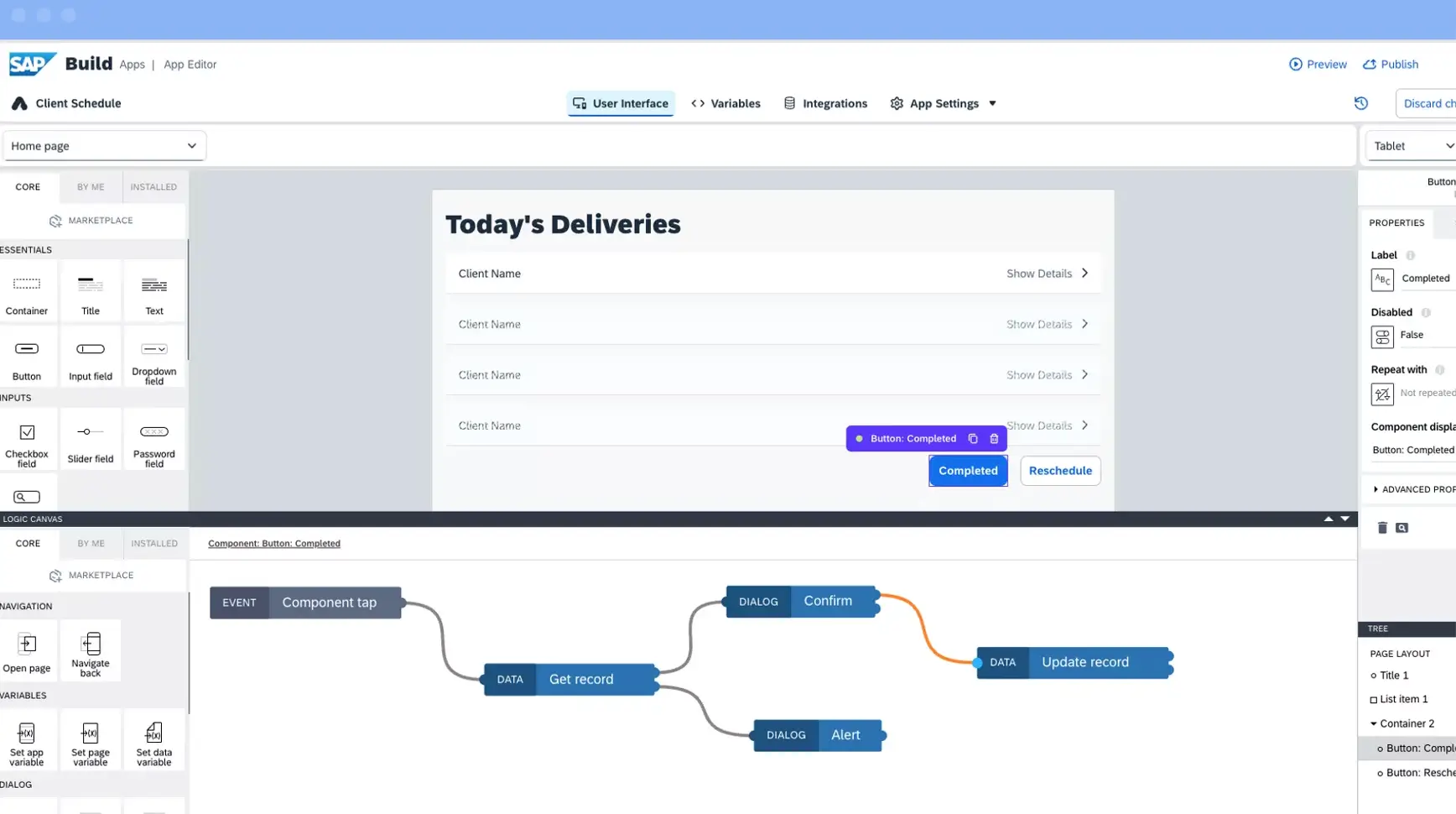
AppGyver, now part of SAP and rebranded as SAP Build Apps, is a no-code/low-code hybrid platform for creating internal and external apps across web, mobile-browser, and desktop contexts. It supports drag-and-drop UI, visual logic flows, API integrations and cross-platform deployment.
AppGyver pros and cons
Pros
- Free entry-level version (Community Edition) lets teams build apps at no cost.
- Cross-platform deployment: web, mobile, and desktop from a single tool.
- Strong enterprise integration support, especially for teams tapping the SAP ecosystem.
Cons
- Fewer ready-made templates or internal tool-specific starter kits compared to no-code tools aimed at SMB operations.
- Steeper learning curve for non-technical teams; full power requires familiarity with logic flows and integrations.
- Enterprise scaling and cost structure are less transparent; smaller teams may find it unclear how pricing evolves.
AppGyver best features
- Drag-and-drop UI builder plus visual logic canvas: Create interfaces using visual components and design logic flows without needing to code.
- Deployment for web, mobile, and desktop: Build once and deploy across devices, including web browsers, mobile app stores, tablets and desktops.
- Rich integration support, including REST APIs, OData services and SAP system connectors: Connect to SAP and non-SAP systems for live data and workflow logic.
- Team collaboration, versioning and logic testing support: Manage apps with staging/production, version history and collaborative editing for team workflows.
- Support for workflow apps, dashboards, and process-driven internal tools: Build tools for approvals, logistics, operations tracking, inventory dashboards or field-service workflows.
- Backend cloud functions & data modelling: Create data entities, build backend logic, embed business rules and host on the cloud without separate infrastructure setup.
AppGyver pricing
- Community Edition: Free: usable for many small or exploratory apps.
- Enterprise/Production Tier: Contact SAP for pricing; standard plans list “capacity units” and custom setup, not openly published.
3. Retool — best for developer-led internal tools and complex workflows
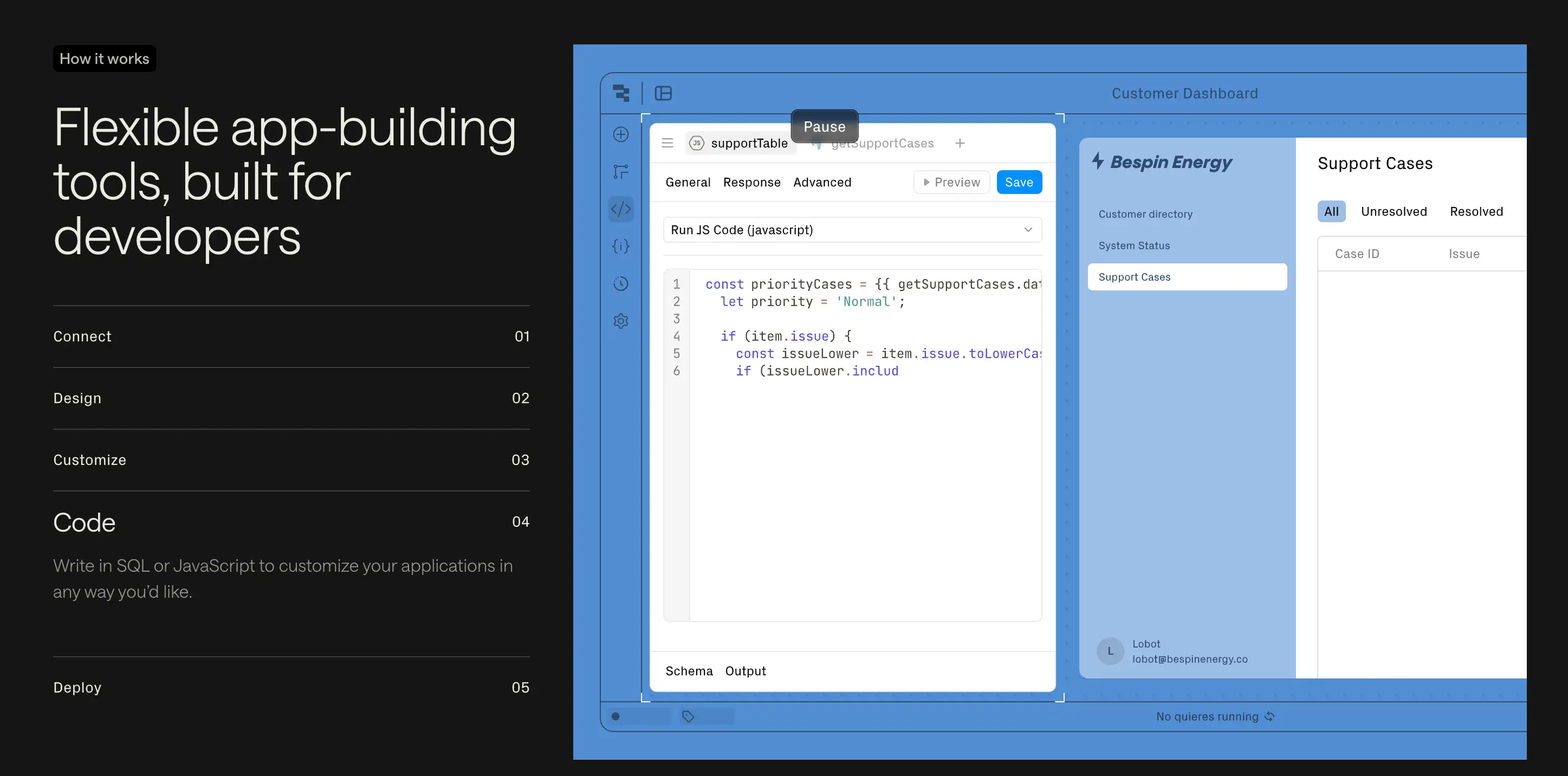
Retool is a low-code internal tool builder designed for teams that need deep control and integration. It allows developers to build custom apps, dashboards, and admin panels, and embed them into workflows. It’s ideal when you’ve got tech resources and need more flexibility than a pure no-code tool.
Retool pros and cons
Pros
- Intuitive drag-and-drop interface for building components, plus support for custom code when needed.
- Extensive templates and integrations available: connect to databases, APIs, LLMs, and build across devices.
- Strong enterprise-grade features: version control, staging/production environments, self-host options, audit logs.
Cons
- Requires coding or technical setup for full power: non-technical teams may face a steeper learning curve.
- The free or entry tiers may be limited for production-grade internal tools (workflow runs, user seats, staging).
- Pricing can scale steeply with user count and usage; it may not align with low-budget SMB operations.
Retool best features
- Visual UI builder + custom code support: Drag-and-drop components help you scaffold apps quickly, while the option to add JavaScript or SQL gives you deeper control when needed.
- Multi-platform deployment—web, mobile and desktop: Build once and deploy across devices, meaning internal tools can be used in a browser, on tablets or desktops without separate builds.
- Seamless database & API integration: Connect directly to your existing databases (PostgreSQL, MySQL, MongoDB), REST APIs, or spreadsheet back-ends, so you use your live operational data rather than rebuilding it.
- Rich component library & formula logic: Hundreds of prebuilt UI components (tables, forms, charts) and formula logic let you stand up admin panels, dashboards and data-entry tools more quickly.
- Workflow automation & embedded logic: Automate tasks within the app, trigger actions when records change, send notifications, and guide workflows from submission to completion.
Retool pricing
- Free plan: $0/month: good for small teams exploring; limitations apply (e.g., workflow runs, user seats)
- Team/Business plans: Starting around $10-$12 per standard user/month; plus extra for end users or external users.
- Enterprise: Custom pricing for large teams, external portals, and full audit/compliance features.
4. DronaHQ — best for internal tools with strong logic & automation
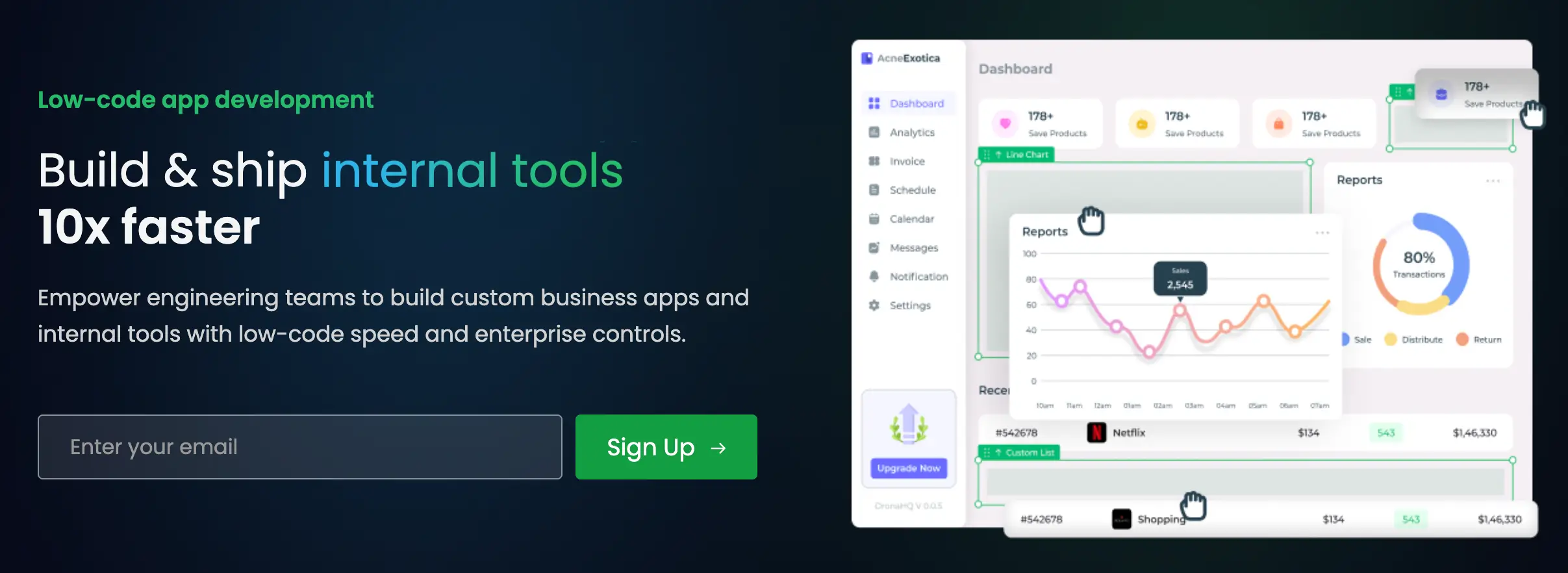
DronaHQ is a low-code platform built for operations and product teams to quickly build internal web and mobile apps. It combines drag-and-drop UI with advanced logic and integrations.
DronaHQ pros and cons
Pros
- Rich automation and logic-builder tools (rules, validations, flows)
- Web & mobile deployment from one platform
- Good set of connectors for databases/APIs for internal tool use
Cons
- Requires some technical setup or logic knowledge for full use
- For large-scale or many users, the cost and complexity increase
- UI templates and onboarding for non-tech teams are less mature compared to pure no-code tools
DronaHQ best features
- Visual UI builder: Drag-and-drop interface with 150 + native controls to build web and mobile apps without writing UI code.
- Database & API connectors: Seamlessly connect to databases, REST/GraphQL APIs, spreadsheets or use the built-in data store, ensuring your tool uses real operational data.
- Workflow & automation engine: Configure business processes with triggers, rules and actions—schedule tasks, validate data, send notifications or call external systems.
- Enterprise governance & deployment: Support for SSO, granular permissions, staging-to-production workflows, and compliance (SOC 2/ISO 27001) so you can scale internal tools securely.
DronaHQ pricing
- Starter: $10/user/month
- Business: ~ $25/user/month
- Enterprise: Custom pricing for large deployments
5. Jet Admin — best for drag-and-drop internal tools + portals
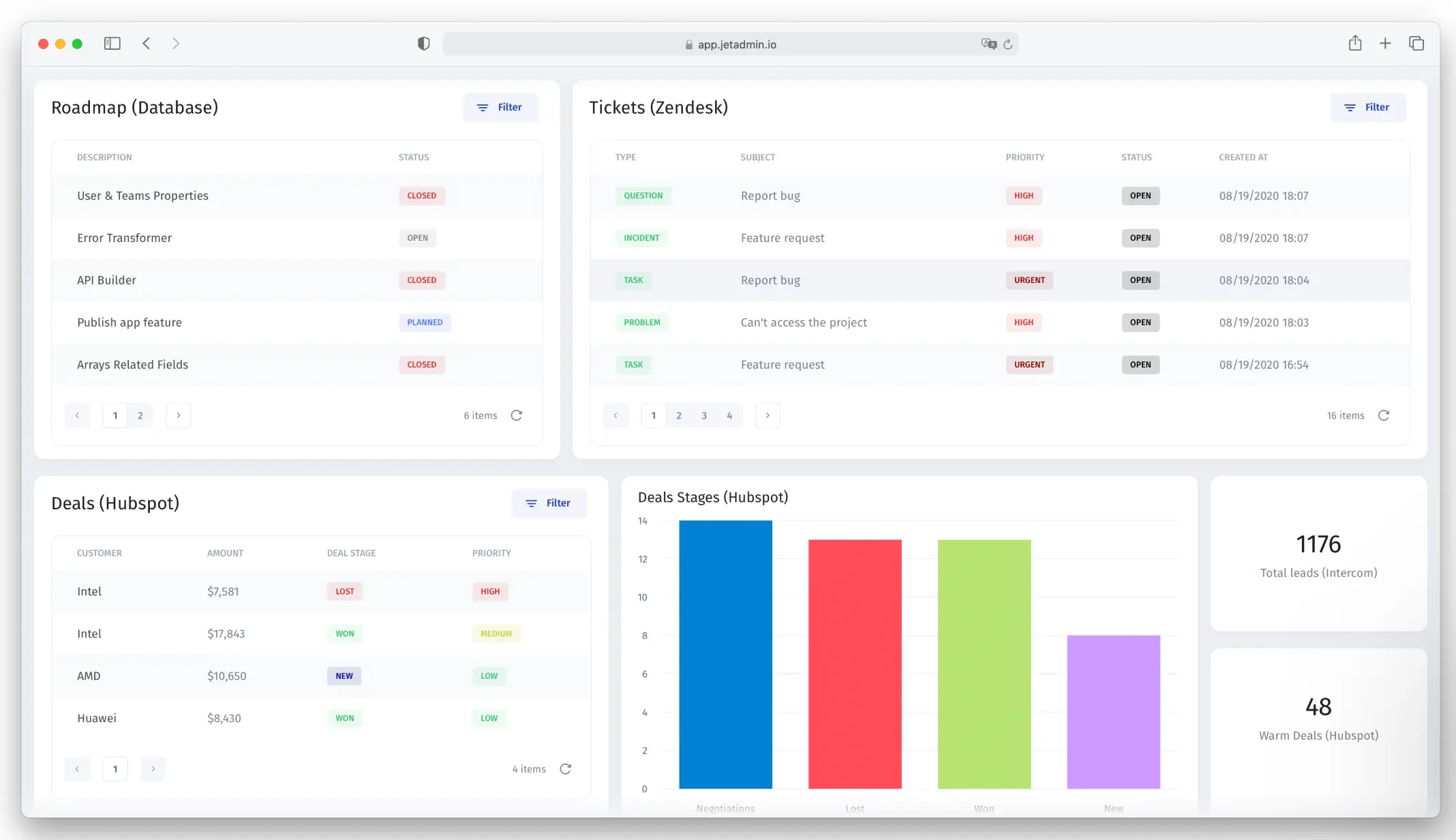
Jet Admin enables you to build internal and external-facing apps (CRMs, dashboards, portals) with a visual builder plus developer extensions. It supports real-time data connections to databases such as PostgreSQL or MySQL, plus REST/GraphQL APIs, letting you pull in data from multiple systems into the same app.
Jet Admin pros and cons
Pros
- Friendly visual builder and strong internal tool focus
- Supports external portals, vendor/partner use cases, not just internal ops
- Good integration with data sources and workflows
Cons
- Cost grows with the number of users (charged per user)
- Some features, like custom domain, white-labelling, may only appear in higher tiers
- Some setup/technical work is still required for more advanced functionality
Jet Admin best features
- Visual builder & component library: Build web apps quickly using drag-and-drop UI elements and a prebuilt components library.
- Data & API integration: Connect to your databases, spreadsheets, or APIs to create data-driven internal tools and portals.
- Workflow automation: Define triggers and actions, like form submissions or button clicks, to automate processes within your app.
- Developer extensions: Add custom JavaScript/SQL and advanced features when you need more than a pure no-code builder.
Jet Admin pricing
- Free plan available (limited)
- Starter Internal Tool tier: ~$24/user/month
- Customer portal tiers: higher pricing, custom enterprise options
6. Budibase — best for open-source low-code internal tools
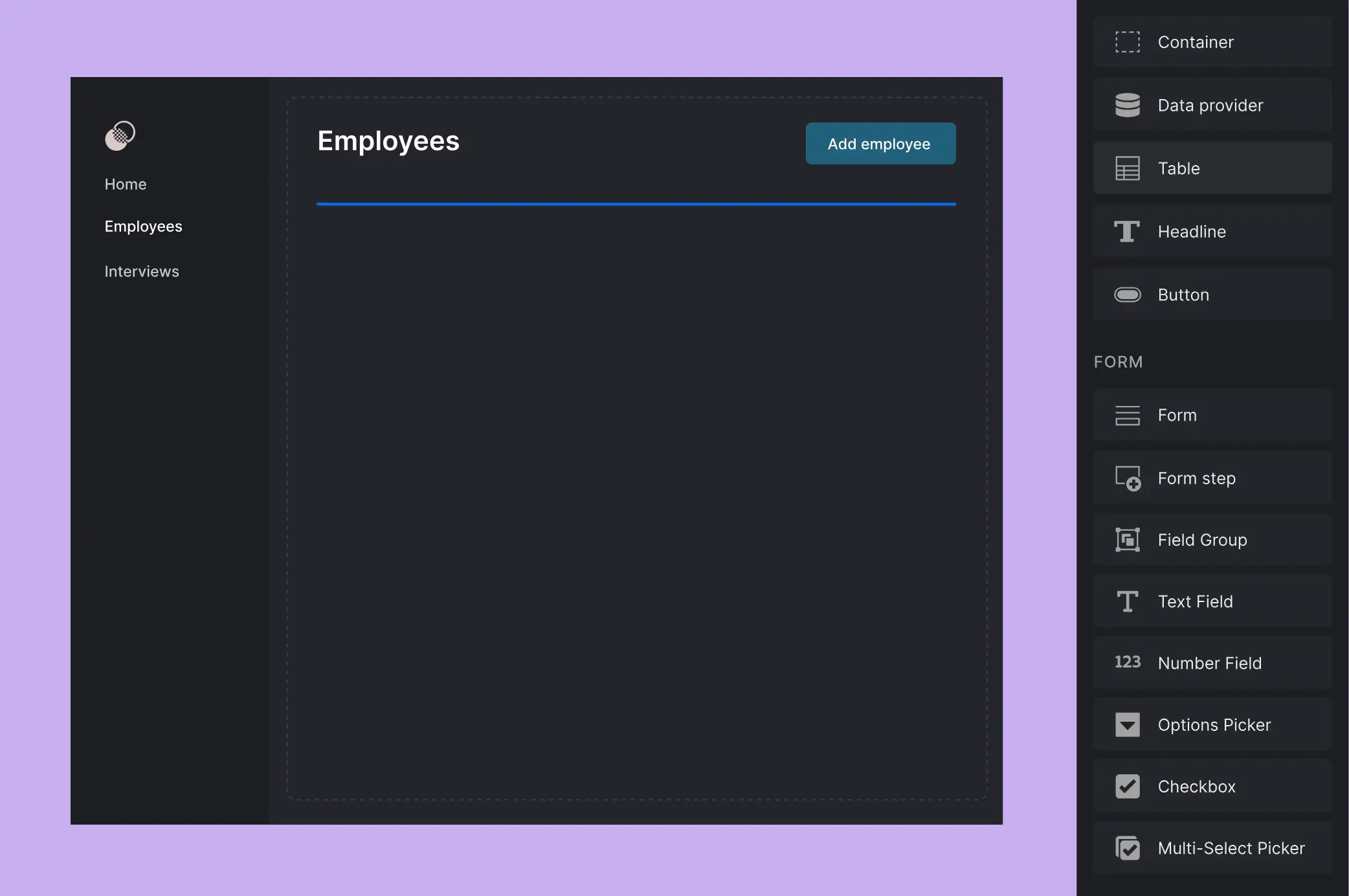
Budibase is an open-source low-code platform which allows technical teams to self-host or cloud-host internal tools quickly. It connects to external data sources (PostgreSQL, MySQL, MongoDB, REST APIs, Google Sheets) or lets you build apps starting from its built-in database, making it flexible for operational teams that need a lightweight internal tool.
Budibase pros and cons
Pros
- No subscription cost for the open-source self-host version
- High flexibility and good for teams that can self-host or want developer control
- Good for internal tools built by engineering rather than pure business users
Cons
- Requires technical background (hosting, deployment, management)
- Less focus on non-technical builder experience; fewer packaged templates
- Hosting/maintenance costs may be hidden for non-self-hosted versions
Budibase best features
- Open-source internal tool platform: Self-host or use cloud version: great flexibility for teams with dev support.
- Full app & data control: You control hosting, deployment, data access and architecture for internal tools.
- Low-code builder + extensible code support: Use the visual builder for standard features, then extend with code when needed.
- Rapid internal app development: Build CRMs, dashboards, portals quickly while maintaining developer control.
Budibase pricing
- Free (open-source self-host)
- Cloud Premium: ~$50/creator/month + ~$5/app-user/month (annual billing)
- Enterprise: Custom pricing
7. Mendix — best for enterprise-scale internal applications & portfolios
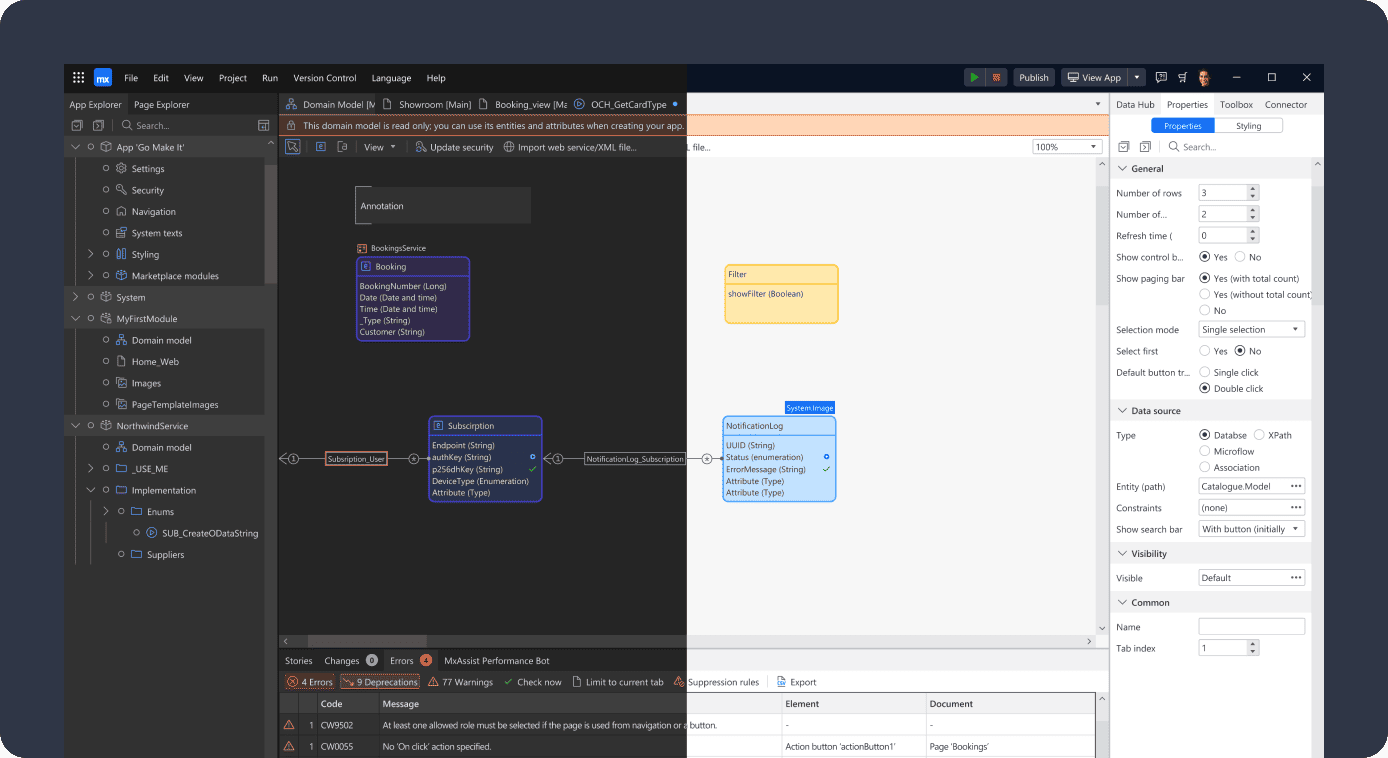
Mendix is a low-code application platform designed for large organizations and multi-team portfolios. It supports complex enterprise-scale needs: end-to-end development (IDE, DevOps, deployment), rich integration support (REST, SOAP, databases), and strong governance.
Mendix pros and cons
Pros
- Enterprise-grade features: strong security, collaboration across business and dev teams
- A combination of no-code for business users + low-code for developers
- Built to support many apps, many users, and internal tool ecosystems
Cons
- Pricing and complexity are high — may not fit SMB internal teams or lean operations
- Longer setup and onboarding — less plug-and-play than simpler tools
- UI and builder usability may be less optimized for non-technical business users
Mendix best features
- Enterprise-grade low-code platform: Supports large internal tool portfolios across many teams and complex workflows.
- Dual modelling environments: Business users use no-code modelling while developers can step in with low-code extensions.
- Robust governance & security: Built for large organizations with versioning, lifecycle management, integrations and compliance.
- Scalable web & mobile deployment: Deploy internal apps across devices with scale, multiple teams and advanced deployment options.
Pricing
- Free edition available for small/prototyping use
- Department-wide plans start around ~$900/month
- Enterprise quoting for large-scale deployments
8. UI Bakery — best for visual internal apps with modest developer lift
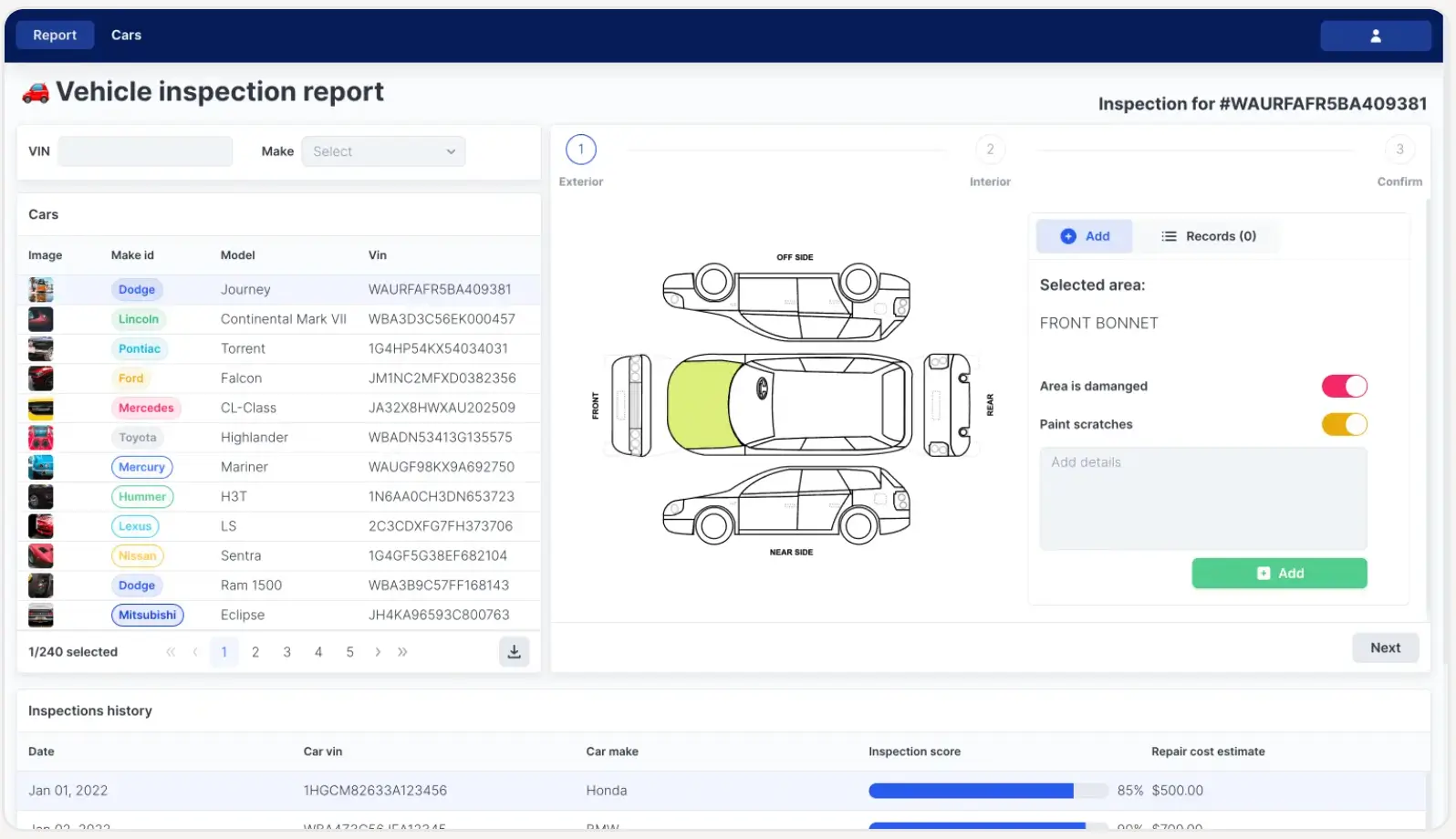
UI Bakery is a low-code internal tool builder designed for business and operations teams to create dashboards, portals and admin panels with a visual drag-and-drop interface, while still supporting developer involvement when deeper logic or integrations are required.
UI Bakery pros and cons
Pros
- Visual builder that allows rapid internal app creation for non-developers
- Flexible deployment, including cloud or on-premise, which is good for ops teams
- Cost-effective for ops teams building internal tools without a heavy engineering team
Cons
- Requires some technical skill (API, database knowledge) for advanced workflows
- Free/entry tiers may limit viewers/end-users or advanced features like white-labeling
- For very large-scale or many users, pricing and complexity can increase
UI Bakery best features
- Drag & drop visual builder: Build internal apps with a visual editor using pre-built components like charts, tables, and forms—no hand-coding UI required.
- Data & API connections: Seamlessly connect to SQL/NoSQL databases, spreadsheets, REST/GraphQL APIs and third-party services, so your apps use live operational data.
- Workflow automation & deployment flexibility: Trigger actions and schedules inside the app, deploy with one click to cloud or on-premise, and support self-hosted setups for full data control.
- Developer extensions & exportable code: For teams wanting extra control, add JavaScript, custom components or export clean React code to avoid vendor lock-in.
UI Bakery pricing
- Free tier available
- Paid tiers starting ~ $10/developer/month + ~$5/user/month (varies)
- Enterprise on-prem or custom options available
9. Forest Admin — best for developer-led admin panels and back-office tools
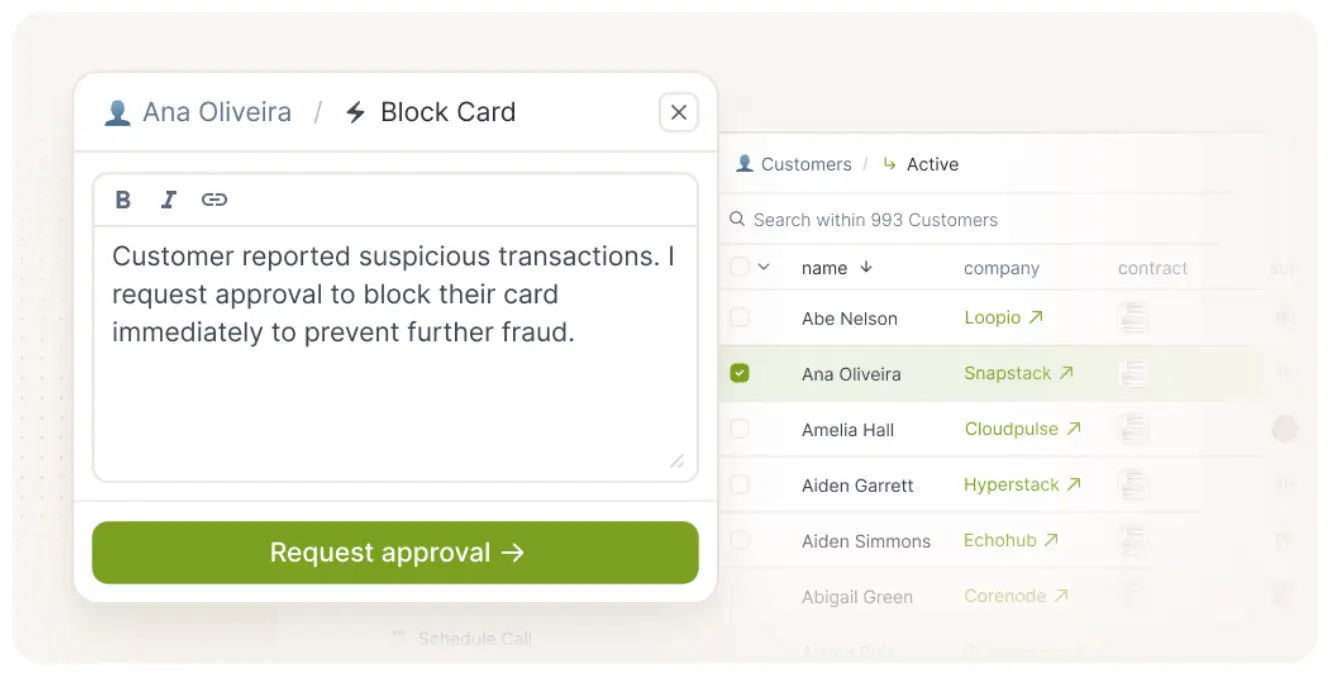
Forest Admin is a low-code platform that enables developers to generate and customize admin panels, dashboards and operational tools directly from existing data sources. While technically oriented, it gives operations, product or business teams autonomy by letting them build interfaces and processes without entirely leaning on the engineering backlog.
However, the initial setup still requires some developer involvement, especially when connecting data sources or configuring custom logic.
Forest Admin pros and cons
Pros
- Rapid admin-panel generation from your database — fast deployment for operations teams
- Built-in features for CRUD, search, dashboards, roles/permissions
- Supports scaling internal operations and business-user access
Cons
- Developer requirement: connecting data, configuring the panel, and customizing logic still requires technical skills
- Licensing per viewer/user can increase cost if you have many business users
- Advanced features (custom domain, white-labeling, SSO) may only come in higher tiers
Forest Admin best features
- Auto-generated admin panel from your existing database schema: Connect your database and instantly get a usable back-office interface.
- Visual layout editor + ready components for dashboards and operations tools: Customize views, forms and dashboards using drag-and-drop logic.
- Role-based permissions, audit logs and operational workflows: Set fine-grained access, track user actions and build internal workflows.
- Scalable architecture built for many users and internal operations: Designed for high volumes of users, data and operational workflows with enterprise-scale deployment.
Forest Admin pricing
- Entry-level plan ~ $60/user/month (monthly billing)
- Annual billing ~20% discount
- Enterprise custom pricing for large deployments
Find an internal tool builder that fits how your team works
A lot of low-code tools make building business software faster, but they still assume technical setup, ongoing maintenance, and developer input. For many teams, that’s not a shortcut — it’s just another barrier.
That’s where Softr stands out. It’s built for the people actually running the work. Operators, project managers, and non-technical teams can build secure, data-connected internal apps without writing code or relying on developers for every change. From handling data and managing users to automating workflows, it’s made for real-day-to-day operations, not just prototypes.
If you want fewer spreadsheets, fewer workarounds, and tools your team can actually rely on long term, start small. Pick one process you already have, try a ready-made template, and build from there.
Frequently asked questions
What is an internal tool?
Why use a no-code or low-code platform for internal tools?
How do I start with building internal tools?
Are no-code tools secure enough for internal use?
What's the difference between no-code and low-code?