6 best no-code tools to create client portals (2026)
How you work with clients is a unique part of your business. Your onboarding process, reporting, and communication style shape the experience you deliver. That’s why your client portal should never be generic—it should feel like an extension of your service.
That’s where no-code tools shine. They let teams build secure, branded portals that help clients get the information they need without back-and-forth emails. This makes organizing files, managing projects, sharing updates, and getting approvals much easier.
In this guide, we break down the best no-code client portal tools of 2026, so you can compare features and choose the one that fits how your business works.
6 best no-code client portal tools at a glance
| Tool | Best for | Standout features | Pricing |
|---|---|---|---|
| Softr | Building flexible client portals on top of business data, wherever it lives. | • AI Co-Builder that connects apps, data, workflows, and users in one system • Use Softr’s native database to manage your data, or build on top of your existing tools with real-time, two-way sync. • Granular, server-side permissions so each client sees only their data • Built-in workflows to automate requests, approvals, and client updates • AI that answers questions and surfaces insights inside the portal | Free plan available Starter: $19/month |
| Pory | Simple Airtable-powered client portals | • Live Airtable read/write sync, • Self-service client logins, • Basic permissions on higher plans | N/A (no true free plan) Starter (Basic): ~$18/app/month |
| Zendo | Freelancers & agencies selling services through a portal | • Service requests, quotes & invoices, • Client chat & approvals, • Sandbox for testing | Free (Essential): unlimited clients & requests Starter (Pro): ~$49/month |
| Bubble | Highly custom client portals with dev-like control | • Pixel-level UI customization • Built-in database, • Advanced workflows & logic | Free: limited app with branding Starter: $32/month |
| Jet Admin | SQL/API-backed portals for technical teams | • Direct SQL & API connections, • Custom SQL/JS logic, • Role-based permissions & audit logs | N/A (no free plan) Starter: ~$39/month |
| Noloco | Smaller-scale portals with structured permissions | • Field & row-level access rules, • Built-in workflows, • Native/synced data with Noloco Tables | Free: 3 team + 7 client users Starter: $29/month |
As you can see, there are several no-code tools businesses can use to support different use cases and priorities. Let's dive in!
What is a no-code client portal builder?
A no-code client portal builder is a tool that lets you create a secure, custom portal for your clients—without writing code or relying on developers. It helps you replace spreadsheets, long email threads, and disconnected tools with a central, branded experience built for your workflows.
With the right builder, you can use a native database to store and manage your client data, or connect existing data from tools like Airtable, Google Sheets, HubSpot, monday.com, Notion, and more. You can add only the features and views you need, and set granular permissions so each client sees only what's relevant to them.
What to look for in a no-code client portal tool
Here’s what to evaluate when choosing the best no-code client portal software for your needs.
- Full-stack functionality: The best client portals let you manage back-end data and build client-facing interfaces in the same platform.
- Secure logins and permissions: Clients should only see their own data, files, and requests—nothing else. Look for granular, role-based access controls.
- Clear dashboards and project views: A good portal gives clients an at-a-glance view of progress, tasks, milestones, or deliverables without needing follow-up emails.
- Centralized file and document sharing: Contracts, invoices, reports, and uploads should live in one place, easy to access and always up to date.
- Built-in communication or updates: Status changes, comments, or updates should happen inside the portal so clients stay informed without constant back-and-forth.
- Invoicing and payment visibility: Clients should be able to view invoices, payment status, and billing history in the same system they use for everything else.
- Customization and branding: The portal should match your brand and adapt to your workflows, not force you into a generic layout or process.
- Integrations and data flexibility: Look for tools that connect to your existing systems (CRMs, accounting tools, databases) to avoid manual data entry and keep information in sync.
- AI assistance: Modern portals should let clients and teams ask questions, generate summaries, or get instant answers from live data—without manual reporting.
1. Softr — best for building client portals on top of business data, wherever it lives
Every client portal needs a database where client information is stored and organized, and an interface where clients and internal teams can securely access and act on that data.
Softr is an AI no-code app builder that takes a full-stack approach by letting you build both in a single, unified system.
You can start by prompting the AI Co-Builder, which generates production-ready portals in minutes. It'll automatically configure fields and relationships based on how your business operates, then create a secure, client-facing portal that you can share with real users from day one.
From there, the drag-and-drop builder gives you full control to edit what the AI created, adjust layouts, add features or sections, refine permissions, or modify workflows. Your own AI assistant can make those edits too, through the Softr MCP.
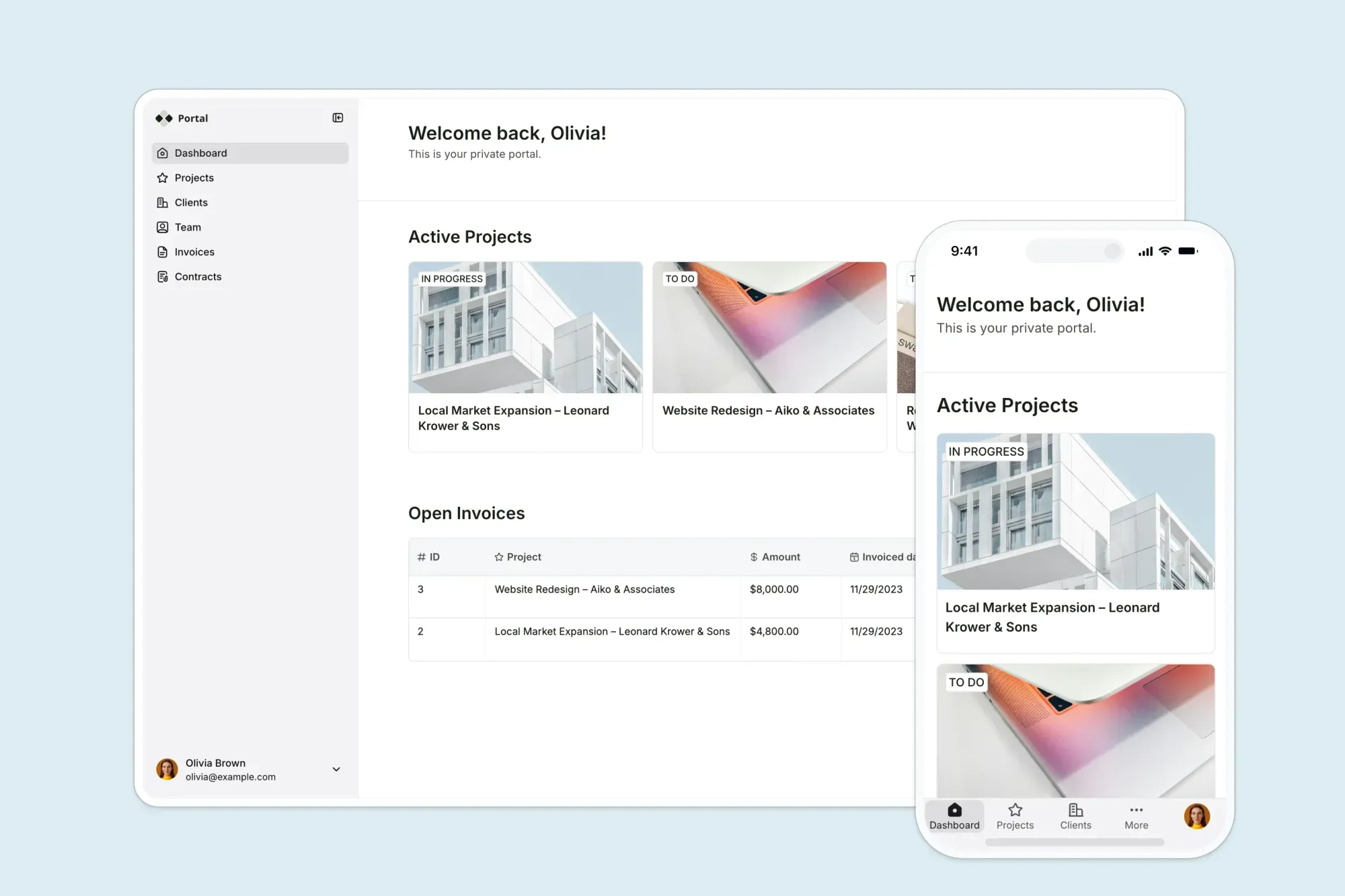
Each client logs in and sees only their own information, while internal teams work in the same system with their own dashboards and access levels.
That full-stack approach means you can also connect existing data from tools like Airtable, Google Sheets, Monday.com, or HubSpot—while managing the entire client experience in one place. Or go fully native: Softr Databases give you a high-performance relational backend built directly into the platform, with no third-party sync required.
Softr pros and cons
✅ Pros
- Full-stack client portals: Store data in Softr Databases or sync live data from your entire tech stack, then layer portals, permissions, and workflows on top.
- Beyond CRUD interfaces: Build actual custom client experiences: onboarding flows, resource centers, request systems—not just data entry forms.
- Reduces tool sprawl: Replace spreadsheets, ad-hoc portals, internal dashboards, and custom-built tools with a single platform your team can own and manage.
- Fast to launch, easy to evolve: Start with a template or AI co-builder and launch in hours—not months. Add views, automate processes, or change permissions as your business evolves, without rebuilding from scratch.
- Professional, branded portals: Go beyond basic form/table views with custom layouts, blocks, and full design control. Build experiences that look and feel like your brand.
- Role-based access and granular permissions: Control exactly what each client, team member, or admin can see and do—at the page, block, and record level. Designed for real client-facing use cases, not internal-only tools.
- Built-in workflows and automation: Automate onboarding, request intake, approvals, notifications, and updates directly inside the portal, without relying on external automation tools.
- Built-in AI assistant: Let clients and teams ask questions inside the portal and get instant, permission-aware answers from live data, reducing back-and-forth and manual reporting.
❌ Cons
- Businesses that want zero configuration and no customization may find simpler tools easier at first—but more limiting as they grow. That’s because Softr is better for teams that want to build and evolve their client portal over time.
Softr best features
- Flexible data options: Use Softr Databases as your back-end, connect external sources like Google Sheets, Airtable, Monday.com, ClickUp, HubSpot or use both to centralize your client information.
- Drag-and-drop portal builder: Build sleek, modern client portals out of the box using visual blocks. Add only what you need and evolve your portal as workflows change, no rebuilds required. For advanced, custom UI needs, the Vibe Coding block lets you generate fully tailored components from plain-language prompts—inheriting your app's theme and permissions automatically.
- Personalized, secure client experiences: Create one portal with tailored views for every client. Control exactly what each client can see or edit, all while matching your brand's look and feel.
- Built-in Ask AI for instant answers: Let clients and teams ask questions directly inside the portal and get permission-aware answers from live data—no emails or manual reporting.
- Granular permissions and user roles: Set up custom user groups, separate logins, and role-based access so clients, admins, and internal teams each get the right level of visibility.
- Enterprise-grade security: Keep client data protected with secure authentication, server-side permissions, and full SOC 2 and GDPR compliance.
- Predictable pricing: Flat-rate subscription tiers offer cost certainty and avoid the surprise charges that come with infrastructure overages and API calls.
See how Officeheads used Softr to build a client portal with a knowledge base, helping clients self-serve documents and updates without emailing the team.
Softr pricing
Softr offers flexible pricing plans designed to scale your client portal as your user base grows:
- Free: Unlimited apps, with access to Softr Workflows and Softr Databases, 5 app users, 5 AI credits, and 5,000 database records
- Basic: $19/month for unlimited apps with 42+ integrations, Team: 5 + Client: 5 app users, 10 AI credits, 50K records
- Pro: $99/month for unlimited apps with 45+ integrations and custom code, Team: 10 + Client: 50 app users, 50 AI credits, and 500K records
- Business: $329/month for unlimited apps with 52+ integrations, Team: 30 + Client: 100 app users, 100 AI credits, and 1M records
- Enterprise (custom pricing, contact sales)
2. Pory — best for simple Airtable-powered client portals
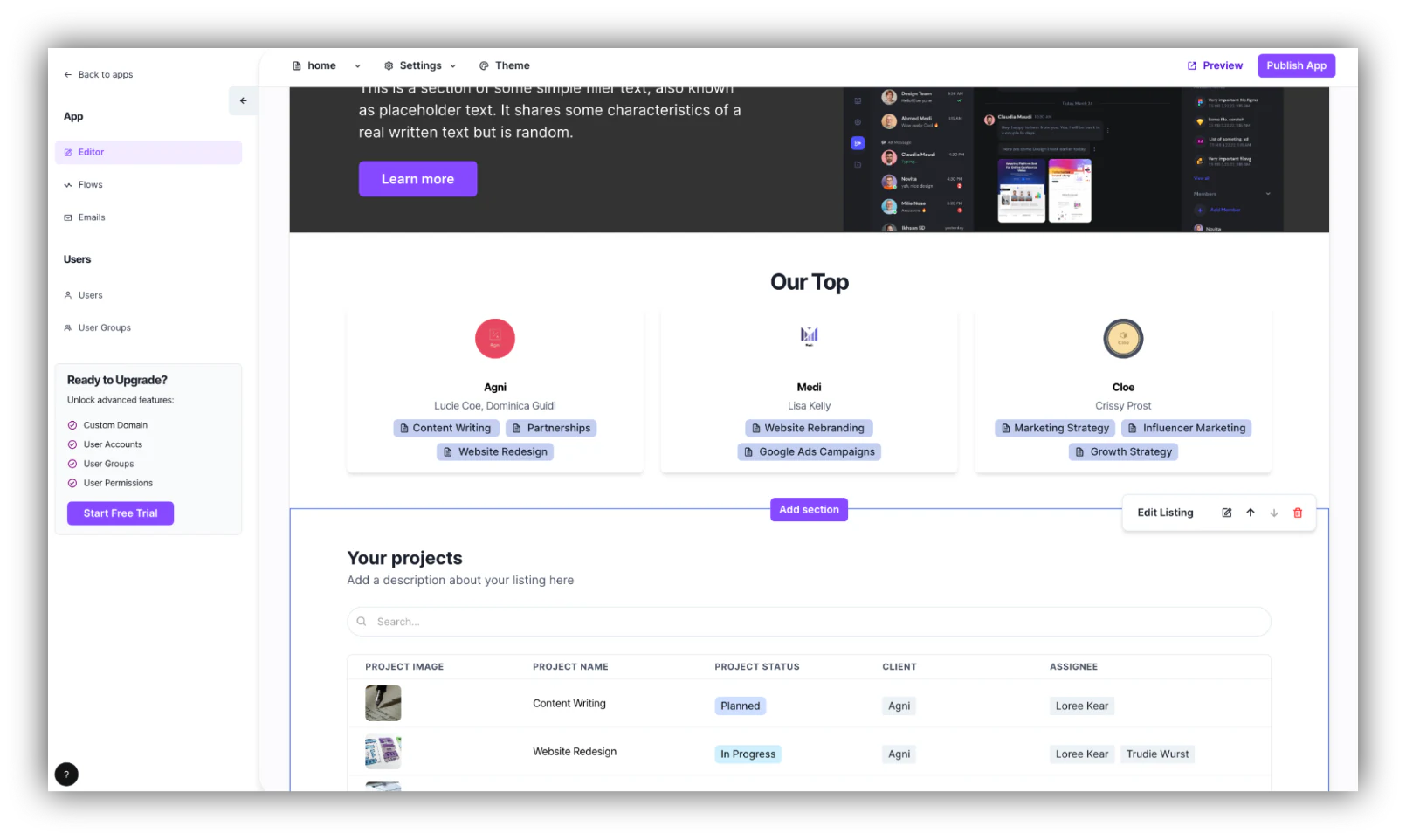
Pory is a no-code portal builder focused on Airtable. If all your client data already lives in Airtable and you just need a clean, self-service layer on top, Pory is a lightweight way to turn that base into a client-facing portal with limited functionality.
It’s best suited to straightforward use cases where a single Airtable backend is enough and you don’t need heavy workflow automation or multiple data sources.
Pory pros and cons
✅ Pros
- Airtable-first approach: Built specifically around Airtable, with live read/write access to your base so client data stays in sync.
- Simple block-based builder: Visual, section-based editor makes it easy to spin up lists, dashboards, and detail pages without design skills.
- User groups & permissions on higher tiers: Professional plans add user accounts, groups, and permissions so you can control which clients see which records.
❌ Cons
- Airtable-only: No native support for tools like Google Sheets, Notion, or HubSpot, so it’s less ideal if your client data is spread across tools.
- Limited workflow automation: Good for displaying and editing data, but you’ll likely need extra tools (e.g. Zapier/Make) for automations.
- Logins gated to higher plans: The Basic plan doesn’t include user accounts or permissions, so you’ll need Professional or above for true client portals.
- No templates: Unlike some other no-code tools, Pory does not offer ready-to-use templates.
Pory best features
- Live Airtable sync: Read and update Airtable records directly from the portal while keeping Airtable as your source of truth.
- Self-service client access: Let clients log in to track tickets, requests, or project data without exposing your full base.
- Branding controls: Customize layouts, colors, and typography to better match your brand.
- Block library: Use pre-built building blocks (lists, galleries, detail views) to assemble portals quickly.
Pory pricing
- Basic: From around $18/app/month: good for simple Airtable-backed sites and portals without authenticated users.
- Professional: From around $49/app/month: adds user accounts, groups, and permissions—what most client portals will need.
- Scale: From around $99/app/month: higher limits and advanced options for larger teams.
- Enterprise: Custom pricing for larger organizations with specific security or support needs.
3. Zendo — best for freelancers and agencies selling services through a portal
Zendo is a dedicated client portal and service-selling platform. It’s built for agencies, studios, and service businesses that want a polished “client lounge” where customers can request work, approve quotes, and pay invoices.
Along with client portal features, this software also leans into service productization and request management. But it's out-of-the-box functionality means it's less customizable and may have more features that some businesses need.

Zendo pros and cons
✅ Pros
- Free plan with unlimited clients: Add unlimited clients and handle unlimited requests at no cost, which is great for freelancers or small agencies.
- Service-first workflows: Built-in quotes, invoices, subscriptions, chats, and order management make Zendo a complete service-delivery hub.
- Sandbox mode for safe testing: A dedicated Sandbox lets you test portal changes, workflows, and payments before sharing anything with clients.
- White-label options on higher tiers: Custom domains and full removal of Zendo branding on Pro/Max plans.
❌ Cons
- No templates: Zendo doesn’t offer ready-made portal templates; you start from a default setup and build manually.
- Separate portals for each client or client group: Instead of building one unified portal with dynamic permissions, you configure layouts separately. This becomes time-consuming and harder to scale.
- Limited native integrations: Stripe and Rewardful are the only true integrations; everything else requires embeds or external automation.
- Internal-user limits on free plan: Only one internal user on the free tier; teams must upgrade to collaborate internally.
Zendo pricing
- Essential (free): 1 internal user, unlimited clients and requests, core service-selling and portal features, but no custom domain or external embeds.
- Pro: Around $49/month. Adds more internal seats, external app embeds, custom domain, and more automation.
- Max: Around $199/month. Unlocks full white-label (no Zendo branding) and unlimited internal team members—better for established agencies.
4. Bubble — best for highly customizable client portals (if you have dev-like skills)
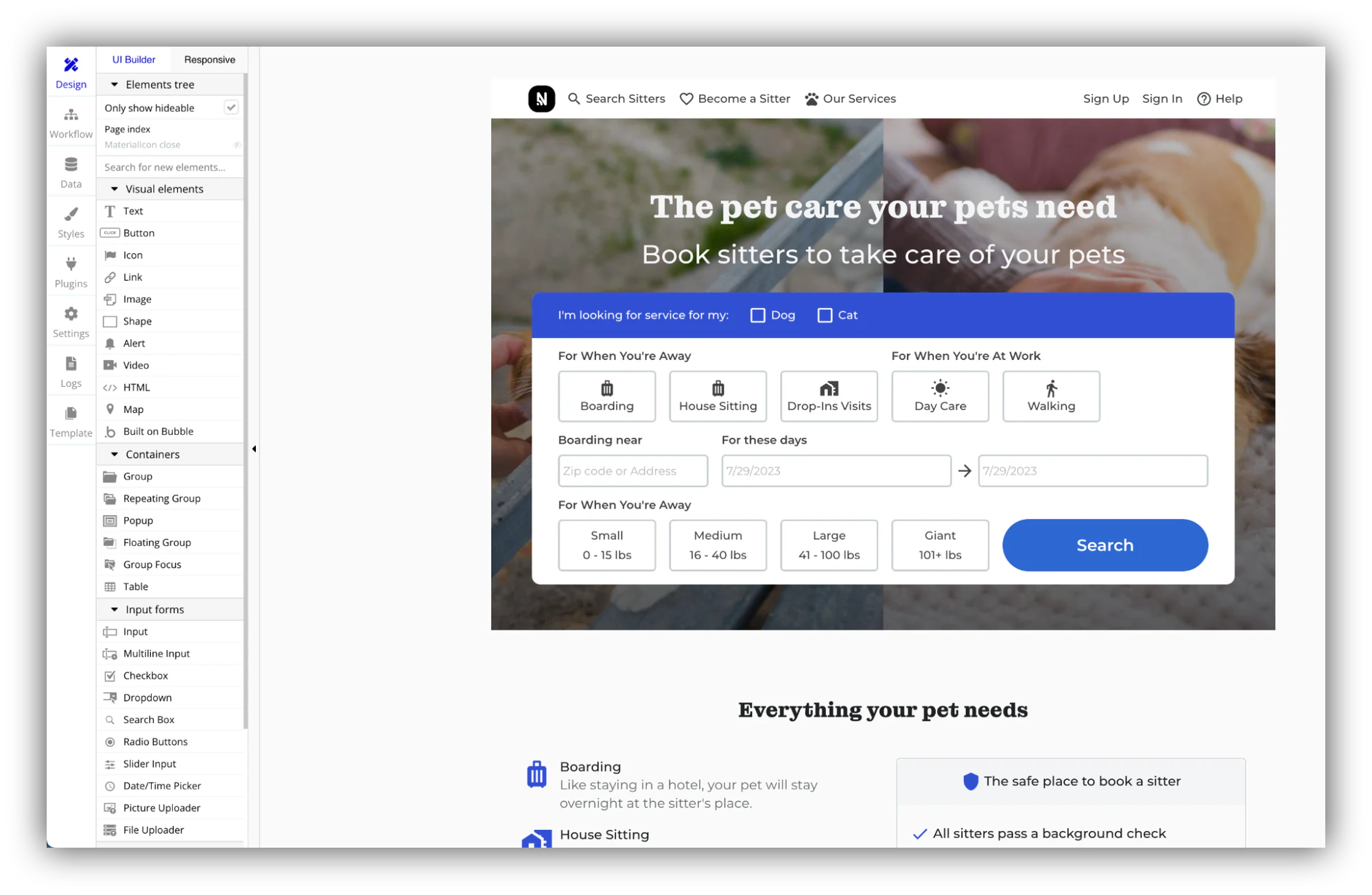
Bubble is a powerful general-purpose no-code/low-code platform that lets you build custom web apps, from marketplaces and internal tools to CRMs to client portals.
Instead of giving you predefined layouts or templates, Bubble offers a blank canvas with pixel-level control, APIs, and an extensive plugin marketplace.
This makes it one of the most flexible tools on the list, but also one of the hardest to learn. Bubble is best suited for teams that want a deeply customized client portal and are comfortable thinking like developers.
Bubble pros and cons
✅ Pros
- Design flexibility: Control every pixel of your client portal interface, layout, and responsive behavior.
- Workflow engine: Build workflows, conditional rules, and multi-step automations.
- Powerful plugin ecosystem: Extend your portal with plugins for payments, analytics, SSO, signatures, and external APIs.
- Built-in database: Store client records, documents, tasks, invoices, and more directly in Bubble’s native database.
❌ Cons:
- Steep learning curve: Bubble feels more like learning a development platform than a traditional no-code builder.
- Time-intensive to maintain: Because everything is custom, updates and improvements require ongoing effort.
- Overkill for simple portals: If you just need onboarding, file sharing, and project views, Bubble can be unnecessarily complex.
Bubble best features
- Pixel-level UI control: Design fully custom dashboards, layouts, and components.
- Built-in database: Model clients, projects, documents, invoices, and roles directly in Bubble.
- Advanced workflows: Create multi-step logic for approvals, notifications, reminders, and status changes.
- User authentication & roles: Build your own permission system with granular access rules.
- API connector: Integrate with CRMs, billing tools, project tools, or storage services through custom API calls.
- Client onboarding flows: Create multi-step wizards, intake forms, and custom onboarding logic.
Bubble pricing
- Free: 1 app, Bubble branding, basic hosting, no custom domain
- Starter ($32/month): Custom domain, backend workflows, API connector
- Growth ($134/month): Increased capacity, version control, server logs
- Team ($399/month): Collaboration tools, roles & permissions, priority support
- Enterprise: Custom pricing, includes SSO, dedicated infrastructure, SLAs
👉 See this Softr vs. Bubble page for a more in-depth comparison
5. Jet Admin — best for SQL-backed client portals (for technical teams)
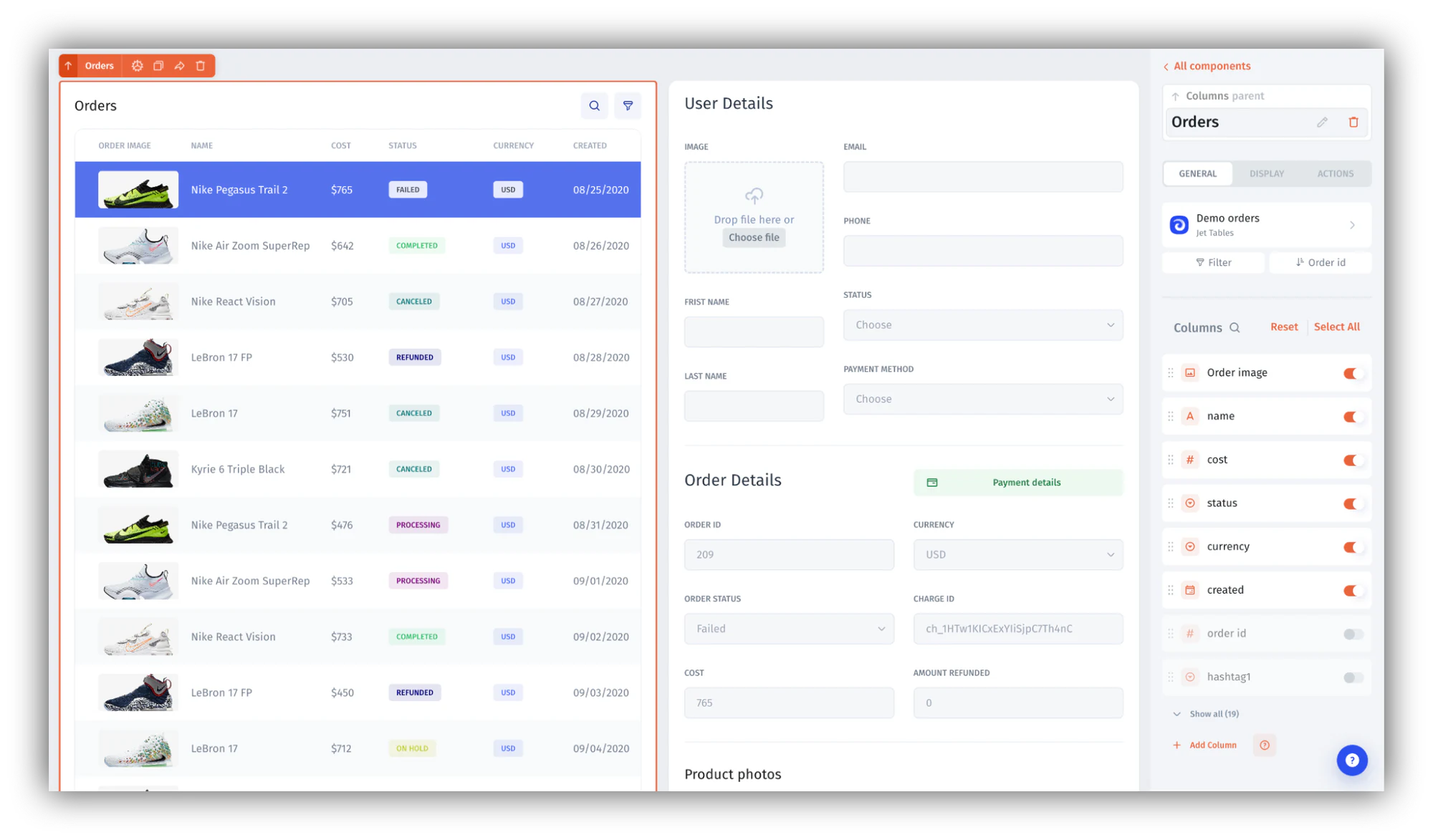
Jet Admin is a low-code platform built for teams that want to create internal tools and client portals directly on top of SQL databases, APIs, or SaaS tools.
Unlike most no-code builders, Jet Admin is designed for hybrid workflows—use visual components when you can, then drop into code (SQL, JS, HTTP) when you need more complexity.
This makes Jet Admin ideal for operational teams with some developer support who want to expose secure portals on top of production databases without building a custom web app from scratch. It’s powerful, secure, and extremely flexible—but less approachable for non-technical users.
Jet Admin pros and cons
✅ Pros
- Strong database connectivity: Connect directly to SQL databases, APIs, and dozens of SaaS tools.
- Low-code extensibility: Combine drag-and-drop components with custom SQL or JavaScript logic.
- Great for technical teams: Ideal when you want more control and aren’t afraid to write queries.
- Security-first architecture: Jet Bridge lets you keep databases behind a firewall while exposing a secure UI.
- Internal + external apps in one: Build admin panels and client portals on the same platform.
❌ Cons
- Not beginner-friendly: Requires comfort with databases, queries, and technical concepts.
- Limited ready-made templates: You’ll spend more time configuring components than in template-driven tools.
- Less suited for SMBs without dev support: Better for technical teams or complex use cases.
- Heavier setup: Direct database connections and permissions require more configuration upfront.
Jet Admin best features
- Visual app builder: Drag-and-drop UI components (tables, forms, charts, buttons) to build portals quickly.
- Database & API connectors: Directly connect to Postgres, MySQL, MongoDB, Firebase, Stripe, Salesforce, and more.
- Custom queries & scripts: Use SQL or JavaScript formulas to transform data and implement complex workflows.
- Permissions & audit: Role-based access and per-component permissions to control what clients and internal users can see or edit.
- Jet Bridge: Open-source agent that generates an API and proxies requests to your database, adding an extra security layer.
Jet Admin pricing
- Starter: Around $39/month: suitable for basic customer portals with core components and limited usage.
- Advanced / Plus: Around $125/month: adds more advanced components, integrations, and higher limits.
- Pro: Around $290/month: for larger teams or more complex portals that need more users and data.
- Enterprise: Around $649+/month with enterprise-grade security, SLAs, and tailored support.
6. Noloco — best for smaller-scale client portals
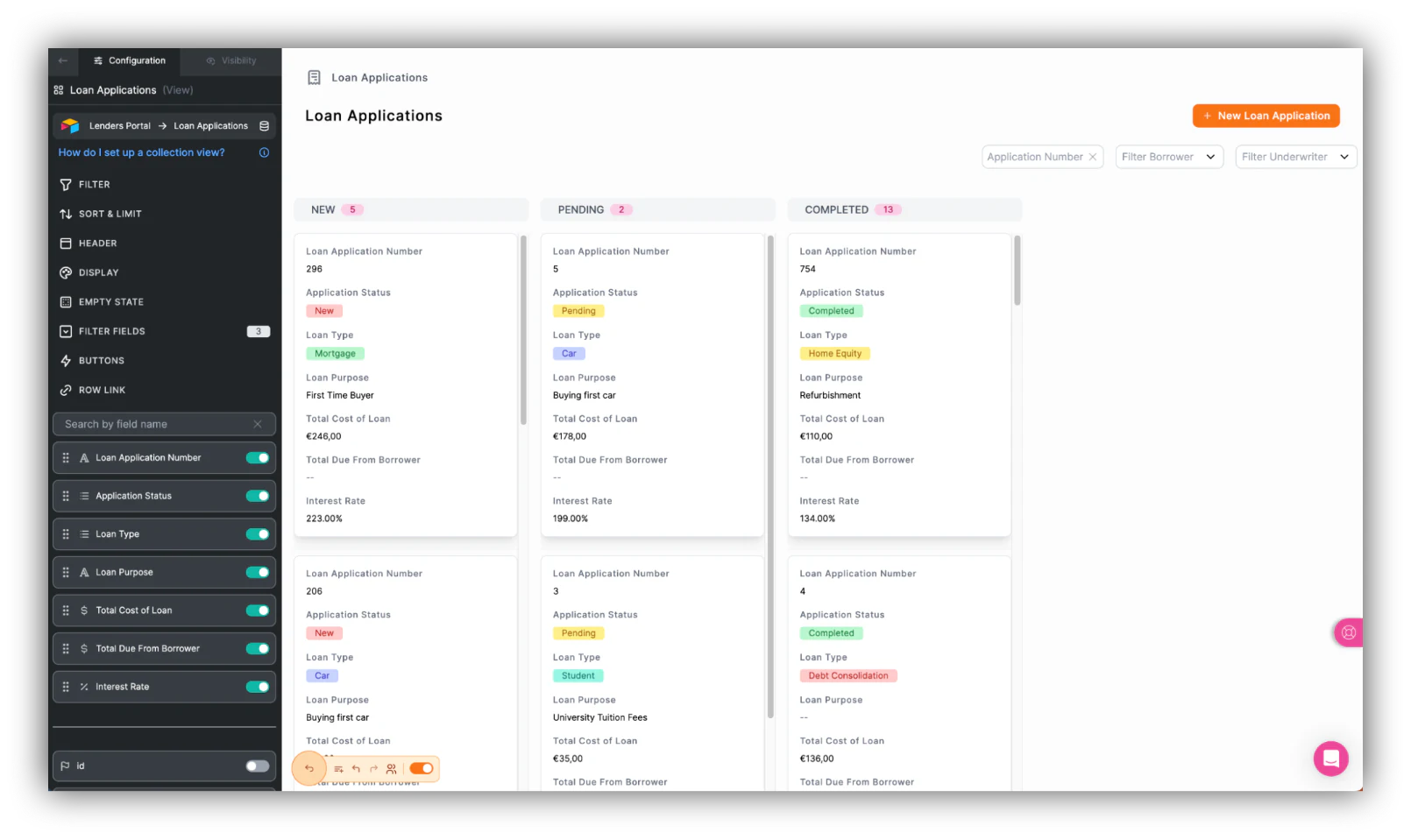
Noloco is a no-code platform that lets teams build customizable client portals with synced data, granular permissions, and a clean, modern interface. It works well for portals that need personalized client views, detailed record access rules, and internal workflows.
Noloco connects to Airtable, Google Sheets, SmartSuite, HubSpot, and SQL sources—but all data syncs into Noloco Tables, its internal database layer. This gives you more control over the UI but can introduce sync delays, row limits, and constraints for fast-moving client work.
Noloco pros and cons
✅ Pros:
- Built-in automations: Visual workflows with run limits depending on your plan.
- Granular permissions: Field- and row-level restrictions, plus global data filters.
- Ready-made UI: Create detail views, dashboards, Kanbans, calendars, forms, and tables to display data.
- Workflow automation: Trigger notifications, status changes, or external automations via built-in workflows.
❌ Cons:
- External user costs: External users count as “clients,” each billed separately, which can add up fast.
- Rigid layouts: UI is template/block-driven, making it harder to customize your design or start from scratch (if you want).
- Data flow through Noloco Tables: Even external sources sync through Noloco’s database layer, limiting flexibility.
- Client-side visibility: Visibility rules are enforced on the front end, so sensitive data can still be exposed to savvy users.
Noloco best features
- Global data restrictions & field-level permissions: Enforce strict visibility rules so each client sees only the records and fields meant for them.
- Bulk editing & custom action buttons: Update multiple records at once and trigger workflows with configurable actions.
- Noloco Tables as the native or synced data layer: Use Noloco’s built-in database or sync Airtable, Google Sheets, HubSpot, SmartSuite, or SQL data into structured Noloco Tables.
- Flexible layouts & views: Build dashboards, detail pages, calendars, Kanbans, and forms with a point-and-click editor.
- Workflow automations: Trigger notifications, update records, or run multi-step processes based on client or data activity.
Noloco pricing
Note: Noloco counts external users as “clients” and charges separately for them, and plan overages (client seats, data rows, workflow runs) can increase costs quickly.
- Free: 3 team seats, 7 client seats, 2,000 rows, 100 workflow runs
- Starter ($29/mo): 4 team + 10 clients, up to 10,000 rows & 5,000 synced rows, 1,000 runs; extra team users $4/mo, clients $0.50/mo
- Pro ($149/mo): 10 team + 50 clients, 50,000 rows & 25,000 synced rows, 3,000 runs; adds record/field‑level permissions, custom domain, custom code; extra team $6/mo, client $1/mo
- Business ($319/mo): 30 team + 100 clients, 200,000 rows & 100,000 synced rows, 10,000 runs; unlimited roles, priority sync; extra team $10/mo, client $1/mo
- Enterprise: custom pricing, includes SSO, success manager, API support, custom limits
👉 See this Softr vs Noloco page for a more in-depth comparison
Find a no-code client portal tool that fits your needs
The best no-code client portal tool really depends on your workflow and the experience you want your clients to have. Ask yourself:
- Do you already store client data in Airtable, Google Sheets, Notion, HubSpot, monday.com, or another tool?
- Do you want clients to simply view information, or also upload files, leave feedback, or complete tasks?
- Do you need workflow automation to reduce manual updates and follow-ups?
- How customizable should the branding and layout be?
- Will your portal need to scale to dozens or hundreds of clients over time?
Once you’ve answered these, choose the tool that best aligns with your data, your workflows, and your team’s capacity.
If you want a platform that connects to your existing tools, supports granular permissions (so you can build one portal and share it across client), and automates client workflows—Softr is a solid option. Start now for free!