
[.blog-callout]
TL;DR
- Long forms kill conversion rates, but sales still needs company context on every lead.
- A Softr Workflow can capture just Name and Email, then use the email domain to look up the Company via AI and enrich it automatically.
- Smart deduplication checks your database before creating a contact, so nobody ends up with five records for the same person.
- Database AI Agents can take over the deep enrichment (Industry, Employee Count, Description) the moment a Company record is created, no extra workflow steps required.
- The whole thing ends with an instant Slack alert, so sales never misses a hot lead. [.blog-callout]
This guide focuses on a specific, high-impact automation: how to automatically handle, deduplicate, and enrich incoming demo requests using AI.
By automating this process, you can shorten your forms to increase conversion rates while simultaneously gathering more data about your prospects.
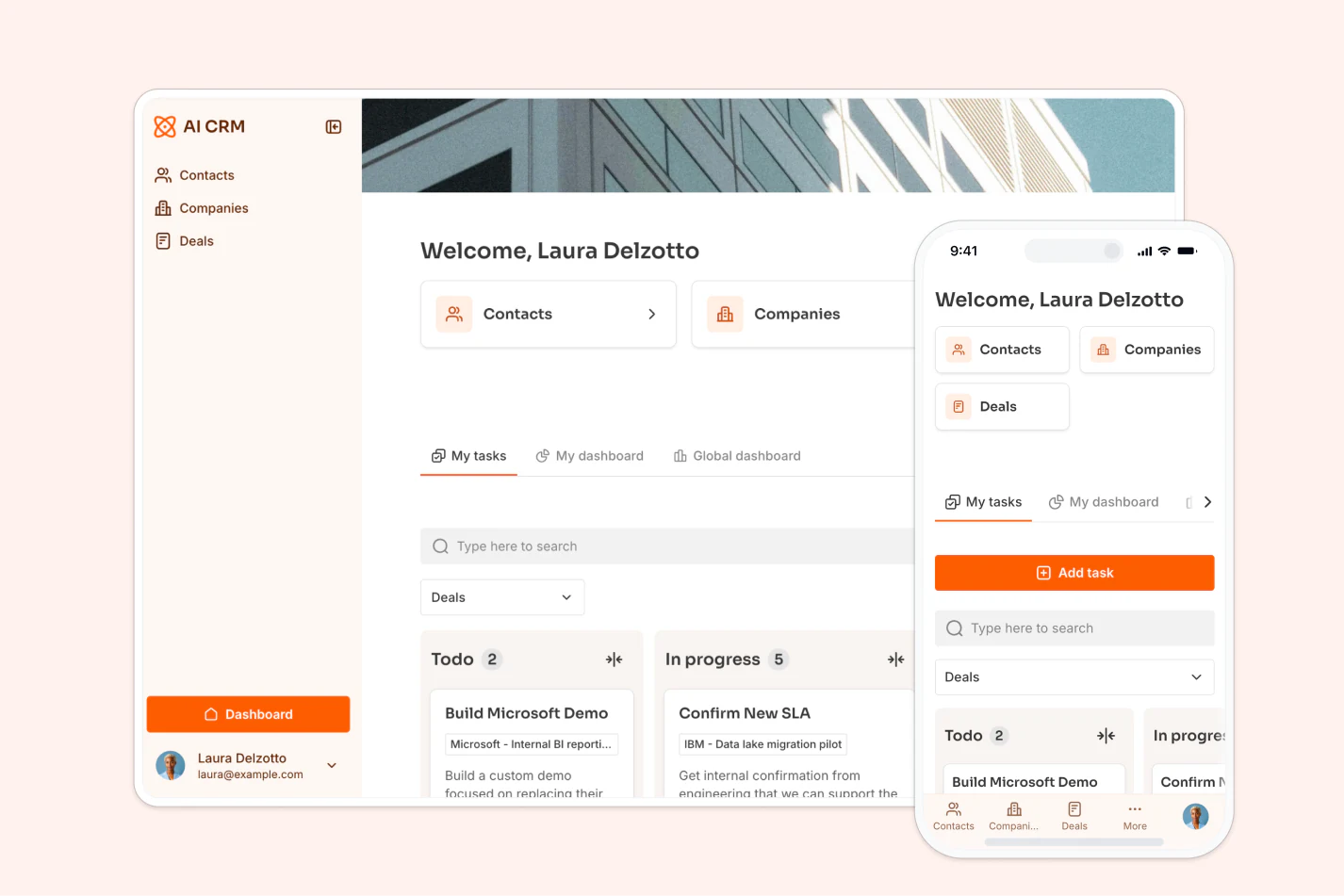
For a visual walkthrough of this exact workflow, you can watch our specific tutorial on YouTube:
Why automate demo request enrichment?
The golden rule of lead generation is simple: the shorter the form, the higher the conversion rate.
Every extra field you ask a prospect to fill out (Company Name, Industry, Employee Count) adds friction and increases the chance they will drop off. But your sales team needs that context to qualify leads effectively.
"AI workflows let you enrich company profiles with industry and size automatically when a lead enters, saving sales reps from tedious manual research." - Guillaume Duvernay, Builder at Softr
With Softr's full-stack capabilities, you can have the best of both worlds. You can build a simple public form asking only for the essentials (Name and Email), stored in your Softr Database, and use a background Softr Workflow to:
- Enrich Data with AI: Automatically find the prospect's Company Name, Industry, and size based solely on their email domain.
- Prevent Duplicates: Check if the contact already exists in your CRM to keep your data clean.
- Notify Sales Instantly: Alert your team on Slack the moment a high-value lead arrives.
Here is how to build this intelligent workflow step-by-step.
The workflow overview
We are building a logic sequence that runs silently in the background of your application:
- Trigger: A visitor submits a "Request a Demo" form.
- Logic Check: The system searches the database to see if this person already exists.
- Branching:
- If they exist: Link the new request to the old contact.
- If they are new: Create a new contact, identify their company via AI, and create a new company record.
- Notification: Post a message to Slack.
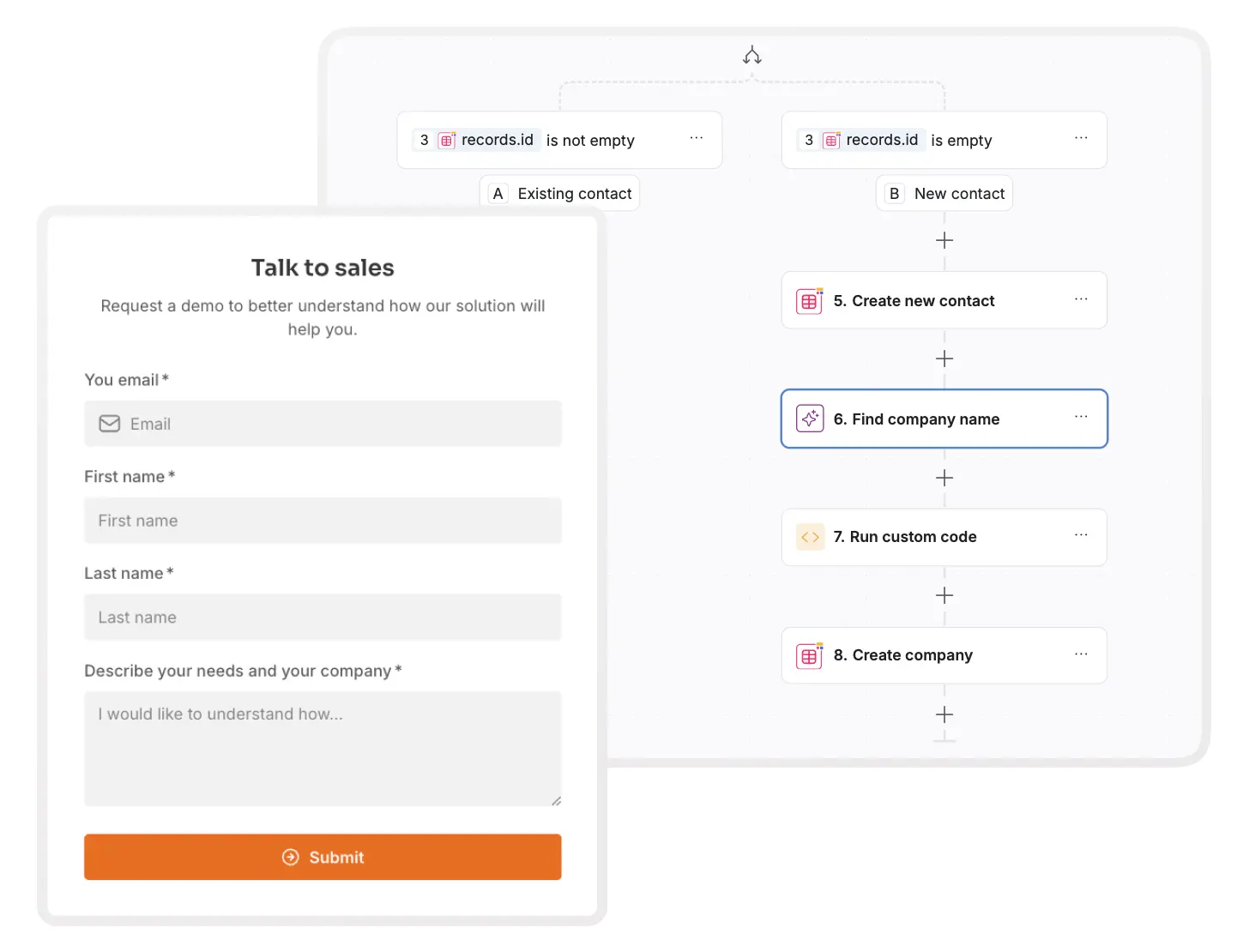
You can build every step below manually, or describe the automation you need to the Workflow AI Co-Builder (for example, "when a Deal's Demo Request Email is filled in, check for a matching contact, otherwise create one and enrich the company") and let it configure the trigger, conditions, and actions for you. You can also have your own AI assistant build, test, and publish the workflow through the Softr MCP.
Step 1: The trigger (capturing the lead)
Your workflow starts when a potential customer takes action. In our AI CRM template, we have a public-facing form connected to the Deals table.
- Go to the Workflows tab in your Softr Studio.
- Create a new workflow and select Record meets condition as the trigger.
- Table: Select the
Dealstable. - Condition: Set it to run when
Demo Request Emailis not empty.
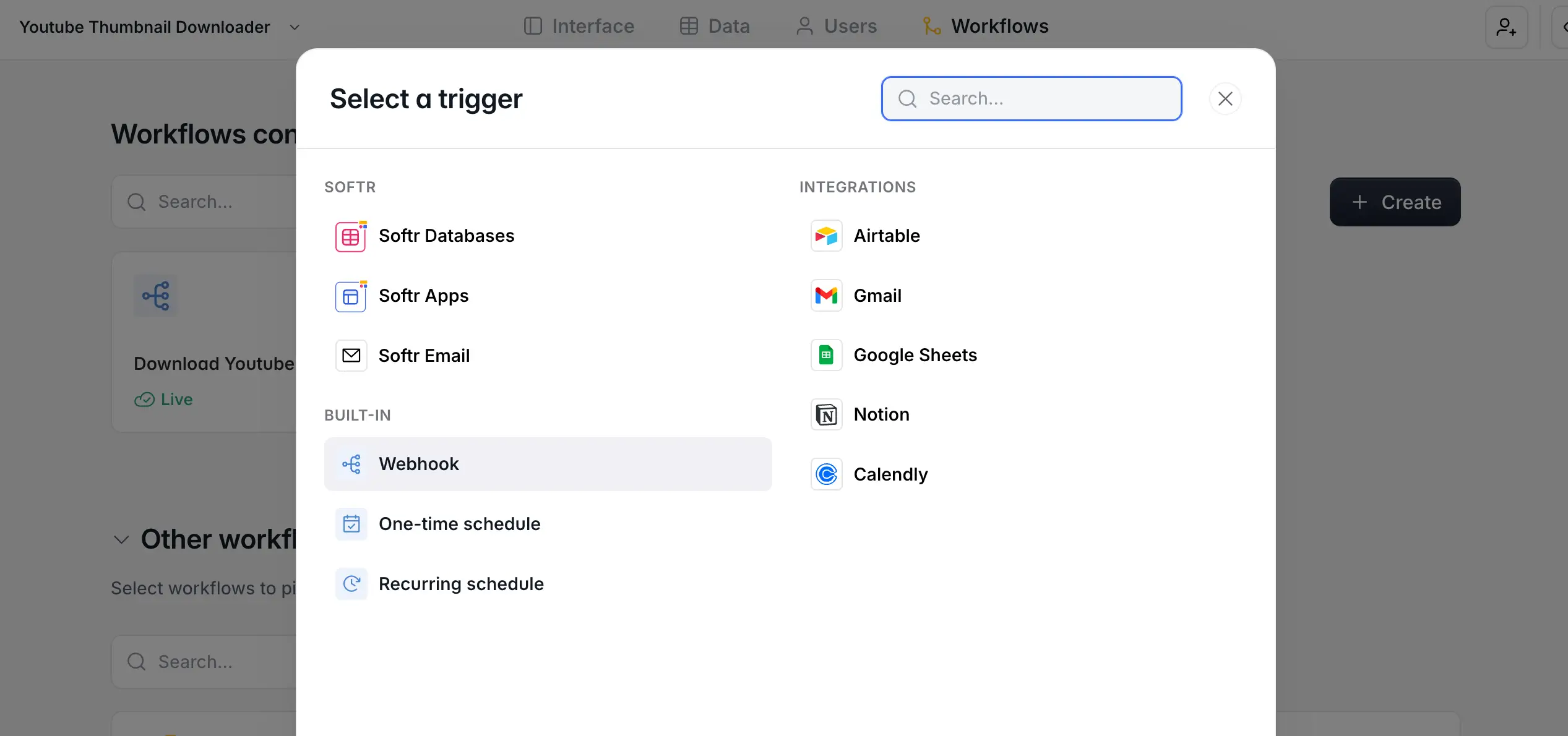
This ensures the automation fires specifically when a new deal originates from your public form submission.
Step 2: Smart deduplication (keep data clean)
Before adding a new contact to your database, you must ensure you aren't creating a duplicate. A messy CRM with five entries for the same person is a nightmare for sales reps.
- Add a Find multiple records action (under Softr Database actions).
- Table: Select your
Contactstable. - Condition: Search where
Emailis[Trigger's Demo Request Email].
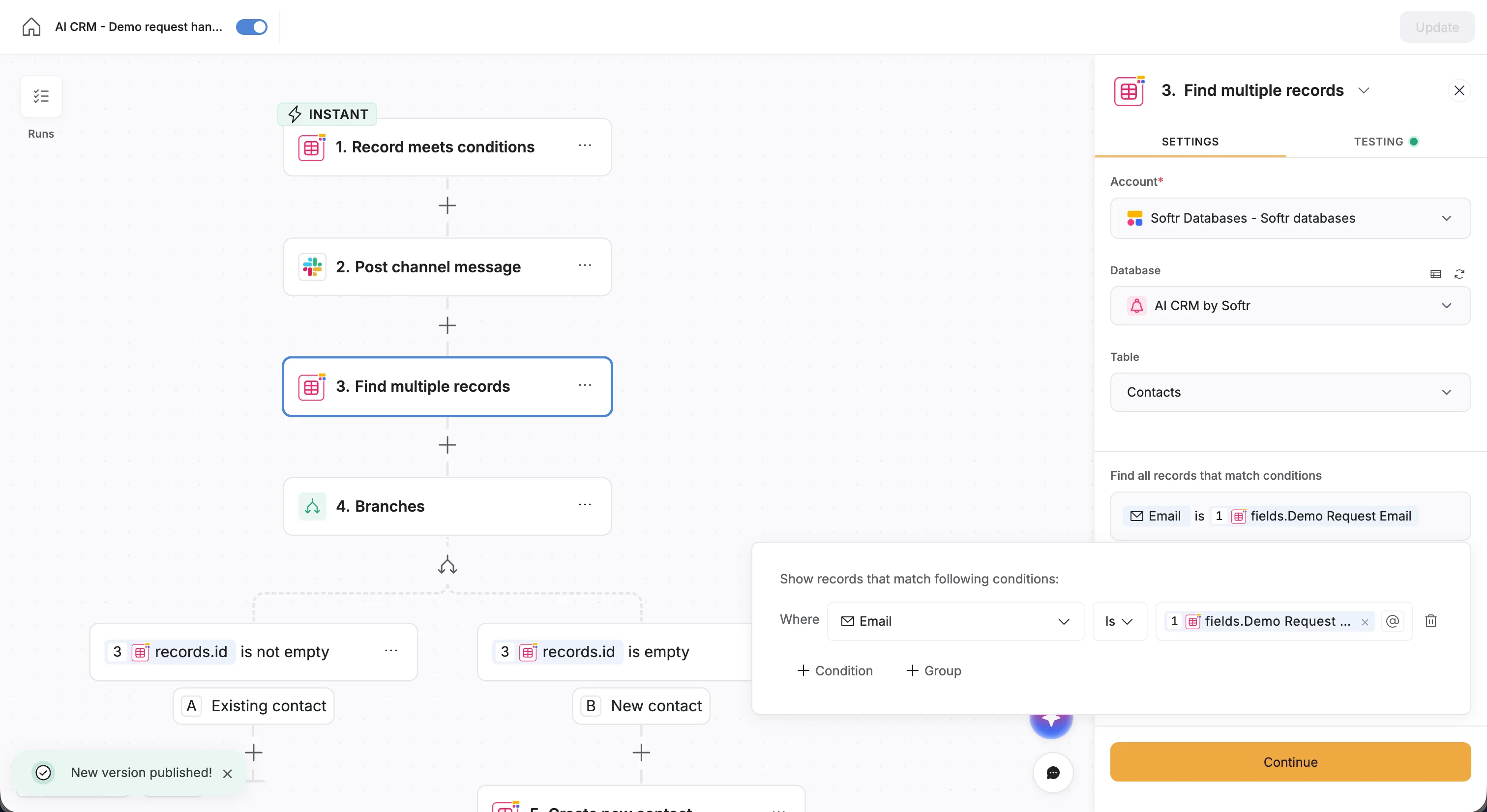
This step asks your database a simple question: "Do we already know this person?"
Step 3: AI enrichment and company creation
Now we use conditional logic to handle the answer. Add a Conditional Branch to your workflow.
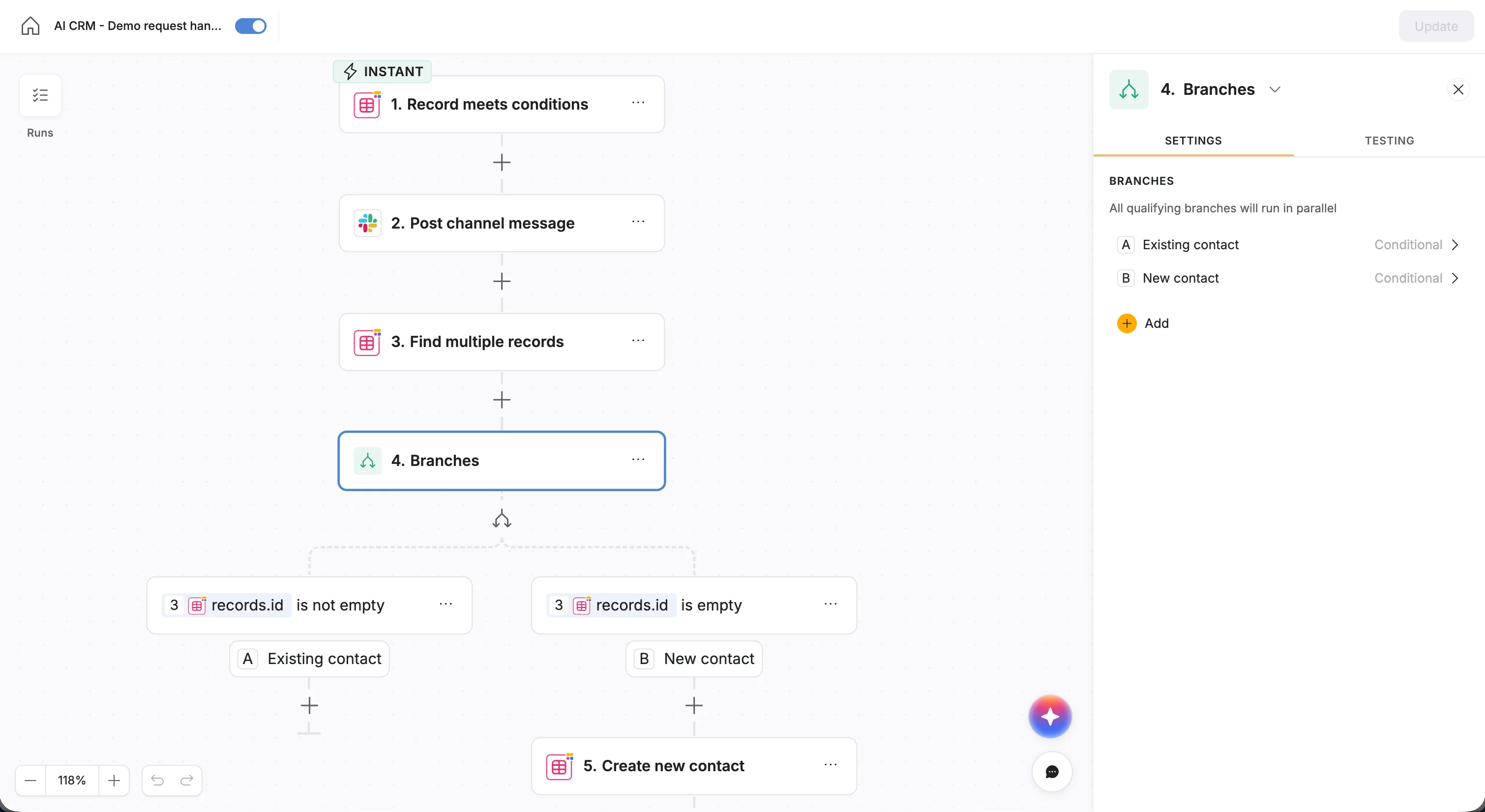
If the contact is new (no match found)
If the "Find Records" step comes up empty, we need to create the contact and figure out who they work for.
3.1. Extract the domain
Since we didn't ask the user for their company name, we need to detect it. You can use a simple Custom Code step (using Softr’s built-in AI code generator) to extract the domain from the email address (e.g., turning jane@softr.io into softr.io).
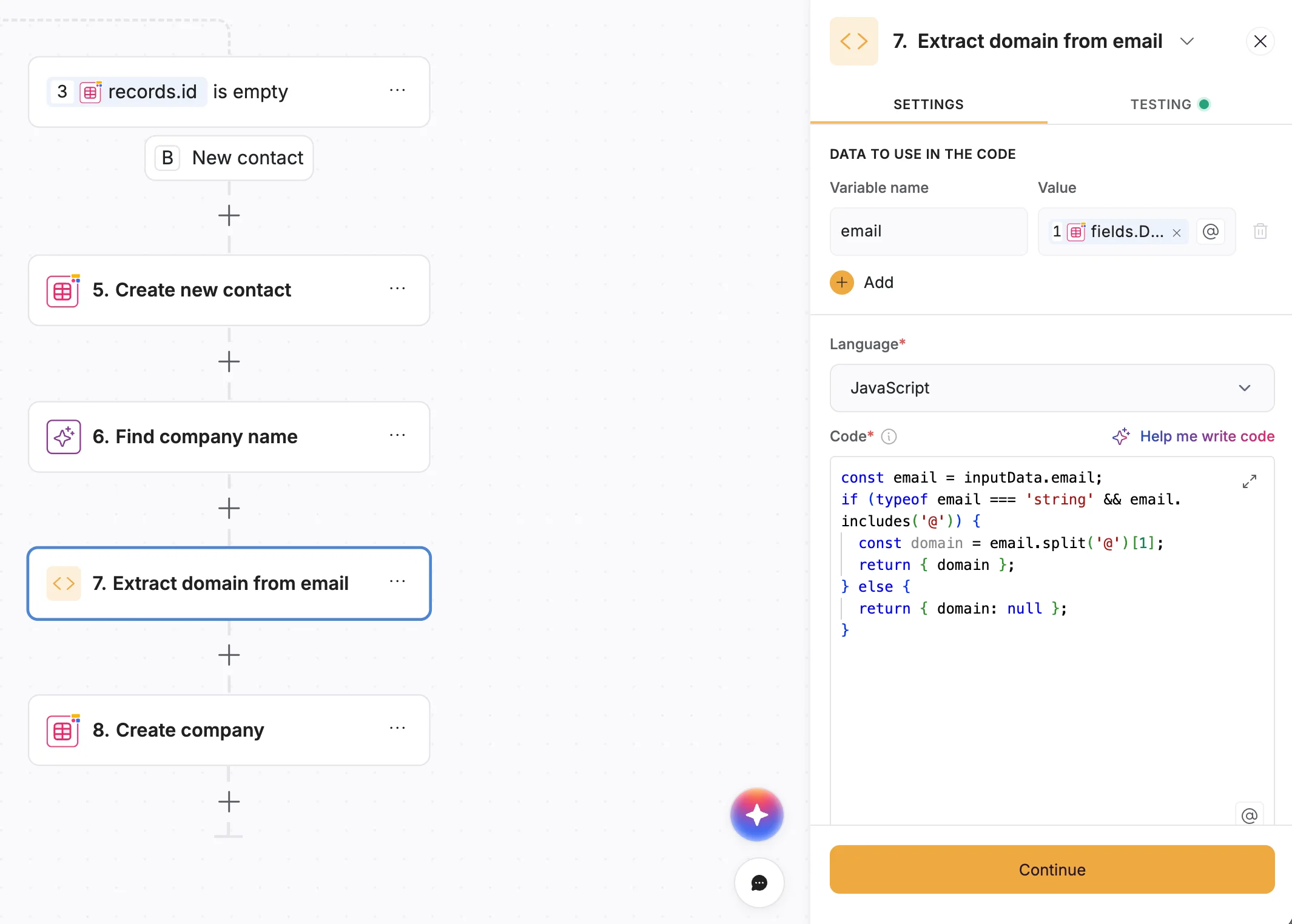
3.2. Identify the company via AI
Now that we have the domain, we can find the real company name. Add an AI Custom Prompt action:
- Prompt:
Based on the domain [Domain Variable], strictly return the exact company name. - Web Search: Enable this to ensure accuracy.
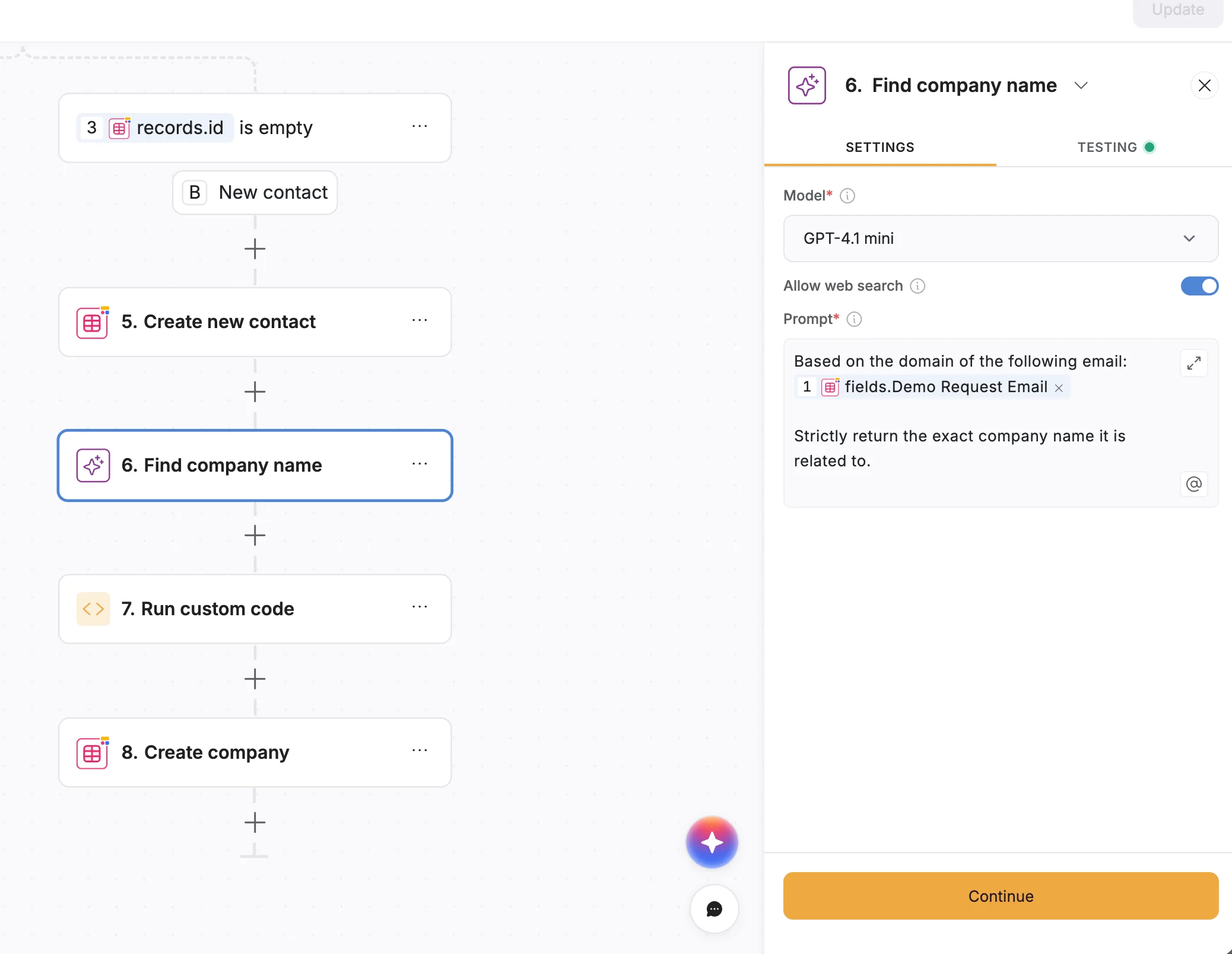
3.3. Two ways to enrich the data
Once you have the Company Name and Website/Domain, you have two options for enrichment:
- The Workflow Method: You can add more AI steps right here in the workflow to ask for the Industry, Employee Count, and Description, and map them to the new Company record.
- The Database Agent Method (Recommended): If you followed our Database setup guide, you already have AI Agents set up on your
Companiestable.- In this workflow, simply Create a Record in the
Companiestable mapping only the Company Name and Website. - The Result: As soon as the workflow creates the company, your Database AI Agents will wake up, detect the new website, and automatically scour the web to fill in the Industry, Description, and Employee Count for you. This keeps your workflow simple and leverages the power of Softr's database automation.
- In this workflow, simply Create a Record in the

3.4. Link everything together
Finally, use a Create Record action to add the person to the Contacts table. In the relationship field, link them to the Company record you just created.
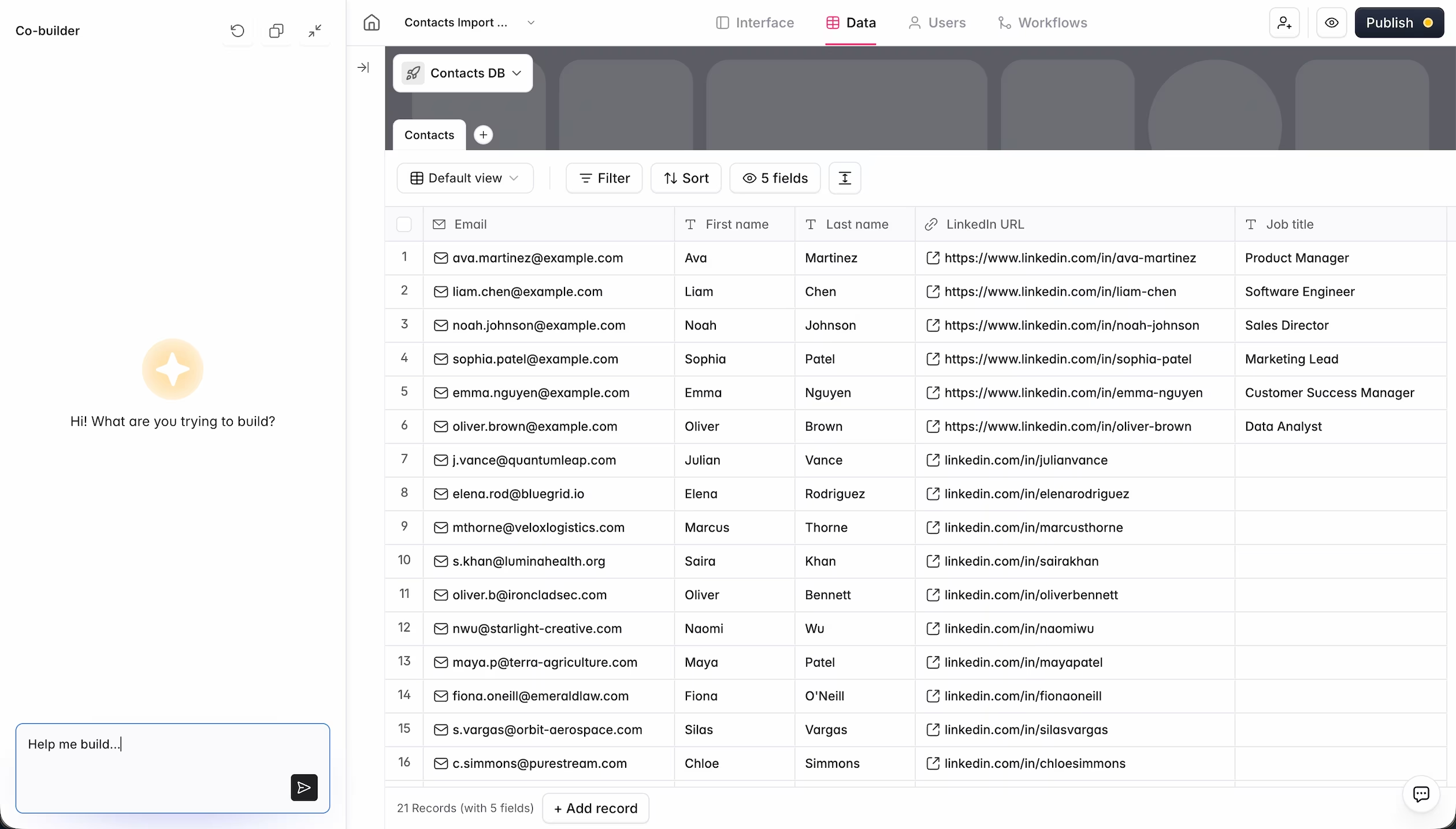
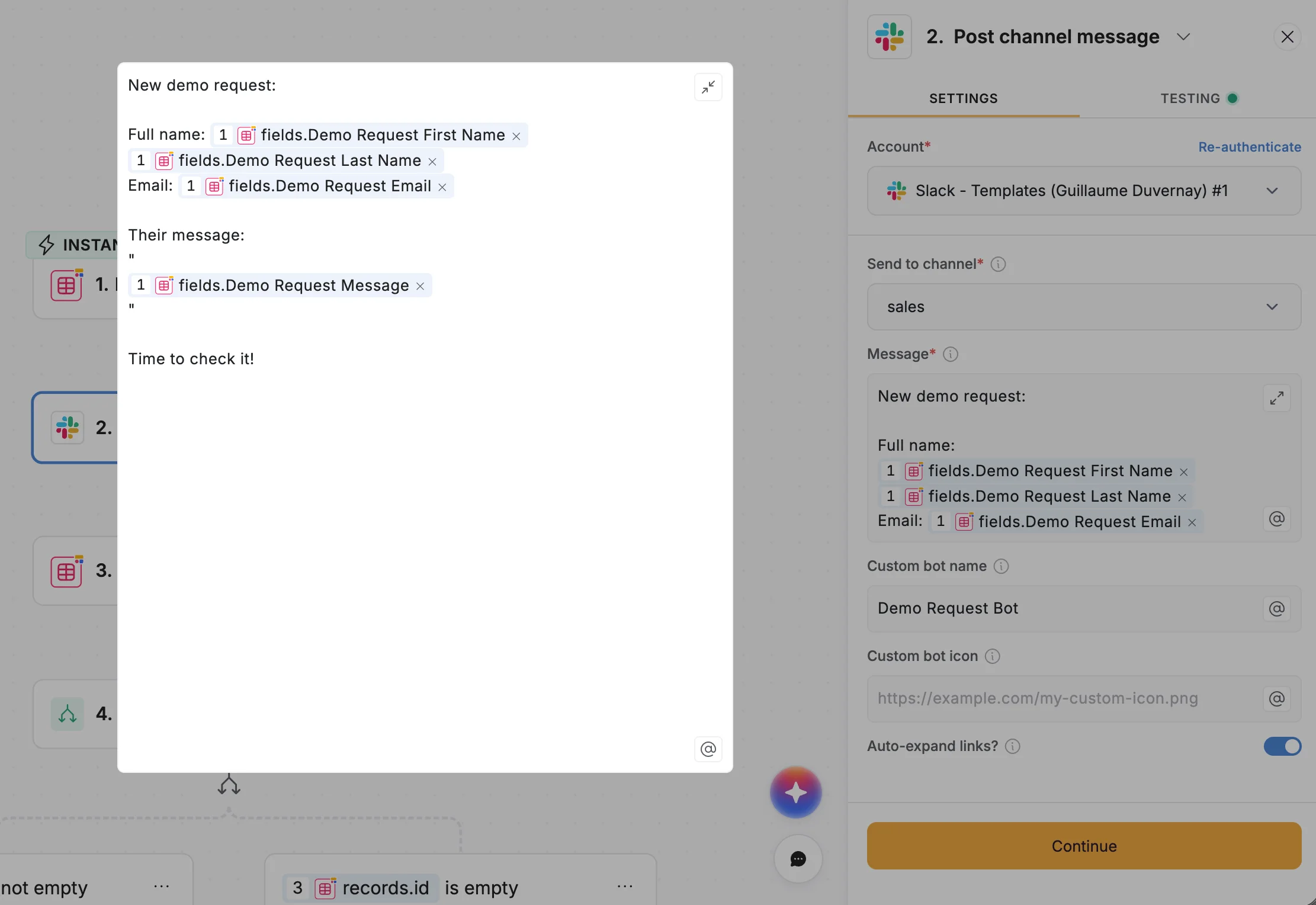
Step 4: Notify the Sales Team
Speed to lead is critical. Don't let the new opportunity sit in the database unnoticed.
- Add a Slack action (or Microsoft Teams/Email).
- Message: "New Demo Request from
[Trigger's Email]! :tada:" - Select your sales channel (e.g.,
#incoming-leads).
Fast-track your build with Templates
You don't have to build this entire logic structure from scratch.
Softr provides pre-built Workflow Templates directly inside the studio.
- Go to the Workflows tab.
- Browse the templates section.
- Select the CRM/Email automation template and click Copy to my app.
You will get the full logic structure instantly; you just need to map the fields to your specific database columns.
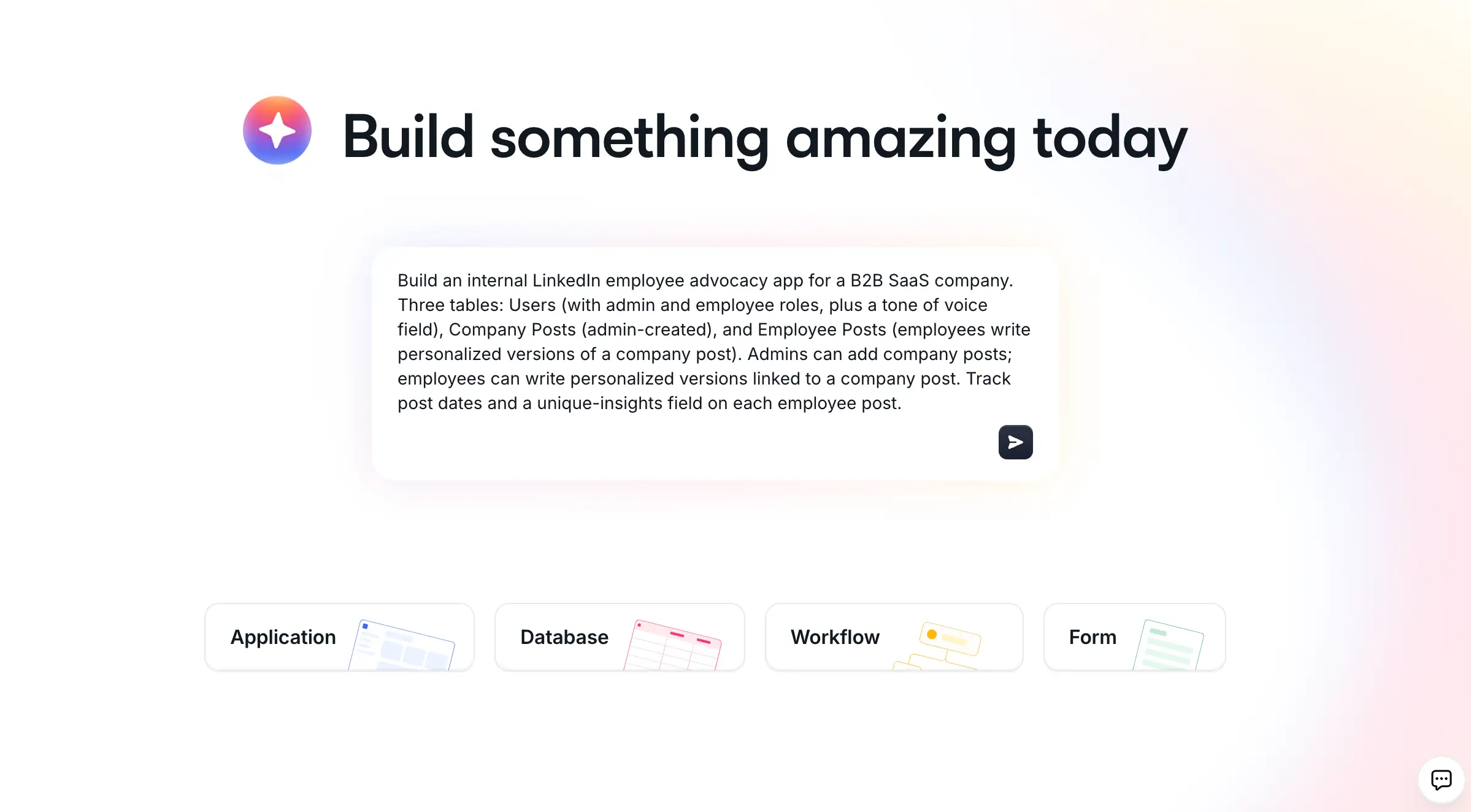
If you're starting from zero, you don't need the template either: describe the app you want (a CRM with contacts, companies, and deals, for example) to the AI Co-Builder and it will generate the database, pages, and user groups for you in minutes, ready for you to layer this workflow on top of.
Fewer form fields, more usable data
You have now built a backend automation that improves the prospect's experience (by keeping the form short) and your sales team's efficiency (by enriching every lead automatically, before a rep ever opens the record).
This workflow is just one component of a fully functional CRM. To see how to build the database that houses this data, or the interface your team uses to manage it, check out our complete resources:
- Full CRM Tutorial: How to build a free AI CRM with Softr
- Get the App Template: Clone the AI CRM template
- Go Deeper on AI Agents: How to build AI agents and automation for your CRM
Happy building!
Frequently asked questions
How does AI lead enrichment improve demo request conversion rates?
How does Softr’s workflow enrich contact data from just an email address?
Can Softr's automation prevent duplicate contacts in my CRM?
What is the "Database AI Agent" method for company enrichment?
Can I build a CRM with Softr?