The foundation of any powerful application is its database. Before you build dashboards, design forms, or set up automations, you need a solid structure to hold your data.
This guide focuses specifically on how to architect a smart, relational database for a custom CRM. We will walk through structuring tables for complex B2B relationships and using Softr’s Database AI Agents to automatically enrich your data—saving your sales team hours of manual research.
While this article focuses on the data layer, Softr is a full-stack app builder. Once your database is ready, you can use Softr to build the interface (frontend), the native Softr Databases (backend), and the logic (workflows) all in one platform.
.webp)
If you want to jump ahead to building the visual interface, check out our complete guide to building the full AI CRM here. You can also skip the build and clone the fully functional AI CRM template here.
What is Softr and how does it help build a CRM database?
Softr is a full-stack no-code platform that lets you build custom apps on top of your data. Softr Databases provide a native, high-performance backend for your apps, while Softr also seamlessly connects to external sources like Airtable, Notion, Google Sheets, 21+ other data integrations, and any REST API.
For a CRM, using Softr Databases offers distinct advantages:
- Native AI agents: Built-in AI that can browse the web to find company descriptions, employee counts, and industry data automatically.
- Relational integrity: Easily handle complex B2B data structures, such as linking multiple contacts to a single company or tracking multiple deals per client.
- One ecosystem: Because the database is native, connecting it to your app's interface and automated workflows happens instantly, with no API limits or sync delays.
Watch our detailed tutorial video on how to build a CRM database:
What you'll learn in this database tutorial
- Relational architecture: How to structure six interconnected tables to handle B2B sales cycles efficiently.
- AI Data enrichment: How to configure database fields that automatically research prospects for you.
- Data prep for automation: How to set up specific fields (like "Demo Request" inputs) that will power your app's workflows later.
The core strategy: Why relational?
A simple spreadsheet isn't enough for a CRM. In a B2B context, you might be talking to the CFO, the Head of Procurement, and a Manager—all of whom work for the same Company.
If you try to jam all that data into one row, it breaks. We need a relational database where "Companies" and "Contacts" are separate objects linked together.
We will build 6 tables:
- Users: Your internal team (Admins and Sales Reps).
- Companies: The businesses you are selling to.
- Contacts: The individuals you talk to.
- Deals: The sales opportunities.
- Interactions: A log of emails and meetings (crucial for AI summaries).
- Tasks: To-do items for your team.
Part 1: The foundation (Users & Companies)
We’ll start by creating the database in Softr and setting up the two most fundamental tables.
1.1. Create the database and the Users table
- In your Softr Dashboard, click Create Application.
- Select Softr Database as your data source.
- Navigate to the Data tab. You will see a default
Userstable.

Configure the Users table with the following fields:
- Email: Set this as the Primary Key (Type:
Email). This ensures unique logins. - Full Name: (Type:
Text). - Role: (Type:
Select). Add options for Admin and Sales Rep.- Why? This field is the key to your app's security. Later, you will use this to show the "Admin Dashboard" only to Admins.
- Avatar: (Type:
Image) for profile pictures.
1.2. Configure the "Companies" table with AI Agents
This is where we leverage Softr's AI capabilities. Instead of asking your sales reps to manually Google every new lead to find their industry or size, we will configureDatabase AI Agents to do it automatically.
Create a new table named Companies and add these fields:
- Company Name: Primary Key (Type:
Text). - Website: (Type:
URL). This is the trigger for our AI. - Industry: (Type:
Select). You can add your own specific taxonomy here (e.g., SaaS, Manufacturing, Retail). - AI Field: Activity Description:
- Add a new field and select AI Agent.
- Prompt:
Generate three concise bullet points in markdown format describing the company's activity, based on the [Company Name] and [Website]. - Settings: Toggle Allow Web Search ON. Set the trigger to "When
Websiteis not empty".
- AI Field: Number of Employees:
- Add another AI Agent field.
- Prompt:
Return the most accurate number of employees for the company with website [Website]. Return only the number. - Settings: Toggle Allow Web Search ON.
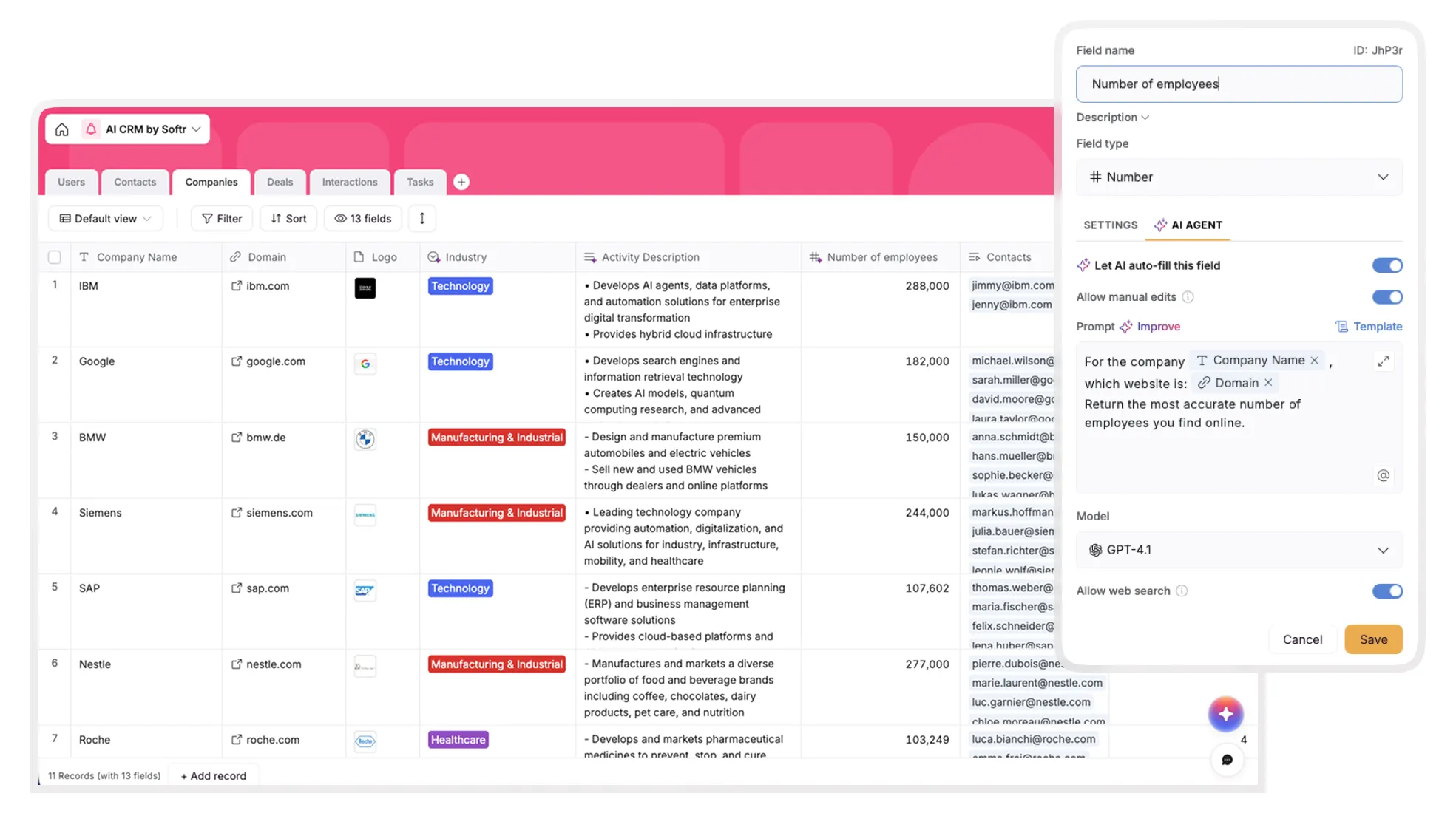
The Result: As soon as a website is added to this table, Softr's AI will browse the web and fill in the description and employee count instantly.
Part 2: Managing relationships (Contacts & Deals)
Now we need to handle the people we interact with and the revenue opportunities.
2.1. Configure the "Contacts" table
We separate Contacts from Companies so we can link multiple people to one business entity.
Create a Contacts table with these fields:
- Email: Primary Key (Type:
Email). - First Name / Last Name / Job Title / Phone: (All Type:
Text). - Company:
- Add a
Link to another recordfield. - Connect it to the Companies table.
- Note: Ensure "Allow linking to multiple records" is disabled, as a contact usually belongs to only one company.
- Add a
- Contact Owner:
- Add a
Link to another recordfield connecting to the Users table. This assigns a sales rep to the lead.
- Add a
2.2. Configure the "Deals" table
This table tracks your pipeline. We will also prepare specific fields here to handle incoming "Demo Requests" from your app's public website.
Create a Deals table with these fields:
- Deal Name: Primary Key (Type:
Text). - Amount (ARR): (Type:
Currency, set to USD). - Stage: (Type:
Select). Add options to match your sales process, such as New Opportunity, Negotiation, Closed Won, and Closed Lost. - Close Date: (Type:
Date). - Demo Request Fields:
- Create fields for
Demo Request Email,Demo Request First Name, andDemo Request Message. - Why? When we build the full app interface, the public form will submit data directly into these fields, automatically creating a new deal record.
- Create fields for
- Relationships:
- Company: Link to Companies.
- Deal Owner: Link to Users.

Part 3: Activity tracking (Interactions & Tasks)
To make your CRM truly "intelligent," you need data history. These tables store the context that Softr's AI will later use to summarize deal progress.
3.1. Configure the "Interactions" table
This table acts as a log for every touchpoint—emails, calls, and meetings.
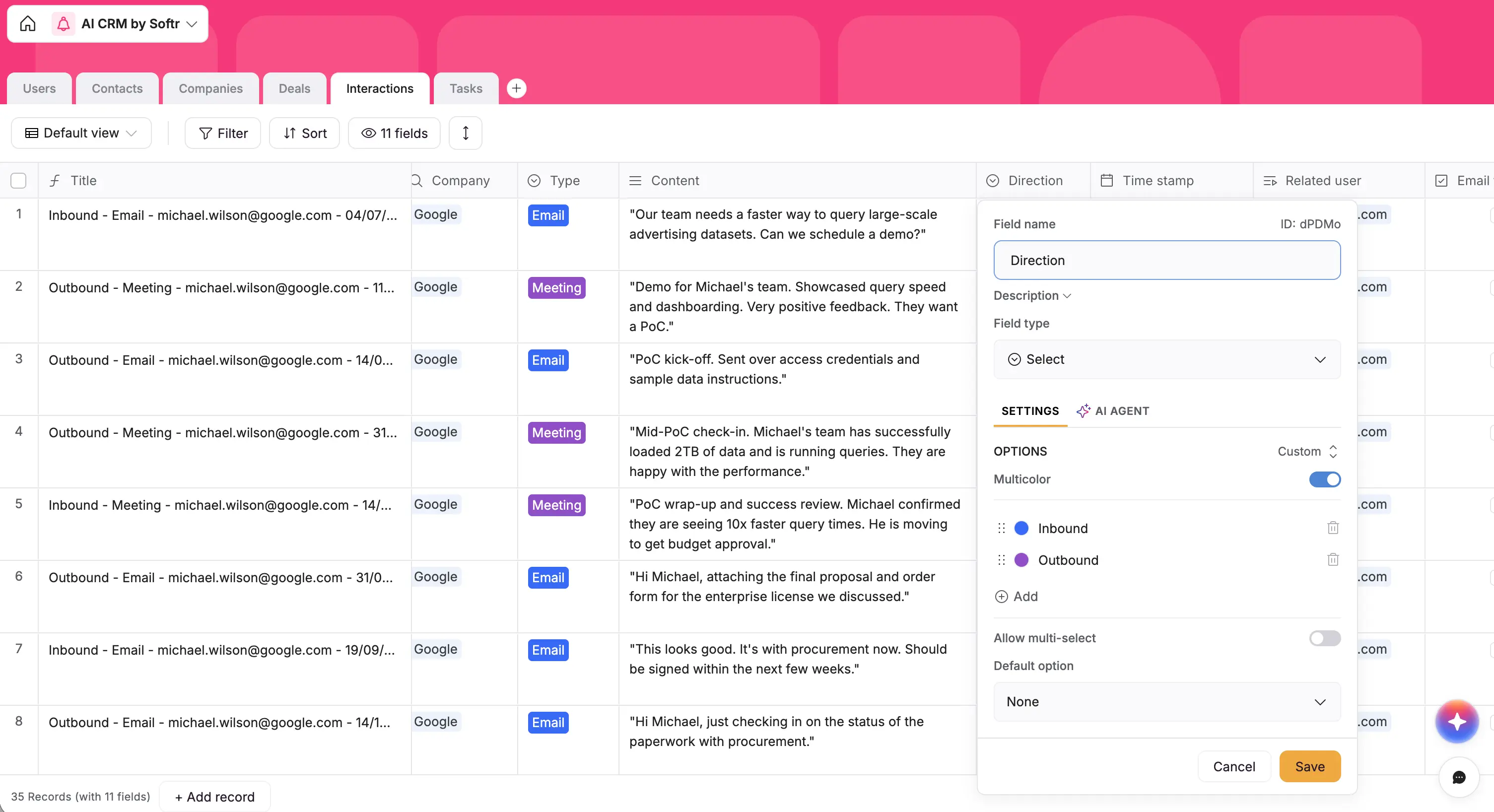
Create an Interactions table:
- Title: (Type:
Formula). Use a formula to auto-generate a title, for example:CONCAT(Type, " - ", Date). - Type: (Type:
Select) with options like Email, Call, Meeting. - Content: (Type:
Long Text). This stores the email body or meeting notes. - Email Logic Fields:
- Create
Email Subject(Text) andEmail Body(Long Text). - Create a
Email to send?(Checkbox) field. - Why? In the full app tutorial, we use these specific fields to trigger a Softr Workflow that actually sends an email from the app.
- Create
- Relationships: Link to Contacts (so you know who you spoke to).
3.2. Configure the "Tasks" table
Finally, a simple table to manage your team's to-dos.
Create a Tasks table:
- Task Name: (Type:
Text). - Status: (Type:
Select) for To Do, In Progress, Done. - Relationships: Link to Deals (to associate work with revenue) and Users (to assign the task).
From database to full-stack app
You now have a "smart" database structure. You have relational data that accurately reflects B2B sales, AI agents ready to enrich your leads, and specific fields prepared to handle automation.
But a database is just the backend. To turn this into a usable tool for your team, you need an interface.
This is where Softr's power as a full-stack builder comes in. Because your data is natively stored in Softr, you can instantly build the frontend—dashboards, Kanban boards, and forms—without any complex integrations. Or, connect your favorite AI assistant through the Softr MCP to create tables, add fields, and update CRM records from your prompts.
Next Steps:
- Build the Interface: Create a public "Request a Demo" form and a private Sales Rep dashboard.
- Build the Workflows: Set up the automation that sends emails when you check the
Email to send?box we created.
Ready to finish the build? Read our step-by-step guide to building the full AI CRM interface here.
If you prefer to start with this exact database and interface already built for you, you can use our AI CRM Template. Happy building!
Frequently asked questions
What is the best way to structure a B2B CRM database?
Why should I use a relational database instead of a spreadsheet for my CRM?
How can I use AI to automatically enrich my CRM database?
What are the essential tables needed for a functional sales CRM?
Can I build a frontend interface directly on top of my Softr CRM database?