10 best workflow management tools in 2026


I tested 10 workflow management tools to see which ones can automate processes across your entire business. Every tool here tracks work through defined stages, which is what separates workflow management from pure automation and project management.
Workflow management vs. workflow automation vs. project management
These three categories overlap enough that vendors often use the words interchangeably. But, technically, they solve different problems:
- Workflow management is about visibility and control over multiple repeatable processes. You define the stages a piece of work passes through, who owns each stage, and what has to be completed before it moves on.
- Workflow automation is about removing manual steps. When a trigger fires,the software carries out actions without a person involved.
- Project management is about planning and scheduling work that has a start and an end date.
Workflow management assumes the same process runs again and again, while project management assumes each project is different. If your team handles the same kind of request over and over again, you want a workflow management tool (which includes automation).
The 10 best workflow management tools at a glance
All prices reflect the monthly rate billed annually as of September 2026.
1. Softr — best for built-in approval workflows and portals
.webp)
Every other tool on this list asks you to run your process inside their product. Softr is the one that lets you build the product. You describe the process, and the AI Co-Builder generates the database, the pages, the user groups, and the permissions behind them.
That difference matters most for approvals. A purchase request, a time-off request, or a client change order usually involves people who don't work for you, or who shouldn't see everything. In a shared board, you either give them a seat and hope the visibility rules hold. The alternative is collecting the request by email and losing the trail. In Softr, the requester logs into a client portal, sees only their own submissions, and the approver sees only the queue assigned to them.
Softr key features
- Request and approval tracking: Build multi-step approvals with conditional routing, then trigger them from a button click or a form submission inside the app.
- User groups and permissions: Show or hide whole pages, individual blocks, and single action buttons based on who is logged in. Groups can update themselves from a database field, such as account type.
- Status visibility for everyone involved: Give requesters a live view of where their item sits, so the "any update on this?" messages stop.
- Softr Databases, plus 21+ external data sources: Start with the native relational database, or connect Airtable, Google Sheets, Notion, HubSpot, and more with live sync.
- AI steps inside a workflow: Insert a prompt mid-process to categorize, summarize, or enrich a record before a human reviews it.
- Instant data triggers: Workflows fire the moment a record changes in Softr Databases, with no polling delay.
Softr pros and cons
Pros:
- The approval process and the interface people use live in the same place
- Permissions are granular enough for external users, not just teammates
- Non-developers can build and change the process themselves
- Free plan includes real workflow actions rather than a trial clock
- Connects to the data you already have instead of asking you to migrate
Cons:
- Not a standalone project management tool, so there's no Gantt chart or sprint board waiting for you out of the box
- You're building the thing that tracks the work, which takes an afternoon that adopting a finished app doesn't
Softr pricing
- Free: 3 builders, 5 app users, 5,000 database records, 500 workflow actions a month.
- Basic ($19/month): Custom domain and conditional form logic. 5 Team and 5 Client app users, 50,000 records, 2,500 workflow actions.
- Pro ($99/month): Advanced permissions, custom code, and external API calls. 10 Team and 50 Client app users, 500,000 records, 10,000 workflow actions.
- Business ($329/month): Two-factor authentication, installable mobile app, and domain-restricted signup. 30 Team and 100 Client app users, 1 million records, 25,000 workflow actions.
- Enterprise: Custom pricing with SSO, SCIM, and audit logs.
Who Softr is best for
Operations, HR, and client-facing teams that handle the same request over and over.
2. monday.com — for visual, cross-team workflow boards
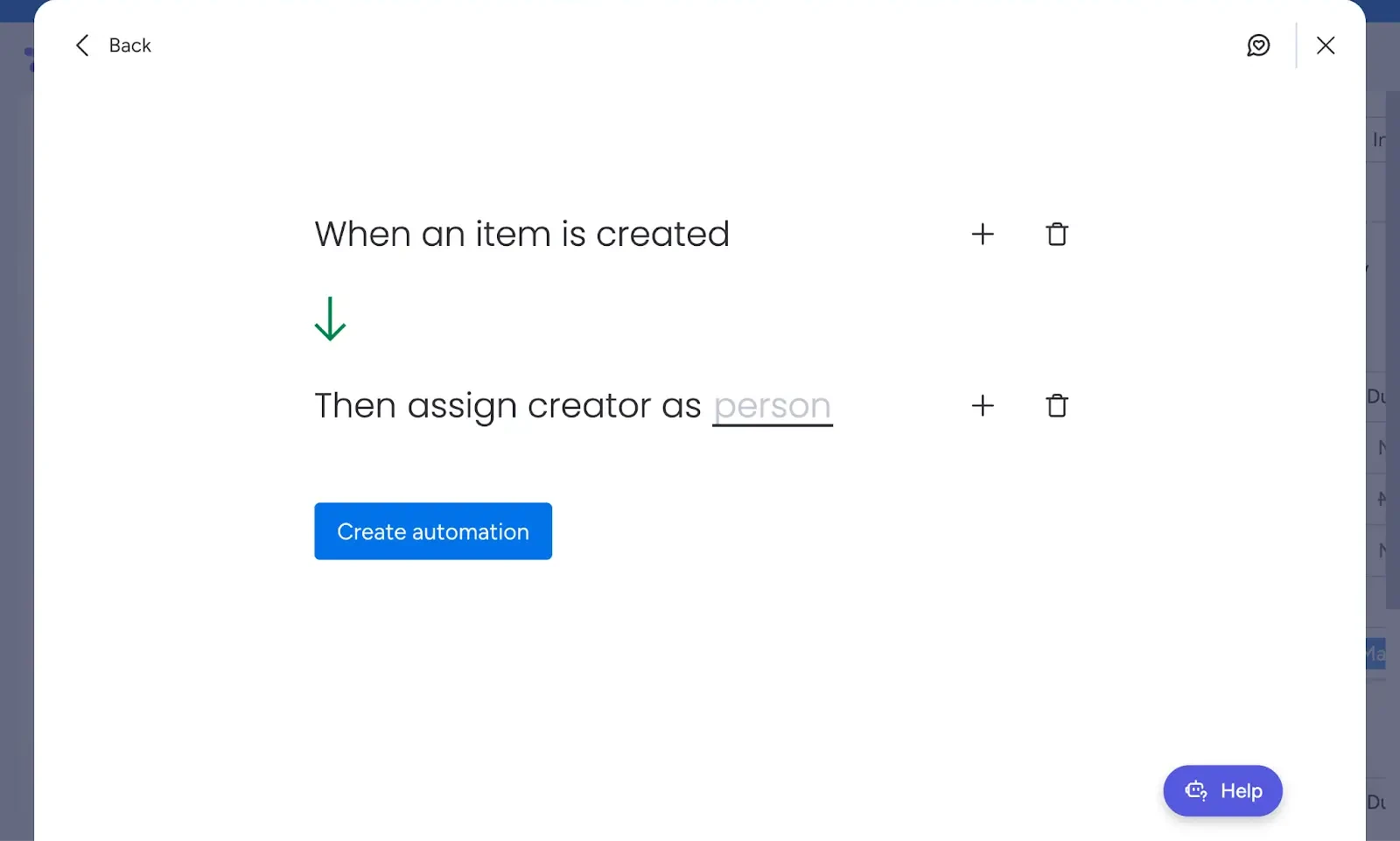
monday.com turns a process into a color-coded board that anyone can read at a glance. Each row is an item, each column is a piece of information, and status columns drive the automations.
The strength here is adoption. A team that has resisted every process tool you've tried will usually accept a monday.com board. It looks like a spreadsheet that happens to be prettier. That makes it a reasonable choice when the hard part of your rollout is people rather than logic.
monday.com features
- Status-driven automation recipes: Pick a trigger and an action from a plain-language menu, such as "when status changes to Approved, notify the requester."
- Cross-board dependencies: Connect items across boards so one team's completion moves another team's queue.
- Dashboards: Roll up several boards into one view for workload, timeline, or throughput.
- Forms: Collect requests into a board without giving the submitter a seat.
monday.com pros and cons
Pros:
- Easy for non-technical teams to pick up
- Board view makes a stalled item visually obvious
- Large template library for common processes
Cons:
- Automations don't exist on the free plan at all
- The 250 actions a month on Standard runs out fast on a real process
- External collaborators need seats or a limited guest role
monday.com pricing
- Free: 2 seats, 3 boards, no automations.
- Basic ($9/seat/month): Unlimited items and viewers, still no automation actions listed.
- Standard ($12/seat/month): 250 automation actions a month.
- Pro ($19/seat/month): 25,000 automation actions a month.
- Enterprise: Custom pricing, 250,000 actions a month.
Who monday.com is for
Cross-functional teams that want one shared board per process, and who care more about everyone actually using it than about deep conditional logic.
3. Wrike — for structured workflows at enterprise scale
Wrike is built for organizations where a process has to look the same in every office. Custom request forms feed into blueprinted project structures, and approvals are a first-class object rather than a status column.
It's also the tool on this list with the biggest gap between what the pricing page implies and what you'll actually pay. The workflow automation engine, Wrike Integrate, is a separate add-on with custom pricing. Budget for it if automation is the reason you're shopping.
Wrike features
- Custom request forms: Route an intake form to different teams and templates based on the answers.
- Approvals with versioning: Attach approvals to specific deliverables and track each round of feedback.
- Blueprints: Reusable project and folder structures so every instance of a process starts identically.
- Advanced reporting: Cross-project reporting and BI on the higher tiers.
Wrike pros and cons
Pros:
- Request forms and blueprints handle genuinely complex intake
- Approval and proofing tools are stronger than most competitors here
- Scales to hundreds of users on a single plan
Cons:
- Wrike Integrate is a paid add-on with unpublished pricing
- The Team plan caps at 15 users, so growing teams hit a forced upgrade
- Configuration is a project in itself, not an afternoon
Wrike pricing
- Free: Core task management with board and table views.
- Team ($10/user/month): 2 to 15 users, shareable dashboards, Gantt charts.
- Business ($25/user/month): 5 to 200 users, custom workflows, templates.
- Pinnacle and Apex: Custom pricing for advanced resource planning and enterprise automation.
Who Wrike is for
Mid-market and enterprise teams with a formal intake process, several departments involved, and someone whose job includes owning the tool.
4. Asana — for marketing and creative team workflows
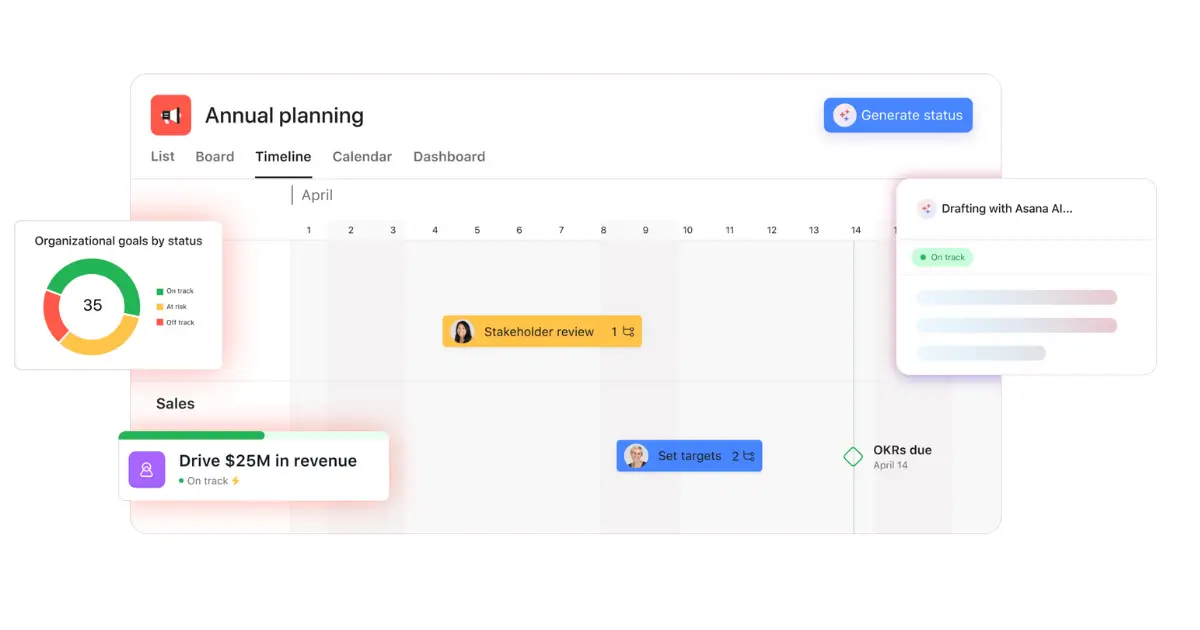
Asana is project management software that has grown a solid workflow layer. Rules, forms with branching logic, and approval tasks all work well, and unlike most competitors they're not metered.
That unmetered automation is the reason Asana belongs on this list. On the Starter plan at $10.99 a user, you get unlimited rules. monday.com charges $19 a seat before you get past 250 actions a month.
Asana features
- Unlimited rules on every paid tier: Build as many triggers and actions as you need without watching a counter.
- Forms with branching logic: Show different questions based on earlier answers, then route the request automatically.
- Approval tasks: A distinct task type that asks for approve, request changes, or reject.
- Workflow builder: Assemble intake, routing, and handoffs visually on a canvas.
Asana pros and cons
Pros:
- Unlimited automations from the entry paid plan
- Proofing and approvals suit creative review cycles
- Clean interface that teams adopt quickly
Cons:
- Free plan caps at 2 users, which rules out most team pilots
- Built around tasks, so structured records with many fields feel awkward
- External requesters need a seat or a shared form link with no status visibility
Asana pricing
- Personal: Free for up to 2 users.
- Starter ($10.99/user/month): Unlimited rules, forms with branching, workflow builder.
- Advanced ($24.99/user/month): Approvals, proofing, portfolios, and goals.
- Enterprise: Custom pricing with advanced admin and security controls.
Who Asana is for
Marketing, creative, and agency teams running review and approval cycles on deliverables, where the work has already been organized as tasks.
5. ClickUp — for docs, tasks, and workflows in one tool
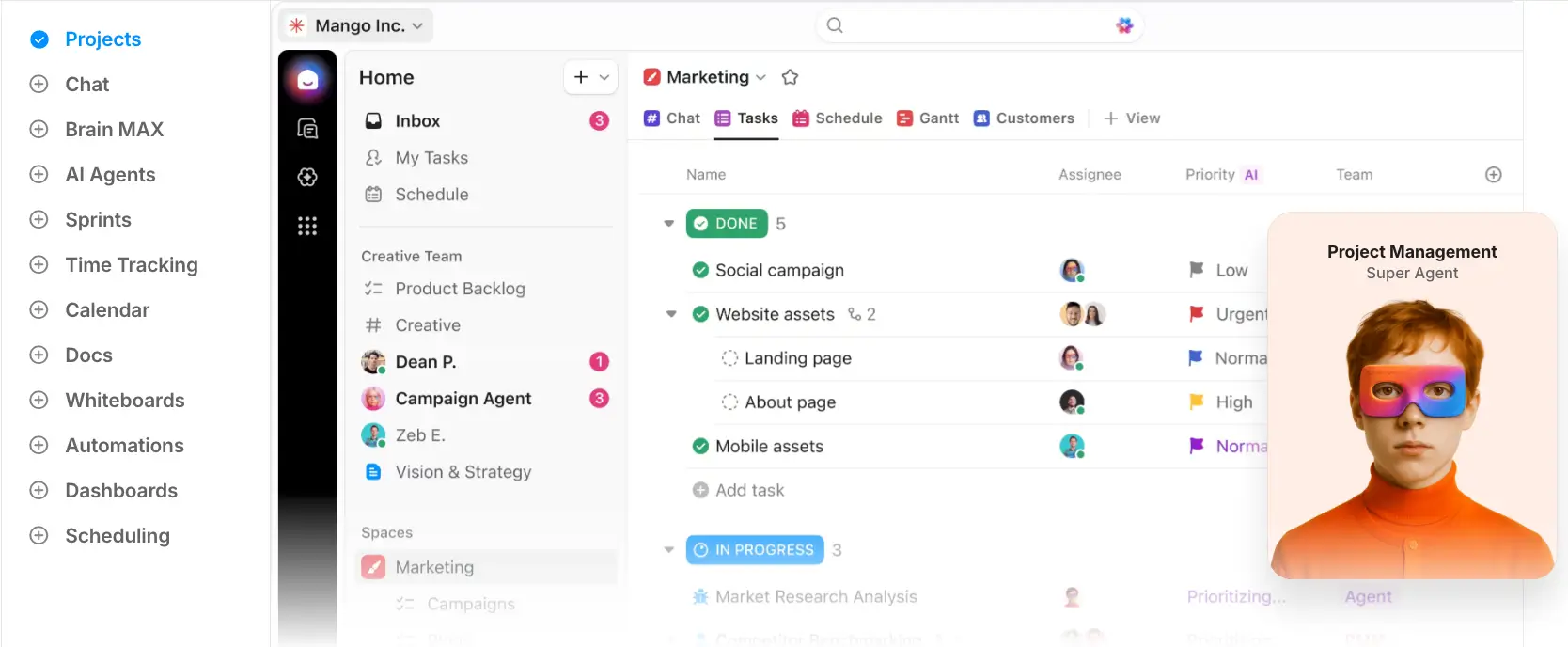
ClickUp bundles tasks, documents, whiteboards, dashboards, and automation into a single product at a low per-seat price. If your process documentation currently lives in one tool and the work in another, keeping both in ClickUp removes a real source of drift.
The free plan deserves a mention, because it's the only one here with unlimited users. Five automation rules and 100 monthly runs won't carry a production process, but they're enough to prototype one.
ClickUp features
- Custom statuses per list: Define the exact stages of your process instead of adapting to fixed ones.
- Automations with conditions: Trigger on status, field changes, or time, then branch on conditions.
- Docs linked to tasks: Keep the written procedure attached to the work it describes.
- Form conditional logic: Available from the Business tier for routing intake.
ClickUp pros and cons
Pros:
- Lowest per-seat price of the established tools here
- Free plan supports unlimited users
- Custom statuses map cleanly onto real process stages
Cons:
- The number of features makes setup slow and choices hard to reverse
- Automation runs are metered at every tier below Enterprise
- Performance can lag on large workspaces
ClickUp pricing
- Free Forever: Unlimited users, 5 active rules, 100 automation runs a month.
- Unlimited ($7/user/month): 500 rules, 1,000 runs a month, unlimited storage.
- Business ($12/user/month): Unlimited rules, 5,000 runs a month, conditional form logic.
- Enterprise: Custom pricing, 250,000 runs a month.
Who ClickUp is for
Small and mid-sized teams that want their procedures, tasks, and automations in one subscription (and who have someone willing to own that initial setup).
6. Smartsheet — for spreadsheet-style workflows

Smartsheet gives you a grid that behaves like a spreadsheet and a workflow engine that behaves like software. For teams that already run their process in Excel, it's the shortest migration path on this list.
Approval requests are the standout feature. You send a row to an approver, they respond from an email without logging in, and the sheet updates. That single behavior solves the most common reason approvals stall.
Smartsheet features
- Approval requests by email: Approvers act without a license or a login.
- Unlimited free contributors: People can view and update shared sheets without a paid seat.
- Automated workflows: Time-based, condition-based, and recurring rules built visually.
- Formulas and cross-sheet references: Real spreadsheet logic across connected sheets.
Smartsheet pros and cons
Pros:
- Unlimited free contributors keep license costs down
- Email approvals remove friction for occasional participants
- Familiar to anyone comfortable in a spreadsheet
Cons:
- No free plan, only a 30-day trial
- Pro caps at 10 members and 250 automations a month
- Most of the interesting capabilities are paid add-ons with separate pricing
Smartsheet pricing
- Pro ($9/member/month): 1 to 10 members, unlimited contributors, 250 automations a month.
- Business ($19/member/month): 3+ members, unlimited automations, unlimited free guests.
- Enterprise: Custom pricing, 10+ members, SAML SSO.
- Advanced Work Management: Custom pricing, adds Control Center, Dynamic View, and Data Shuttle.
Who Smartsheet is for
Operations and PMO teams migrating a mature spreadsheet process, especially where approvers are occasional participants who won't log into another tool.
7. Airtable — for database-driven task workflows
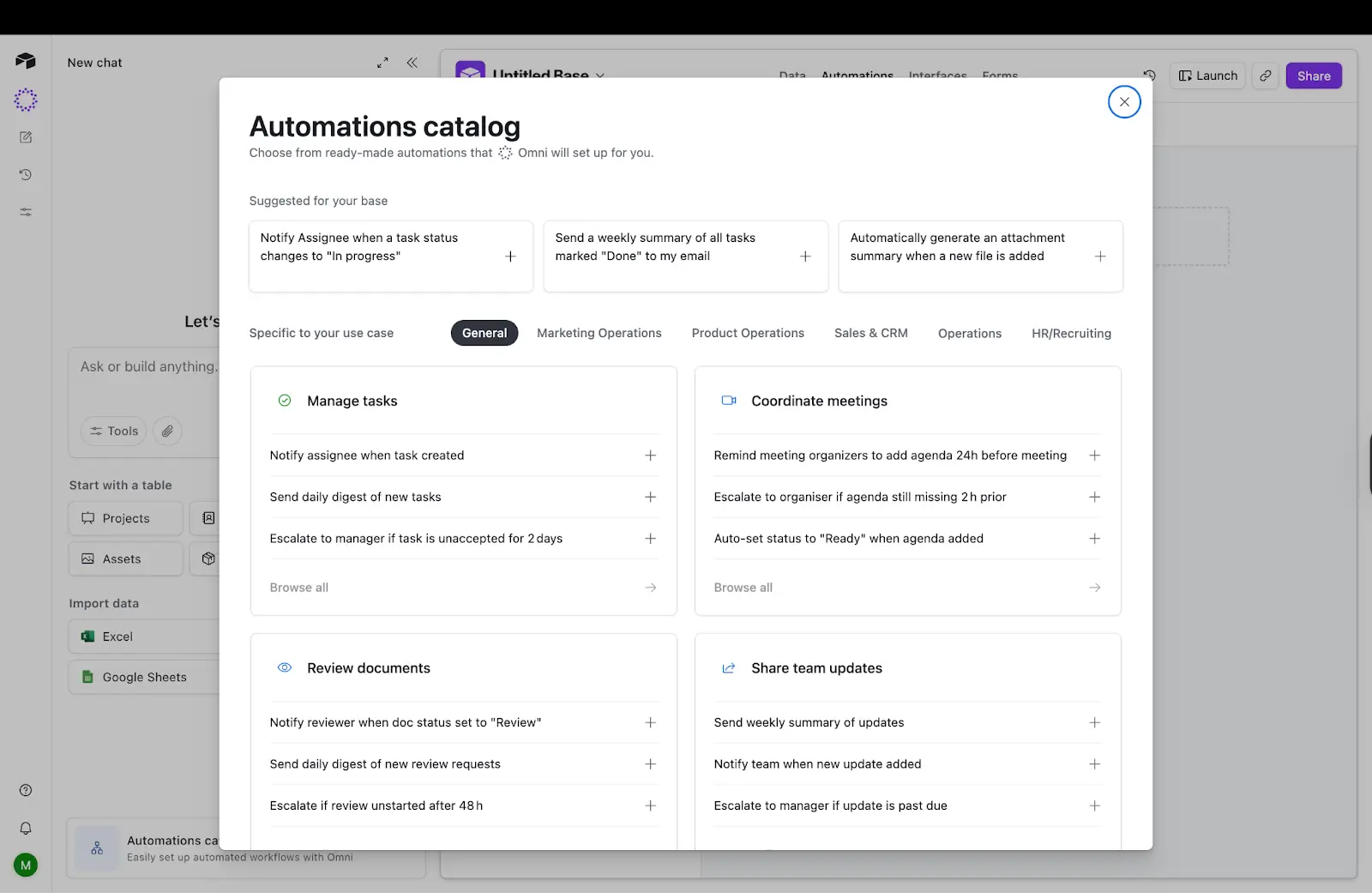
Airtable is a relational database wearing a spreadsheet interface, with automations and an interface builder on top. When your process is really about records and their relationships, it models that better than any task-based tool here.
Interface Designer is what makes it viable for workflow management rather than just data storage. You can give a team a filtered view with only the fields they need. Sharing that view with people outside your organization is where costs start climbing, because portals are a paid add-on.
Airtable features
- Linked records: Model the real relationships between requests, people, projects, and assets.
- Automations: Trigger on record changes, forms, or schedules, with scripting available for complex steps.
- Interface Designer: Build filtered, role-appropriate views without writing code.
- Views: Grid, kanban, calendar, timeline, and gallery over the same underlying data.
Airtable pros and cons
Pros:
- Best data model of any tool on this list
- Generous automation limits on paid tiers
- Interface Designer is included rather than an upsell
Cons:
- Portals for external users are a paid add-on starting at $120 a month for 15 guests
- The free plan allows only 1,000 records per base
- Complex automations become hard to debug and hand over
Airtable pricing
- Free: 5 editors, 1,000 records per base, 100 automation runs a month.
- Team ($20/seat/month): 50,000 records per base, 25,000 automation runs, standard sync.
- Business ($45/seat/month): 125,000 records per base, 100,000 automation runs, SAML SSO.
- Enterprise Scale: Custom pricing, 500,000 records per base, 500,000 automation runs.
Who Airtable is for
Ops teams whose process centers on structured records with real relationships, and who don't need many external people logging in.
8. Pipefy — for no-code process and approval workflows
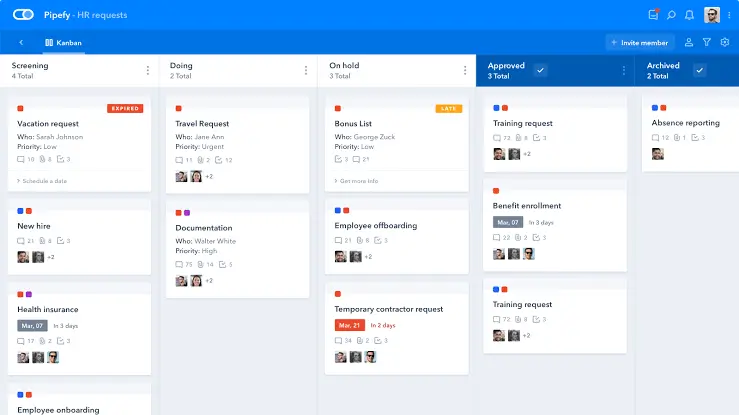
Pipefy is one of the few tools here designed for workflow management from the start rather than adapted into it. You define a pipe, which is a process with fixed phases, and every request moves through those phases in order.
The model suits back-office work well. Finance, HR, and procurement teams get conditional logic, required fields per phase, and SLA tracking without configuring a general-purpose tool into shape.
Pipefy features
- Pipes with fixed phases: Enforce the order of a process rather than trusting people to follow it.
- Conditional logic: Change required fields and routing based on earlier answers.
- Request tracker: Give submitters a portal to check status without a full seat.
- Electronic signature: Included from the Business tier.
Pipefy pros and cons
Pros:
- Purpose-built for structured, repeatable processes
- Free tier allows 10 users, which is generous for piloting
- SLA tracking and phase-level rules come standard
Cons:
- Paid pricing isn't published, so you can't compare without a sales call
- 300 automation jobs a month on Business is low for a busy process
- Weaker than the task tools for anything project-shaped
Pipefy pricing
- Starter: Free for up to 10 users, 5 processes, 50 cards a month, 500 database records.
- Business: Quote only. Unlimited processes and users, 10,000 database records, 300 automation jobs a month.
- Enterprise: Quote only. Adds SSO, white label, and 2,000 automation jobs a month.
Who Pipefy is for
Back-office teams in mid-market companies running structured intake processes, who can accept a sales conversation to get a price.
9. Process Street — for documented recurring checklists
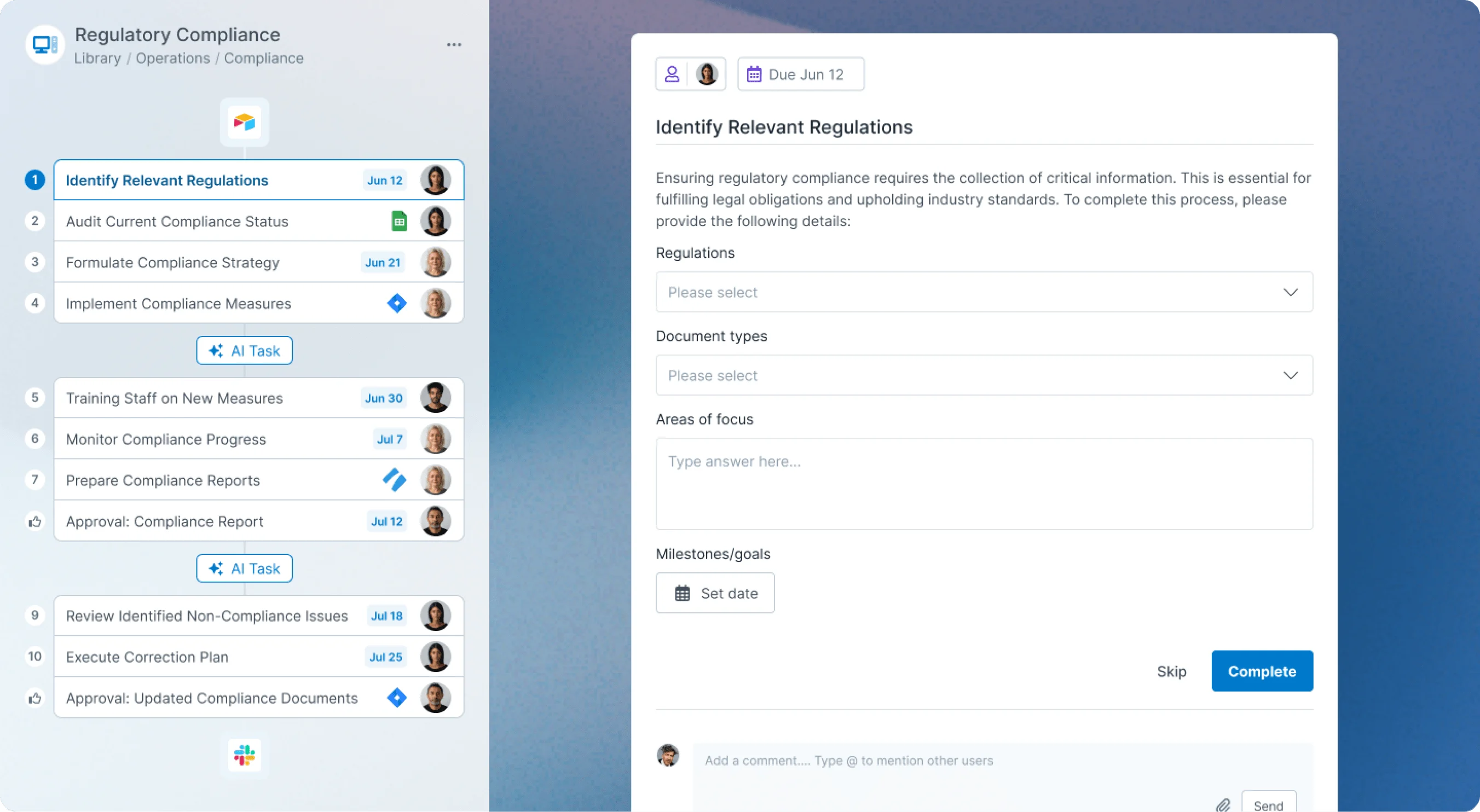
Process Street treats the written procedure as the product. You build a template of the process, then run an instance of it every time the work comes up, with each run tracked separately.
That's the right shape for compliance-adjacent work. Employee onboarding, client onboarding, and monthly close all benefit from proof that every step happened, in order, with a name attached.
Process Street features
- Templates and runs: One master procedure, tracked separately each time it executes.
- Conditional logic: Reveal or skip steps based on earlier answers.
- Approvals: Route a step to an approver before the run continues.
- Data sets: Reusable reference data available across workflows.
Process Street pros and cons
Pros:
- Strongest audit trail on this list for repeated procedures
- Keeps documentation and execution in the same object
- Conditional logic is available on the entry plan
Cons:
- No free plan, only a 14-day trial
- Pricing isn't published at any tier
- 100 automation actions a month on Startup is restrictive
Process Street pricing
- Startup: Quote only. 5 paid seats, unlimited workflows, 100 automation actions a month, 5,000 data set records.
- Pro: Quote only. Unlimited automation apps, custom action and API limits.
- Enterprise: Quote only. Adds process consulting, data residency, and private cloud.
Who Process Street is for
HR, compliance, and client onboarding teams that need to prove a procedure was followed from start to finish.
10. Cflow — for pure approval and BPM automation
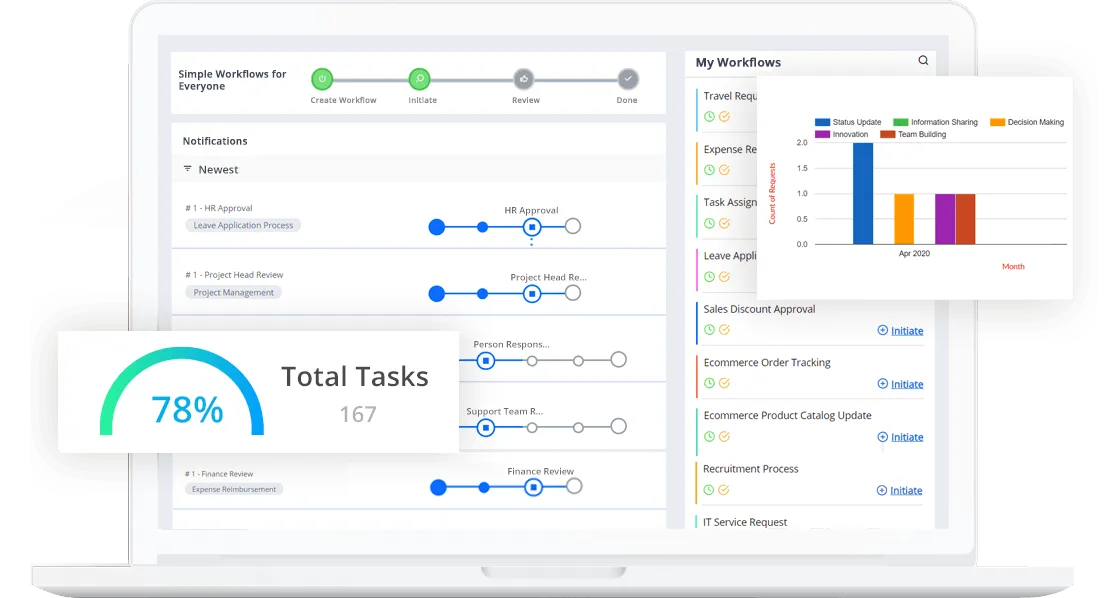
Cflow is business process management (BPM) software with the enterprise features and none of the app-building ambitions. Visual workflow design, parallel approval stages, escalation rules, and SLA triggers are all standard on the entry plan.
Check the seat minimum before you get attached. The entry tier requires 10 users at $20 each, so the real starting price is $200 a month. The next tier up requires 20.
Cflow features
- Parallel approval stages: Send one request to several approvers at once rather than in sequence.
- Escalation and SLA rules: Automatically escalate when a stage sits too long.
- Rule-based routing: Direct requests down different paths based on field values.
- 50+ form field types: Build detailed intake forms without custom development.
Cflow pros and cons
Pros:
- Approval features are deeper than any generalist tool here
- SLA and escalation handling comes standard rather than as an upgrade
- Published per-seat pricing, which is rare in this category
Cons:
- 10-user minimum makes the real entry price $200 a month
- Entry tier caps at 20 workflows
- No app-building flexibility, so anything outside an approval process needs another tool
Cflow pricing
- Joy ($20/user/month): 10-user minimum, 20 workflows, SLA configuration, basic integrations.
- Bliss ($30/user/month): 20-user minimum, 50 workflows, advanced rules engine, API access.
- Zen: Custom pricing, 100+ users, unlimited workflows, SAML authentication.
Who Cflow is for
Mid-market and enterprise teams that need approval and BPM automation specifically. You'll want at least 10 people who need access, and no expectation that the tool does anything else.
How to choose a workflow management tool
- Is the work recurring or one-off? If the same process runs dozens of times a month with fixed stages, you want workflow management.
- Do you need approvals and permissions? Approvals change the shortlist. Softr, Pipefy, Cflow, and Smartsheet handle them as real objects with routing and audit trails.
- Does the process need a front end for people outside your team? Clients, vendors, and contractors submitting requests need to see their own items and nobody else's. Airtable charges for portals as an add-on. Softr includes app users on every plan, including Free.
- What does the pricing model actually charge for? Per-seat pricing punishes you for including occasional participants. Metered automation punishes you for a busy process. Smartsheet's unlimited contributors and Softr's app-user model both avoid the first trap. Asana's unlimited rules avoids the second.
- Who is going to build and maintain it? Wrike and ClickUp reward a dedicated owner. monday.com and Asana are the easiest to hand to a team with nobody assigned. Softr sits in between: while the AI Co-Builder does the initial setup, somebody still has to decide how the process should work.
Any of these ten will track a process. But with Softr, you get approvals with real routing, permissions granular enough for clients and vendors, and app users included with every plan. Try Softr for free and describe your process to the AI Workflow Co-Builder to see what it builds.
This article was originally published in Mar 2026. The most recent update, with contributions from Dylan Reber, was in Sep 2026.
Frequently asked questions
What's the difference between workflow management and workflow automation?
Is Asana a workflow management tool?
Can I build approval workflows without code?
What's the best free workflow management tool?
Do I need a workflow management tool if I already use project management software?