Google Sheets vs Excel: Which tool is right for you in 2026

.webp)
[.blog-callout]
✨TL;DR:
- Google Sheets is built for collaboration. It’s cloud-first, easy to share, and simple for teams to work together in real time. Best for everyday tracking and lightweight reporting.
- Microsoft Excel is built for depth. It’s stronger for complex calculations, financial modeling, and heavy reporting, especially in its desktop version.
- Softr is the best of both worlds. It combines the familiarity of spreadsheets with the structure of a relational database. It adds linked tables, granular access control, scalability, and the ability to turn your data into full business apps.
[.blog-callout]
When looking for a spreadsheet to organize and analyze data, most teams turn to Google Sheets or Excel. They’re familiar, quick to set up, and flexible enough to support everything from simple task tracking to financial reporting.
But despite their similarities, they have different strengths. Google Sheets is cloud-first, runs in your browser, and makes collaboration easy. Excel is built for advanced modeling, complex calculations, and deeper data analysis, especially in its desktop version.
In this guide, we’ll compare Google Sheets vs Excel in 2026, break down where each tool works best, and explain when it makes sense to move beyond spreadsheets to a more scalable option like Softr.
Google Sheets vs Excel at a glance
What is Google Sheets?
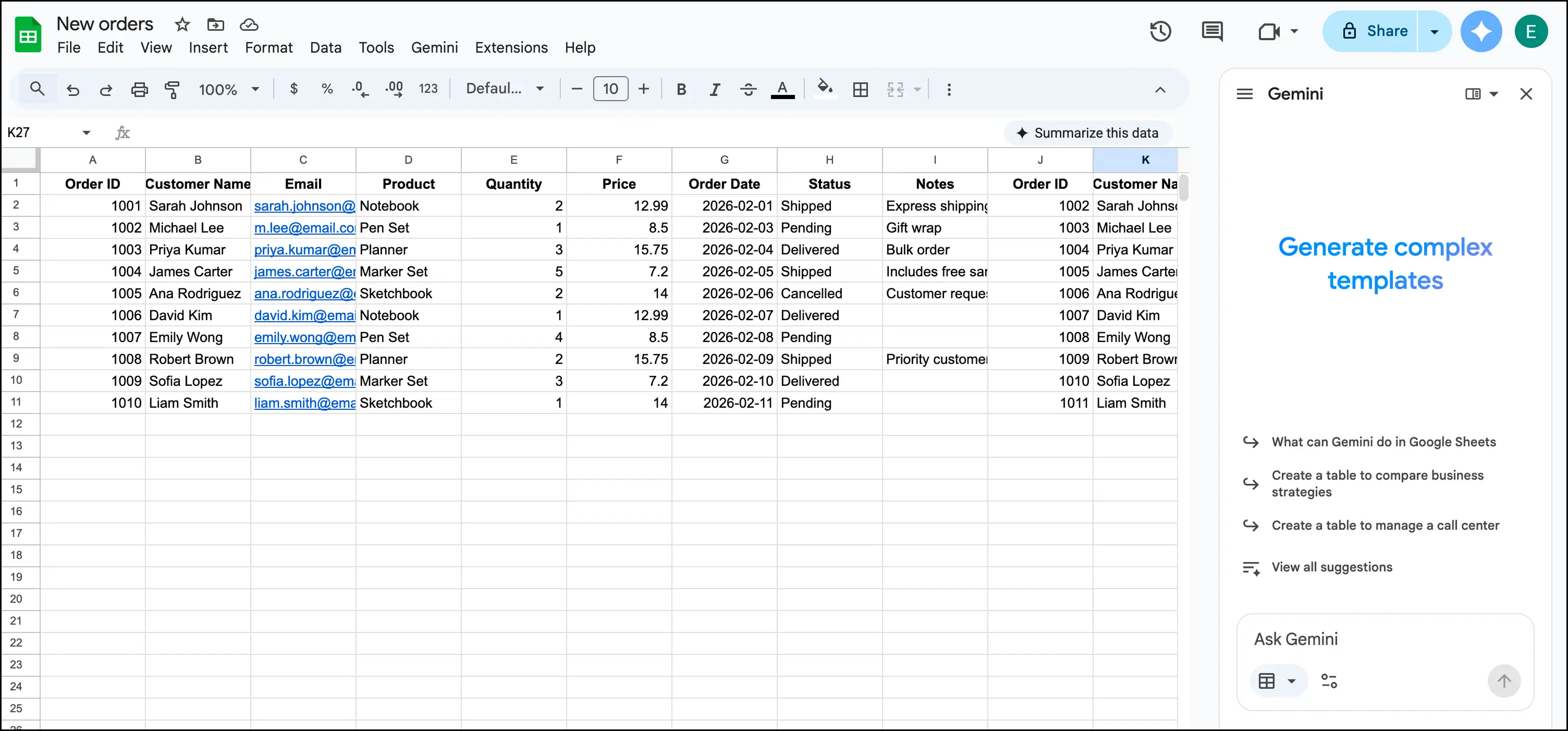
Google Sheets is a free, cloud-based spreadsheet tool that’s part of Google Workspace, a productivity suite that also includes Gmail, Google Docs, Google Drive, and Google Slides.
Teams often choose Google Sheets because it’s simple to set up and easy to share. You can create a spreadsheet in your browser, send a link, and start collaborating on worksheets with different levels of permissions right away. Since everything runs online, teammates don’t need to install software to contribute.
Google Sheets stands out most in real-time collaboration. Like Google Docs, multiple people can edit and comment on the same spreadsheet at once and see updates as they happen. Every change is also tracked in version history, so you can review edits and restore earlier versions if needed.
Because it’s cloud-based, you can access your spreadsheets from any device without managing file versions. Google Sheets also has a mobile app (Android and iOS), so you can view and update spreadsheets on the go.
Google Sheets covers most everyday spreadsheet needs and works best for teams who want a no-cost solution that prioritizes speed, easy sharing, and collaboration.
Now let’s talk cell limits. Google Sheets supports up to ten million cells in a single workbook—and while that sounds like a lot, it’s nothing compared to Microsoft Excel’s 17 billion. But just because these programs can handle that much data doesn’t mean you should—if you’re getting close to these limits, it may be time to switch to a database. (More on that to come.)
Google Sheets key features
- Real-time collaboration and sharing: Multiple people can edit the same sheet at once, see changes as they happen, and leave comments for review.
- Offline access: Google Sheets is primarily online, but you can enable offline access and edit files without an internet connection. Your changes sync when you reconnect.
- Built-in analysis tools: Google Sheets supports common analysis workflows like pivot tables and calculated fields, so teams can summarize and slice data without exporting to another tool.
- Gemini in Google Sheets: Use AI to create tables and trackers, auto-fill data, generate formulas, analyze your data with questions, produce charts and graphs, and more.
- Automation with Apps Script: This lets you automate repetitive tasks in Sheets and across Google Workspace. You can trigger scripts on a schedule or based on events to clean data, generate reports, or send emails.
- Smart chips for richer, more connected data: Smart chips allow you to create interactive, rich data objects for people, files, calendar events, places, and finance entities. This can reduce context switching when you’re coordinating work across Google tools.
Google Sheets cons
- Performance slows as files get large or complex: Google Sheets can slow down with large datasets or more complex formulas.
- Basic access control: It grants Viewer, Commenter, or Editor access, but it’s not built for true role-based access (e.g., restricting specific users to specific rows or field-level permissions).
- Less advanced analysis and modeling than Excel: Google Sheets handles everyday spreadsheet work, but it doesn’t match Excel for advanced modeling and complex analysis.
Google Sheets pricing
Google Sheets is available in two main ways: free for personal use or included with Google Workspace for business use.
- Free: $0 with a standard Google account.
- Google Workspace:
- Business Starter: $7/user/month with 30GB pooled storage per user.
- Business Standard: $14/user/month with 2TB pooled storage per user.
- Business Plus: $22/user/month with 5TB pooled storage per user.
- Enterprise: Custom pricing (contact sales)
What is Microsoft Excel?
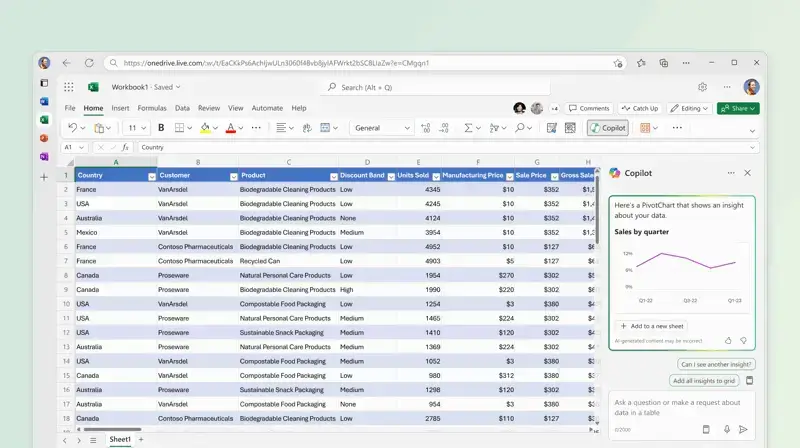
Microsoft Excel is a spreadsheet application in the Microsoft 365 suite, so it works alongside tools like Word, PowerPoint, Outlook, and Teams. Teams use Excel to organize data, run calculations, build financial models, analyze datasets, and create reports.
Excel is best known for its advanced formulas and functions, powerful PivotTables, and strong charting and visualization options. You can build everything from standard line and bar charts to more specialized visuals like stock or waterfall charts. If you need to present financial results or explain trends clearly, Excel provides customization and formatting options.
Most teams use Excel’s desktop application, which offers strong performance and processing power. It also includes tools like Power Query and Power Pivot for importing, transforming, and modeling data directly in Excel.
These capabilities make Excel especially appealing to teams working with large volumes of structured data or complex financial and analytical workflows.
While Google Sheets excels at real-time collaboration, ease of sharing, and cloud-based accessibility, Excel shines when working with very large datasets, complex formulas, advanced PivotTables, and high-performance data modeling. Excel also offers more powerful automation through VBA and Office Scripts, richer visualization options, and higher worksheet limits, making it better suited for intensive analytical or financial workflows. That said, Excel’s feature-dense interface can be a little offputting for users new to spreadsheets.
Microsoft Excel key features
- Automation with VBA and Office Scripts: Excel can automatically do repetitive tasks—like formatting reports, calculating totals, or creating charts. You just run a macro or script that completes everything with one click. You can even build mini-apps or tools inside your spreadsheet.
- Copilot in Excel: Uses AI to help you analyze data, build formulas, generate charts, and even create summaries or reports—so you can get insights faster without writing everything manually.
- Advanced formulas and analysis: Excel supports complex formulas and analysis workflows, including PivotTables and advanced calculation features. It’s often the go-to tool for forecasting, budgeting, and financial reporting.
- Power Pivot: Power Pivot lets you build data models, create relationships between tables, and run calculations in a high-performance environment inside Excel.
- High worksheet limits for large tables: An Excel worksheet supports up to 1,048,576 rows by 16,384 columns, which can be a plus when you’re working with massive datasets.
- Rich visualization options: Excel includes a wide range of charts and graphs, including advanced types like waterfall and sunburst charts. It also offers Recommended Charts, which suggest chart types based on your data to speed up reporting.
Microsoft Excel cons
- Steeper learner curve: Excel has more advanced features than Google Sheets, but that also makes it harder for casual or non-technical users to learn quickly.
- Lacks role-based access: It doesn’t offer native role-based permissions like restricting specific users to specific rows or fields.
- Performance can lag with heavy workbooks: Although Excel sheet handles larger datasets than Google Sheets (just about a billion, performance can still slow down with very large workbooks and heavy calculations.
Microsoft Excel pricing
Excel pricing depends on whether you want a one-time desktop license or a Microsoft 365 subscription.
- Excel desktop app (one‑time purchase): Around $179.99 for a perpetual license (Office suite) that includes Excel for one device.
- Microsoft 365 Personal: About $99.99/year (or $9.99/month), which includes Excel, Word, PowerPoint, Outlook, OneDrive with 1 TB storage, and Copilot features.
Microsoft 365 Family: About $129.99/year and supports up to 6 people with the same apps and storage (6 × 1 TB). - Microsoft 365 Business Basic: ~$6.00/user/month for web and mobile versions of Excel, Word, Outlook, Teams, and 1 TB cloud storage.
Microsoft 365 Business Standard: ~$12.50/user/month and includes web, mobile, and desktop Office apps (Excel, etc.) plus Teams and business services. - Microsoft 365 Business Premium: ~$22.00/user/month and includes everything in Standard plus advanced security and device management.
- Microsoft 365 Apps for Business: About $8.25/user/month with desktop Office apps (Excel, Word, PowerPoint, Outlook) and 1 TB OneDrive storage, but no Teams or business email.
Microsoft Excel vs Google Sheets: pricing
Both tools come bundled with a broader suite of workplace tools, are priced per user, and offer free trials. But their pricing offerings differ in the following ways.
Key differences
- Free plans: Google Sheets has a free plan for personal use. Microsoft also offers Excel for the web for free with a Microsoft account, but the full desktop experience usually requires a subscription or a one-time Office purchase.
- Storage: All Excel business plans (asides from Enterprise, which has up to 5TB) have 1TB of storage per user. But Google Sheets’ storage varies by plan, starting with 30GB per user for the Starter plan, to 5TB for Plus and Enterprise plans.
- Web and mobile versions: Some of Excel’s paid plans don’t offer desktop versions, but most higher-tier plans offer all three versions: web, mobile, and Desktop. But Google Sheets only has a web and mobile app version.
Verdict: Google Sheets is usually the cheaper option if you can work in the browser, since it’s free for personal use and included with Google Workspace plans. Excel becomes more expensive if you need the desktop app, because that typically requires a Microsoft 365 subscription or a one-time Office purchase. If storage is a deciding factor, Microsoft 365 business plans often include 1TB per user, while Google Workspace storage varies by plan.
Google Sheets vs Microsoft Excel: on Reddit
On Reddit, the debate between Google Sheets and Microsoft Excel usually comes down to performance, accessibility, and collaboration.
Compared to Google Sheets, many users say Excel handles larger amounts of data better.

Automation also comes up a lot. Many Excel users prefer VBA because it’s been around for longer and supports complex macros and workflows.
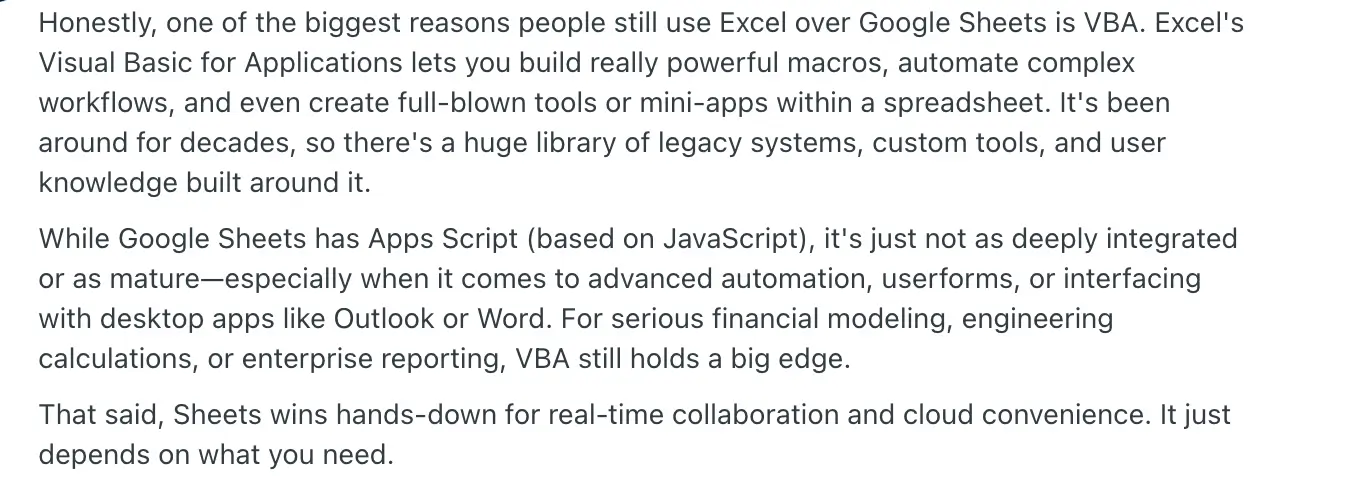
For Google Sheets, people love the tool’s collaboration and syncing capabilities. Multiple users can edit the same file at once, changes update in real time, and edits sync automatically across devices. Offline edits also sync once you reconnect.

Another reason customers love Google spreadsheet is its ease of use. Non-technical users can easily get started and start working without any setup or training.

Google Sheets vs Microsoft Excel: a summary
Google Sheets and Microsoft Excel are both spreadsheet tools that help you organize data, run calculations, and build reports. But they’re optimized for different ways of working.
- Google Sheets is easier for most teams to adopt, especially if you have non-technical users. It’s cloud-first, so sharing and collaborating are simple.
- Many finance and operations teams prefer Excel because it handles more demanding workbooks and supports advanced tools like Power Query and Power Pivot.
The best choice depends on what your business needs. If collaboration, sharing, and browser-based access matter most, choose Google Sheets. If you need more complex analysis, modeling, and desktop performance, choose Microsoft Excel.
But before you decide, it’s worth looking at a third option: Softr.
Softr Databases — the best no-code database for managing structured data and building full-stack business apps
.webp)
Google Sheets and Microsoft Excel work well for organizing, analyzing, and visualizing data. But they’re still spreadsheets, so they have their limitations. They start to break down when you need to manage shared data across teams, connect related records, and automate workflows without relying on fragile formulas.
Softr Databases solves this. It gives you a spreadsheet-style way to store and manage data, backed by the power and scalability of a real relational database. You can structure data with linked tables, set up custom views and filters, and then turn that same database into full-stack business apps like client portals, internal dashboards, or automated workflows, without hiring a developer.
Unlike traditional spreadsheets that get slower as you scale, Softr Databases is built to scale with fast load times, even as your data grows, and no API limits or sync delays from external backends.
Softr includes Workflow Automation, which lets you automate routine tasks, such as updating records, sending notifications, or moving data between tables. It also offers AI agents that help with repetitive data work. They can auto-fill or update fields in real time, search the internet and extract insights for research, and keep data clean.
Best for: Teams that have outgrown spreadsheets and need a more reliable way to organize and manage structured data as they grow.
Why teams choose Softr over Google Sheets and Microsoft Excel
Google Sheets and Microsoft Excel are two of the most widely used spreadsheet tools. But as teams grow, spreadsheets often stop being enough. Here’s why teams switch to Softr.
- They need a structured system to store, manage, and retrieve data: Spreadsheets store everything in a grid, which makes it hard to keep related data consistent. Softr Databases lets you build a relational database, link related records, and set up filtered views to keep information organized and easy to work with.
- They want a powerful free plan: Softr’s free plan includes more powerful features, like a built-in relational database, workflow automation, and app-building capabilities, that go far beyond what Google Spreadsheets’ free tier offers.
- They want to turn their data into business apps: Softr’s no-code app builder lets you build internal tools and portals on top of your databases, without exporting or migrating your data. You can also use drag-and-drop blocks to create user interfaces.
- They need a secure tool that scales with their business: Softr can handle millions of records and still maintain fast load times. It also meets GDPR and SOC 2 standards, with optional SSO for added security.
- They want built-in automation: Softr includes native workflow automation, including webhooks, scripts, advanced logic, and integrations, so routine processes run automatically.
- They want ready-made database templates: Choose from templates for common business needs like CRMs, inventory tracking, onboarding, and project management, so you can start with a proven setup instead of building from scratch.
- They want granular access control: Softr lets you define roles and permissions so you can control who can view or edit specific pages, records, or fields. This is especially useful when multiple departments and external users access the same system.
- They want AI to speed up database work: Database AI Agents automate field-level tasks to reduce manual data entry and cleanup.
Google Sheets, Microsoft Excel, or Softr: Which should you choose?
Google Sheets and Microsoft Excel are great for organizing data and sharing reports. So the choice between the two just depends on what is most important to you: collaboration and accessibility (Google Sheets), or advanced analysis and desktop access (Microsoft Excel).
But there’s a third option: Softr Databases.
Softr keeps the spreadsheet-style experience people like, but adds a relational database for structured data, stronger access control, and the ability to turn your data into full-stack business apps when you’re ready. Softr also doesn’t lag as your business grows and your datasets grow larger. It maintains the same performance.
If you only need a spreadsheet for tracking and reporting, Google Sheets or Excel will do the job. If you need a more reliable way to manage shared business data and workflows as you grow, choose Softr.
Frequently asked questions
Which is better, Google Sheets or Excel?
What is the disadvantage of Google Sheets?
What can Excel do that Google Sheets can't?